---
schema_version: "1"
id: 3278dd6015496de0bef61da815f495143abc057977da3f16ed71cd81aa988a5a
title: Prioritize Audiences in Aura Sites
collection: admin
version: current
locale: en-us
portal_url: https://docs.salesforce.com/admin/current/en-us/experience/264-0-0/networks_audiences_prioritize_audiences.md
canonical_url: https://help.salesforce.com/s/articleView?id=experience.networks_audiences_prioritize_audiences.htm&release=264.0.0&type=5
source_site: help.salesforce.com
content_type: documentation
content_hash: d31fd450db5cc9612a29b207724ee4266c1fb162bca3a14e97ade7d86ba72d15
description: When site visitors meet the criteria for more than one audience, you can prioritize which page variation, branding set, navigation menu, or CMS collection they see. To prioritize audiences, at least two audiences must be assigned to the page variation, branding set, or component variation.
products:
- Experiences
release: "264"
---
# Prioritize Audiences in Aura Sites
When site visitors meet the criteria for more than one audience, you can prioritize which page variation, branding set, navigation menu, or CMS collection they see. To prioritize audiences, at least two audiences must be assigned to the page variation, branding set, or component variation.
### Required Editions
Available in: Salesforce Classic and Lightning Experience
Available in: Enterprise, Performance, Unlimited, and Developer Editions
Create and Set Up Experiences AND View Setup and Configuration AND be a member
of the site
OR
View Setup and Configuration AND be a member of the site AND have appropriate
role-based site access
## Prioritize Audiences for Page Variations
Let’s say you have a page variation for all North American site members and one specifically for Canadian members. Canadian site members meet the criteria for two audiences, the broader North American audience and the more narrowly targeted Canadian audience. To prioritize which variation of the page is visible to Canadian members, adjust the order of the pages in the Page Variations panel.
1. In Experience Builder, open the Pages menu in the top toolbar, hover over the page that you want to work with, and click the Page Actions icon.
2. Click **Page Settings**, and open the Page Variations tab.
3. Drag the page variation that you want to show to the more narrowly targeted audience (1) into the first position on the priority list (2). In this case, the Home (Canada) page, assigned to your Members Canada audience, is in the first position on the priority list.
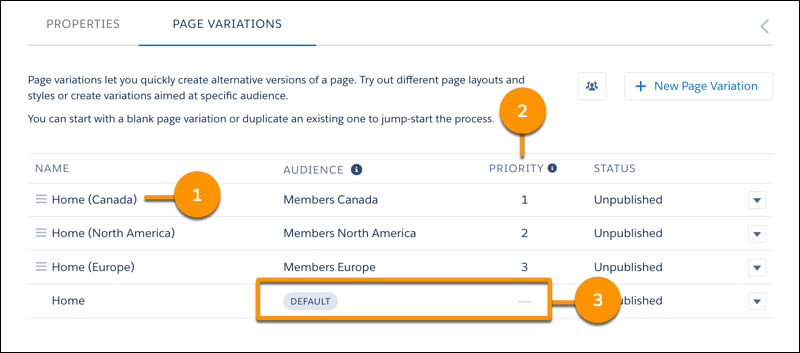
4. Drag the page for the more broadly defined audience into the second position on the priority list. In this case, the Home (North America) page, assigned to your Members North America audience, is in the second position on the priority list.
In this example, all site members in Canada now see the Canadian home page because it has first priority. Everyone else in the Members North America audience sees the North American home page. Site members who don’t fall into any audience see the default home page (3).
## Prioritize Audiences for Branding Sets
To vary the style and appearance of your site for different audiences, the process is similar. Let’s see how that works for the Canadian and North American audiences.
1. In Experience Builder, open the Theme panel, click the down arrow next to the panel title, and select **Manage Branding Sets**.
2. In the Branding Sets panel, click the list view option (1).
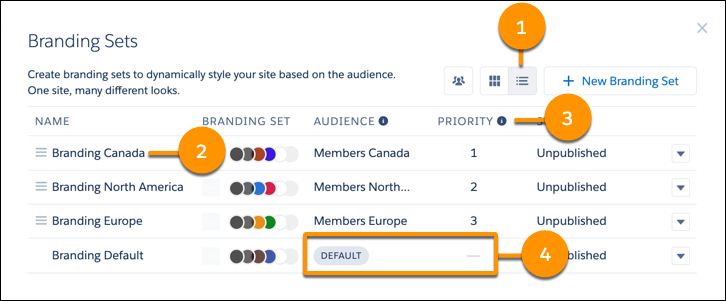
3. Drag the branding set that you want to show to the more narrowly targeted audience (2) into the first position on the priority list (3). In this case, the Canadian branding set, assigned to your Members Canada audience, is in the first position on the priority list.
4. Drag the branding set for the more broadly defined audience into the second position on the priority list. In this case, the North American branding set, assigned to your Members North America audience, is in the second position on the priority list.
In this example, all site members in Canada now see the look and feel of your site that you designed specifically for your Canadian audience. Everyone else in the Members North America audience sees the site branding that you designed for the broader North American audience. Site members who don’t fall into any audience see the look and feel that you designed for your default branding set (4).
## Prioritize Audiences for Component Variations
To prioritize audiences for component variations, the process is the same for the CMS Collection, Navigation Menu, and Tile Menu components. Let’s say that you have separate navigation menus for regular and VIP site members. Your VIP site members meet the criteria for two audiences, the broader Site Members audience and the more narrowly targeted VIP Members audience. To ensure that your VIP members see their special navigation menu, prioritize the variations for the menu component.
1. In Experience Builder, click the component.
2. In the component’s properties panel, click **Personalize**.
3. Drag the more narrowly targeted component variation (1), into the first position on the priority list (2). In this case, the VIP Members audience is in the first position on the priority list.
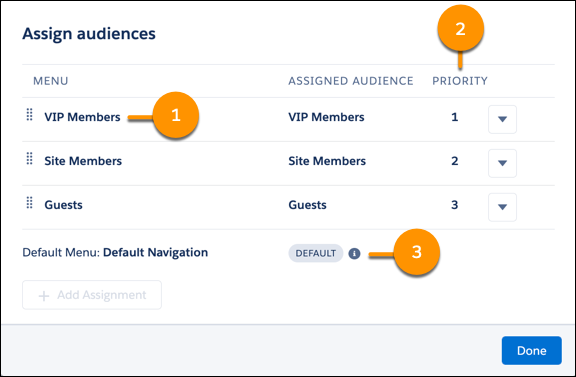
4. Drag the more broadly targeted component variation into the second position on the priority list. In this case, the Site Members audience is in the second position on the priority list.
In this example, VIP site members now see their special navigation menu because that component variation has first priority. Users who visit your site and don’t fall into any specified audience see the default navigation menu (3).