---
schema_version: "1"
id: 0b46d8afd2862aef57681f2f0f686694cbe3bab7817d4621ee4230e4b5e4ee16
title: Assign an Audience to a Branding Set
collection: admin
version: current
locale: en-us
portal_url: https://docs.salesforce.com/admin/current/en-us/experience/264-0-0/networks_audiences_branding_sets.md
canonical_url: https://help.salesforce.com/s/articleView?id=experience.networks_audiences_branding_sets.htm&release=264.0.0&type=5
source_site: help.salesforce.com
content_type: documentation
content_hash: d6d23e4d6d3983d1740f14184d453f29b664c2080ba8ed0cf8e26f48e66b6594
description: You can tailor your branding to different audiences. For example, you can show one look and feel to your customers and another to your partners.
products:
- Experiences
release: "264"
---
# Assign an Audience to a Branding Set
You can tailor your branding to different audiences. For example, you can show one look and feel to your customers and another to your partners.
### Required Editions
Available in: Salesforce Classic and Lightning Experience
Available in: Enterprise, Performance, Unlimited, and Developer Editions
Create and Set Up Experiences AND View Setup and Configuration AND be a member
of the site
OR
View Setup and Configuration AND be a member of the site AND have appropriate
role-based site access
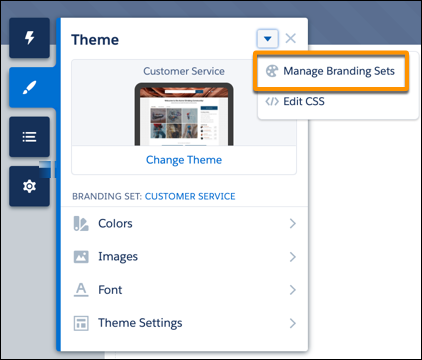
1. In Experience Builder, open the Theme panel, click the down arrow next to the panel title, and select **Manage Branding Sets**.
2. In the Branding Sets pane, click the down arrow for the branding set that you want to work with, and select **Assign**. Or, if the branding set already has an assigned audience, select **Edit Assignment**.
3. In the Assign Audience window, click **New Audience**. Name the audience, set the criteria to define it, select the conditions when the audience matches, and click **Save & Assign**.
4. To assign an existing audience to the branding set, select the audience, click **Assign**, and click **Done**.
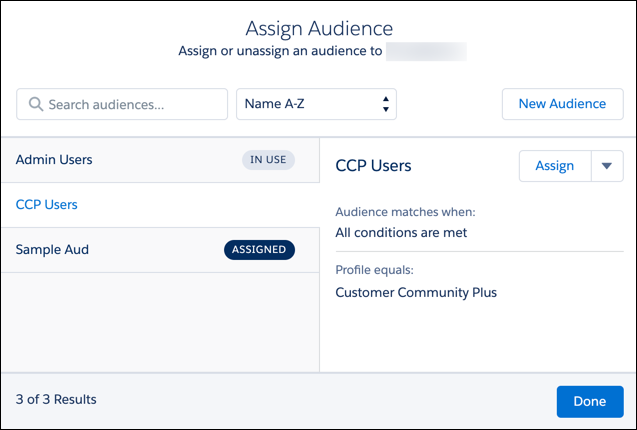
You can’t assign an audience that includes record-based criteria to a branding set. Therefore, the Assign Audience window for a branding set doesn’t show audiences that include record-based criteria.
5. To make these changes visible to your site visitors, publish the site.
Each Experience Cloud site has a branding set that’s assigned to the default audience. Site visitors who don’t meet the criteria for an assigned audience see the default branding. You can’t edit the audience assignment of the default branding set.
#### See Also
- [Considerations for Audience Targeting in Aura Sites](https://help.salesforce.com/s/articleView?id=experience.networks_audience_use_considerations.htm&release=264.0.0&type=5 "Audiences are a great help when you want to target specific user segments with relevant site content. As you work with audiences, there are some things to consider.")
- [Criteria Types and Conditions for Audience Creation](https://help.salesforce.com/s/articleView?id=experience.networks_audience_crm.htm&release=264.0.0&type=5 "You can use several types of criteria to define an audience and determine the conditions under which the criteria apply.")
- [Create an Audience for an Aura Site](https://help.salesforce.com/s/articleView?id=experience.community_builder_page_visibilty_manage.htm&release=264.0.0&type=5 "You define an audience by selecting criteria and the conditions under which the criteria apply. After you create an audience, you can assign it to a page variation, branding set, or component. You also can assign an audience to a component variation to personalize the content that different user segments see in the CMS Collection, Navigation Menu, and Tile Menu components.")
- [Prioritize Audiences in Aura Sites](https://help.salesforce.com/s/articleView?id=experience.networks_audiences_prioritize_audiences.htm&release=264.0.0&type=5 "When site visitors meet the criteria for more than one audience, you can prioritize which page variation, branding set, navigation menu, or CMS collection they see. To prioritize audiences, at least two audiences must be assigned to the page variation, branding set, or component variation.")