---
schema_version: "1"
id: bdec396c336b321c2cb11ad352da932f7d4f83146755f7e83ba1079bf79e2b86
title: Update Your LWR Site URL to Remove /s
collection: admin
version: current
locale: en-us
portal_url: https://docs.salesforce.com/admin/current/en-us/experience/264-0-0/exp_cloud_enhanced_url.md
canonical_url: https://help.salesforce.com/s/articleView?id=experience.exp_cloud_enhanced_url.htm&release=264.0.0&type=5
source_site: help.salesforce.com
content_type: documentation
content_hash: e24a6342178ac130ce40437baeec00598207c21ce06e98447e7836a9ffc2576a
description: Some older, non-enhanced LWR sites include /s at the end of the site’s base URL, making it difficult to achieve a completely custom site URL. You can remove this unwanted element and switch from https://mycustomdomain.com/s to https://mycustomdomain.com. Removing /s is also a prerequisite when you upgrade to an enhanced LWR site.
products:
- Experiences
release: "264"
---
# Update Your LWR Site URL to Remove /s
Some older, non-enhanced LWR sites include /s at the end of the site’s base URL, making it difficult to achieve a completely custom site URL. You can remove this unwanted element and switch from https://mycustomdomain.com/s to https://mycustomdomain.com. Removing /s is also a prerequisite when you upgrade to an enhanced LWR site.
### Required Editions
Available in: Salesforce Classic and Lightning Experience
Available in: Enterprise, Performance, Unlimited, and Developer Editions
Create and Set Up Experiences AND View Setup and Configuration AND be a member
of the site
OR
View Setup and Configuration AND be a member of the site AND have appropriate
role-based site access
- [Considerations Before You Update the URL](https://help.salesforce.com/s/articleView?id=experience.exp_cloud_enhanced_url.htm&release=264.0.0&type=5)
- [URL Format Differences](https://help.salesforce.com/s/articleView?id=experience.exp_cloud_enhanced_url.htm&release=264.0.0&type=5)
- [Update the Site URL](https://help.salesforce.com/s/articleView?id=experience.exp_cloud_enhanced_url.htm&release=264.0.0&type=5 "Remember that changes to the site URL takes immediate effect on the live site.")
- [Revert the Site URL](https://help.salesforce.com/s/articleView?id=experience.exp_cloud_enhanced_url.htm&release=264.0.0&type=5 "If you previously updated the site URL to remove /s, you can revert the URL to include this element again if necessary.")
- [Set Up Redirections for /s Removal](https://help.salesforce.com/s/articleView?id=experience.exp_cloud_enhanced_url.htm&release=264.0.0&type=5 "When you remove /s from the site URL, the system usually sets up automatic redirects. However, if you see an error message in Experience Builder that this process failed, you can instead create the redirects manually by using the pattern shown here.")
## Considerations Before You Update the URL
Before you update the URL of a non-enhanced LWR site, make sure that you understand the changes to expect.
- For published sites, as soon as you update the URL, the change takes immediate effect on the live site.
- To maintain the site’s SEO rankings, the system sets up automatic redirects for the site’s pages and updates any custom URLs. For example, https://mycustomdomain.com/s/mypage redirects to https://mycustomdomain.com/mypage.
- If you use hard-coded URLs as part of your site implementation, you must update these references manually.
- Updating the URL of your site affects the deployment process because the URLs in the source and target orgs must match. If you update the site URL in sandbox, for example, remember to also update the URL in production before you deploy your site.
Similarly, if you have existing change sets or metadata packages that use the old site URL, you must update the URL references before deployment.
## URL Format Differences
In Custom URLs in Setup, you can see the list of sites in your org. Each site has two entries.
- _Site.com Community_ serves the site pages from Experience Builder. For older, non-enhanced LWR sites, this URL includes /s and can’t be edited.
- _Community_ serves the various Visualforce pages that you can set up in the Administration workspace of a site.
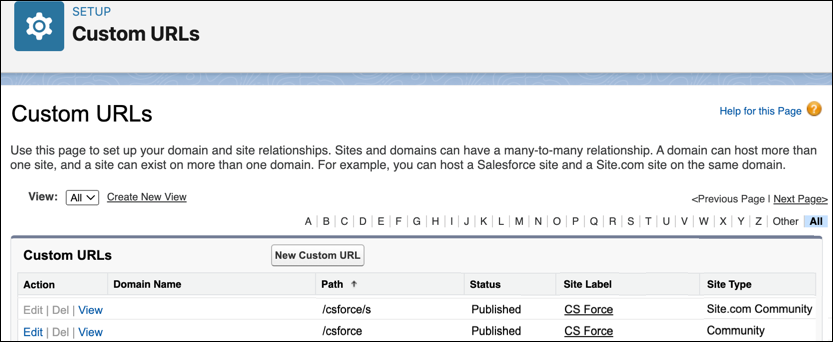
When you update the site URL, the system:
- Removes /s from the URL path for _Site.com Community_ and makes the value editable.
- Appends vforcesite to the URL path for _Community_. For example, an LWR site at mycompany.my.site.com/helpcenter/ would serve Visualforce pages from mycompany.my.site.com/helpcenter/helpcentervforcesite.

## Update the Site URL
Remember that changes to the site URL takes immediate effect on the live site.
1. Identify whether your LWR site includes /s in the URL.
The list of sites on the Custom URLs page is the easiest way to check the URL. From Setup, in the Quick Find box, enter Custom URLs and then select it.
2. Open the site’s Administration workspace. From the All Sites page in Setup, click **Workspaces** next to the site’s name, and then select **Administration**.
3. On the URL Update page, click **Update URL**.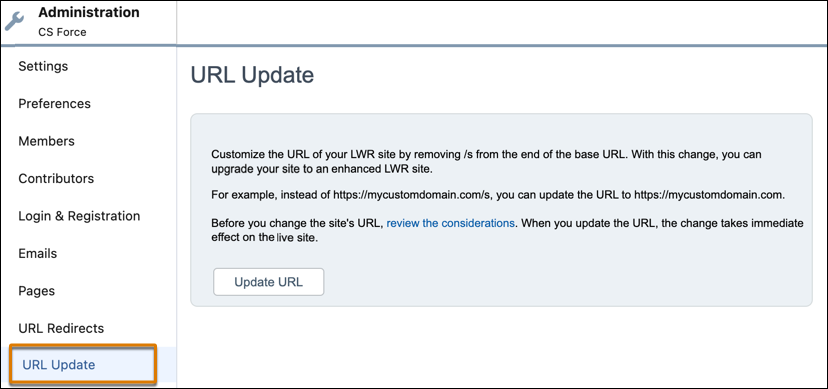
The option to update a site URL is available only for non-enhanced LWR sites.
4. Verify that the site URL was updated correctly. When successful:
- The URL Update page refreshes and shows a **Revert URL** button instead.
- In Experience Builder, if the site was previously published, the URL for the live site in **Settings** | **General** no longer includes /s.
- In Custom URLs in Setup, the two entries for the site are updated as described in the previous section.
## Revert the Site URL
If you previously updated the site URL to remove /s, you can revert the URL to include this element again if necessary.
However, if you updated the site URL and subsequently upgraded the site to an enhanced LWR site, this option is unavailable. You must revert the site before you can revert the site URL.
In the site’s Administration workspace, open the URL Update area and click **Revert URL**.
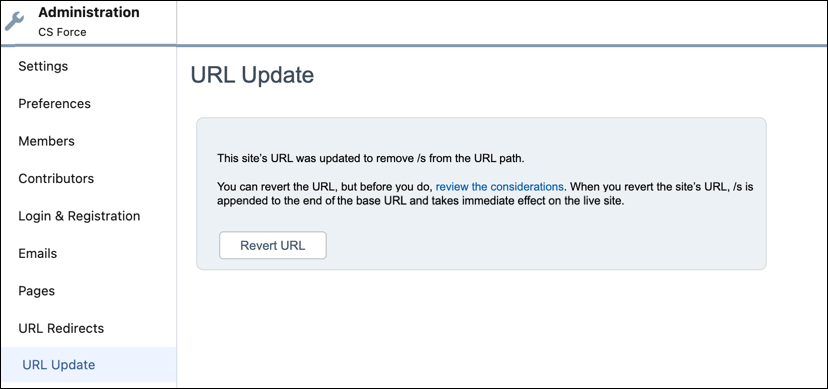
When you revert the site’s URL, /s is appended to the end of the base URL and takes immediate effect on the live site.
## Set Up Redirections for /s Removal
When you remove /s from the site URL, the system usually sets up automatic redirects. However, if you see an error message in Experience Builder that this process failed, you can instead create the redirects manually by using the pattern shown here.
| Source URL format | Target URL format |
| --- | --- |
| /\*/s | / |
| /\*/s/ | / |
| /\*/s/\[route1\] | /\[route1\] |
| /\*/s/\[route1\]/\[route2\] | /\[route1\]/\[route2\] |
| _And so on…_ | _And so on…_ |
#### See Also
- [Key Concepts in Page Redirection](https://help.salesforce.com/s/articleView?id=experience.networks_url_redirects.htm&language=en_US)
- [Custom Domains in Salesforce](https://help.salesforce.com/s/articleView?id=platform.domain_mgmt_overview.htm&language=en_US)