---
schema_version: "1"
id: b4dc22de643db564ef009c03b642bf3a8eba803bddf51969576e57038b79ffc5
title: Use Branding Sets in Experience Builder
collection: admin
version: current
locale: en-us
portal_url: https://docs.salesforce.com/admin/current/en-us/experience/264-0-0/community_designer_brandsets.md
canonical_url: https://help.salesforce.com/s/articleView?id=experience.community_designer_brandsets.htm&release=264.0.0&type=5
source_site: help.salesforce.com
content_type: documentation
content_hash: 3de150607c6e3da22e404be52f92fcfe7fadfff62968373c4c3f626a290ae384
description: Branding sets let you automatically change the look of your sites for different audiences and shift quickly between brands or presentations for campaigns or events.
products:
- Experiences
release: "264"
---
# Use Branding Sets in Experience Builder
Branding sets let you automatically change the look of your sites for different audiences and shift quickly between brands or presentations for campaigns or events.
### Required Editions
Available in: both Salesforce Classic and Lightning Experience
Available in: Enterprise, Performance, Unlimited, and Developer Editions
User Permissions
Needed
To customize or publish an Experience Cloud site:
Create and Set Up Experiences AND View Setup and Configuration AND be a member
of the site
OR
View Setup and Configuration AND be a member of the site AND have appropriate
role-based site access
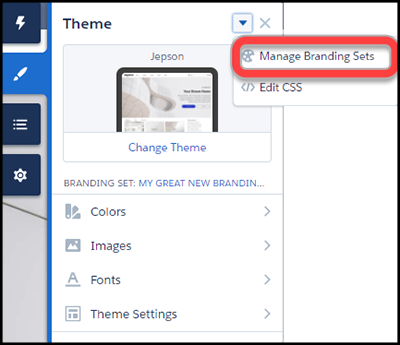
Branding Sets are bundled collections of images, fonts, and colors that can dramatically and dynamically change the look and feel of your site. You manage branding sets in the Experience Builder’s Theme panel. If you’re using a pre-built theme, the branding set doesn’t affect the header and hero areas of your site.

Note Branding sets apply only to colors, images, and fonts. For more information on targeting layout or content to a specific group, see [Personalization with Audience Targeting in Aura Sites](https://help.salesforce.com/s/articleView?id=experience.community_builder_page_visibilty_overview.htm&release=264.0.0&type=5 "Keep your users engaged by offering personalized, relevant content that’s customized for a particular audience. To create an audience, you assemble a set of criteria that defines a user segment. You can then tailor a single site to meet the needs of multiple user segments. For example, you can present the same site with a different look and feel for each audience or show different pages, components, or data to different audiences.").
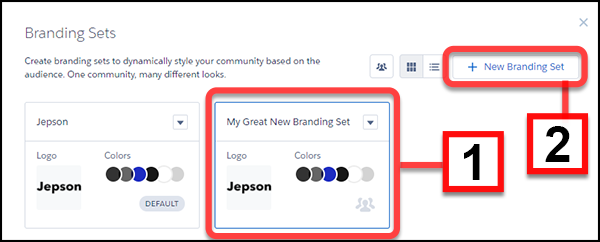
You can maintain and manage several branding sets for any site. Each set (1) is a collection of colors and other elements that you can apply manually or programmatically, using Audiences. You can also start a new set from scratch (2).

Note While you can create many automatic responses to audience, Dynamic Branding, such as declarations of Action Color, doesn’t work with pre-built themes.
Manage each set, from its menu.
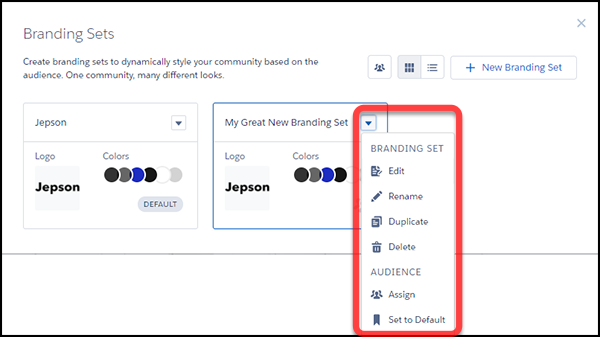
To create or edit a branding set, select it and the attributes you want to bundle.
1. Open the Theme panel and select **Manage Branding Sets**.

2. Choose the branding set to edit, or create one. All of your changes are associated with the selected branding set.
3. (Optional) Experience Builder can generate a color scheme for you when you select **Generate Palette from Image** in the Colors panel.
1. In the Colors panel, click **Generate Palette from Image**
2. Choose your previously uploaded company logo or a different image, like an image of your company palette. Experience Builder extracts the main colors from the image and generates a scheme.
3. To modify colors, click the color swatch. To adjust the color, use the slider or enter hex values.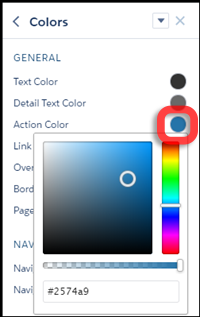
4. To set the attributes of your branding set, in the Theme panel, select or adjust the fonts, images, and colors.
Your changes are saved automatically and appear instantly on the page. To review the results, select various page types from the Pages menu.

Note If public access is enabled in Experience Builder at the page or site level, the **Let guest users view asset files and CMS content available to the site** preference is enabled in **Administration** | **Preferences**. This preference remains enabled as long as any page has public access enabled. If you upload images for use on site login pages, be sure that this preference is enabled.When you add an image to your site for the first time, an asset file is automatically created and stored in the Org Asset Library.
You can always tell which branding set is active by looking at the Theme panel.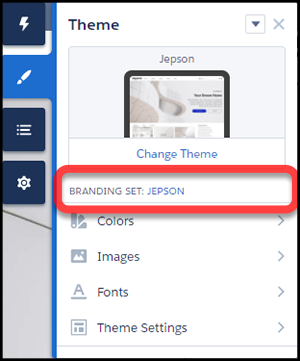
Remember that branding sets apply only to colors, images, and fonts. For more information on targeting layout or content to a specific group, see [Personalization with Audience Targeting in Aura Sites](https://help.salesforce.com/s/articleView?id=experience.community_builder_page_visibilty_overview.htm&release=264.0.0&type=5 "Keep your users engaged by offering personalized, relevant content that’s customized for a particular audience. To create an audience, you assemble a set of criteria that defines a user segment. You can then tailor a single site to meet the needs of multiple user segments. For example, you can present the same site with a different look and feel for each audience or show different pages, components, or data to different audiences.")

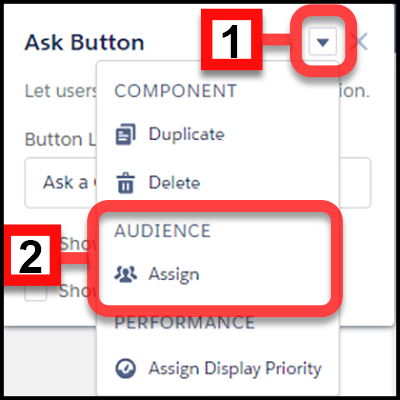
Note Not all components in pre-built themes support audience targeting. You can confirm if a component can be targeted by looking in its component properties panel menu (1) for the Audience (2) section. If the section is missing or if there isn’t a menu on the component properties panel, then the component doesn’t support audience targeting.
If you can’t find a way to control aspects of your site through the Theme panel or component properties, you can create your own CSS overrides. Your overrides apply to, and are remembered for, the currently active theme. Click **** | **Edit CSS** on the Theme panel to use your own CSS styles. Use CSS sparingly, and only when necessary, in case future releases of template components don’t support all CSS customizations.
#### See Also
- [Personalization with Audience Targeting in Aura Sites](https://help.salesforce.com/s/articleView?id=experience.community_builder_page_visibilty_overview.htm&release=264.0.0&type=5 "Keep your users engaged by offering personalized, relevant content that’s customized for a particular audience. To create an audience, you assemble a set of criteria that defines a user segment. You can then tailor a single site to meet the needs of multiple user segments. For example, you can present the same site with a different look and feel for each audience or show different pages, components, or data to different audiences.")
- [Developer Guide: Dynamic Branding with Login Pages](https://developer.salesforce.com/docs/atlas.en-us.externalidentityImplGuide.meta/externalidentityImplGuide/external_identity_dynamic_with_default_login_page.htm)