---
schema_version: "1"
id: 1f678562eca5ab818a18a17ed45480b7825a1560b7790f68abfca03ca2020198
title: Add Groups to an Aura Site
collection: admin
version: current
locale: en-us
portal_url: https://docs.salesforce.com/admin/current/en-us/experience/264-0-0/community_designer_add_groups_to_communities.md
canonical_url: https://help.salesforce.com/s/articleView?id=experience.community_designer_add_groups_to_communities.htm&release=264.0.0&type=5
source_site: help.salesforce.com
content_type: documentation
content_hash: 0b82303c0bfc5a2f110a28fbd7e8ecbb14ef7c751146abf43263038e1594ecb1
description: Want more collaborative sites or communities? Give site members and guest users the ability to browse and join groups in your Aura site. Use the standard design for groups or create your own customized version of the group detail page using separate components.
products:
- Experiences
release: "264"
---
# Add Groups to an Aura Site
Want more collaborative sites or communities? Give site members and guest users the ability to browse and join groups in your Aura site. Use the standard design for groups or create your own customized version of the group detail page using separate components.
### Required Editions
Available in: Salesforce Classic and Lightning Experience
Available in: Enterprise, Performance, Unlimited, and Developer Editions
Create and Set Up Experiences AND View Setup and Configuration AND be a member
of the site
OR
View Setup and Configuration AND be a member of the site AND have appropriate
role-based site access
1. To enable groups in your site, add groups to the site’s navigation menu. Go to **Settings** | **Navigation**.
2. In the dropdown, click **Edit** for the navigation menu that you want to customize.
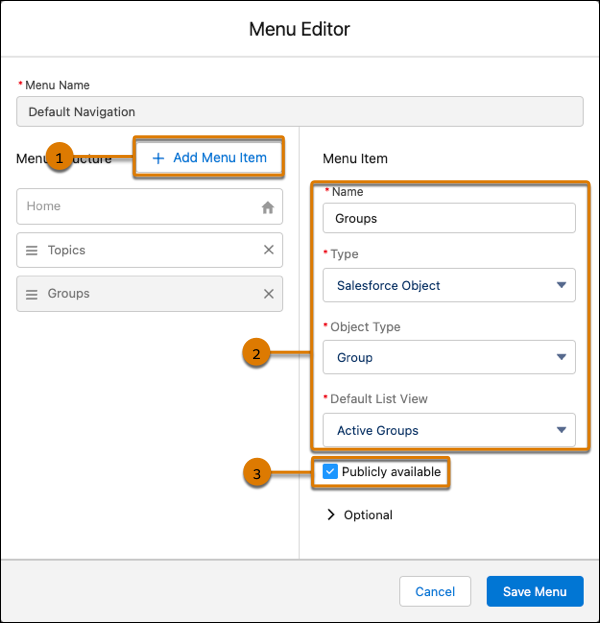
3. Click **Add Menu Item** (1), and give your new menu item a name.
4. From the Type dropdown, select **Salesforce Object**. Then select **Group** for the Object Type and **Active Groups** for the Default List View (2).
5. Enable **Publicly available** (3) so guest users can browse through the list of active public groups.
6. Save your changes.
7. If you haven’t already, customize the group publisher layout to include the Add Member action. With this action, group owners and managers can add members to the group, and isn’t shown in the list of actions in the group by default.
Site visitors can access a new page in your site with a list of active groups using the navigation menu. When users click the name of an active group, they’re redirected to the group detail page. If it’s a private group, they’re asked to log in. Only logged-in group members can view private group content.

Important If you’re adding Groups to an LWR site, you must create object pages for the Groups object. If you don’t create the object pages, site visitors can’t see the Groups when they click the menu item.
A few things to keep in mind:
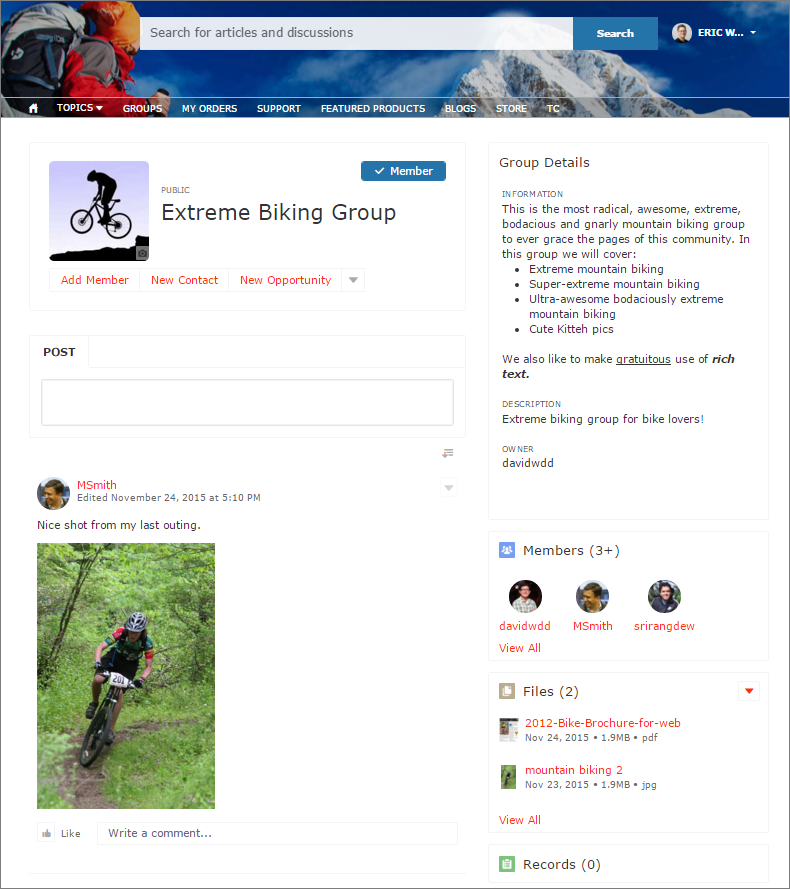
- When you enable groups in your site, the default Group Detail page is used to display group data. This page uses the Group component under the hood for formatting and layout. The Group component is a composite, one-stop component that includes the group banner, group details, related lists, and the group feed. We recommend using this composite component, especially if you want your site pages to be responsive across desktop and mobile device browsers.
- If you prefer to use a different layout or want more control over the placement of group content, create a custom page. Then use the Group Banner, Group Details, Group Related List, and Feed components. Depending on how you use the individual components, custom pages aren’t always responsive across all devices.
Group list in the Customer Service Template
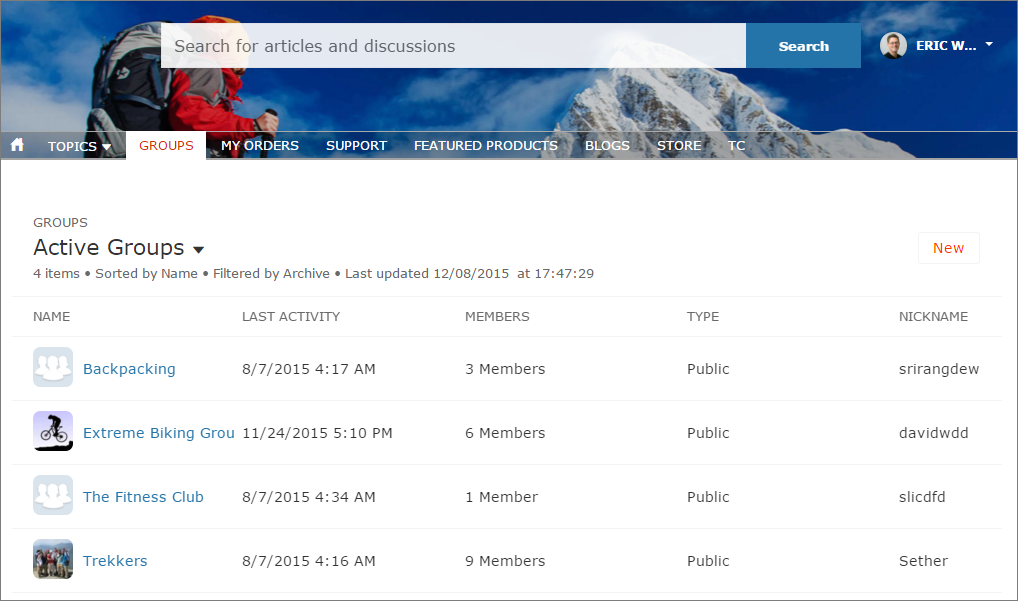
Group detail page in Customer Service Template