---
schema_version: "1"
id: d12fb2604c084e9e49644269973d8534b54daed7b8cb1bf3b36b92e58979abc4
title: Use Visualforce in Experience Builder Sites
collection: admin
version: current
locale: en-us
portal_url: https://docs.salesforce.com/admin/current/en-us/experience/264-0-0/community_builder_use_visualforce.md
canonical_url: https://help.salesforce.com/s/articleView?id=experience.community_builder_use_visualforce.htm&release=264.0.0&type=5
source_site: help.salesforce.com
content_type: documentation
content_hash: 64d7a58d709f03dabf211490743afb66f444fc0ca1b096cb0507dd7c205cda59
description: If you created Visualforce pages, actions, buttons, links, and canvas apps for your Salesforce Tabs + Visualforce template-based sites, you can use them in Experience Builder sites.
products:
- Experiences
release: "264"
---
# Use Visualforce in Experience Builder Sites
If you created Visualforce pages, actions, buttons, links, and canvas apps for your Salesforce Tabs + Visualforce template-based sites, you can use them in Experience Builder sites.
### Required Editions

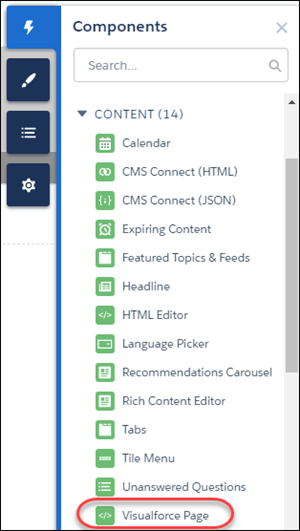
Note To include a Visualforce page on a site page, use the Visualforce Page component in Experience Builder.
For example, say that you have the Salesforce CPQ app installed in your org. You can create a quote detail page and use the Visualforce Page component to display the quote line editor or other pages. If you have configured actions, buttons, and links associated with standard or custom objects, they work in sites as well. And canvas app overlays let you host third-party applications in your site.
Available in: both Salesforce Classic and Lightning Experience
Available in: Enterprise, Performance, Unlimited, and Developer Editions
User Permissions
Needed
To customize or publish an Experience Cloud site:
Create and Set Up Experiences AND View Setup and Configuration AND be a member
of the site
OR
View Setup and Configuration AND be a member of the site AND have appropriate
role-based site access
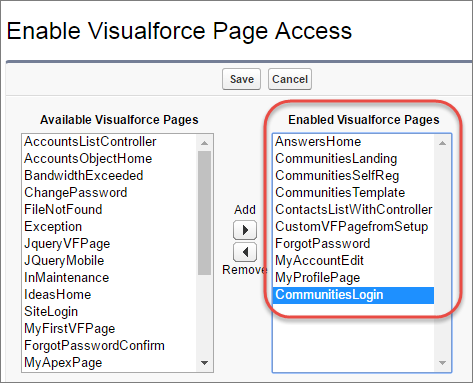
1. Give Visualforce page access to users by profile.
1. From Setup, enter Profiles in the Quick Find box, then select **Profiles**.
2. Click the name of the profile that you want to modify.
3. On the Profile page, in the Enabled Visualforce Page Access section, click **Edit**.
4. In the Available Visualforce Pages list, select the Visualforce pages that you want to make available to this profile, and click **Add**.
5. Save your changes.
2. Make the Visualforce page available for your site.
1. From Setup, enter Visualforce in the Quick Find box, then select **Visualforce Pages**.
2. Click **Edit** for the page that you want to make available for your site.
3. Select **Available for Lightning Experience, Experience Builder sites, and the mobile app**, and save the change.
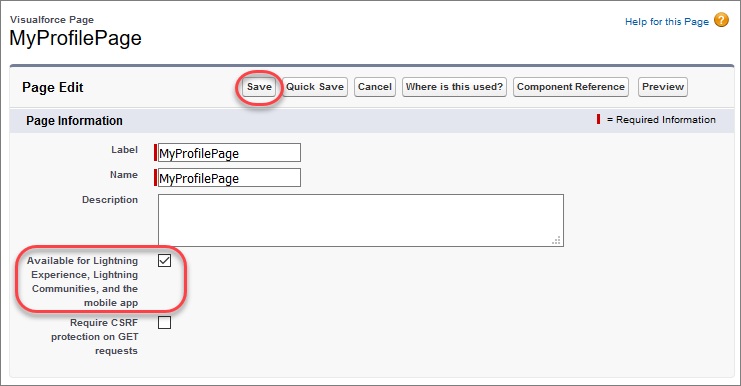
If you want to use the page in an Experience Builder template, make sure that **Require CSRF protection on GET requests** isn’t selected, because it prevents the page from rendering.
Visualforce Page Component—To add a Visualforce page to your Customer Service site, drag the Visualforce Page component from the Components panel to the page. In the property panel, select the Visualforce page that you want to use.
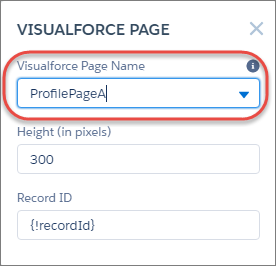

Tip If the Visualforce page requires the Record ID from an object such as Account, create object pages for Account. Then drag the Visualforce Page component onto the object’s detail page. The Record ID field adjusts to the object’s ID.
Custom Actions—If you have custom actions with an action type of **Custom Visualforce** associated with a Visualforce page, these actions work in published sites. When users click the action button, the associated Visualforce page is displayed.
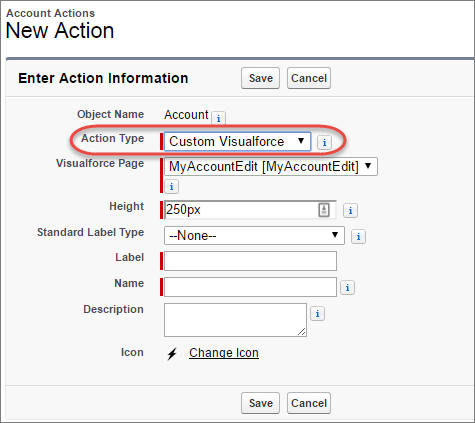

Important Visualforce overrides to standard actions such as View, New, Edit, and Delete aren’t supported in sites. These buttons on record detail pages don’t display in sites.
Custom Buttons and Links—If you have custom buttons and links with a content source of Visualforce Page, these buttons and links work in published sites. When users click the button or link, the associated Visualforce page shows.
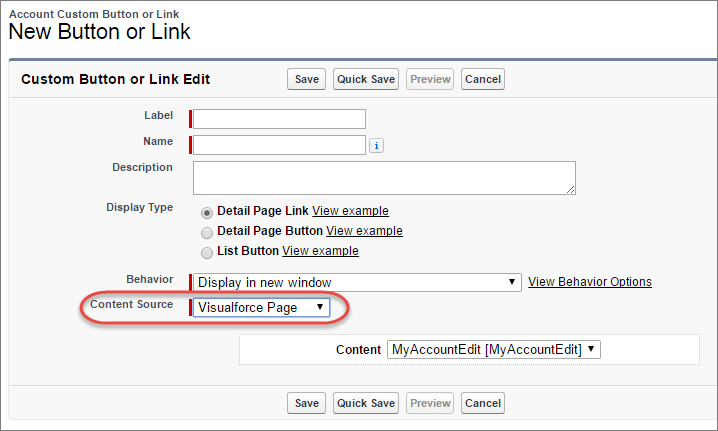

Note The Behavior setting for custom buttons and links isn’t supported. When users click custom buttons in published sites, the Visualforce page is always displayed in the current window.
Experience Builder sites support custom list buttons with a URL source in published sites only if you deselect the display checkboxes (for Multi-Record Selection). If you select this option, the button doesn't work.
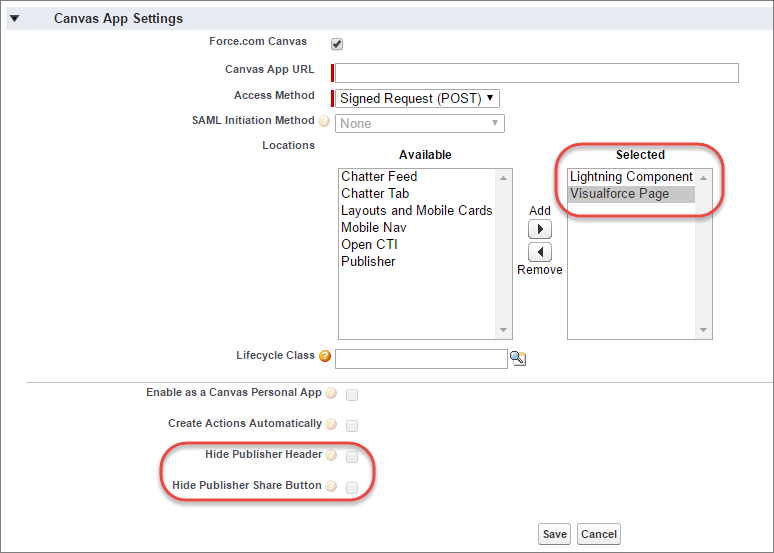
Canvas Apps—You can use canvas apps as custom actions to give users access to the functionality of your apps in sites. Configure your canvas app for Lightning Component and Visualforce Page in Canvas App Settings. You can then load the canvas app inside a Visualforce page, Visualforce action, and Lightning components in published sites.

Note Canvas apps and quick actions aren’t supported for guest users. They’re supported on sites only for logged-in users.
You can opt to hide the publisher header and publisher Share button in Canvas App Settings.
Best Practices for Using Visualforce in Experience Builder Sites
- Site Branding—When developing your Visualforce page code, set the `showHeader` attribute to `true`. That way, branding properties that you set in **Administration** | **Branding** in Experience Workspaces also apply to the Visualforce page component in your Customer Service site. To modify the default gray background for Visualforce components, change the Header Background property on the Branding page.
- Mobile—To enable Visualforce pages to display site branding on mobile, set `standardStylesheets=true` or `showHeader=true` in your Visualforce page code.
- URLs—If your Visualforce page contains links to other Visualforce pages, make sure that the Visualforce markup includes `http://` or `https://` at the start of the URL. Also, if your page is locked in a frame, use the `target="_top"` attribute to open the page in the full body of the window. For example,
`Name of Visualforce Page`
- JavaScript Sources—Use JavaScript sources such as `connection.js`, `apex.js`, `debugshell.js`, and `util.js` in Visualforce pages in either of the following ways:
`` or
`loadScript("/soap/ajax/36.0/connection.js")`
- Images—Hard-coded image URLs in Visualforce pages aren’t supported in Experience Builder preview. We recommend that you upload images as static resources as follows:
``
- Standard page layouts—Visualforce pages embedded in standard page layouts aren’t supported in Experience Builder sites.
- Custom Theme Layouts—Visualforce pages always use the default theme layout when rendered in an Experience Builder site, even if you’ve applied a custom theme layout to your site pages.