---
schema_version: "1"
id: 81e226aa769e503c5d76250a74278b97dd4bb07ef0c2279788c1c4631c07ad8c
title: Change the Theme of Your Experience Builder Site
collection: admin
version: current
locale: en-us
portal_url: https://docs.salesforce.com/admin/current/en-us/experience/264-0-0/community_builder_theme_change.md
canonical_url: https://help.salesforce.com/s/articleView?id=experience.community_builder_theme_change.htm&release=264.0.0&type=5
source_site: help.salesforce.com
content_type: documentation
content_hash: ba6003c158bc3026a6e928652387a82fd5a4fc4752b24ba58f0d8df0f6c0f673
description: Experiment and find the theme that works best for your needs, without changing your content.
products:
- Experiences
release: "264"
---
# Change the Theme of Your Experience Builder Site
Experiment and find the theme that works best for your needs, without changing your content.
### Required Editions
Available in: both Salesforce Classic and Lightning Experience
Available in: Enterprise, Performance, Unlimited, and Developer Editions
User Permissions
Needed
To customize or publish an Experience Cloud site:
Create and Set Up Experiences AND View Setup and Configuration AND be a member
of the site
OR
View Setup and Configuration AND be a member of the site AND have appropriate
role-based site access
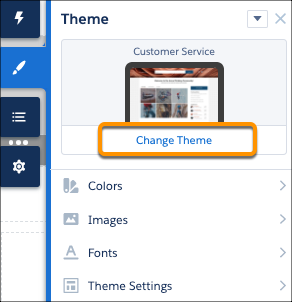
Changing themes is an easy, two-click effort in the **Theme** panel. Select **Change Theme** to see a list of available themes for your template.
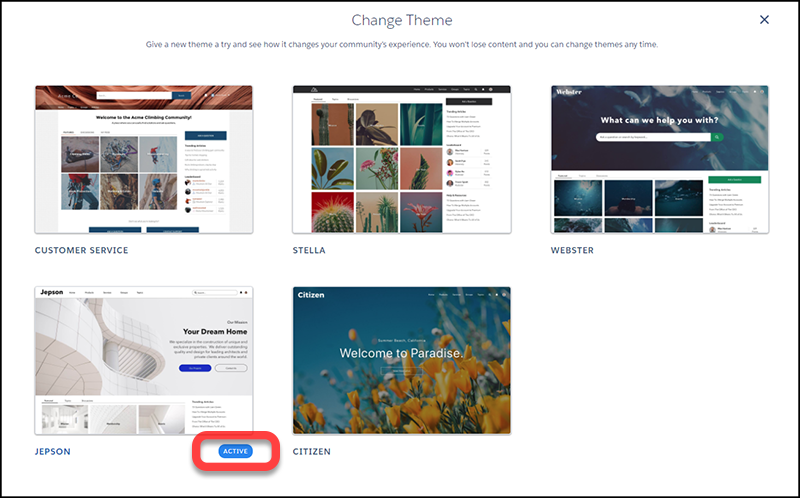
Your current theme is flagged as **Active**. Select any other theme, activate it, and it’s applied to your site.
Choosing a theme is just the start. Even if the defaults work for you, you’re not stuck with them.
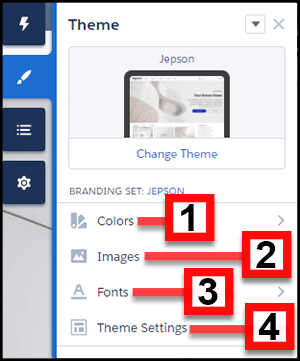
- Adjust the **Colors** (1) of text, backgrounds, and borders.
- Upload background **Images** (2) and your company logo.
- Select **Font** (3) styles.
- Adjust **Theme Settings** (4) that are specific to the active theme. For example, choose:
- whether to show the hero
- whether to keep the header from scrolling
- the width of page content
Available settings are unique to the active theme.
- Add, modify, and adjust components on the page individually to complete the experience.
We remember the customizations that you create for your theme, even if you switch from the theme and then reactivate it later.
What if you don’t like what you’ve customized? Easy, start fresh!
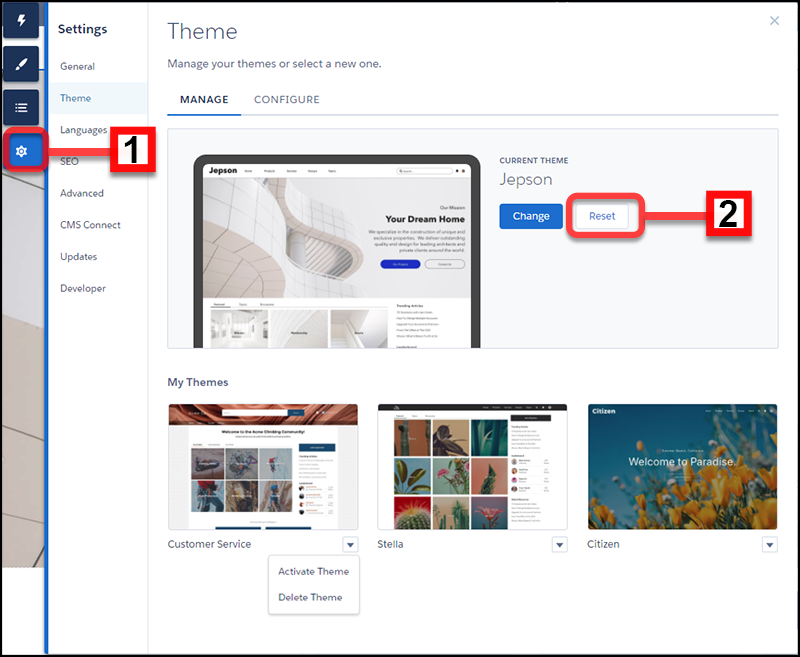
1. In Experience Builder Settings (1), select **Theme**.
2. Click **Reset** (2) for your current theme.
3. Read the warning and then click **Reset** to confirm.
4. Alternatively, you can reset a theme back to its defaults the next time you reactivate it in the Change Theme panel by selecting **Replace and start fresh**.

Note Using either **Reset** or **Replace and start fresh** deletes all of your customizations.
- Branding sets
- Theme regions (settings for common elements across pages like headers)
- Theme settings
- Custom theme layouts
- Custom theme layout assignments for pages
- Custom CSS overrides
These settings aren’t retrievable, so be careful about selecting either **Reset** or **Replace and start fresh**.
Many pre-built themes have multiple layouts, such as home, login, and content pages.
Changing themes preserves your content, but a new theme doesn’t necessarily display your content in a useful or desirable manner. After a change, always reconfirm that your site still works the way you want it to.
The Manage section of the Theme panel shows your currently active and configured themes.
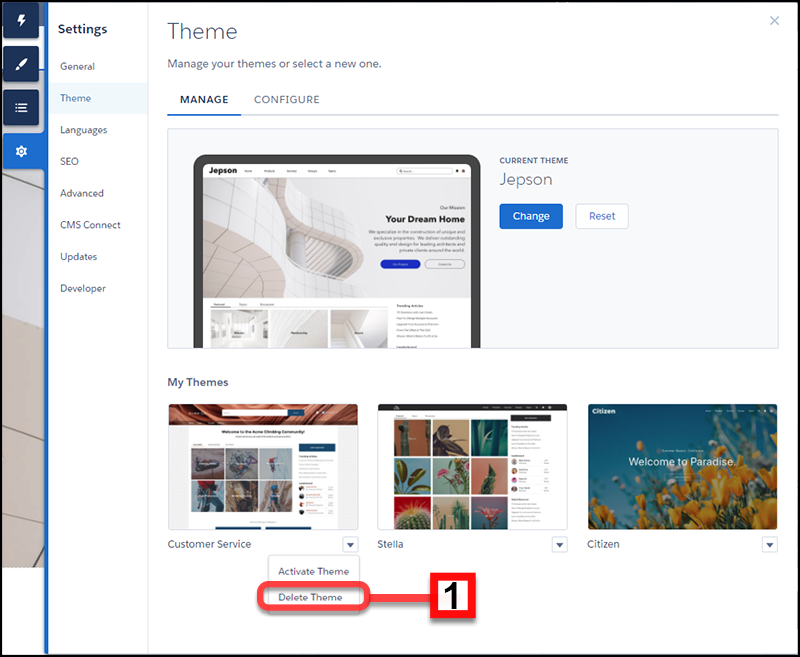
Chances are you aren’t using all of your themes, so you can delete (1) any extras here. Deleting a theme removes all of your customizations, similar to Reset. But you can add a fresh copy of the theme from the Change Theme section of the Theme panel.
#### See Also
- [Custom Theme Layouts and Theme Layout Components](https://help.salesforce.com/s/articleView?id=experience.community_builder_theme.htm&release=264.0.0&type=5 "Theme layouts and theme layout components combine to give you granular control of the appearance and structure of each page in your site. Customize the layout’s header and footer to match your company’s style. Configure theme layout properties. Or use a custom search bar and user profile menu. Then use theme layouts to assign theme layout components to individual pages allowing you to quickly change layouts from one central location. Whether you’re a consulting partner or an ISV, or you simply want to revamp your own site, custom theme layouts make it easy to rebrand.")
- [Customize the Theme of Your Experience Builder Site](https://help.salesforce.com/s/articleView?id=experience.community_builder_theme_customize.htm&release=264.0.0&type=5 "Customize the theme of your Experience Builder site by adjusting everything from the size and color of your headers and footers, to the fonts and colors for active text. We can get you started, but you get to make the final tweaks to make the theme your own.")