---
schema_version: "1"
id: 9888740b574b621c27b5e115437d1120be8e237ea8184ca6ad2758e16bc46627
title: Change the Theme Layout of Your Experience Cloud Site’s Pages
collection: admin
version: current
locale: en-us
portal_url: https://docs.salesforce.com/admin/current/en-us/experience/264-0-0/community_builder_theme_apply.md
canonical_url: https://help.salesforce.com/s/articleView?id=experience.community_builder_theme_apply.htm&release=264.0.0&type=5
source_site: help.salesforce.com
content_type: documentation
content_hash: 90060c2304942858b24edfcdea0f892f0ce2ca7f6daef64c02e07a64d2bca0d2
description: A theme layout defines the top-level regions of your page, such as the header and footer, navigation, search, and the user profile menu. A theme layout component categorizes the pages in your site that share a theme layout.
products:
- Experiences
release: "264"
---
# Change the Theme Layout of Your Experience Cloud Site’s Pages
A theme layout defines the top-level regions of your page, such as the header and footer, navigation, search, and the user profile menu. A theme layout component categorizes the pages in your site that share a theme layout.
### Required Editions
Available in: both Salesforce Classic and Lightning Experience
Available in: Enterprise, Performance, Unlimited, and Developer Editions
User Permissions
Needed
To customize or publish an Experience Cloud site:
Create and Set Up Experiences AND View Setup and Configuration AND be a member
of the site
OR
View Setup and Configuration AND be a member of the site AND have appropriate
role-based site access
A developer creates custom theme layout components in the Developer Console by implementing the `forceCommunity:themeLayout` interface. The developer can also add properties to a custom theme layout, which you can configure in the Theme panel area in Experience Builder. When the custom layout component is available, assign it to a theme layout to instantly transform the pages that use that layout.
1. In Experience Builder, click  on the left sidebar and then click **Theme**.
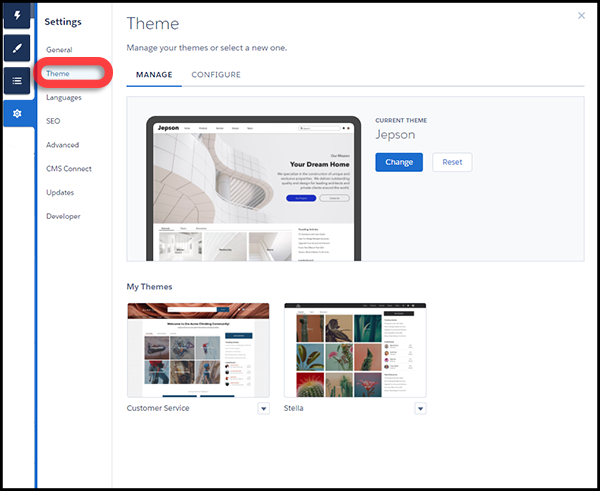
2. To view and configure your theme layouts, select **Configure**.
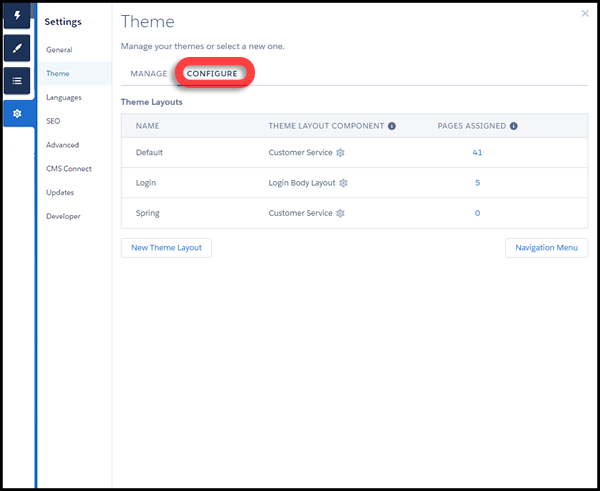
3. If necessary, create a **New Theme Layout**.
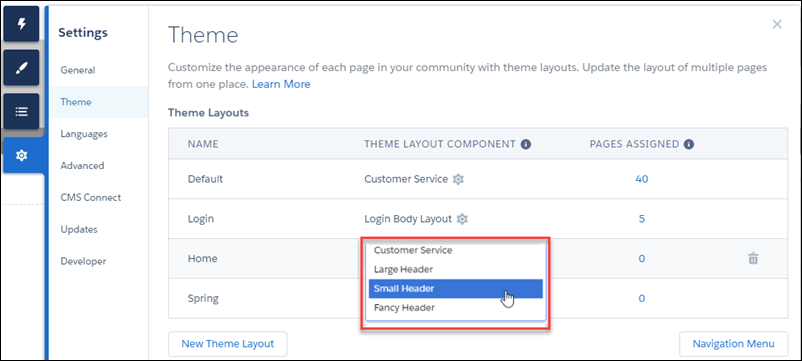
4. Select a theme layout component for the theme layout.
5. Update the theme layout’s settings, if available—properties vary depending on how your developer configured the theme layout component.
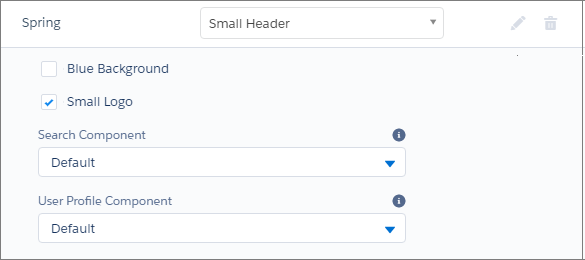
For example, the Default layout component in the Customer Service theme includes the following options for the header region.
Hide the header region and navigation
Hides the default site header on all site pages. The default site header includes the header image, search box, site menu, and user profile navigation menu. Select this option to replace the default header with a custom header.
Hide notifications icon in site header
Hides the notifications icon. Useful when you have a custom header or don’t use notifications.
Search Component
Replaces the default Search and Post component with a custom component, if available.
User Profile Component
Replaces the default Profile Header component with a custom version, if available.
Set max page width
Sets the maximum width of content across the page. The maximum width can be narrower than the overall display size of the header or footer.
However, the Default layout component for the Jepson theme has different options.
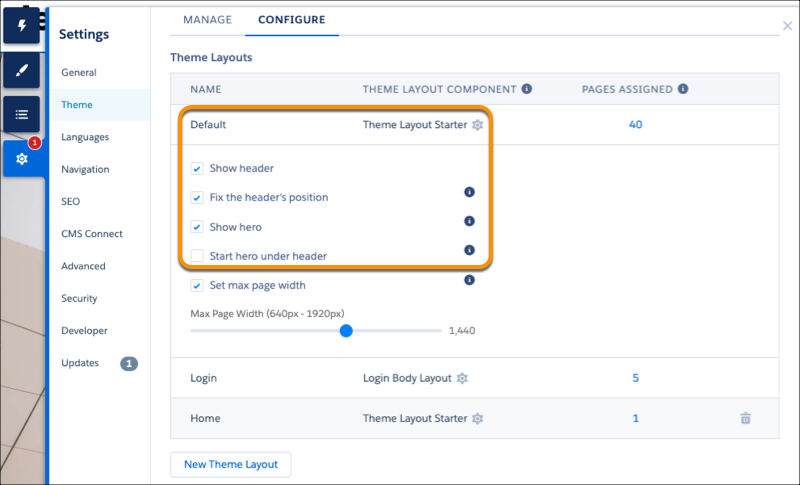
Show header
Displays or hides the header.
Fix the header’s position
Pins the header to the top of the scrolling area so that it remains visible while a customer is scrolling down through a long page. To see this working, publish and preview your site. The change doesn’t appear in Experience Builder.
Show hero
Displays or hides the theme’s hero image.
Start hero under header
Header visually overlaps the hero. We recommend using a transparent background for this header.
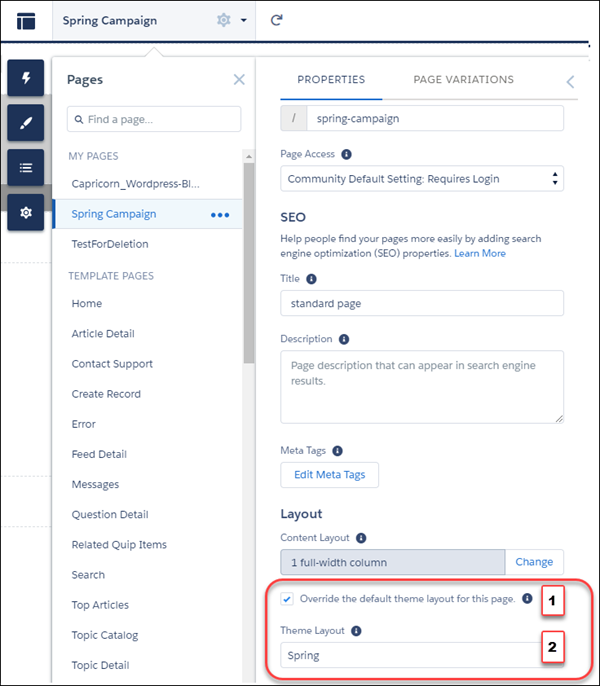
6. To apply the theme layout, select Override the default theme layout for this page (1). Selecting this option shows the Theme Layout options. Then, choose the new layout (2).
#### See Also
- [Custom Theme Layouts and Theme Layout Components](https://help.salesforce.com/s/articleView?id=experience.community_builder_theme.htm&release=264.0.0&type=5 "Theme layouts and theme layout components combine to give you granular control of the appearance and structure of each page in your site. Customize the layout’s header and footer to match your company’s style. Configure theme layout properties. Or use a custom search bar and user profile menu. Then use theme layouts to assign theme layout components to individual pages allowing you to quickly change layouts from one central location. Whether you’re a consulting partner or an ISV, or you simply want to revamp your own site, custom theme layouts make it easy to rebrand.")
- [Page Properties and Types in Experience Builder](https://help.salesforce.com/s/articleView?id=experience.community_builder_page_prop.htm&release=264.0.0&type=5 "Use the Page Action menu to view and edit the properties of the pages that make up your Experience Builder site.")
- [_Experience Cloud Developer Guide_: Create Custom Theme Layout Components for Experience Builder](https://developer.salesforce.com/docs/atlas.en-us.communities_dev.meta/communities_dev/components_config_for_builder_layouts.htm)
- [_Experience Cloud Developer Guide_: Configure Swappable Search and Profile Menu Components](https://developer.salesforce.com/docs/atlas.en-us.communities_dev.meta/communities_dev/communities_dev_customize_swappable.htm)