---
schema_version: "1"
id: bc0174ed31488ba13fee324c93db75de07dc0c47e49fd9e490bae2665081b151
title: "Theme Guidance: Search Component"
collection: admin
version: current
locale: en-us
portal_url: https://docs.salesforce.com/admin/current/en-us/experience/264-0-0/community_builder_theme-g-search.md
canonical_url: https://help.salesforce.com/s/articleView?id=experience.community_builder_theme-g-search.htm&release=264.0.0&type=5
source_site: help.salesforce.com
content_type: documentation
content_hash: 0e4077ed04fa8d9b04a98af074e8725689e0b73935f80a3646005d544ff454e6
description: Multiple search components and placement options give you flexibility to design the right experience for your customers.
products:
- Experiences
release: "264"
---
# Theme Guidance: Search Component
Multiple search components and placement options give you flexibility to design the right experience for your customers.
### Required Editions
Available in: both Salesforce Classic and Lightning Experience
Available in: Enterprise, Performance, Unlimited, and Developer Editions
User Permissions
Needed
To customize or publish an Experience Cloud site:
Create and Set Up Experiences AND View Setup and Configuration AND be a member
of the site
OR
View Setup and Configuration AND be a member of the site AND have appropriate
role-based site access
Pre-built themes offer the flexibility to have a search-first approach. This approach encourages customers to enter questions first to find answers rather than navigate through menus and pages.
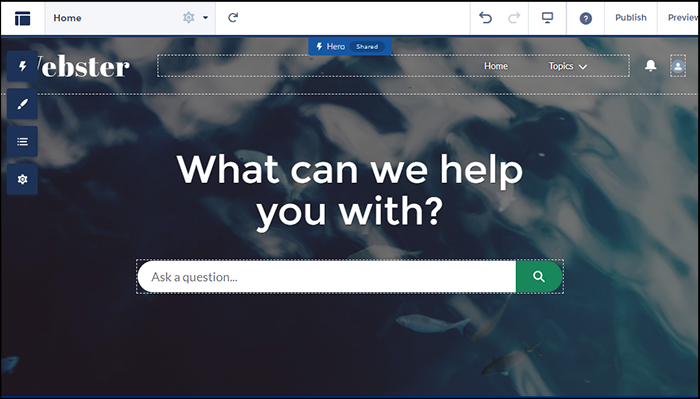
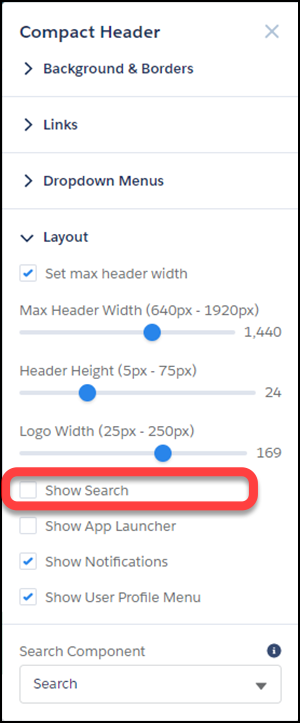
But you can also have search in your header. To avoid confusion and clutter, if you’re using the hero with search turned on, deselect search to hide it in your header. Themes with heroes have secondary layouts for the non-Home pages. That’s why search is on by default in the header of your other non-login pages.

Note Remember that Login pages have their own specific layouts.
## Selecting a Search Component that Collapses and Expands

When the search component is collapsed, you can’t select it directly. Click the search icon to expand it, then select it to see its property editor. Alternatively, select **Search** in the page structure panel to bring up its property editor. Selecting Search in the page structure panel means you can’t see any changes you’re making. You can’t see your changes because the search component isn’t visible on the page.
## Exporting a Custom Search Component
Imagine that you’re using a Lightning Bolt Solution to export a site with a pre-built theme. The theme uses the global search, peer-to-peer component, or a custom search component. Keep in mind that this solution doesn’t include the custom search component. The search component isn’t exported because the property value `commThemeSearch` isn’t included in the Lightning Bolt Solution.