---
schema_version: "1"
id: 91b93efbc5a5b53ce1ad8d67f0f4801833d9ebf3f48f1e4fcf69c68dad24ea9e
title: Rich Content Editor
collection: admin
version: current
locale: en-us
portal_url: https://docs.salesforce.com/admin/current/en-us/experience/264-0-0/community_builder_rich_text_component.md
canonical_url: https://help.salesforce.com/s/articleView?id=experience.community_builder_rich_text_component.htm&release=264.0.0&type=5
source_site: help.salesforce.com
content_type: documentation
content_hash: da1736ed7baccdaa83c15f64ef678c2af6834d26a38f5bf8d1a041611f66900a
description: The Rich Content Editor component lets you add formatted custom text to your Aura site pages, along with images and videos.
products:
- Experiences
release: "264"
---
# Rich Content Editor
The Rich Content Editor component lets you add formatted custom text to your Aura site pages, along with images and videos.
### Required Editions
Available in: Salesforce Classic and Lightning Experience
Available in: Enterprise, Performance, Unlimited, and Developer Editions
Create and Set Up Experiences AND View Setup and Configuration AND be a member
of the site
OR
View Setup and Configuration AND be a member of the site AND have appropriate
role-based site access

Tip If you prefer to create and edit content in HTML, use the HTML Editor component instead.
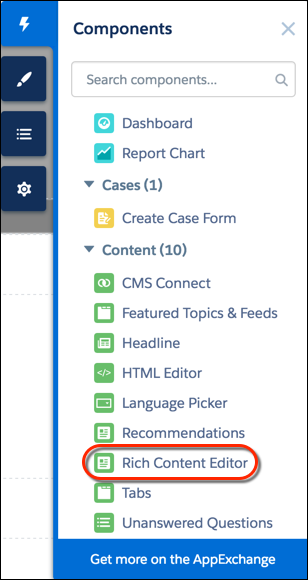
1. In Experience Builder, drag the Rich Content Editor component from the Components panel onto the page.
2. Add and format text (1), and add links (2), images (3), or YouTube or Vimeo videos (4) directly in the editor.

When you add an image to your site for the first time, an asset file is automatically created and stored in the Org Asset Library.

Note If public access is enabled in Experience Builder at the page or site level, the **Let guest users view asset files and CMS content available to the site** preference is enabled in **Administration** | **Preferences**. This preference remains enabled as long as any page has public access enabled. If you upload images for use on site login pages, be sure that this preference is enabled.
3. Optionally, to add alt text to an image in the Rich Content Editor component, right-click the image when the component is in edit mode. Select **Add Alt Text**, enter your text, and click **Add**.
#### See Also
- [Find and Create Asset Files in Experience Builder](https://help.salesforce.com/s/articleView?id=experience.community_builder_find_create_assets.htm&release=264.0.0&type=5 "Upload and select images for your header, logo, rich content editor, and custom components using the file selector in Experience Builder. After they're uploaded, files are converted to packageable asset files and stored in your org asset library for easy reference and retrieval.")
- [HTML Editor](https://help.salesforce.com/s/articleView?id=experience.rss_html_editor.htm&release=264.0.0&type=5 "The HTML Editor component lets you create and edit custom content in HTML.")