---
schema_version: "1"
id: 1adc0d4ed7278b0378a03146880e5dba7111e418e404bb6cf597d6370b012611
title: Create an Audience for an Aura Site
collection: admin
version: current
locale: en-us
portal_url: https://docs.salesforce.com/admin/current/en-us/experience/264-0-0/community_builder_page_visibilty_manage.md
canonical_url: https://help.salesforce.com/s/articleView?id=experience.community_builder_page_visibilty_manage.htm&release=264.0.0&type=5
source_site: help.salesforce.com
content_type: documentation
content_hash: bc5009a723993bd43c5ade52588619653c78ce1c44566af5705e113f2e4aaa55
description: You define an audience by selecting criteria and the conditions under which the criteria apply. After you create an audience, you can assign it to a page variation, branding set, or component. You also can assign an audience to a component variation to personalize the content that different user segments see in the CMS Collection, Navigation Menu, and Tile Menu components.
products:
- Experiences
release: "264"
---
# Create an Audience for an Aura Site
You define an audience by selecting criteria and the conditions under which the criteria apply. After you create an audience, you can assign it to a page variation, branding set, or component. You also can assign an audience to a component variation to personalize the content that different user segments see in the CMS Collection, Navigation Menu, and Tile Menu components.
### Required Editions
Available in: Salesforce Classic and Lightning Experience
Available in: Enterprise, Performance, Unlimited, and Developer Editions
Create and Set Up Experiences AND View Setup and Configuration AND be a member
of the site
OR
View Setup and Configuration AND be a member of the site AND have appropriate
role-based site access
You can follow the basic steps to create an audience or, for more complex audience creation, you can build an audience with a custom formula that uses AND and OR statements.
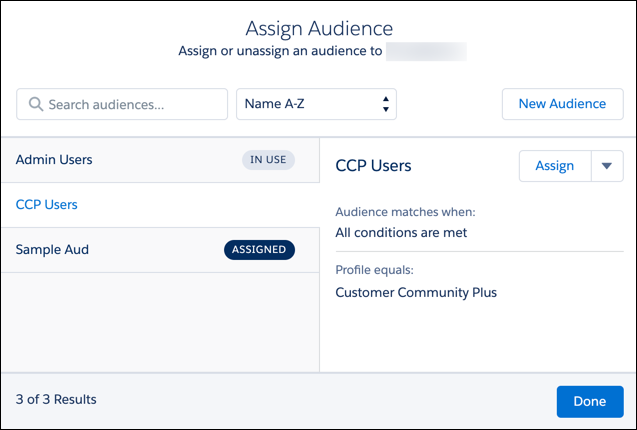
These steps walk you through how to create an audience in the New Audience window, which you can open from the Assign Audience window. How to access the Assign Audience window depends on whether you start from a page variation, branding set, or component. See these topics to learn how to navigate to the Assign Audience and New Audience windows from those different site locations:
- [Assign an Audience to a Page Variation](https://help.salesforce.com/s/articleView?id=experience.networks_audiences_page_variations.htm&release=264.0.0&type=5 "You can show different pages to different audiences.")
- [Assign an Audience to a Branding Set](https://help.salesforce.com/s/articleView?id=experience.networks_audiences_branding_sets.htm&release=264.0.0&type=5 "You can tailor your branding to different audiences. For example, you can show one look and feel to your customers and another to your partners.")
- [Assign an Audience to a Component](https://help.salesforce.com/s/articleView?id=experience.networks_audience_component.htm&release=264.0.0&type=5 "When you assign an audience to a page component, all users see the same page, but the components that are visible on the page differ among user segments. For example, you have a page that’s visible to site members and guest users, and you want your members to be able to post questions and comments. You can add the Feed Publisher component to the page and assign this component to an audience for site members only. Your members can see the component, and guest users can’t.")
- [Assign an Audience to a Component Variation](https://help.salesforce.com/s/articleView?id=experience.networks_personalize_components.htm&release=264.0.0&type=5 "Use audiences to vary the content that users see within the CMS Collection, Navigation Menu, or Tile Menu components. For example, show one navigation menu to your site members and a more abbreviated navigation menu to guest users. Or show different CMS content to internal employees and external partners.")

Note When you create an audience from a component or branding set, the audience can’t include record-based criteria. You can include record-based criteria only when you create an audience from a page variation.
## Create an Audience—Basic Steps
1. In the Assign Audience window, click **New Audience**.
2. Name the audience. For example, California Partners.
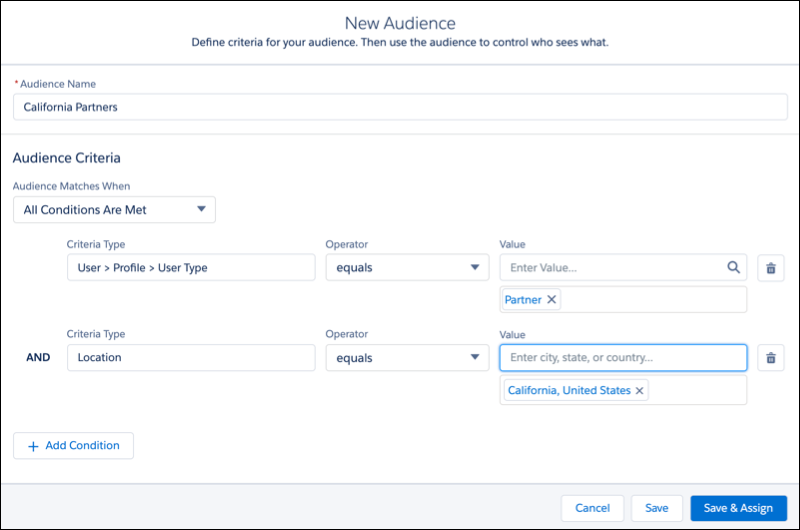
3. Under Audience Matches When, select which conditions are required for the audience to apply. For example, **All Conditions Are Met**.
4. Click the **Criteria Type** field, and select a criteria type from the menu. For example, **Location** or **User** | **Profile** | **User Type**.
5. Select an operator. For example, **equals**.
6. Enter a value for this criterion. For example, enter a location or select **Partner** from the menu.
7. To add more criteria, click **Add Condition**.
8. After you set all the criteria that you want to define the audience, save your changes.
Now you can assign the audience.
## Create an Audience with Custom Logic
Let’s say you want to create a highly targeted audience, such as marketing managers in California and sales managers in New York. You can create one audience with multiple user and location criteria and use parentheses and the AND operator to group the related criteria. Then you can separate the groups with the OR operator.
1. In the Assign Audience window, click **New Audience**.
2. Name the audience. For example, CA Marketing and NY Sales Mgrs.
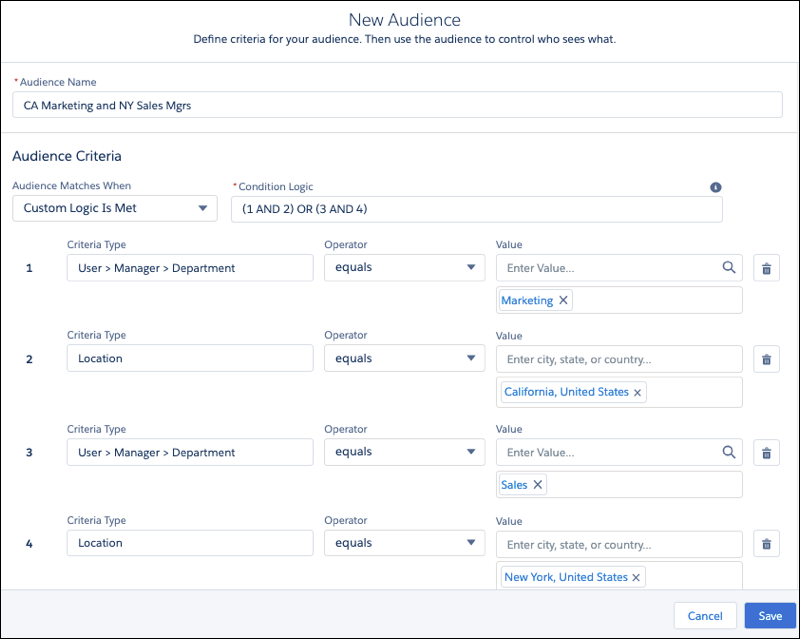
3. Under Audience Matches When, select **Custom Logic Is Met**.
4. Add the user and location criteria.
- User > Manager > Department equals Marketing
- Location equals California, United States
- User > Manager > Department equals Sales
- Location equals New York, United States
5. In the Condition Logic field, group the criteria using parentheses, pairing each targeted role and location with AND, and separating the groups with OR: (1 AND 2) OR (3 AND 4).
For example, pairing (1 and 2) puts the marketing managers in California in one group, and (3 and 4) puts the sales managers in New York in another group. When you assign the audience, these criteria apply to users who fit in either group.
6. Save your changes.
Now you can assign the audience.
- **[Criteria Types and Conditions for Audience Creation](https://help.salesforce.com/s/articleView?id=experience.networks_audience_crm.htm&release=264.0.0&type=5)**
You can use several types of criteria to define an audience and determine the conditions under which the criteria apply.
#### See Also
- [Considerations for Audience Targeting in Aura Sites](https://help.salesforce.com/s/articleView?id=experience.networks_audience_use_considerations.htm&release=264.0.0&type=5 "Audiences are a great help when you want to target specific user segments with relevant site content. As you work with audiences, there are some things to consider.")
- [Criteria Types and Conditions for Audience Creation](https://help.salesforce.com/s/articleView?id=experience.networks_audience_crm.htm&release=264.0.0&type=5 "You can use several types of criteria to define an audience and determine the conditions under which the criteria apply.")