---
schema_version: "1"
id: f89edda4406cf2ae8367b40a8f09d60faf876556fc84186b597e64f3633bfa06
title: Page Properties and Types in Experience Builder
collection: admin
version: current
locale: en-us
portal_url: https://docs.salesforce.com/admin/current/en-us/experience/264-0-0/community_builder_page_prop.md
canonical_url: https://help.salesforce.com/s/articleView?id=experience.community_builder_page_prop.htm&release=264.0.0&type=5
source_site: help.salesforce.com
content_type: documentation
content_hash: a9d6bd9da36bc549d3fe5238b5736336df58b82fbeea8e7afb59d4f1f2c9e3ec
description: Use the Page Action menu to view and edit the properties of the pages that make up your Experience Builder site.
products:
  - Experiences
release: "264"
---
# Page Properties and Types in Experience Builder

Use the Page Action menu to view and edit the properties of the pages that make up your Experience Builder site.

### Required Editions

<table class="slds-table slds-table_bordered slds-max-medium-table_stacked slds-m-bottom_small edition"><colgroup><col></colgroup><tbody><tr class=""><td class="slds-cell-wrap" style="vertical-align:top;">Available in: both Salesforce Classic and Lightning Experience</td></tr><tr class=""><td class="slds-cell-wrap" style="vertical-align:top;">Available in: <strong>Enterprise</strong>, <strong>Performance</strong>, <strong>Unlimited</strong>, and <strong>Developer</strong> Editions</td></tr></tbody></table>

<table class="slds-table slds-table_bordered slds-max-medium-table_stacked slds-m-bottom_small permission">
      <colgroup>
        <col style="width:50%">
        <col style="width:50%">
      </colgroup>
      <thead class="slds-text-title_caps ">
        <tr class="">
          <th scope="colgroup" class="slds-cell-wrap" colspan="2" style="text-align:center;vertical-align:top;" id="d115886e68">User Permissions
            Needed</th>
        </tr>
      </thead>
      <tbody>
        <tr class="">
          <td data-label="User Permissions Needed" class="slds-cell-wrap" style="vertical-align:top;" headers="d115886e68 ">To customize or publish an Experience Cloud site:</td>

          <td class="slds-cell-wrap" style="vertical-align:top;" headers="d115886e68 ">
            <ul>
              <li>Create and Set Up Experiences AND View Setup and Configuration AND be a member
                of the site<p>OR</p>
              </li>

              <li>View Setup and Configuration AND be a member of the site AND have appropriate
                <a href="https://help.salesforce.com/s/articleView?id=experience.networks_access_control_overview.htm&amp;language=en_US" target="_blank">role-based site access</a>
              </li>

            </ul>
          </td>

        </tr>
      </tbody>
    </table>

## Page Types

Experience Builder sites comprise of standard, object, content, and login pages.

- Standard pages are default pages are the default pages that come with the Experience Builder template or that you create.
- Object pages display object properties, such as the object’s record detail, list, and related list pages. Generic object pages display record information for a Salesforce object when custom object pages don’t exist.
- Content pages are pages you create to display your Salesforce CMS content.
- Login pages are default pages that come with the Experience Builder template.

## Page Properties

To edit a page’s properties, open the Pages menu in Experience Builder. Then, click ![Open Page Properties](https://sf-zdocs-cdn-prod.zoominsoftware.com/tdta-experience-communities-264-0-0-production-enus/bf7df212-91a1-4fa3-a007-4d6f3e3b470b/communities/images/community_builder_page_properties_ellipsis.png) to open the Page Action menu and select **Page Settings**. The properties available to each page depend on the selected page type.

![Page Properties in Builder](https://sf-zdocs-cdn-prod.zoominsoftware.com/tdta-experience-communities-264-0-0-production-enus/bf7df212-91a1-4fa3-a007-4d6f3e3b470b/communities/images/community_builder_page_properties.png)

![page properties menu in Builder](https://sf-zdocs-cdn-prod.zoominsoftware.com/tdta-experience-communities-264-0-0-production-enus/bf7df212-91a1-4fa3-a007-4d6f3e3b470b/communities/images/community_builder_page_properties2.png)

<table class="slds-table slds-table_bordered slds-max-medium-table_stacked slds-m-bottom_small ">
        <colgroup>
          <col style="width:30.48780487804878%">
          <col style="width:69.51219512195121%">
        </colgroup>
        <thead class="slds-text-title_caps ">
          <tr class="">
            <th scope="col" class="slds-cell-wrap" style="vertical-align:top;" id="d115886e170">Page property</th>
            <th scope="col" class="slds-cell-wrap" style="vertical-align:top;" id="d115886e173">Description</th>
          </tr>
        </thead>
        <tbody>
          <tr class="">
            <td data-label="Page property" class="slds-cell-wrap" style="vertical-align:top;" headers="d115886e170 ">Name</td>

            <td data-label="Description" class="slds-cell-wrap" style="vertical-align:top;" headers="d115886e173 ">The name of the page as it appears in Experience Builder. Editable only in the
              standard pages that you create.</td>

          </tr>
          <tr class="">
            <td data-label="Page property" class="slds-cell-wrap" style="vertical-align:top;" headers="d115886e170 ">URL</td>

            <td data-label="Description" class="slds-cell-wrap" style="vertical-align:top;" headers="d115886e173 ">
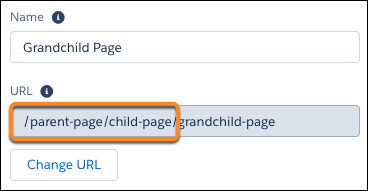
              <p>The URL of the page. Editable only in custom standard pages. </p>
              <p>Manage the URLs
                for each page after creating your page hierarchy. Anytime you move pages around
                and alter the page hierarchy in your site, the subpage URLs automatically update
                to reflect your changes. Some pages can’t be moved. Review <a href="https://help.salesforce.com/s/articleView?id=experience.community_builder_page_management_considerations.htm&amp;release=264.0.0&amp;type=5" title="When you create and organize pages in your Experience Builder site, some pages behave differently than others. Keep these page management considerations in mind when you use the Page Action menu.">Considerations for Page Hierarchy and URL Conflicts in Experience Builder</a>.</p>
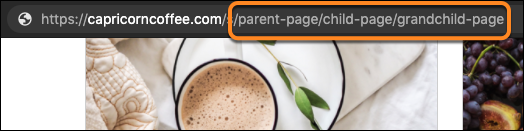
              <p>The site URL for each page reflects the structure you set up in
                Experience Builder when you share the live site with your users.</p>
              <div style="text-align:left;"><img src="https://sf-zdocs-cdn-prod.zoominsoftware.com/tdta-experience-communities-264-0-0-production-enus/bf7df212-91a1-4fa3-a007-4d6f3e3b470b/communities/images/community_builder_change_page_URL.png" alt="page hierarchy and change URL button"></div>
              <div style="text-align:left;"><img src="https://sf-zdocs-cdn-prod.zoominsoftware.com/tdta-experience-communities-264-0-0-production-enus/bf7df212-91a1-4fa3-a007-4d6f3e3b470b/communities/images/community_builder_runtime_site_URL.png" alt="page hierarchy in URL of live site"></div>
            </td>

          </tr>
          <tr class="">
            <td data-label="Page property" class="slds-cell-wrap" style="vertical-align:top;" headers="d115886e170 ">API Name</td>

            <td data-label="Description" class="slds-cell-wrap" style="vertical-align:top;" headers="d115886e173 ">A unique name you define when you create a page.</td>

          </tr>
          <tr class="">
            <td data-label="Page property" class="slds-cell-wrap" style="vertical-align:top;" headers="d115886e170 ">Page Access</td>

            <td data-label="Description" class="slds-cell-wrap" style="vertical-align:top;" headers="d115886e173 ">
              <p>Specifies the level of access to the page. When you enable public access, guest
                users can view asset files on public pages by default. More restrictive profile
                settings can prevent certain users from viewing this page, even if you choose
                Public. Page access for some pages, like My Account, is automatically set to require
                users to log in and can't be modified.</p>
              <p style="margin-bottom:0;">When you enable public access, the
                preference <strong class="uicontrol">Let guest users view asset files and CMS content available
                  to the site</strong> in <span class="menucascade"><strong class="uicontrol">Administration</strong> | <strong class="uicontrol">Preferences</strong></span> is automatically enabled.</p>
            </td>

          </tr>
          <tr class="">
            <td data-label="Page property" class="slds-cell-wrap" style="vertical-align:top;" headers="d115886e170 ">Title</td>

            <td data-label="Description" class="slds-cell-wrap" style="vertical-align:top;" headers="d115886e173 ">
              <p>The SEO title of the page. Shown in search engine results, the browser’s tab or
                window title, and bookmarks.</p>
              <p style="margin-bottom:0;">For data-based pages, such as object and content
                pages, the title is set dynamically.</p>
            </td>

          </tr>
          <tr class="">
            <td data-label="Page property" class="slds-cell-wrap" style="vertical-align:top;" headers="d115886e170 ">Description</td>

            <td data-label="Description" class="slds-cell-wrap" style="vertical-align:top;" headers="d115886e173 ">
              <p>The SEO description of the page. Shown in search engine results to help people
                decide if this page is the one they want. </p>
              <p style="margin-bottom:0;">For data-based pages, such as object
                and content pages, the description is set dynamically.</p>
            </td>

          </tr>
          <tr class="">
            <td data-label="Page property" class="slds-cell-wrap" style="vertical-align:top;" headers="d115886e170 ">Head Tags</td>

            <td data-label="Description" class="slds-cell-wrap" style="vertical-align:top;" headers="d115886e173 ">
              <p>Provides the opportunity to enter specific <code>meta</code> tags for the page to assist search engine optimization for your
                site.</p>
              <p style="margin-bottom:0;">For data-based pages, such as object and content pages, you can enter
                expressions to access values from the record associated with the page, such as the
                name, title, and value of specific fields.</p>
            </td>

          </tr>
          <tr class="">
            <td data-label="Page property" class="slds-cell-wrap" style="vertical-align:top;" headers="d115886e170 ">Content Layout</td>

            <td data-label="Description" class="slds-cell-wrap" style="vertical-align:top;" headers="d115886e173 ">Defines the content regions of your page, such as a two-column layout.</td>

          </tr>
          <tr class="">
            <td data-label="Page property" class="slds-cell-wrap" style="vertical-align:top;" headers="d115886e170 ">Theme Layout</td>

            <td data-label="Description" class="slds-cell-wrap" style="vertical-align:top;" headers="d115886e173 ">By selecting <strong class="uicontrol">Override the default theme layout for this
                page</strong>, you can choose to apply a different theme layout for the page.
            </td>

          </tr>
        </tbody>
      </table>

#### See Also

- [Change the Theme Layout of Your Experience Cloud Site’s Pages](https://help.salesforce.com/s/articleView?id=experience.community_builder_theme_apply.htm&release=264.0.0&type=5 "A theme layout defines the top-level regions of your page, such as the header and footer, navigation, search, and the user profile menu. A theme layout component categorizes the pages in your site that share a theme layout.")
- [Change the Content Layout in Experience Builder](https://help.salesforce.com/s/articleView?id=experience.community_builder_change_layout.htm&release=264.0.0&type=5 "Quickly change the look of your Experience Builder site pages by switching to a different content layout. You can even create your own custom content layout components in the Developer Console and import them to use in your site.")
- [SEO for Experience Builder Sites](https://help.salesforce.com/s/articleView?id=experience.networks_seo.htm&release=264.0.0&type=5 "Search engine optimization (SEO) ensures that your public Experience Builder site is visible to search engines. SEO helps customers, partners, and visitors find your content via online search.")
- [_Experience Cloud Developer Guide_: Create Custom Content Layout Components for Experience Builder](https://developer.salesforce.com/docs/atlas.en-us.communities_dev.meta/communities_dev/components_config_for_builder_layouts.htm)