---
schema_version: "1"
id: bf6217596b02cbb5b615ec25316534e9ff9a359993073005efc9548fafc78582
title: Analyze and Improve Experience Builder Site Performance
collection: admin
version: current
locale: en-us
portal_url: https://docs.salesforce.com/admin/current/en-us/experience/264-0-0/community_builder_page_optimizer.md
canonical_url: https://help.salesforce.com/s/articleView?id=experience.community_builder_page_optimizer.htm&release=264.0.0&type=5
source_site: help.salesforce.com
content_type: documentation
content_hash: c14e9791fa4433e3633f12f339991e47c6b755fe7a52a7de10d6e64a944effaf
description: The Salesforce Page Optimizer analyzes your site and identifies issues that impact performance. Use the information to refine your design and improve site performance for your members. The Page Optimizer is a free plug-in available from the Chrome Web Store. Download and install the plug-in as you would any Chrome extension.
products:
- Experiences
release: "264"
---
# Analyze and Improve Experience Builder Site Performance
The Salesforce Page Optimizer analyzes your site and identifies issues that impact performance. Use the information to refine your design and improve site performance for your members. The Page Optimizer is a free plug-in available from the Chrome Web Store. Download and install the plug-in as you would any Chrome extension.
### Required Editions
Available in: both Salesforce Classic and Lightning Experience
Available in: Enterprise, Performance, Unlimited, and Developer Editions
User Permissions
Needed
To customize or publish an Experience Cloud site:
Create and Set Up Experiences AND View Setup and Configuration AND be a member
of the site
OR
View Setup and Configuration AND be a member of the site AND have appropriate
role-based site access
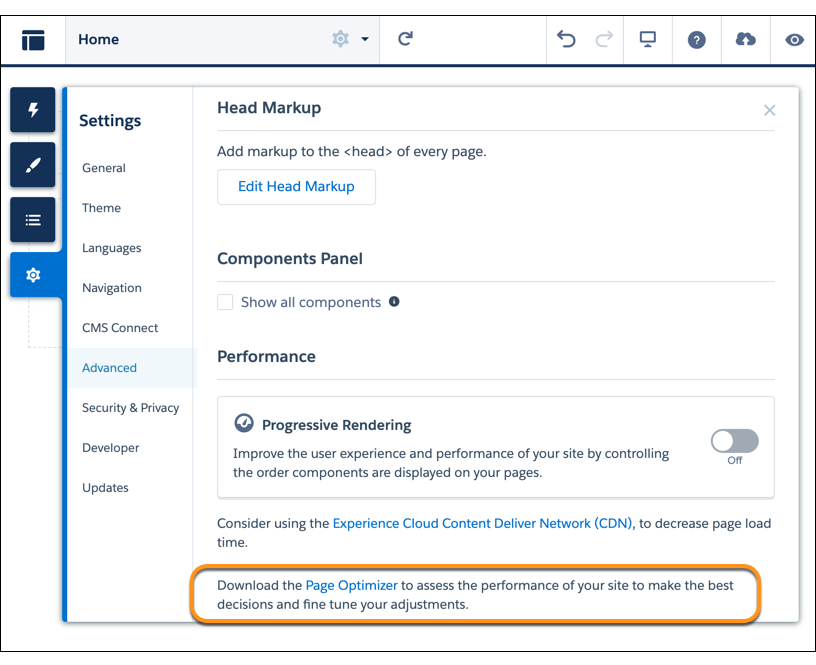
To download the Page Optimizer, in Experience Builder, click  on the left sidebar, and then click **Advanced**.
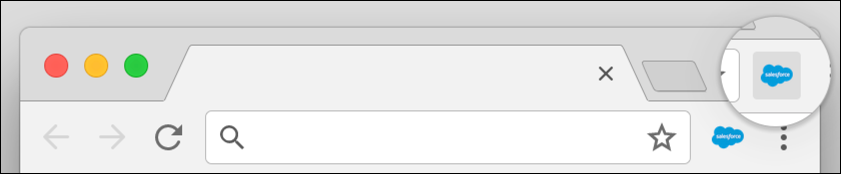
After installation, the Page Optimizer is located with your other Chrome extensions.
## Insights
To analyze your site, navigate to your published site, load the page, and then launch the Page Optimizer.
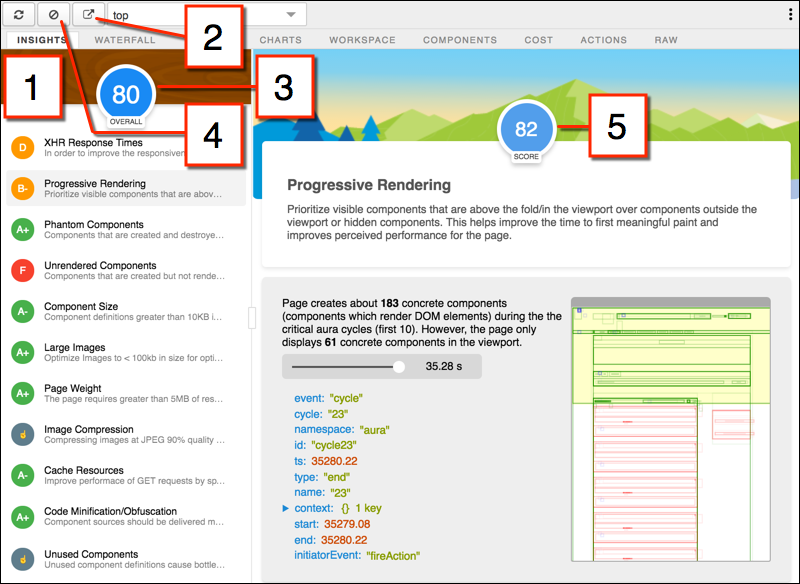
The Insights tab (1) evaluates your page based on best practices for web applications developed using the Lightning framework. This tab displays an overall performance score (3) along with individual scores (5) for various analysis rules. To view details and suggested actions, click each rule. For more room to work, click **Popout** (2).
The Insights tab is conservative in providing recommendations. For further insights, consider reviewing the raw data presented on the Waterfall, Timeline, Charts, Cost, and Actions tabs.
To remove collected metrics, click **Clear** (4). Perform some user actions on the page to collect new metrics, and then reopen the Page Optimizer. For example, to gather performance metrics for liking a feed item, clear performance metrics, click Like, and reopen the Page Optimizer.
## Waterfall
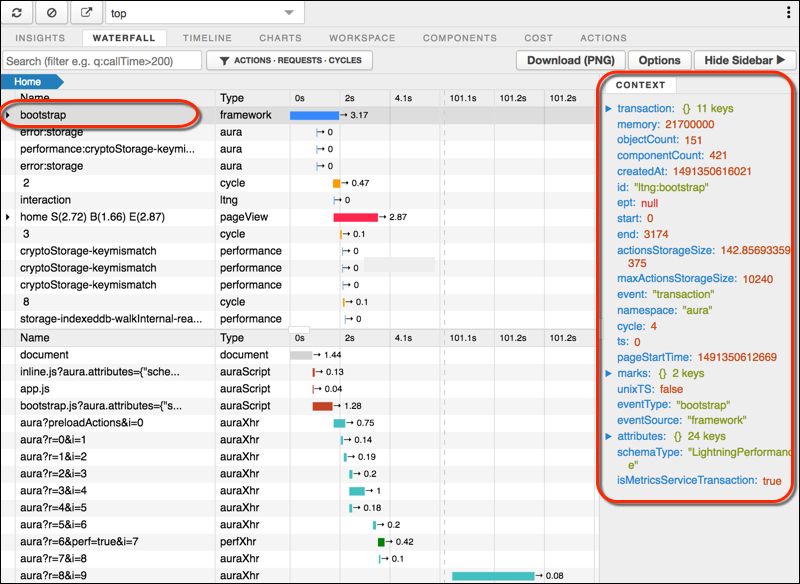
The Waterfall tab displays all network requests and performance instrumentation data. Click a row to view contextual information in the sidebar. Click the arrow to the left of each row to expand the information for each row.
## Timeline
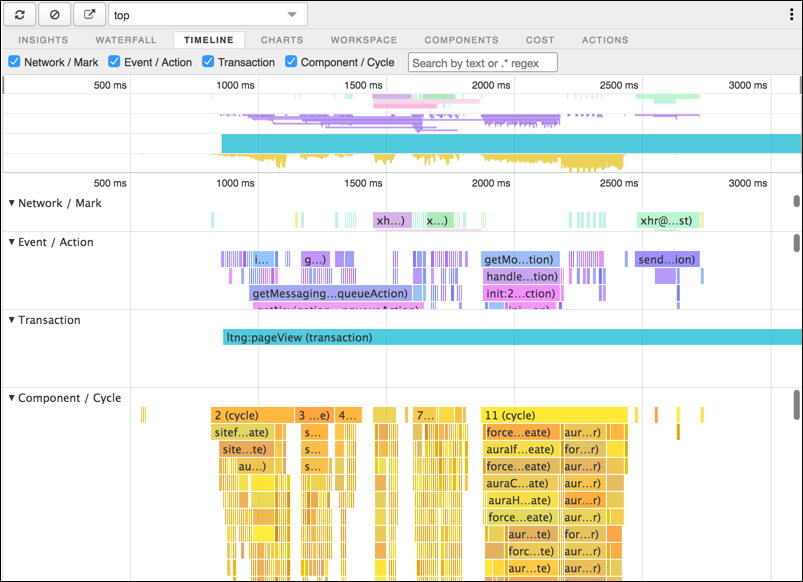
The Timeline tab provides a profile of each component’s rendering lifecycle. The timeline view is optimized for displaying Lightning framework metrics, so it’s easier to interpret than Chrome DevTools.
## Charts
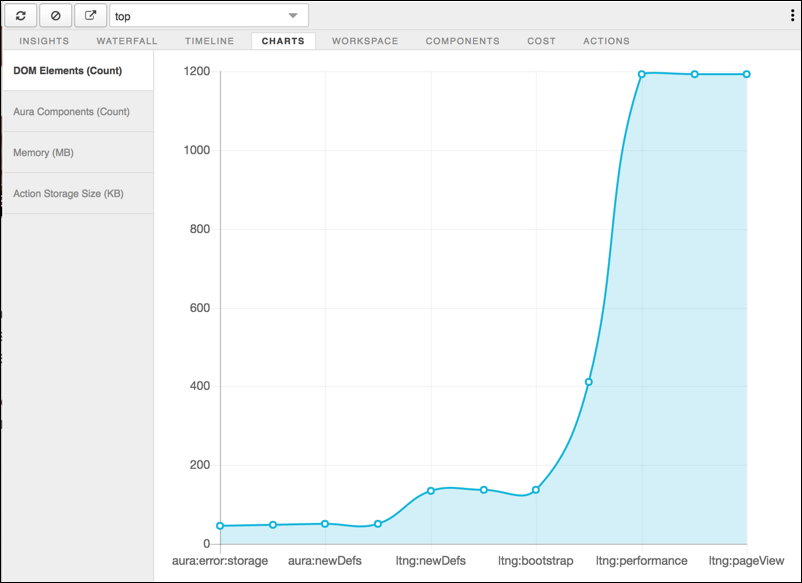
The Charts tab displays trending information about memory and components as customers use your page.
## Components
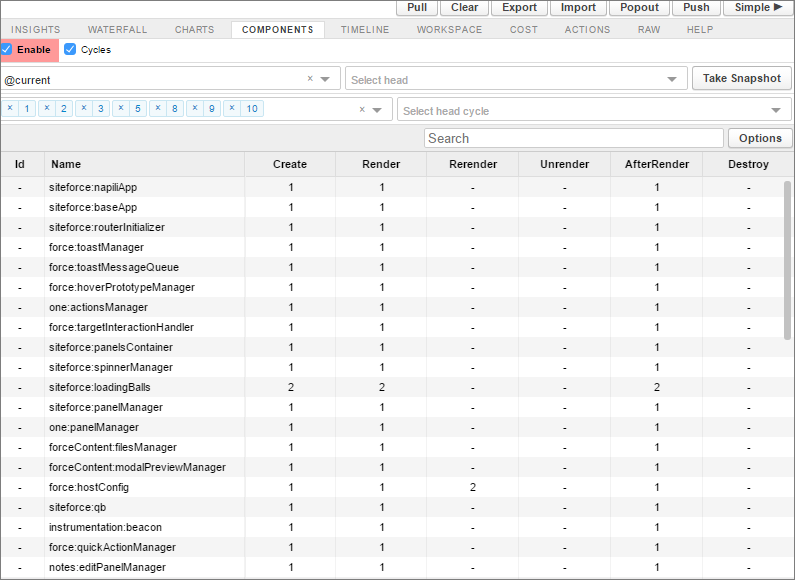
The Components tab displays the lifecycle counts for each component on the page. This view helps you identify potential component leaks and unexpected rendering behavior. Use the Component tab along with the Cost tab for an overall view of component performance.
## Cost
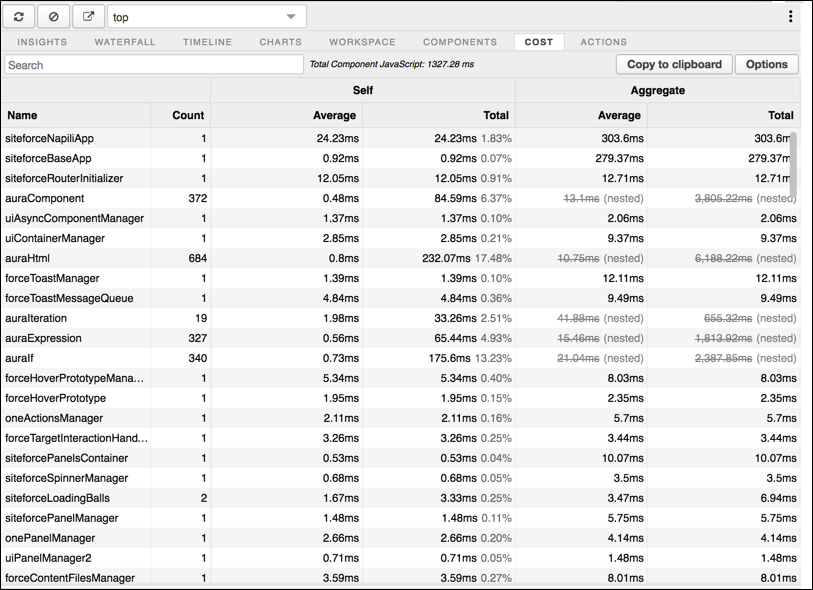
The Cost tab displays the amount of time each component was busy processing its logic. The lower the time, the better the performance.
## Actions
The Actions tab displays a list of all actions performed on the page along with their timing information.
## Export
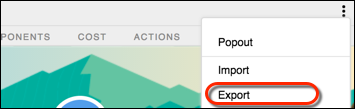
Export your analysis to a file to share with your development and support teams.
## Submit Feedback
We want to hear from you. Share your comments, questions, requests, and any issues that you find. [Submit Feedback](https://docs.google.com/a/salesforce.com/forms/d/e/1FAIpQLSdoOEXgX36lLXpJxlTiQTaw6aIAuvcYjwXnDSHIct4N62ANrQ/viewform).