---
schema_version: "1"
id: 885e38af30f77071ced824f2a88943e79d14c9c68a903e74ef5371e2117283e7
title: Add Languages to Your Aura Sites
collection: admin
version: current
locale: en-us
portal_url: https://docs.salesforce.com/admin/current/en-us/experience/264-0-0/community_builder_multilingual_add.md
canonical_url: https://help.salesforce.com/s/articleView?id=experience.community_builder_multilingual_add.htm&release=264.0.0&type=5
source_site: help.salesforce.com
content_type: documentation
content_hash: 88e02c1775ec08f991dcbb9e6fa04250714515d2c50435d8a69c1eabde0acb5d
description: Add the languages that you want your site to support.
products:
- Experiences
release: "264"
---
# Add Languages to Your Aura Sites
Add the languages that you want your site to support.
### Required Editions
Available in: Salesforce Classic and Lightning Experience
Available in: Enterprise, Performance, Unlimited, and Developer Editions
Create and Set Up Experiences AND View Setup and Configuration AND be a member
of the site
OR
View Setup and Configuration AND be a member of the site AND have appropriate
role-based site access
1. In Experience Builder, click **** | **Languages**.
2. Click **Add Languages**.
3. Select the languages that you want to add to your site.
4. Rearrange the list in the order that you want languages to appear.
5. Save your changes.
6. Optionally, for each language, select a fallback language.
The fallback language is the language to use when a page doesn’t have a translation for the language that the user selects. For example, imagine that a visitor chooses to view a page in French (CA), but there isn’t content for that page in French (CA). The fallback language is shown instead.
1. Under Site Languages, select a language.
2. From the **Fallback Language** field, select a fallback language.
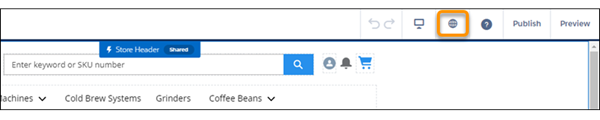
After you add a language to the site, the  Language icon appears in the Experience Builder toolbar. Click it to switch between languages when previewing or editing page content.

Tip Consider offering users a way to get instant translations of feed items. (Feed items include posts, questions, polls, and their comments, answers, and replies.) For more information, see [Add a Translate Button to Feed Items in Experience Builder Sites](https://help.salesforce.com/s/articleView?id=experience.networks_chatter_translate.htm&release=264.0.0&type=5 "A translation setting in Experience Builder puts a Translate with Google menu on every feed item. Translations are offered through a Google Cloud Translation API key that you provide.").
#### See Also
- [Set the Default Language for Your Aura Site](https://help.salesforce.com/s/articleView?id=experience.community_builder_multilingual_default.htm&release=264.0.0&type=5 "The default language is the language that’s used in a site before a user has selected another language. By default, the default language is set to English (US).")
- [Edit Language Content on the Page](https://help.salesforce.com/s/articleView?id=experience.community_builder_multilingual_editing_about.htm&release=264.0.0&type=5 "Experience Builder provides its own language menu that you can use to switch between languages as you edit content on each page. Switch languages and provide spot translations, like fixing a typo. You can also use this method for full page translations instead of exporting and importing site content.")
- [Set Language Options](https://help.salesforce.com/s/articleView?id=experience.community_builder_multilingual_settings.htm&release=264.0.0&type=5 "After you add Experience Builder sites languages, you can define separate settings for each language.")
- [Delete a Language](https://help.salesforce.com/s/articleView?id=experience.community_builder_multilingual_delete.htm&release=264.0.0&type=5 "When you delete a language, the translated content isn’t deleted—it’s just no longer visible. When you add the language back to the Experience Builder site, you can access the translated content again.")