---
schema_version: "1"
id: c308c614cdfad8f8a80d56a3c37d7ea755127b2c5105a2a30d7d01a96e5a6331
title: Track Site Users with Your Google Analytics Tracking ID
collection: admin
version: current
locale: en-us
portal_url: https://docs.salesforce.com/admin/current/en-us/experience/264-0-0/community_builder_google_id.md
canonical_url: https://help.salesforce.com/s/articleView?id=experience.community_builder_google_id.htm&release=264.0.0&type=5
source_site: help.salesforce.com
content_type: documentation
content_hash: 88348a459750a86d82d3ec81b99eea2a519a5c9f19c44eb5fb4c83b6c553cd6f
description: Add your Google Analytics™ tracking ID to track page views. Enable access to your Salesforce data for deeper insights. Then, adjust your pages to more accurately reach your customers.
products:
- Experiences
release: "264"
---
# Track Site Users with Your Google Analytics Tracking ID
Add your Google Analytics™ tracking ID to track page views. Enable access to your Salesforce data for deeper insights. Then, adjust your pages to more accurately reach your customers.
### Required Editions
Available in: both Salesforce Classic and Lightning Experience
Available in: Enterprise, Performance, Unlimited, and Developer Editions
User Permissions
Needed
To customize or publish an Experience Cloud site:
Create and Set Up Experiences AND View Setup and Configuration AND be a member
of the site
OR
View Setup and Configuration AND be a member of the site AND have appropriate
role-based site access
To track using Google Analytics:
1. In Experience Builder, click  on the left sidebar and click **Advanced**.
2. Enter your Google Analytics tracking ID.
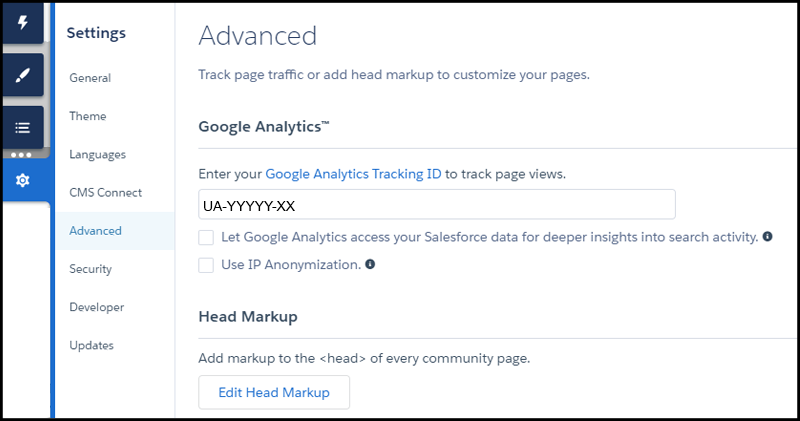
3. To track user types, user IDs, and search activity, enable **Let Google Analytics access your Salesforce data for deeper insights into search activity**.
4. To enable the masking of IP addresses on the Google server side, which helps with privacy compliance or concerns, **Use IP Anonymization**.
5. To enable the service, publish the site.
Your site’s analytics data streams directly to the Google Analytics service where you can review and interpret it.
After you’ve set up Google Analytics to integrate with your data, you can [create your own reports](https://support.google.com/analytics/answer/1151300?hl=en).
For developers of custom Lightning components, we provide the `global forceCommunity:analyticsInteraction` event. Use this event to track events triggered by the custom component.
- **[Configure Google Analytics™ for Experience Cloud Sites](https://help.salesforce.com/s/articleView?id=experience.networks_google_analytics_setup.htm&release=264.0.0&type=5)**
Set up Google Analytics to track user IDs, user types, and search activity so that users can pull this information into meaningful reports.
#### See Also
- [_Lightning Components Developer Guide_: forceCommunity:analyticsInteraction](https://developer.salesforce.com/docs/atlas.en-us.lightning.meta/lightning/ref_forceCommunity_analyticsInteraction.htm)