---
schema_version: "1"
id: 27c56af6b4875ac22807193ea9e222e3294c285a58fa2255cf3b2cbf3b066325
title: Experience Builder Settings
collection: admin
version: current
locale: en-us
portal_url: https://docs.salesforce.com/admin/current/en-us/experience/264-0-0/community_builder_general_settings.md
canonical_url: https://help.salesforce.com/s/articleView?id=experience.community_builder_general_settings.htm&release=264.0.0&type=5
source_site: help.salesforce.com
content_type: documentation
content_hash: 6edf5bbca2385bbc069d9b389306edb22086d4fa8f9bb3ed3ad1418cd385d1bd
description: Use the Settings area to track which template you’re using, view your site’s status and publication history, and customize your template. If you’re using the Customer Service template, access your navigational and featured topic settings.
products:
- Experiences
release: "264"
---
# Experience Builder Settings
Use the Settings area to track which template you’re using, view your site’s status and publication history, and customize your template. If you’re using the Customer Service template, access your navigational and featured topic settings.
### Required Editions
Available in: Salesforce Classic and Lightning Experience
Available in: Enterprise, Performance, Unlimited, and Developer Editions
Create and Set Up Experiences AND View Setup and Configuration AND be a member
of the site
OR
View Setup and Configuration AND be a member of the site AND have appropriate
role-based site access
To access the Settings area in Experience Builder, click  on the left sidebar. Not all settings are available for all sites.
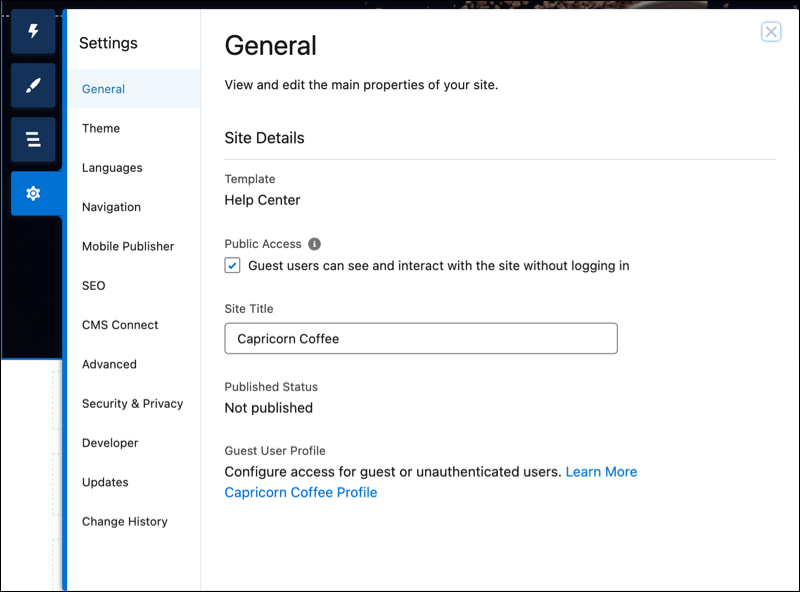
General
In the General area, settings include:
Template
Shows the name and version of the template that your site uses.
Public Access
Specifies the level of access to the page. When you enable public access, guest users can view asset files on public pages by default. However, users whose profile settings are more restrictive can’t always view this page, even if you choose Public.
When you enable public access, the preference **Let guest users view asset files on public pages** in **Administration** | **Preferences** is automatically enabled.
Site Title (Aura sites only)
Lets you set the title for your site. The title briefly appears in the browser’s title bar before your site’s Home page loads.
Published Status
Indicates whether your site is published. If it’s published, click the link to open the live site in a separate browser tab.
Preferred Domain
Lets you choose which domain to use for indexing your site’s pages to improve search engine results. (Multiple domains for the same site can dilute search engine results and lower page ranking.) The Preferred Domain dropdown appears only after you set up a [custom domain](https://help.salesforce.com/s/articleView?id=platform.domain_mgmt.htm&type=5&language=en_US) for your site in Setup. You can set only HTTPS preferred domains.
Guest User Profile
Shows the associated guest user profile. When you click the link, you go to the Profile page in Salesforce Setup, where you can modify profile settings, such as which permissions the guest user has. For more information about configuring the guest user profile, see [Give Secure Access to Unauthenticated Users with the Guest User Profile](https://help.salesforce.com/s/articleView?id=platform.networks_public_access.htm&type=5&language=en_US).
Set Featured and Navigational Topics (Customer Service template only)
[Define featured topics](https://help.salesforce.com/s/articleView?id=experience.networks_topics_featured.htm&release=264.0.0&type=5 "Featured topics highlight current, popular conversations in your Experience Cloud site. Change them regularly to keep members up-to-date and engaged.") and [topics to be used for navigation](https://help.salesforce.com/s/articleView?id=experience.networks_topics_navigational.htm&release=264.0.0&type=5 "Structure your Experience Cloud site’s content and help your users find what they need with navigational topics. If your org uses data categories, community managers can link current Salesforce Knowledge articles associated with those categories to each navigational topic. If data categories aren’t enabled, administrators can add articles to each topic using Connect REST API.") in Experience Workspaces or Experience Management.
Theme
In the Theme area, you can [control the layout and appearance](https://help.salesforce.com/s/articleView?id=experience.community_builder_theme.htm&release=264.0.0&type=5 "Theme layouts and theme layout components combine to give you granular control of the appearance and structure of each page in your site. Customize the layout’s header and footer to match your company’s style. Configure theme layout properties. Or use a custom search bar and user profile menu. Then use theme layouts to assign theme layout components to individual pages allowing you to quickly change layouts from one central location. Whether you’re a consulting partner or an ISV, or you simply want to revamp your own site, custom theme layouts make it easy to rebrand.") of each page in your site.
Languages
In the Languages area, set the multilingual properties for your site. When you set these properties, the [Language Selector](https://help.salesforce.com/s/articleView?id=experience.rss_language_picker.htm&release=264.0.0&type=5 "Add the Language Selector component to multilingual sites so guest users can select their preferred language on public site pages.") component uses them to let guest users select their preferred language on a page in your site.
Navigation
In the Navigation area, create and manage navigational menus for your site. You can use menus in Navigation, Tile Menu, Profile, and custom menu components.
Mobile Publisher
Configure navigation options and settings for your Mobile Publisher app.
SEO (Aura sites only)
In the SEO area, you can define what information can be indexed by external services and discovered through online searches. From the Guest User Profile, make an object’s records public and available for SEO indexing. You can also [generate a manual sitemap refresh](https://help.salesforce.com/articleView?id=networks_manual_SEO_sitemap.htm&type=5&language=en_US) for your site.

Note To access SEO settings in Experience Builder, enable public access for your site from the General area in Settings.
Search (enhanced LWR sites only)
In the Search area, you can rebuild the index after you publish fresh content in your site or in the connected CMS workspace. Your site visitors can then see your new content in their search results. This feature is available only after [you set up a standard Search page](https://help.salesforce.com/s/articleView?id=experience.networks_search_site.htm&release=264.0.0&type=5 "In enhanced LWR sites, visitors can search for CMS content published from enhanced CMS workspaces. Visitors can also search for content within the Rich Content Editor and HTML Editor components, as well as within page title metadata. Use the Search Bar and Results Layout components to add the search functionality to your enhanced LWR site.").
CMS Connect (Aura sites only)
[Add a header and footer from a connected CMS source](https://developer.salesforce.com/docs/atlas.en-us.communities_dev.meta/communities_dev/communities_dev_cms_headerfooter.htm) to your site.
Advanced
In the Advanced area, you can [track page views, mask IP addresses](https://help.salesforce.com/s/articleView?id=experience.community_builder_google_id.htm&release=264.0.0&type=5 "Add your Google Analytics™ tracking ID to track page views. Enable access to your Salesforce data for deeper insights. Then, adjust your pages to more accurately reach your customers."), [add markup to the page head](https://help.salesforce.com/s/articleView?id=experience.community_builder_page_head.htm&release=264.0.0&type=5 "Add custom analytics, improve your SEO results, and more by adding custom markup to the page in Experience Builder. For example, you can include SEO meta tags that are visible only to search engines, add a favicon, or add custom code for Adobe Analytics and Google Tag Manager."), and show all components in the Components panel.
By default, we filter the components available in the Components panel according to each page’s purpose. For example, the Case Comments Publisher is available only for the Case Details page. When you enable **Show all components**, you see the complete list of components when you open the Components panel for any page except login pages. (For limitations in enhanced LWR sites, see [LWR Template Limitations](https://developer.salesforce.com/docs/atlas.en-us.exp_cloud_lwr.meta/exp_cloud_lwr/template_limitations.htm).) However, you can still add the Related Questions List component only to the Question Detail page and the Related Articles List component only to the Article Detail page.

Important Some components require the page to pass specific parameters. When you remove component filtering, you can add a component that relies on a passed parameter to a page that doesn’t pass any values. For the component to work correctly, you must manually configure the component’s parameters.
For example, some components that take `{!recordId}` as a parameter expect to get this value from the page’s URL. If you add the component to a page that doesn't pass this value through the URL, you must manually provide it.
Similarly, let’s say you add the Group Detail component, which requires a `{!recordId}` value, to the Case Detail page instead of the Group Detail page. Although both pages pass a `{!recordId}` value, the ID that Case Detail passes is incorrect.
Integrations (LWR sites only)
Add functionality such as Google Analytics to your site.
Security & Privacy
Manage security and privacy settings for your Experience Cloud site, including [Clickjack protection](https://help.salesforce.com/s/articleView?id=experience.networks_clickjack_protection.htm&release=264.0.0&type=5 "Clickjacking is a type of attack that tricks users into clicking something, such as a button or link, because they perceive it to be safe. By creating hidden iframes pointing to your Experience Cloud site pages, hackers can entice users to click an element that appears to be on a different web page. But instead of the visible element handling the click, the click is hijacked and some element of the invisible site iframe on top receives it. Clickjacking can potentially lead to data intrusion, unauthorized emails, changed credentials, or other malicious site-specific results. With clickjack protection, however, you can secure your site by controlling whether browsers allow frames pointing to your pages."), [Content Security Policy (CSP)](https://help.salesforce.com/s/articleView?id=experience.networks_security_csp_overview.htm&release=264.0.0&type=5 "Experience Builder sites use Content Security Policy (CSP) and Lightning Locker to secure your site from malicious attacks and custom code vulnerabilities. CSP is a W3C standard that controls the source of content that can be loaded on your site’s pages and helps protect against cross-site scripting (XSS) attacks. Lightning Locker is a Salesforce architectural layer that allows third-party Lightning components and custom code to run safely on the same page in the browser. With different levels of security, you can optimize your site security choices and tolerance for risk."), and [site cookie usage](https://help.salesforce.com/s/articleView?id=experience.networks_cookies.htm&release=264.0.0&type=5 "Experience Cloud uses cookies to improve functionality and accelerate processing times. By saving a user’s settings, cookies can enhance the user’s experience and the performance of the Experience Cloud site.").
Updates
In the Updates area, you can update your site’s template to the latest version.
Developer (Aura sites only)
In the Developer area, you can export customized Experience Builder templates and pages. You can add these templates and pages to a Lightning Bolt Solution to distribute to other orgs or publish on AppExchange.
Change History
The Change History area shows a chronological list of publication dates for your site. When you publish a site and enter a summary of the site changes in the publication confirmation window, that summary appears here. The panel also shows any changes made to the configuration of domains that are associated with your site and identifies which user made each update.