---
schema_version: "1"
id: 05960bf19d633fa73787c9fa508aa356a9823d3b4cdfd3027bb602e83a3a866f
title: Add Data Providers to Get Data on Enhanced LWR Site Pages (Beta)
collection: admin
version: current
locale: en-us
portal_url: https://docs.salesforce.com/admin/current/en-us/experience/264-0-0/add_data_providers.md
canonical_url: https://help.salesforce.com/s/articleView?id=experience.add_data_providers.htm&release=264.0.0&type=5
source_site: help.salesforce.com
content_type: documentation
content_hash: 6c6230411ebe2c8fe1ef99d76c25dcfc551f32d2bb3a26891a7c075af216cc8f
description: Configure data providers on enhanced LWR site pages in Experience Builder and get access to data from different sources. You can bind data from Apex or Record data providers to individual builder components on to these pages.
products:
- Experiences
release: "264"
---
# Add Data Providers to Get Data on Enhanced LWR Site Pages (Beta)
Configure data providers on enhanced LWR site pages in Experience Builder and get access to data from different sources. You can bind data from Apex or Record data providers to individual builder components on to these pages.
### Required Editions
Available in: Lightning Experience
Available in: Professional, Enterprise, Unlimited, and Developer Editions
Create and Set Up Experiences AND View Setup and Configuration AND be a member
of the site
OR
View Setup and Configuration AND be a member of the site AND have appropriate
role-based site access

Note Data Provider Configuration is a pilot or beta service that is subject to the Beta Services Terms at [Agreements - Salesforce.com](https://www.salesforce.com/company/legal/agreements/) or a written Unified Pilot Agreement if executed by Customer, and applicable terms in the [Product Terms Directory](https://ptd.salesforce.com/?_ga=2.247987783.1372150065.1709219475-629000709.1639001992). Use of this pilot or beta service is at the Customer's sole discretion.
1. From the Pages menu in Experience Builder, click  to access the Page Action menu, then select **Page Settings**.
The Data (Beta) tab is available for each page next to the Properties tab.
2. To view or configure data providers for the page, click the **Data (Beta)** tab.
The existing data providers for the page appear in the Inherited Data Providers table.
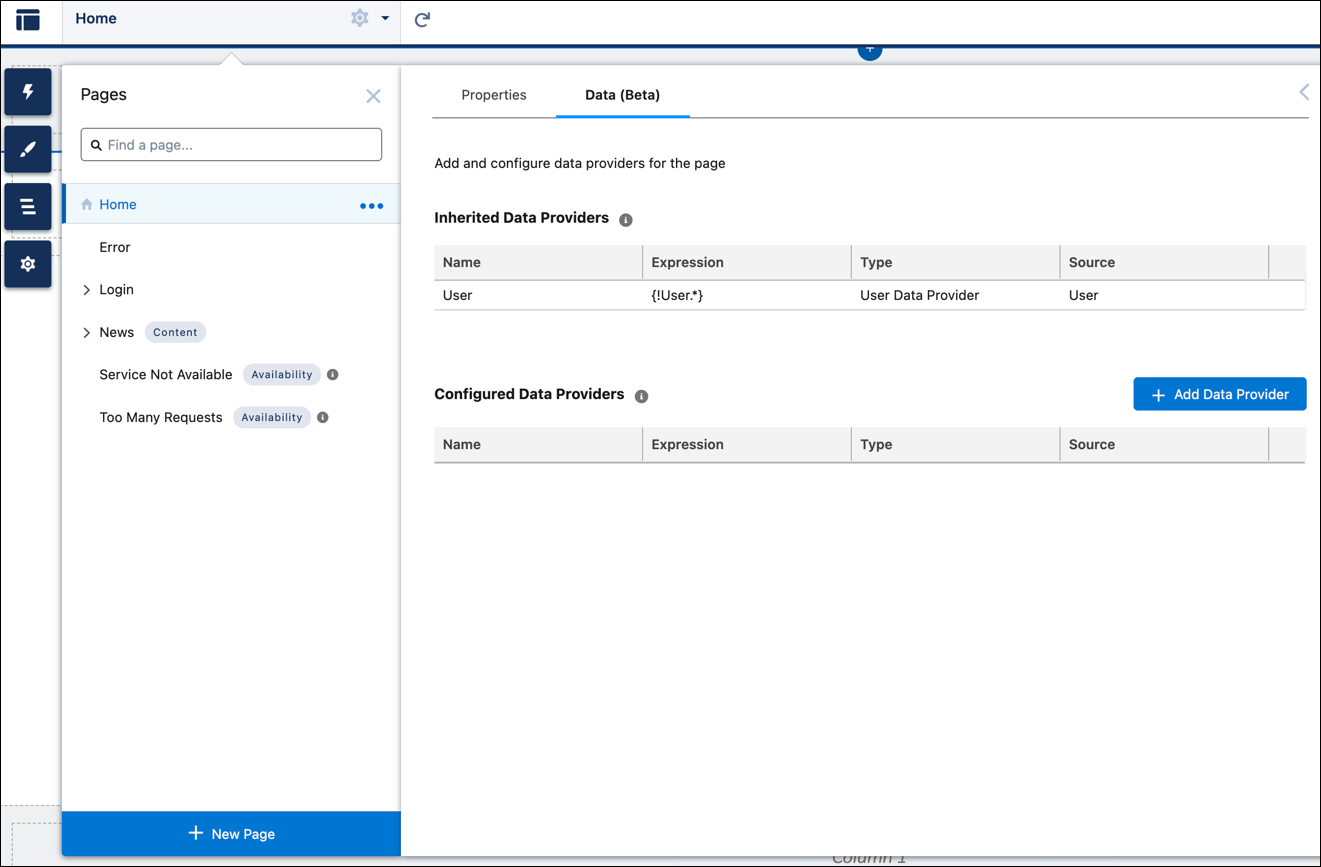
3. To add a data provider for the page, click **Add Data Provider**.
4. In the Add Data Provider window, enter a unique name.
5. From the Type dropdown, select the type of the data provider that you want to add.
- If you select the Salesforce Record data provider type, then select an object and provide the record ID.

Note You can configure only these objects through the Salesforce Record data provider: Account, Contact, Case, Lead, Opportunity, and Knowledge.
- If you select the Apex data provider type, then provide the Apex class name, Apex method name, and Apex method parameters (if any).
6. Save your changes.
The new data provider appears in the Configured Data Providers table.
7. To bind this data provider to a component, click 
The Component panel lists the components compatible with the page.

Note Data binding is supported for components that have string properties.
8. Select any component and drag it to the canvas. For example, select a Text Block component.
9. In the component property panel, in the Text or Expression field, enter a data binding expression in this format: {!.}.

Example To show an Account name of an object in the Text Block component of a page, enter Account Name : {!Item.Name} The expression is evaluated and replaced with a value when the component is rendered.
- **[Configuring Apex Data Providers in Experience Builder (Beta)](https://help.salesforce.com/s/articleView?id=experience.data_providers_configuration.htm&release=264.0.0&type=5)**
A data provider is a reference to a source of data. An Apex data provider is implemented as a function within an Apex class. A Salesforce Apex controller is an Apex class that stores information and logic related to a group of UI components. You can perform actions such as querying data, updating records, or invoking another Apex code using this logic.
- **[Data Provider Considerations (Beta)](https://help.salesforce.com/s/articleView?id=experience.data_providers_limitations.htm&release=264.0.0&type=5)**
When configuring data providers on an LWR site page, keep these considerations in mind.