---
schema_version: "1"
id: d90d7d3c22e1244d851e5e070f807d7f65eba2b661d53bdcd3b713fee41d64ef
title: View Data Graph Properties and JSON Structure
collection: admin
version: current
locale: en-us
portal_url: https://docs.salesforce.com/admin/current/en-us/data/264-0-0/c360_a_view_data_graph_metadata.md
canonical_url: https://help.salesforce.com/s/articleView?id=data.c360_a_view_data_graph_metadata.htm&release=264.0.0&type=5
source_site: help.salesforce.com
content_type: documentation
content_hash: 1c606eb77e7623049049023ce6743e4837b06840c5a4ee1abe9f84141ede9d22
description: Use a list view to see data graph properties, including the primary data model object (DMO), data graph status, and structure. Additionally, you can copy a data graph’s JSON structure from its record home page.
products:
  - Data 360
release: "264"
---
# View Data Graph Properties and JSON Structure

Use a list view to see data graph properties, including the primary data model object (DMO), data graph status, and structure. Additionally, you can copy a data graph’s JSON structure from its record home page.

### Required Editions

<table class="slds-table slds-table_bordered slds-max-medium-table_stacked slds-m-bottom_small edition"><colgroup><col></colgroup><tbody><tr class=""><td class="slds-cell-wrap" style="vertical-align:top;">Available in: <strong>All Editions</strong> supported by Data 360. See <a href="https://help.salesforce.com/s/articleView?id=data.c360_a_dc_editions.htm&amp;release=264.0.0&amp;type=5" title="Data 360 is available in several supported Salesforce editions. Some Data 360 features also require additional licenses.">Data 360 edition availability</a>.</td></tr></tbody></table>

<table class="slds-table slds-table_bordered slds-max-medium-table_stacked slds-m-bottom_small ">
        <colgroup>
          <col style="width:50%">
          <col style="width:50%">
        </colgroup>
        <thead class="slds-text-title_caps ">
          <tr class="">
            <th scope="colgroup" class="slds-cell-wrap" colspan="2" style="text-align:left;vertical-align:top;" id="d62629e67">User Permission Set
              Needed</th>
          </tr>
        </thead>
        <tbody>
          <tr class="">
            <td data-label="User Permission Set Needed" class="slds-cell-wrap" style="vertical-align:top;" headers="d62629e67 ">To add calculated insights to a data graph</td>

            <td class="slds-cell-wrap" style="vertical-align:top;" headers="d62629e67 ">
              <p>Permission set: </p>
              <ul>
                <li>Data Cloud Architect</li>

              </ul>
            </td>

          </tr>
        </tbody>
      </table>

1. In Data Cloud, go to the Data Graphs tab.
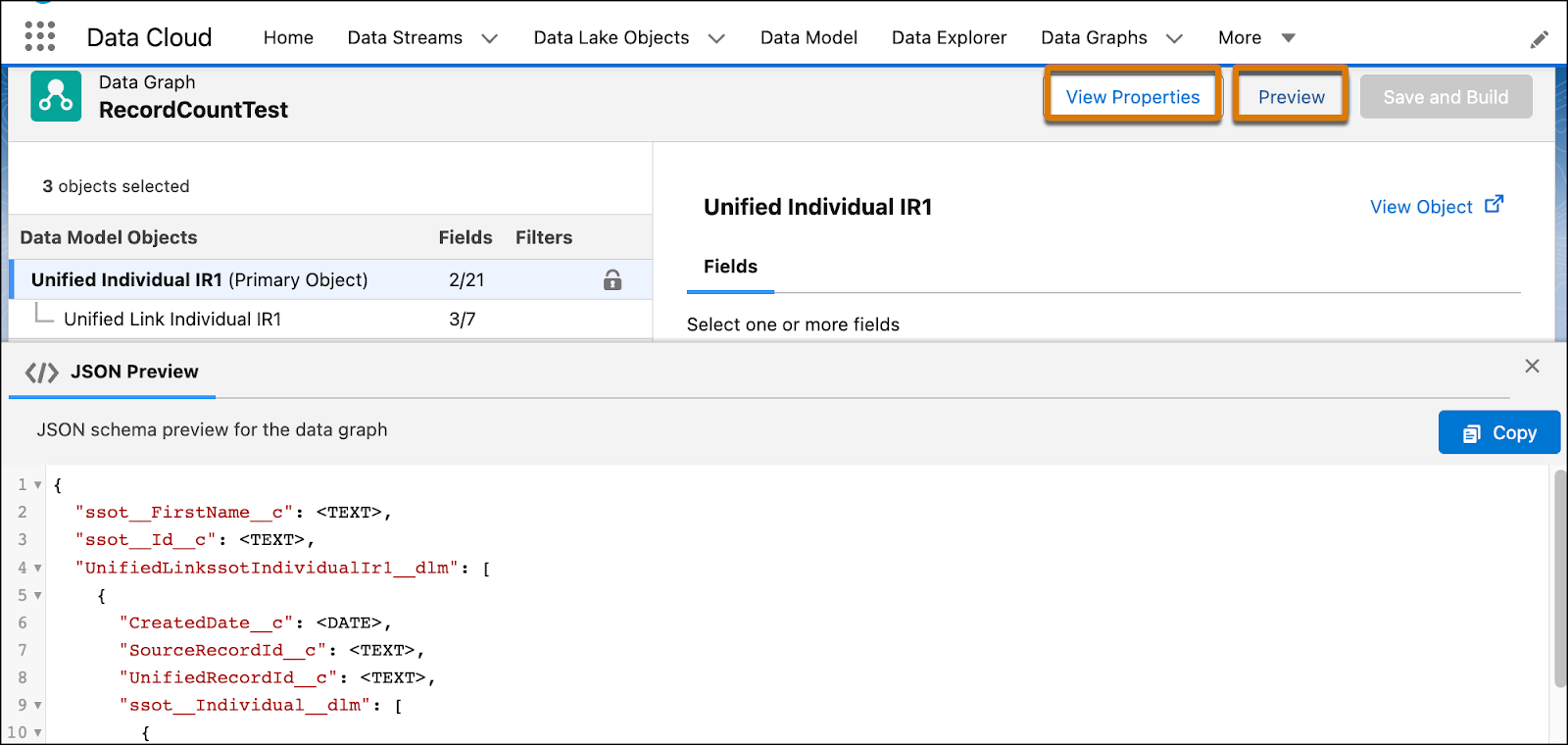
2. From a list view, click the name of a data graph to open the data graph editor and see the structure in read-only mode.
    
    ![View data graph metadata](https://sf-zdocs-cdn-prod.zoominsoftware.com/tdta-data-data_cloud-264-0-0-production-enus/f3569962-3c9b-4f83-9d0c-b6a574e785da/data_cloud/images/c360_a_view_data_graph_metadata.png)
3. In the data graph editor, click **Preview** to review the JSON structure.
4. Click Copy to add the JSON to your clipboard so that you can paste it into a file or a JSON editor.