---
schema_version: "1"
id: 2c47290ef866bea4b2afe557d792e812836513c299da876b23aec599f37e86dd
title: View Audience Insights in Data Explorer
collection: admin
version: current
locale: en-us
portal_url: https://docs.salesforce.com/admin/current/en-us/data/264-0-0/c360_a_view_audience_insights_in_data_explorer.md
canonical_url: https://help.salesforce.com/s/articleView?id=data.c360_a_view_audience_insights_in_data_explorer.htm&release=264.0.0&type=5
source_site: help.salesforce.com
content_type: documentation
content_hash: affd8365be58dc9d05bc604d1bb3cd216aac313bba383dc6dc92542a2ccb13d8
description: View audience insights across different activations for a given target in Data 360. You can view results up to the past 90 days.
products:
  - Data 360
release: "264"
---
# View Audience Insights in Data Explorer

View audience insights across different activations for a given target in Data 360. You can view results up to the past 90 days.

### Required Editions

<table class="slds-table slds-table_bordered slds-max-medium-table_stacked slds-m-bottom_small edition"><colgroup><col></colgroup><tbody><tr class=""><td class="slds-cell-wrap" style="vertical-align:top;">Available in: <strong>All Editions</strong> supported by Data 360. See <a href="https://help.salesforce.com/s/articleView?id=data.c360_a_dc_editions.htm&amp;language=en_US&amp;type=5l" target="_blank">Data 360 edition availability</a>.</td></tr><tr class=""><td class="slds-cell-wrap" style="vertical-align:top;">Available with add-on license: <strong>Ad Audiences</strong></td></tr></tbody></table>

<table class="slds-table slds-table_bordered slds-max-medium-table_stacked slds-m-bottom_small permission">
        <colgroup>
          <col style="width:50%">
          <col style="width:50%">
        </colgroup>
        <thead class="slds-text-title_caps ">
          <tr class="">
            <th scope="colgroup" class="slds-cell-wrap" colspan="2" style="text-align:left;vertical-align:top;" id="d237347e69">User Permissions Needed</th>
          </tr>
        </thead>
        <tbody>
          <tr class="">
            <td data-label="User Permissions Needed" class="slds-cell-wrap" style="vertical-align:top;" headers="d237347e69 ">To view a DMO in Data Explorer:</td>

            <td class="slds-cell-wrap" style="vertical-align:top;" headers="d237347e69 ">
              <p>One of these permission sets: </p>
              <ul>
                <li>Data Cloud Architect</li>

                <li>Data Cloud User</li>

                <li>Data Cloud Activation Manager</li>

                <li>Data Cloud Activation Specialist </li>

              </ul>
            </td>

          </tr>
        </tbody>
      </table>

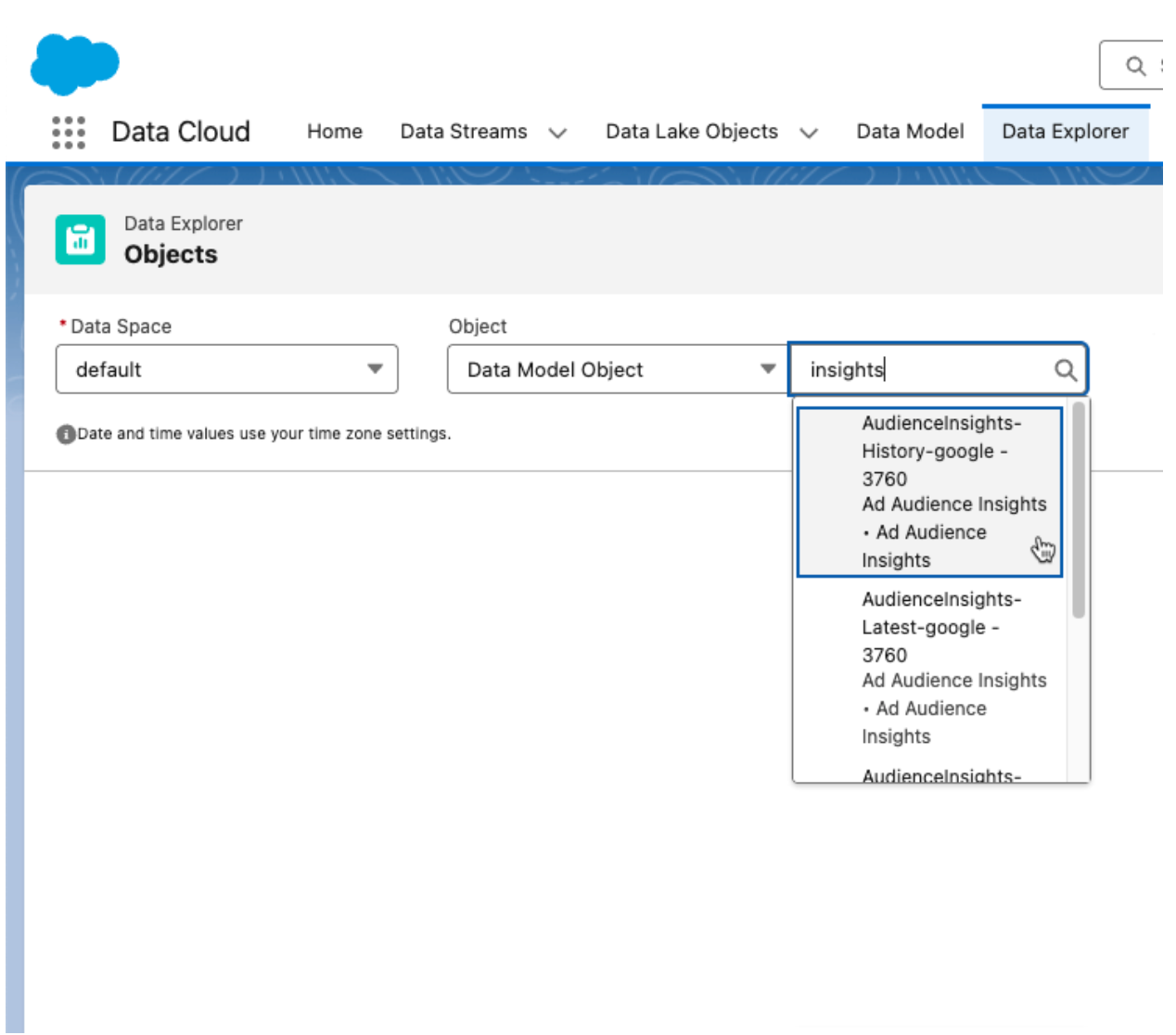
1. In Data Cloud, click **Data Explorer**.
2. Select a data space.
3. From the Object dropdown list, select **Data Model Object**.
4. Select the DMO (for example, Audience Insights - Activation Target Name), and view the results.
    
    ![View audience insights in data explorer](https://sf-zdocs-cdn-prod.zoominsoftware.com/tdta-data-data_cloud-264-0-0-production-enus/f3569962-3c9b-4f83-9d0c-b6a574e785da/data_cloud/images/360_a_audience_insights_dmo.png)

#### See Also

- [_Salesforce Help_: View Your Data in Data Explorer](https://help.salesforce.com/s/articleView?id=data.c360_a_view_your_data.htm&release=264.0.0&type=5 "In Data Explorer, you can view Data 360 data from your data lake objects (DLOs), data model objects (DMOs), calculated insight objects (CIOs), or data graphs. You can personalize your view by editing the columns and use filters to show only the most relevant data for the selected object.")