---
schema_version: "1"
id: cbdbc29c196e0b971fbd7638f77cf5dbe6f4943606be83df92605d7bf5731c58
title: Use Your Customer ID as a Party Identifier
collection: admin
version: current
locale: en-us
portal_url: https://docs.salesforce.com/admin/current/en-us/data/264-0-0/c360_a_use_your_own_customerid_as_party_identifier.md
canonical_url: https://help.salesforce.com/s/articleView?id=data.c360_a_use_your_own_customerid_as_party_identifier.htm&release=264.0.0&type=5
source_site: help.salesforce.com
content_type: documentation
content_hash: a2399153d5b5d1e8dbd46f28e3818e14a0904f3629235dff149e013c18c7fb05
description: By default, the Marketing Cloud Personalization bundle maps the Profile ID to the Data 360 Individual ID. Personalization also connects the Salesforce Marketing Cloud contact key to the party identification number. To unify profiles for identity resolution, use your own Customer ID as the party identifier in Marketing Cloud Personalization and Data 360.
products:
- Data 360
release: "264"
---
# Use Your Customer ID as a Party Identifier
By default, the Marketing Cloud Personalization bundle maps the Profile ID to the Data 360 Individual ID. Personalization also connects the Salesforce Marketing Cloud contact key to the party identification number. To unify profiles for identity resolution, use your own Customer ID as the party identifier in Marketing Cloud Personalization and Data 360.
### Required Editions
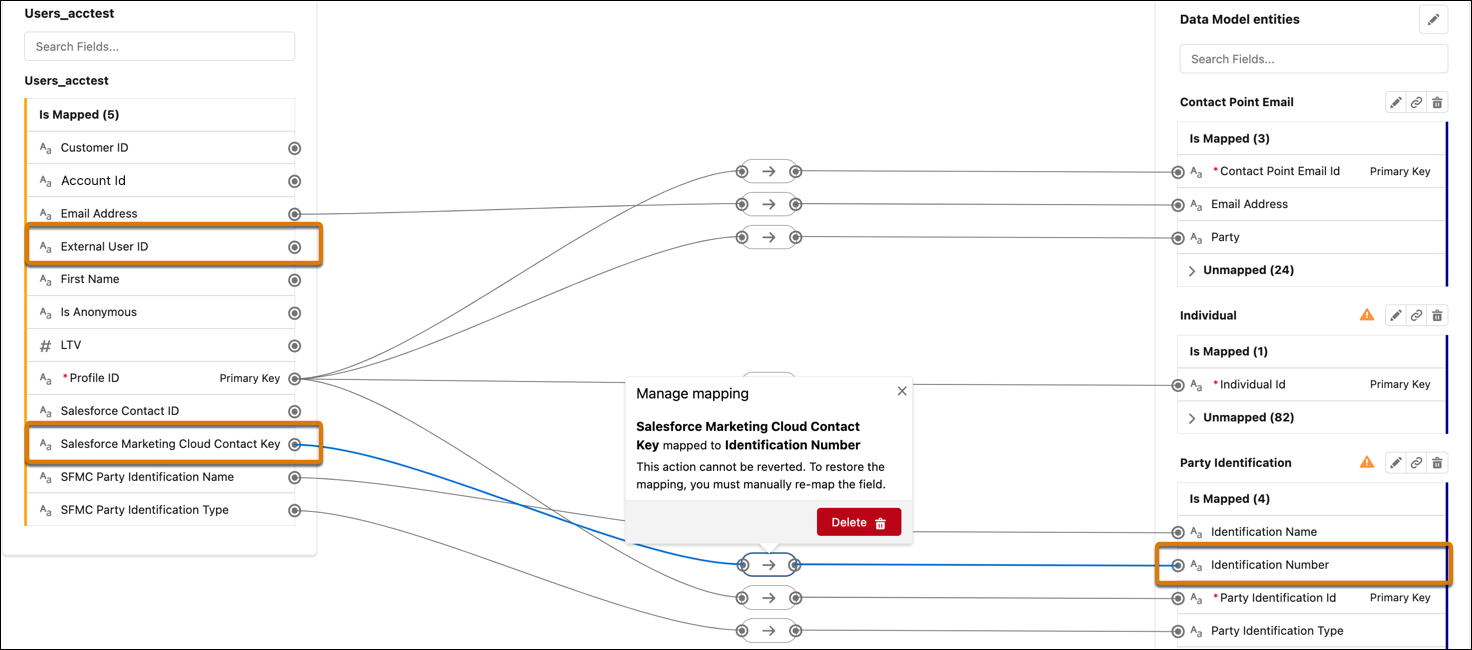
1. Select the mapping between Salesforce Marketing Cloud Contact Key and Party Identification.IdentificationNumber, and click **Delete**.
2. Map your party identifier (for example, External User ID) to Party Identification.IdentificationNumber. Ensure that the External User ID contains the customer’s unique party identifiers.
#### See Also
- [_Salesforce Help_: Marketing Cloud Personalization Bundle Mappings](https://help.salesforce.com/s/articleView?id=data.c360_a_interaction_studio_bundle_mappings.htm&release=264.0.0&type=5 "When creating a data stream in Data Cloud using a Marketing Cloud Personalization (formerly Interaction Studio) starter bundle, the system creates standard mappings for you.")