---
schema_version: "1"
id: f76b8e35c53a36d59fc52b1bf013c7164b587d84aade74db7ba8751b0cd36cea
title: Ingest Data by Uploading a File
collection: admin
version: current
locale: en-us
portal_url: https://docs.salesforce.com/admin/current/en-us/data/264-0-0/c360_a_upload_a_csv_file.md
canonical_url: https://help.salesforce.com/s/articleView?id=data.c360_a_upload_a_csv_file.htm&release=264.0.0&type=5
source_site: help.salesforce.com
content_type: documentation
content_hash: 961e02a65712b351635005d28310d909353d985455b19d38a652d374c089cdb7
description: Create a data stream by bringing in data from a local CSV file into Data 360.
products:
- Data 360
release: "264"
---
# Ingest Data by Uploading a File
Create a data stream by bringing in data from a local CSV file into Data 360.
### Required Editions
**Before You Begin**
- Verify that your file is less than 2 GB and has a maximum of 1,050 columns.
- Use the four-digit (“yyyy”) format for date and time records that include a year. When data from an ingested file uses the two-digit (“yy”) format, additional date and time pattern rules for the [“year”](https://docs.oracle.com/javase/8/docs/api/java/text/SimpleDateFormat.html) are applied. This can result in an unexpected date value.
- Use a supported format when your file contains date or date-time values. See [Date and Datetime Formats](https://help.salesforce.com/s/articleView?id=data.c360_a_data_types_and_date_formats.htm&release=264.0.0&type=5 "Data 360 supports date and datetime data types.").
- If you create or update a sandbox org, activate the **UploadedFiles** connection from Setup, in **Other Connectors**.
Watch this video or follow the steps to use this feature.
1. In Data Cloud, go to the Data Streams tab and click **New**.
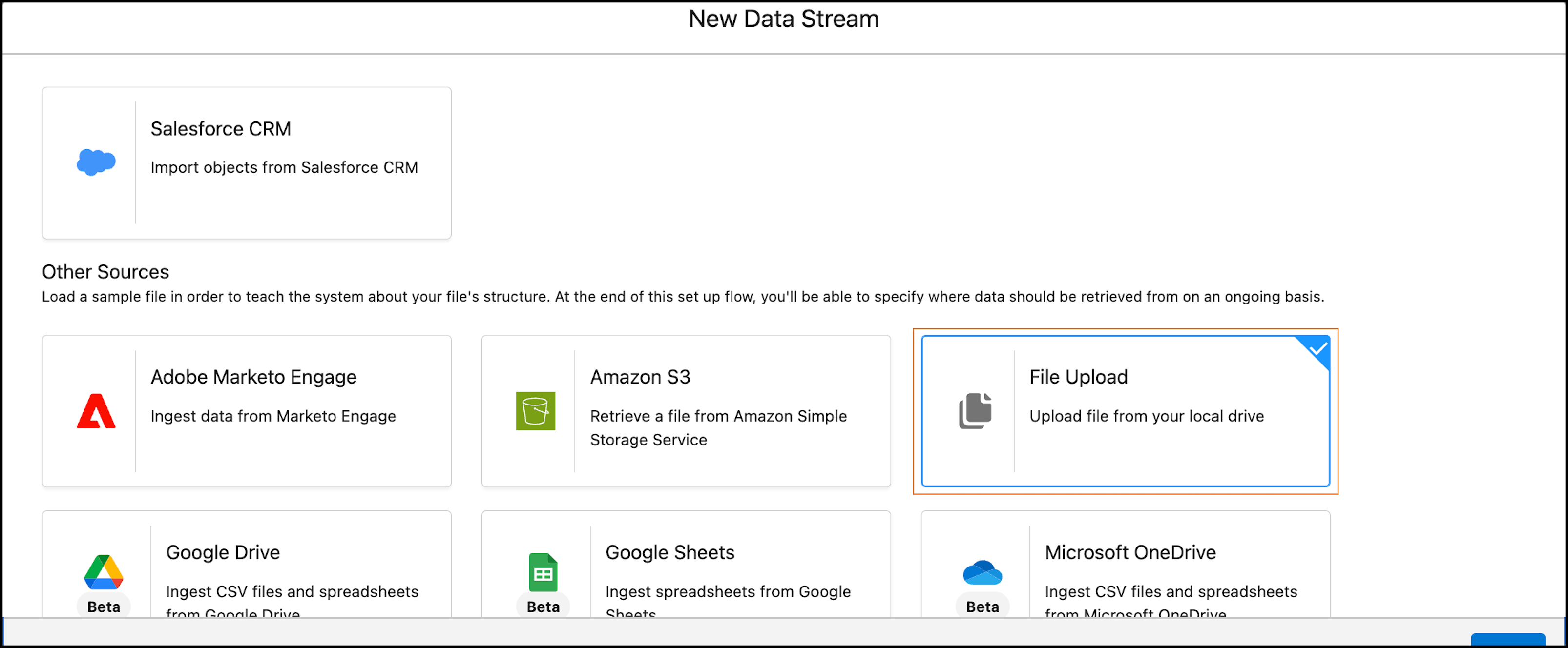
2. Select the File Upload tile, and click **Next**.
3. Select the CSV file with your data.
You can upload up to 2 GB.
4. Specify your data lake object (DLO), and API name.
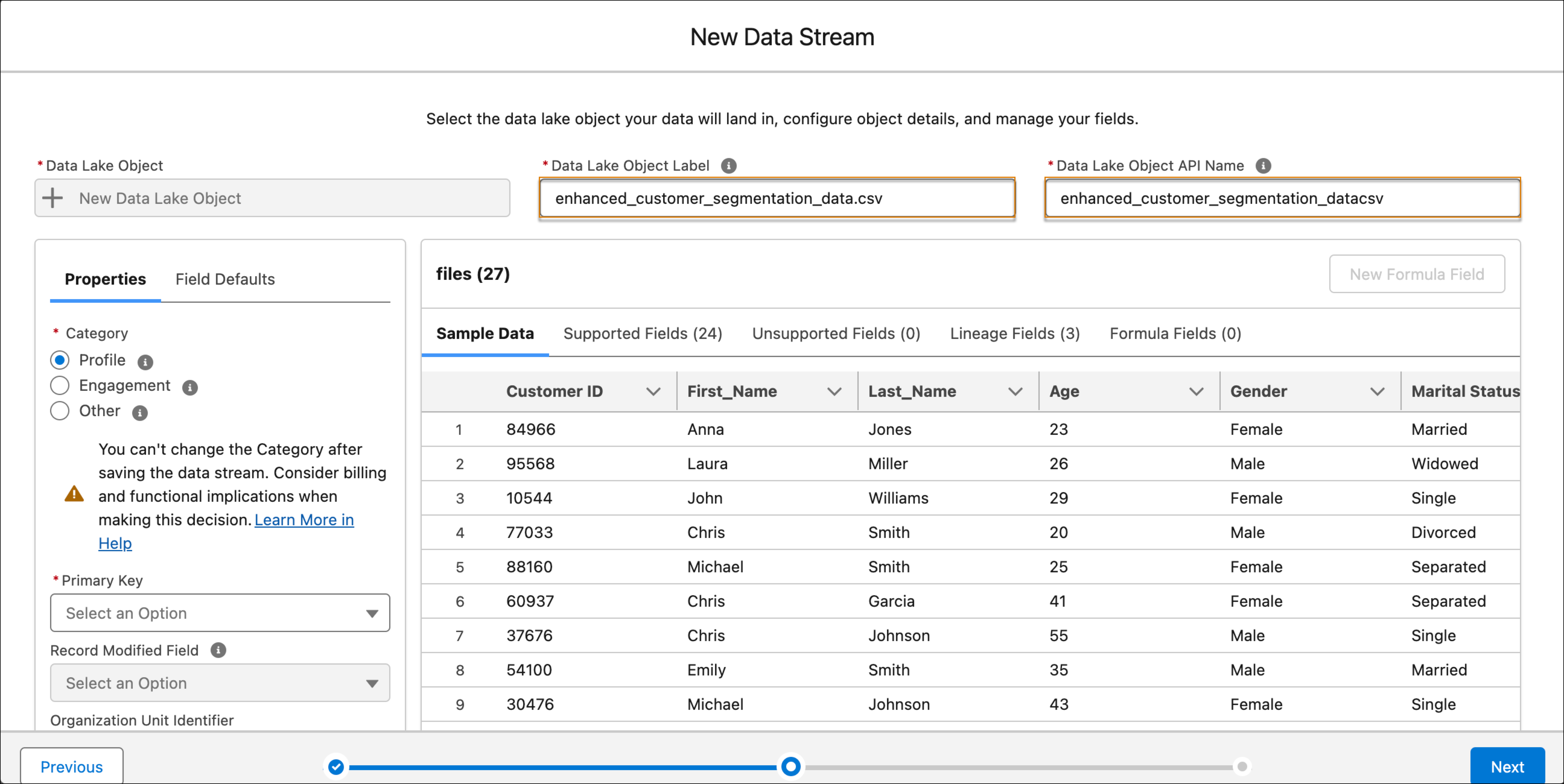
5. In the Properties section, select the category for your data stream and primary key.
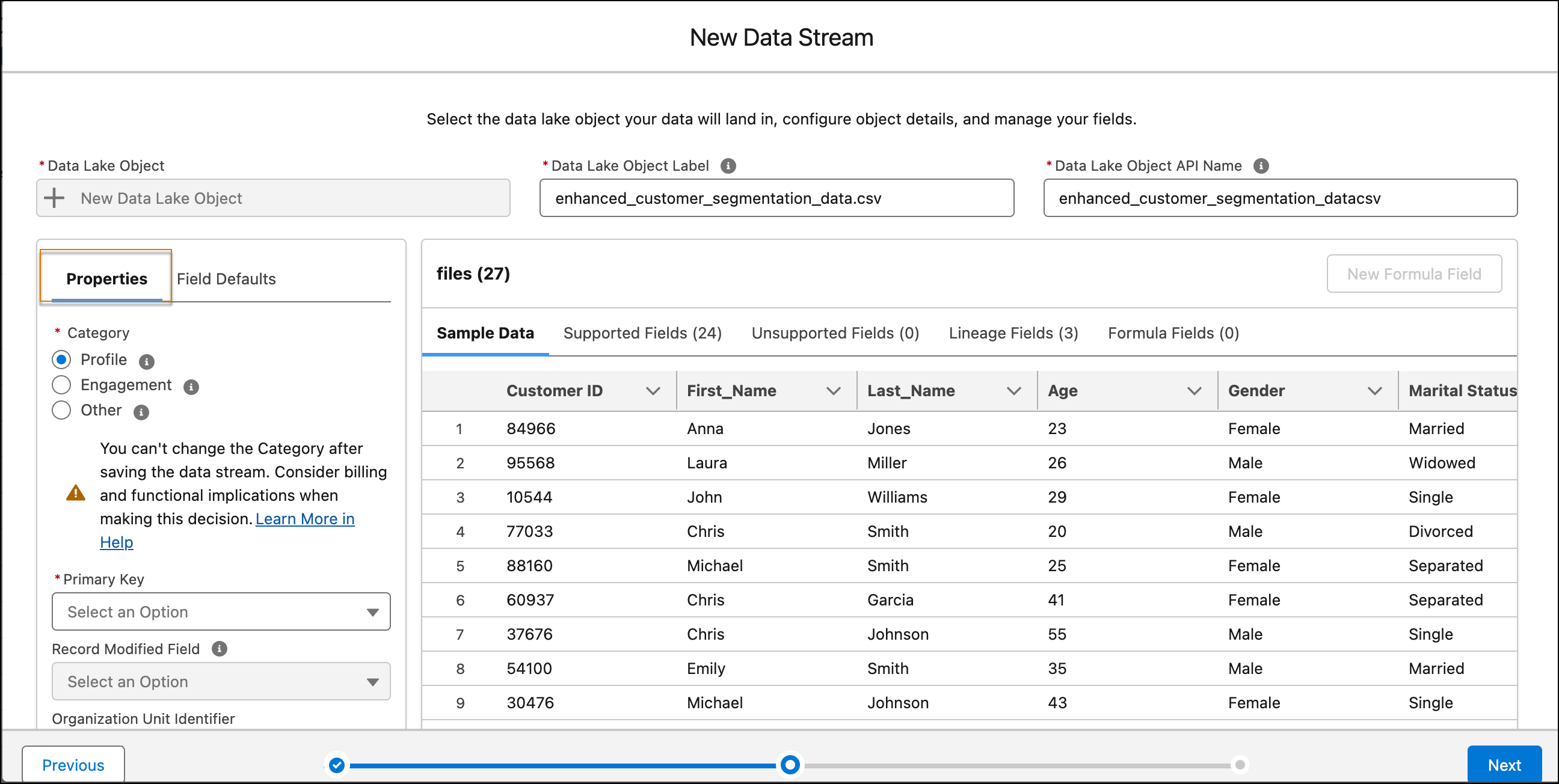
6. To change a field's data type, click the Supported Fields tab.
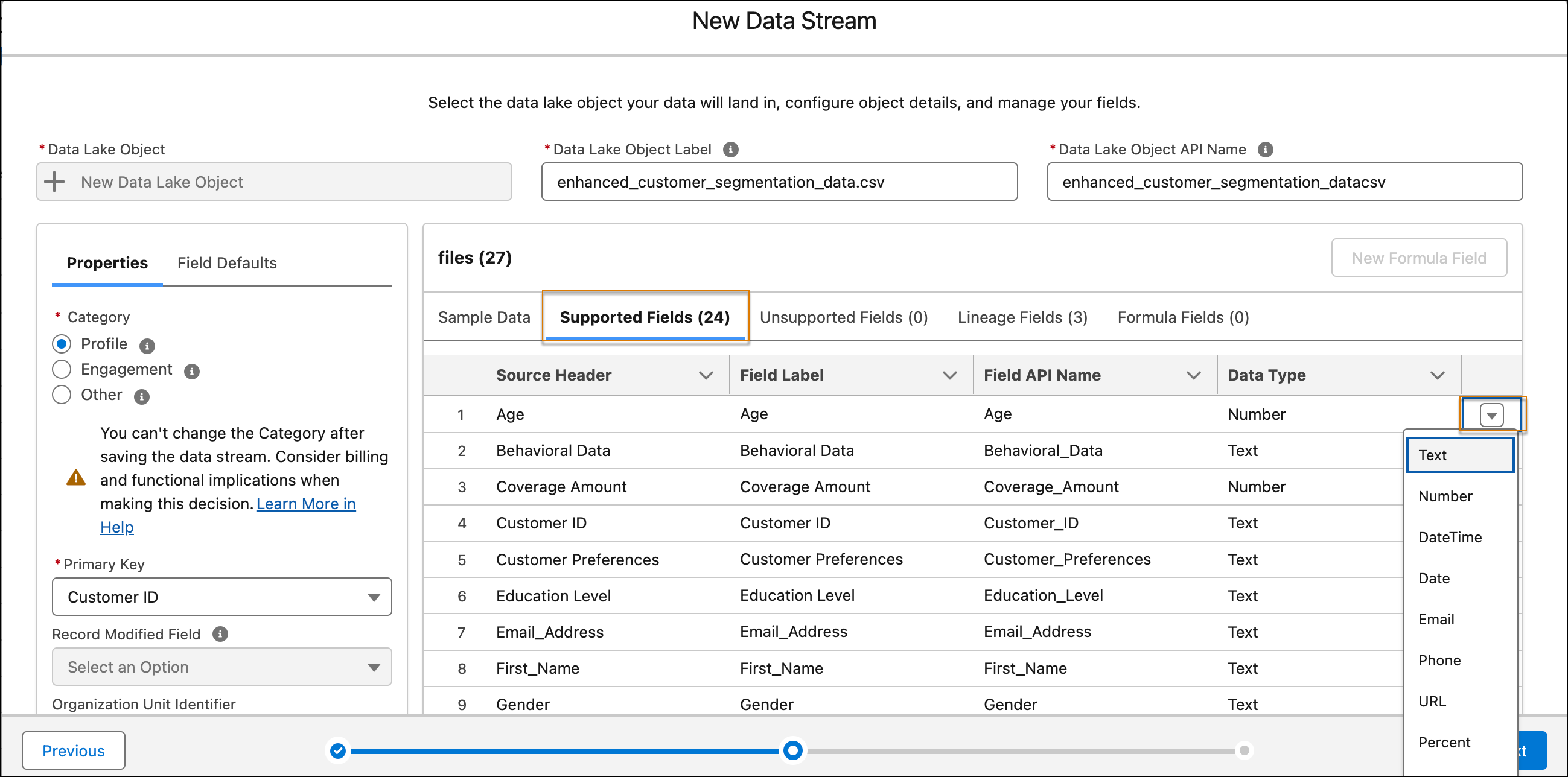
7. Click **Next.**
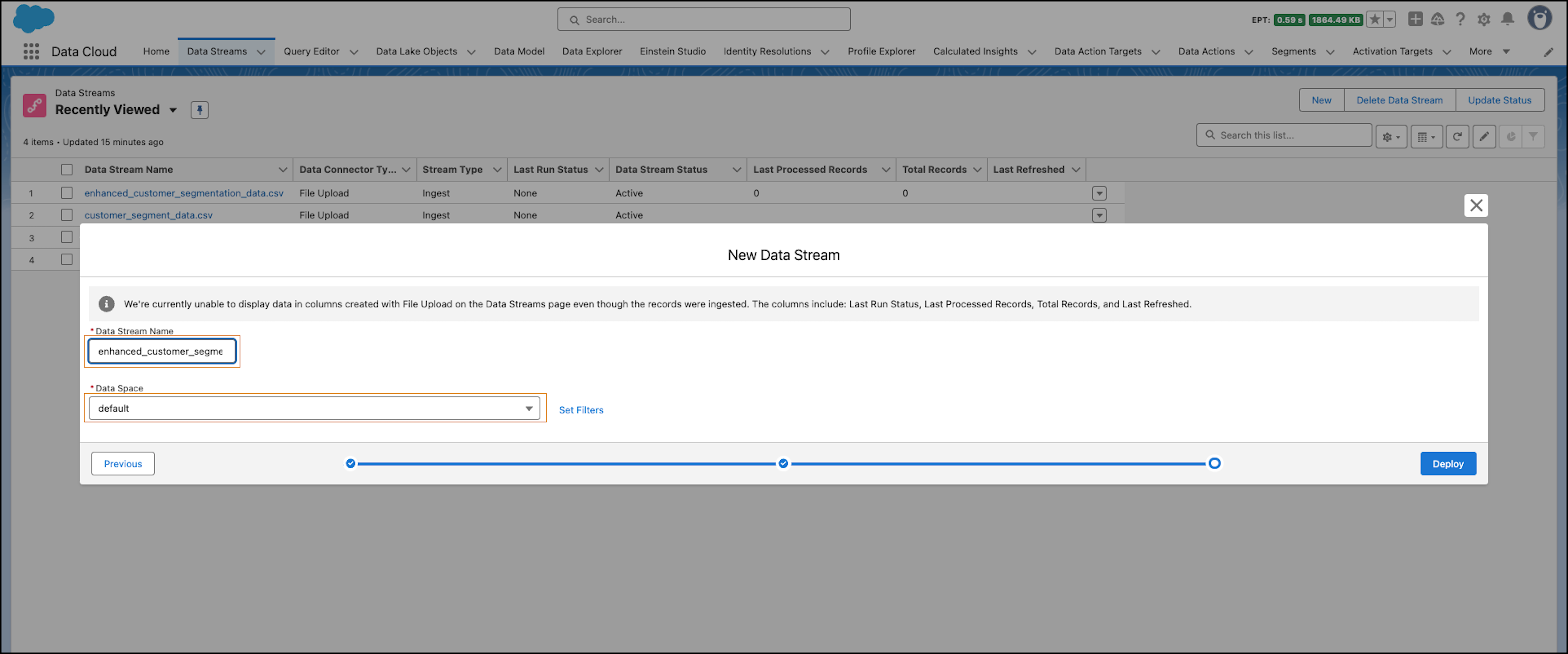
8. (Optional) If needed, change the data stream name. The data stream uses the uploaded file name.
9. (Optional) If needed, choose a data space and set filters.
10. To create your data stream, click **Deploy**. This ingests your data into the DLO.

Important
You can create a maximum of 100 data streams and DLOs from file uploads.

Note
If you upload a file to the data stream and no records are visible after the upload, check if there are null values in the primary key column of the file. If the column contains null values, remove them from the file and upload it again.

Note
When you install a File Upload Stream in a target org using a Data Kit, the stream is inactive and returns the error "INVALID\_ARGUMENT: Invalid tenantId in FullyQualifiedPath". This issue occurs because the stream points to file storage in the source org, which the target org can't access. To resolve the issue, open the stream in the target org, click **Update File**, and upload the file to reconnect it to the target org's storage.
- **[Data Stream Updates Using File Upload](https://help.salesforce.com/s/articleView?id=data.c360_a_upload_a_csv_file_update_data_stream.htm&release=264.0.0&type=5)**
Update the data of an existing data stream created using File Upload. Quickly update your data by re-uploading the revised CSV file with added or removed records. Updating data replaces the data that was previously stored in the associated Data Lake Object (DLO). It also ensures that the data stream is always current with the latest information.