---
schema_version: "1"
id: 7d197f0d54965aebd7aaad3216bca8495a0b133ddd9995c6f886d3361cc67550
title: Set Up and Turn On Data 360
collection: admin
version: current
locale: en-us
portal_url: https://docs.salesforce.com/admin/current/en-us/data/264-0-0/c360_a_setup_provision.md
canonical_url: https://help.salesforce.com/s/articleView?id=data.c360_a_setup_provision.htm&release=264.0.0&type=5
source_site: help.salesforce.com
content_type: documentation
content_hash: 8621dd13b5c737326b38f65544f7aed599ebe757c8e1f79a78ae5d8fedbc030b
description: Capture, unify, segment, and activate your customer data with Data 360. Automatic provisioning occurs for most orgs that have a Data Cloud license. However, if auto provisioning isn't available or if you’re working in a Developer Edition or sandbox org, you must manually enable it.
products:
- Data 360
release: "264"
---
# Set Up and Turn On Data 360
Capture, unify, segment, and activate your customer data with Data 360. Automatic provisioning occurs for most orgs that have a Data Cloud license. However, if auto provisioning isn't available or if you’re working in a Developer Edition or sandbox org, you must manually enable it.
### Required Editions
Available in: Developer Edition
User Permissions
Needed
To access Data Cloud Setup
System Admin profile AND
Data Cloud Architect permission
set
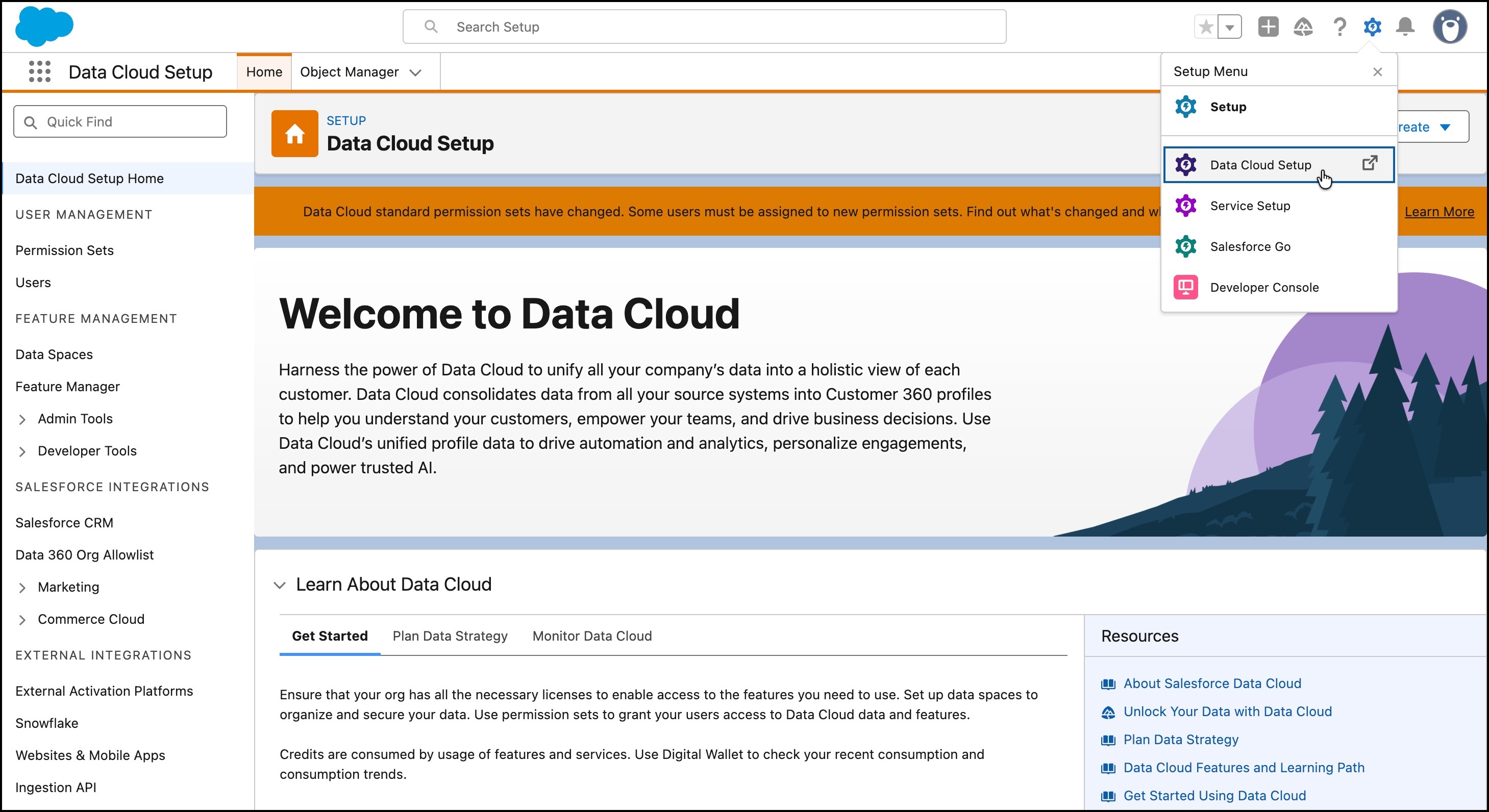
To provision Data 360 manually, follow these steps.

Note Enable Data 360 on a new or an existing Salesforce org.
1. From the standard Setup dropdown, go to **Data Cloud Setup**.
If you don’t see this option, refresh your page, or log out and then log back in with your admin user credentials.
2. To enable Data 360, click **Get Started**.
Setup can take a few minutes. After setup finishes, Data 360 admins can continue with the configuration and user setup.

Note
When a new org gets a Data 360 license, Salesforce sends an admin welcome email. If you didn’t receive an email, need Data 360 moved to a different org, or need a Data 360 license, contact your account executive.