---
schema_version: "1"
id: 79a6855ae11b0cc700f6827e0963448529ed02f5807506816667459382375a38
title: Segment Your Data with Attributes
collection: admin
version: current
locale: en-us
portal_url: https://docs.salesforce.com/admin/current/en-us/data/264-0-0/c360_a_segmentation_interface.md
canonical_url: https://help.salesforce.com/s/articleView?id=data.c360_a_segmentation_interface.htm&release=264.0.0&type=5
source_site: help.salesforce.com
content_type: documentation
content_hash: 898b074a28ff6b9287d2a91d46753fef317c388b581484a81a10403916461270
description: After you create a segment, narrow your data based on related or direct attributes on the segment canvas interface. Narrow down a subset of the population from a filtered audience to see who’s included and excluded. Segment exclusion is optional.
products:
- Data 360
release: "264"
---
# Segment Your Data with Attributes
After you create a segment, narrow your data based on related or direct attributes on the segment canvas interface. Narrow down a subset of the population from a filtered audience to see who’s included and excluded. Segment exclusion is optional.
### Required Editions
1. Click the **Segments** tab, and select the segment from the list.
2. Click **Edit Rules**.
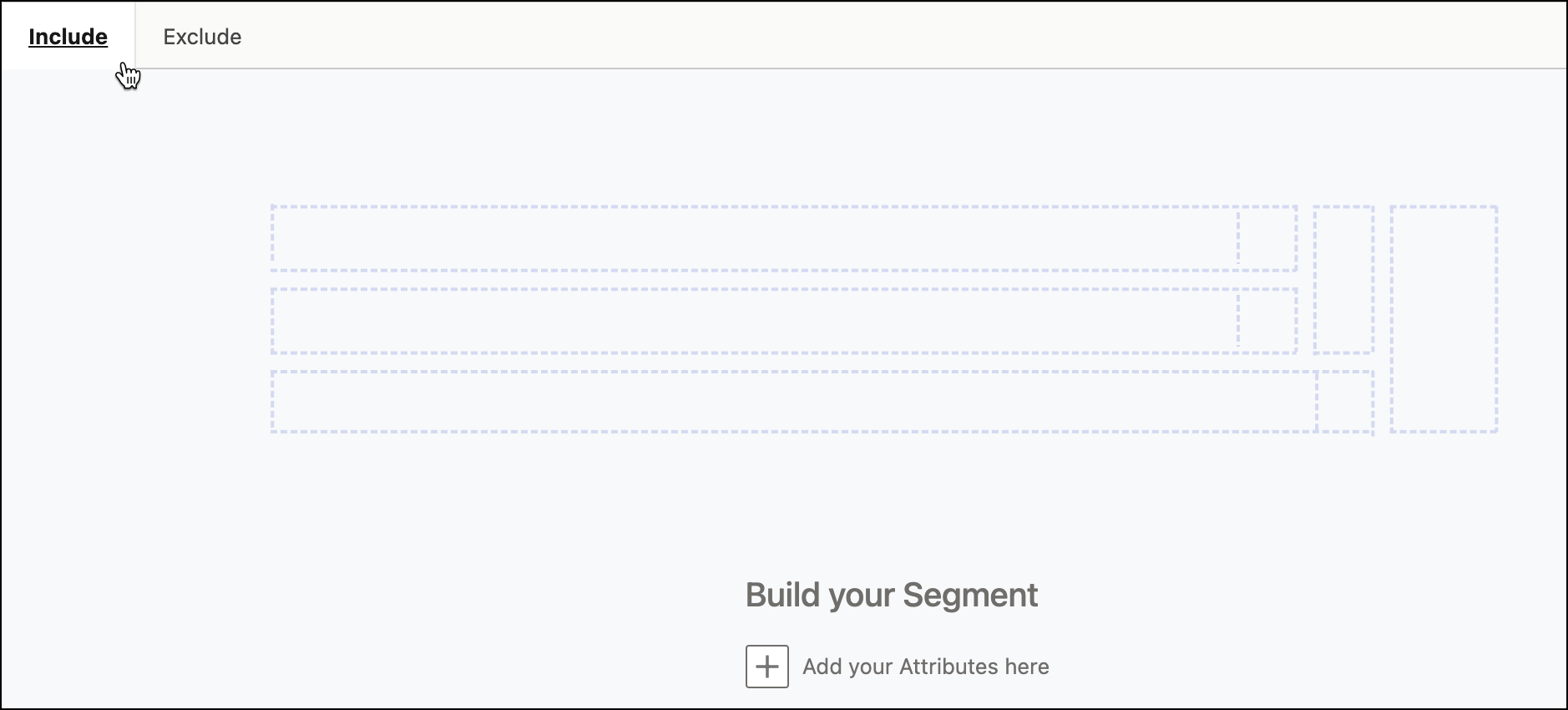
3. Click the **Include** or **Exclude** tab.
Each tab can have up to 50 filters.

Note Aggregations in general count toward the limit of 50 filters.
4. To see how each filter or container affects the segment, use the count in the ribbon below that filter or container. For more information, see [View Filter and Container Level Counts](https://help.salesforce.com/s/articleView?id=data.c360_a_view_filter_count.htm&release=264.0.0&type=5 "Use the population counts displayed in the ribbon under each filter or container to evaluate their impact on your segment. Filter-level counts apply to direct attributes; container-level counts apply to related attributes (containers). Counts are available on both the Include and Exclude tabs.").
5. To generate a filter population breakdown, click **Generate Population Breakdown**. For more information, see [Generate a Filter Population Breakdown for Your Segment](https://help.salesforce.com/s/articleView?id=data.c360_a_generate_filter_population_breakdown.htm&release=264.0.0&type=5 "See the individual and cumulative impact of each Include and Exclude filter before you activate the segment."). To open the latest report, click **View Population Breakdown**.
6. From the attributes list, drag attributes to the segment canvas. If you don't find the attribute you're looking for, type the name of the attribute in the Search text box. Results appear as you enter the search terms. If the attribute you need is in more than one DMO, all the results show up. Choose the one you want to add to the segment filter. The left pane displays the path as you select attributes, ensuring you’re including attributes from the intended objects.
For dynamic segments, to provide values to an attribute during execution time, select Enable parameterized values.

Note When searching for attributes, only first-level attributes from related objects are visible by default. To access deeper-level DMO attributes, first find the main object in the DMO that contains the attributes you want. For example, in the Sales Order Product DMO, the main object is Product. If you need a deeper-level attribute such as Product Description, drag any attribute from that main object into the canvas to create a container (you can cancel without saving), then search again; the deeper-level attributes appear in the search results.
Each segment can have up to 100 attributes.
You can add criteria to these attributes.
- Direct Attributes—Each DMO being segmented on has only one data point such as postal code or first name.
- Related Attributes—Each DMO being segmented on has multiple data points such as purchases, product characteristics, or email events.
- Calculated Insights—Search for calculated insights by name or find them under the object referenced in the SQL. You can use only processed calculated insights in a segment.

Note Calculated insights with boolean measures are not currently supported in segmentation. Using a calculated insight with a boolean measure in your segment criteria causes a population error. This behavior is expected and affects all segment types. To ensure your segments show the correct population, use calculated insights with other supported data types.
7. To create more complex filters, add AND or OR nested operators.
You can nest up to three levels of attributes. For example, you want to run a promotion for customers who have purchased either $5000 or more on products or a total of 20 products over the last month. With nested operators, you can layer your filter logic to target both sets of customers over the specified time frame. You can nest filters up to three levels within a container. Across containers, you can nest filters up to ten levels.
8. (Optional) Click **Preview** to sample your segment results and verify your attribute rules before saving.
Segment preview uses random sampling, so you may see different results each time you click **Preview**. This is expected behavior. Preview results aren't deterministic. If you notice anomalies, review your segment rules and container configurations.

Note Segment preview is enabled by default. To use segment preview, you need segment view or edit rules permissions and access to Data Explorer.
9. After adding each attribute or calculated insight, click **Done**.
If Approximate Segment Population is enabled, you can get an estimate of the population count to validate your segment rules. The approximate segment population is calculated by using a sample of your profile dataset. Before saving your segment with the final segment population, ensure that the segment count meets your expectations. If necessary, update it by using the approximate count as a guideline.
10. To save your canvas and recount your population, click **Save**.
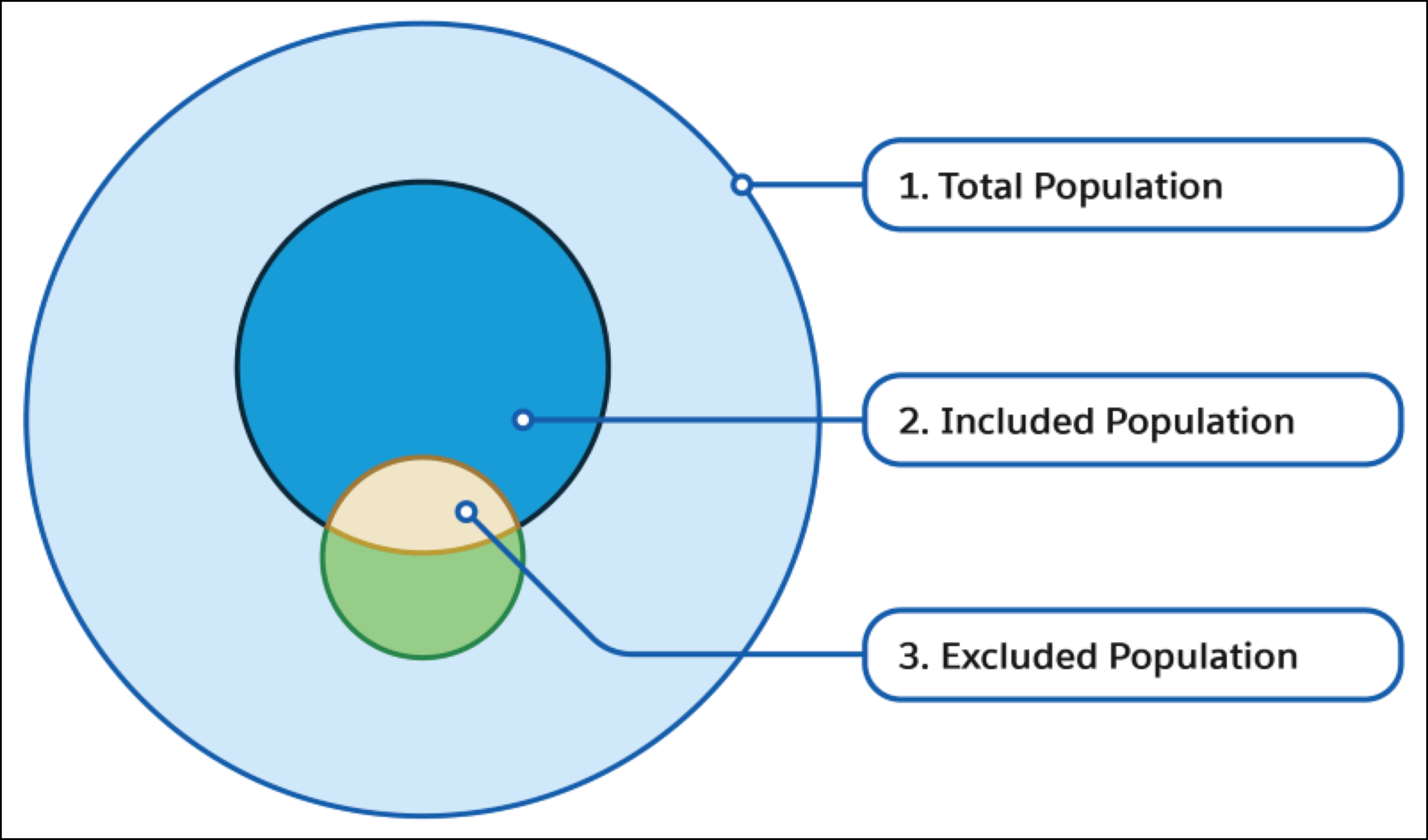
1. Total Population—Overall set of entities available in the segment.
2. Included Population—Total number of entities that qualified for your include criteria minus the entities that qualified for the exclude criteria.
3. Excluded Population—Total number of entities that qualified for your exclude criteria within the segment entities.

Note Use the Population Recount arrow to show the revised population count. This action uses Data Query type data service credits. Depending on the segment size, the count sometimes takes up to 15 minutes to refresh.
11. Click **Done**.
- **[Create a Nested Segment in Data 360](https://help.salesforce.com/s/articleView?id=data.c360_a_nested_segments.htm&release=264.0.0&type=5)**
Reuse filters and maintain consistency in your data by using an existing segment built on profile objects to build a new nested segment. A nested segment is a combination of an outer segment and inner segment. Each nested segment can have up to 50 filters in each tab.
- **[Generate a Filter Population Breakdown for Your Segment](https://help.salesforce.com/s/articleView?id=data.c360_a_generate_filter_population_breakdown.htm&release=264.0.0&type=5)**
See the individual and cumulative impact of each Include and Exclude filter before you activate the segment.
#### See Also
- [_Salesforce Help_: Formulas, Operators, and Calculated Insights](https://help.salesforce.com/s/articleView?id=data.c360_a_formulas__operators__and_calculated_insights.htm&release=264.0.0&type=5 "Create audiences in different ways and at different stages of your workflow using formulas, operators, and calculated insights in Data 360. During ingestion, you can use formulas to perform operations on row-based data used downstream. For segmentation, audiences are created with segment operators.")
- [_Salesforce Help_: Data Model Objects](https://help.salesforce.com/s/articleView?id=data.c360_a_data_model_objects.htm&release=264.0.0&type=5 "Create, view, and manage data model objects (DMOs). DMOs are fundamental to Data 360. Familiarize yourself with the definitions, concepts, and resources related to DMOs before creating or working with them.")
- [_Salesforce Help_: Enable Data 360 Features](https://help.salesforce.com/s/articleView?id=data.c360_a_feature_manager.htm&release=264.0.0&type=5 "You can enable Data 360 features using the Feature Manager. This screen is visible only when there are one or more features to enable or disable.")
- [_Salesforce Help_: Approximate Segment Population](https://help.salesforce.com/s/articleView?id=data.c360_a_approximate_segment_population.htm&release=264.0.0&type=5 "When building a segment in Data 360, use the Approximate Segment Population field to quickly check that the segment count meets your expectations. The approximate count provides an estimated segment population, represented as a range of possible values with 95% confidence. When the segment population is small, or when the record count for Segment On is low, the actual population can differ from the estimated range. You can then adjust your segment rules and save your segment to get the final segment population. To use this feature, enable Approximate Segment Population in Feature Manager.")