---
schema_version: "1"
id: f22382ae97ce563b2c119b1ab1bde8641fef6a50d06c1654487cec52786e864a
title: Create a Calculated Insight Using SQL
collection: admin
version: current
locale: en-us
portal_url: https://docs.salesforce.com/admin/current/en-us/data/264-0-0/c360_a_get_started_with_calculated_insights.md
canonical_url: https://help.salesforce.com/s/articleView?id=data.c360_a_get_started_with_calculated_insights.htm&release=264.0.0&type=5
source_site: help.salesforce.com
content_type: documentation
content_hash: 23b54370d63023c45cda0db4ae38199b448eed424583988104081a20e7e8bdd6
description: Write SQL expressions to create your metrics and dimensions from mapped objects and fields. You can create a calculated insight in Data 360 using SQL.
products:
- Data 360
release: "264"
---
# Create a Calculated Insight Using SQL
Write SQL expressions to create your metrics and dimensions from mapped objects and fields. You can create a calculated insight in Data 360 using SQL.
### Required Editions
DMO names are case-sensitive for calculated insights. When creating a calculated insight with SQL, verify that the DMO references match the casing found in the API name. This can be confirmed by reviewing the Object API Name column on the Data Model tab.
1. In Data Cloud, go to the Calculated Insights tab, and click **New**.
2. From the Data Space dropdown, select a data space.
You can use only the data spaces that you have access to. Only the objects that are included in the data space are available to create a calculated insight.
3. Click **Calculated Insight**.
4. Click **Use SQL Authoring** and click **Next**.
5. Enter the calculated insight name.
The Calculated Insight API Name field is auto-filled.
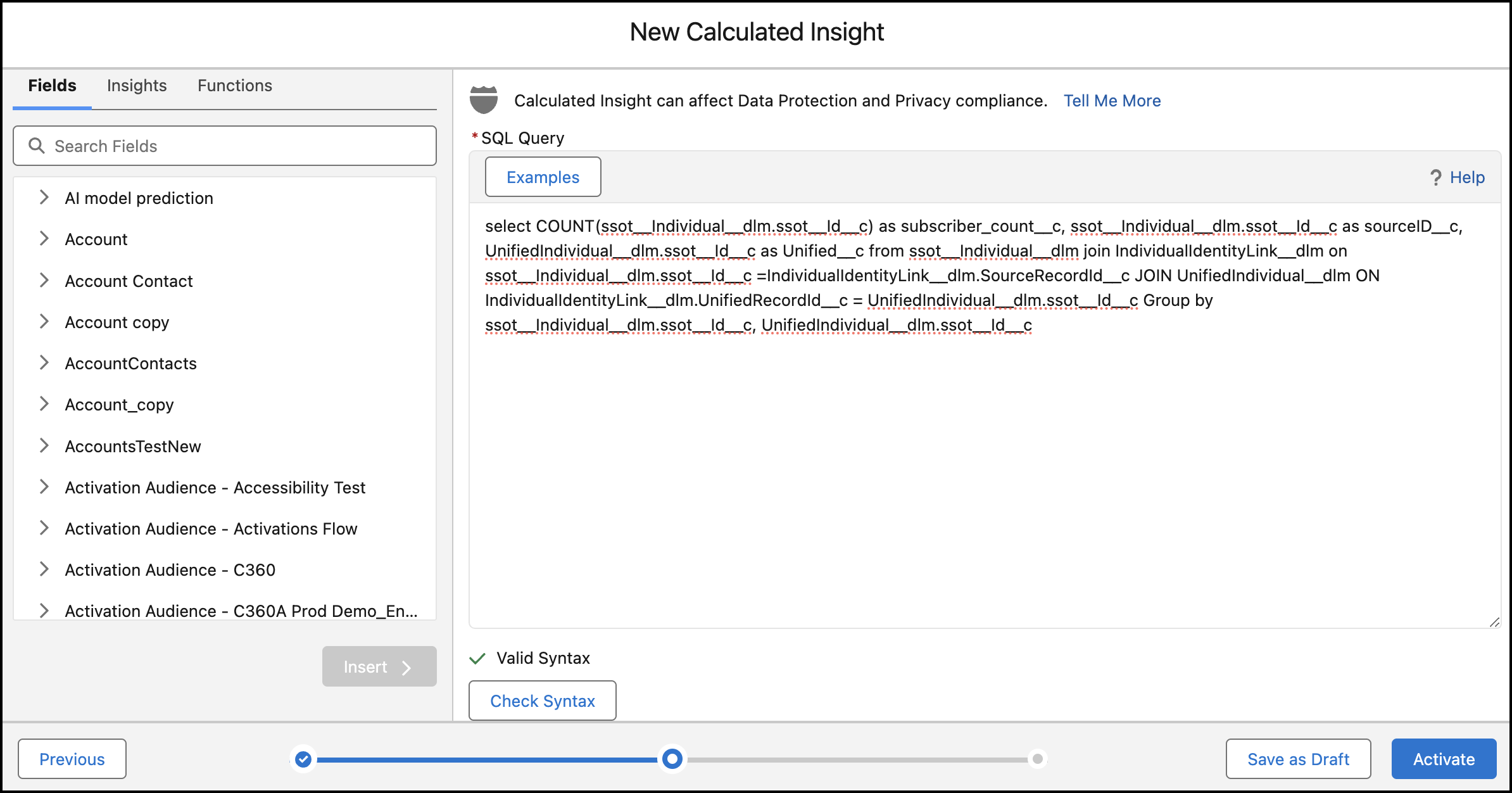
6. Enter the new insight SQL query expression.
The SQL statement character limit is 131,021.
1. When your insight includes currency measures, you must use the `TRY_CONVERT_CURRENCY` function.
1. Use the NOW function to define a relative time window and the SECOND\_ADD and SECOND\_ADD functions to create more granular time period logic. See [SQL Functions for Insights](https://help.salesforce.com/s/articleView?id=data.c360_a_calculated_insights_aggregates.htm&release=264.0.0&type=5 "Use these aggregate, datetime, analytical, formatting, math and statistical, and boolean functions when you author calculated insights in Data 360. The Aggregatable column indicates whether a function's output can be rolled up across fewer dimensions when queried in segments or activations.").
7. To check whether your SQL expression is valid, click **Check Syntax**.
If it isn’t valid, you can’t continue.
8. Click **Activate**.
9. From the Schedule dropdown, select a schedule.
10. Select the start date and time of the schedule.
11. Click **Enable**.
The calculated insight appears on the record home page.
#### See Also
- [_Trailhead_: Data 360 Insights Using SQL](https://trailhead.salesforce.com/content/learn/modules/customer-data-platform-insights-using-sql?trail_id=enhance-data-in-customer-data-platform)