---
schema_version: "1"
id: 0dc7cd2e6f198161ddacf2be1ec8a6b965a56ed8d7d809c3b5935f497b71fcfa
title: View Activations in Data Explorer
collection: admin
version: current
locale: en-us
portal_url: https://docs.salesforce.com/admin/current/en-us/data/264-0-0/c360_a_get_activated_profiles_in_data_explorer.md
canonical_url: https://help.salesforce.com/s/articleView?id=data.c360_a_get_activated_profiles_in_data_explorer.htm&release=264.0.0&type=5
source_site: help.salesforce.com
content_type: documentation
content_hash: dbc6e35ea76fbd26fc7bb154e080a3f6c5405a2ce0830802f6173018d9e710a2
description: View your activation data for a specific activation target in Data 360. You can view results up to the past 30 days.
products:
- Data 360
release: "264"
---
# View Activations in Data Explorer
View your activation data for a specific activation target in Data 360. You can view results up to the past 30 days.
### Required Editions
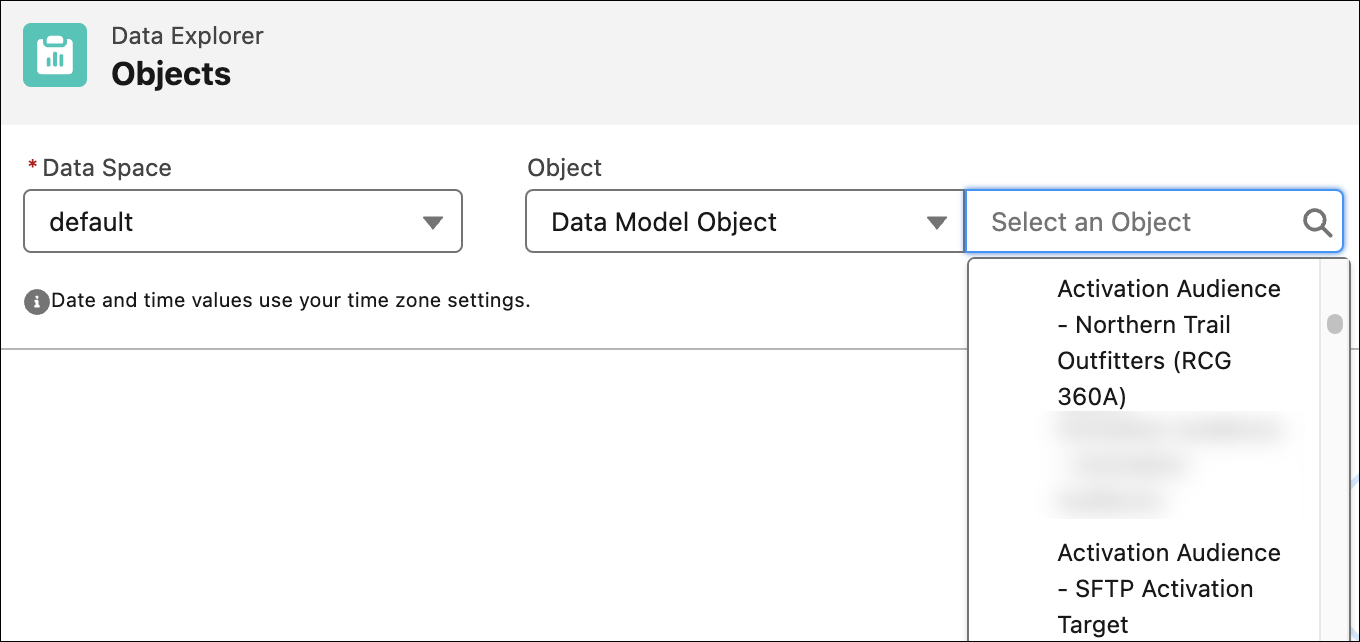
1. In Data Cloud, click **Data Explorer**.
2. Select a data space.
3. From the Object dropdown list, select **Data Model Object**.
4. Select the DMO (for example, Activation Audience - Activation Target Name), and view the results.
- **[Find Segments in Data Model Objects (DMOs)](https://help.salesforce.com/s/articleView?id=data.c360_a_segments_in_audiences.htm&release=264.0.0&type=5)**
After you create and activate segments to Data 360, you can find segments via the Query API or in Data 360.
#### See Also
- [_Salesforce Help_: View Your Data in Data Explorer](https://help.salesforce.com/s/articleView?id=data.c360_a_view_your_data.htm&release=264.0.0&type=5 "In Data Explorer, you can view Data 360 data from your data lake objects (DLOs), data model objects (DMOs), calculated insight objects (CIOs), or data graphs. You can personalize your view by editing the columns and use filters to show only the most relevant data for the selected object.")