---
schema_version: "1"
id: 37ed313344957283b7069103356b20c93c908b2795f38636d75a6f51ee17b109
title: Migrate Data Cloud Permission Sets using User Access Policies
collection: admin
version: current
locale: en-us
portal_url: https://docs.salesforce.com/admin/current/en-us/data/264-0-0/c360_a_data_spaces_perm_set_migration.md
canonical_url: https://help.salesforce.com/s/articleView?id=data.c360_a_data_spaces_perm_set_migration.htm&release=264.0.0&type=5
source_site: help.salesforce.com
content_type: documentation
content_hash: d56245a74a7e3f6f7a4ecefabfb5c2a9acb87cfbd90cfe75c4a3f4aaf9cff6fb
description: Learn how to use user access policies to grant updated Data Cloud permission sets to groups of users based on criteria you set.
products:
- Data 360
release: "264"
---
# Migrate Data Cloud Permission Sets using User Access Policies
Learn how to use user access policies to grant updated Data Cloud permission sets to groups of users based on criteria you set.
### Required Editions
Follow these steps to migrate all users assigned to a specific permission set to a new permission set.

Note New permission sets become available on a rolling basis starting on September 4, 2025. For more information about the new permission sets, see these resources.
- [Refine User Access with New Data Cloud Standard Permission Sets](https://help.salesforce.com/s/articleView?id=release-notes.rn_cdp_2025_summer_new_perm_sets.htm&release=256&type=5&language=en_US)
- [Data Cloud Permission Set Transition Guide](http://sfdc.co/samergeguide)
- [Data 360 Standard Permission Sets](https://help.salesforce.com/s/articleView?id=data.c360_a_userpermissions.htm&release=264.0.0&type=5 "A permission set defines the level of access and visibility that Salesforce users have to data and features in Data 360. Depending on your license, there are several standard permission sets provided for Data 360. The Salesforce admin assigns permission sets to users. We don’t recommend creating a custom permission set for Data 360 access, however you can combine the permissions sets with other Salesforce permission sets.")
To migrate subsets of users, add additional criteria to define your subgroups.
1. From Setup, in the Quick Find box, enter User Management Settings, and then select User Management Settings. Make sure that both the User Access Policies and Enhanced Interface for User Access Policies settings are enabled.
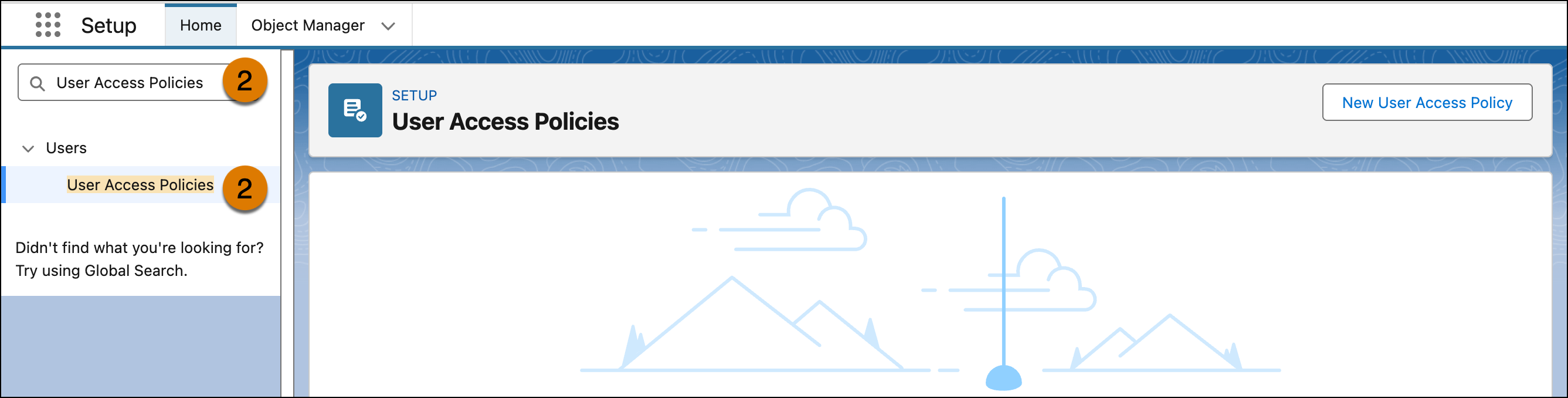
2. In the Quick Find box, enter User Access Policies, and then select **User Access Policies**.
3. Click **New User Access Policy**.
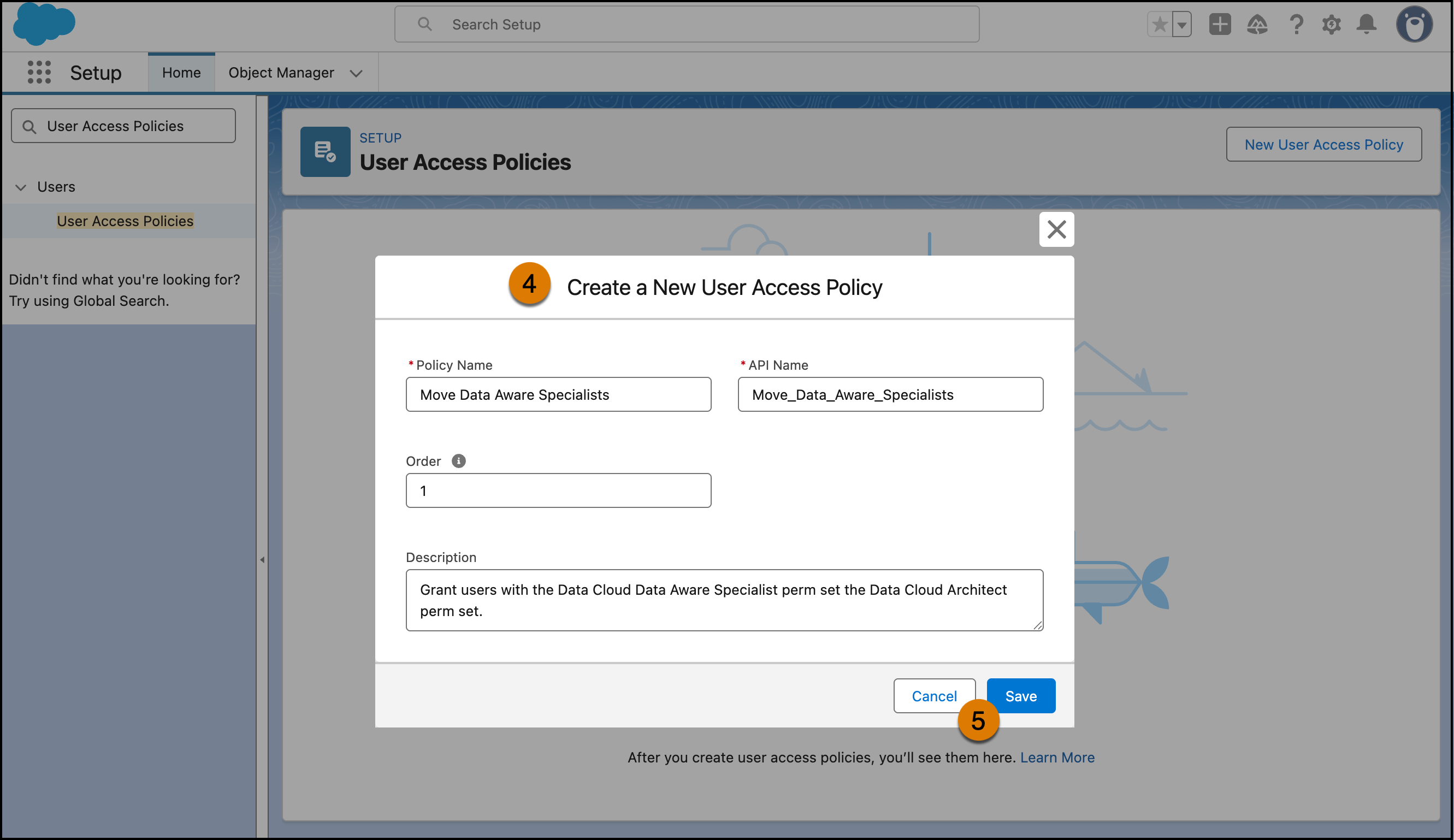
4. Enter a value for the Policy Name and Description.
5. Click **Save**.
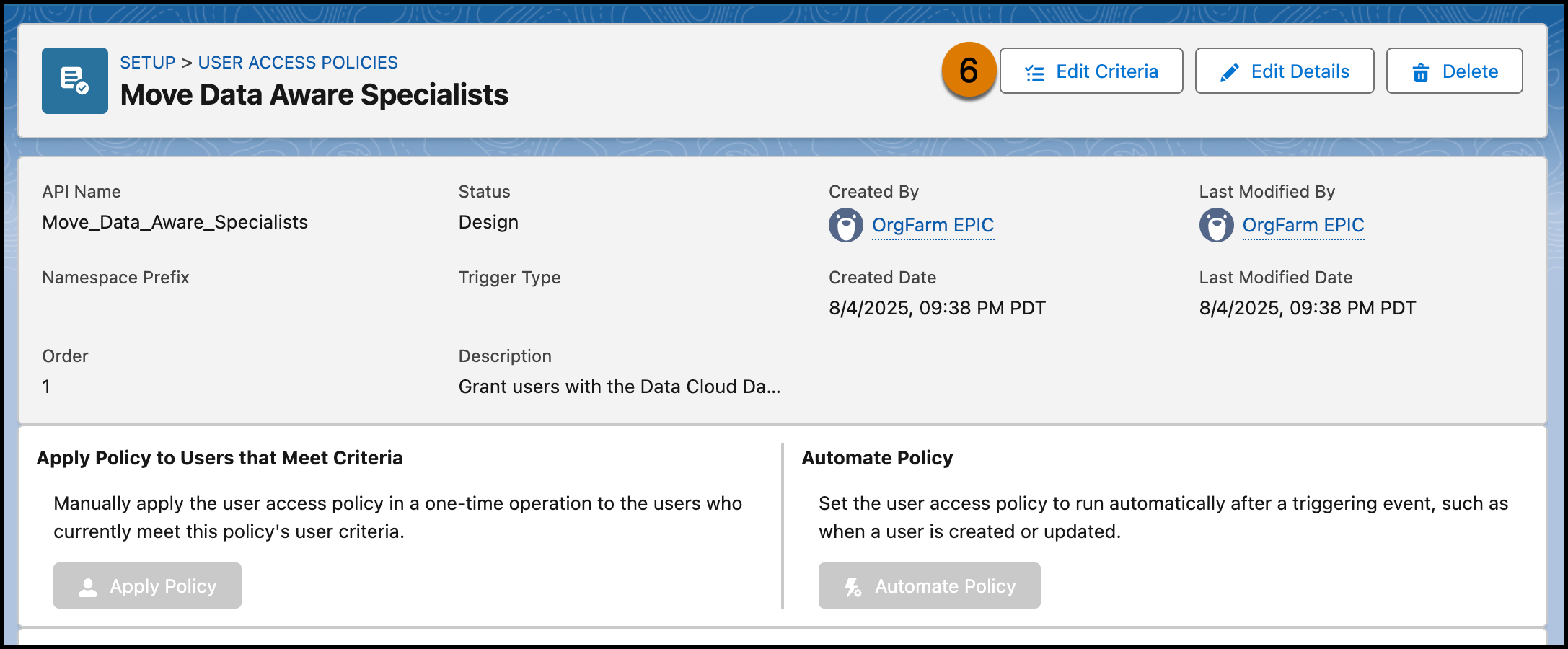
6. On the user access policy’s detail page, click **Edit Criteria** to configure the policy’s user criteria filters and actions.
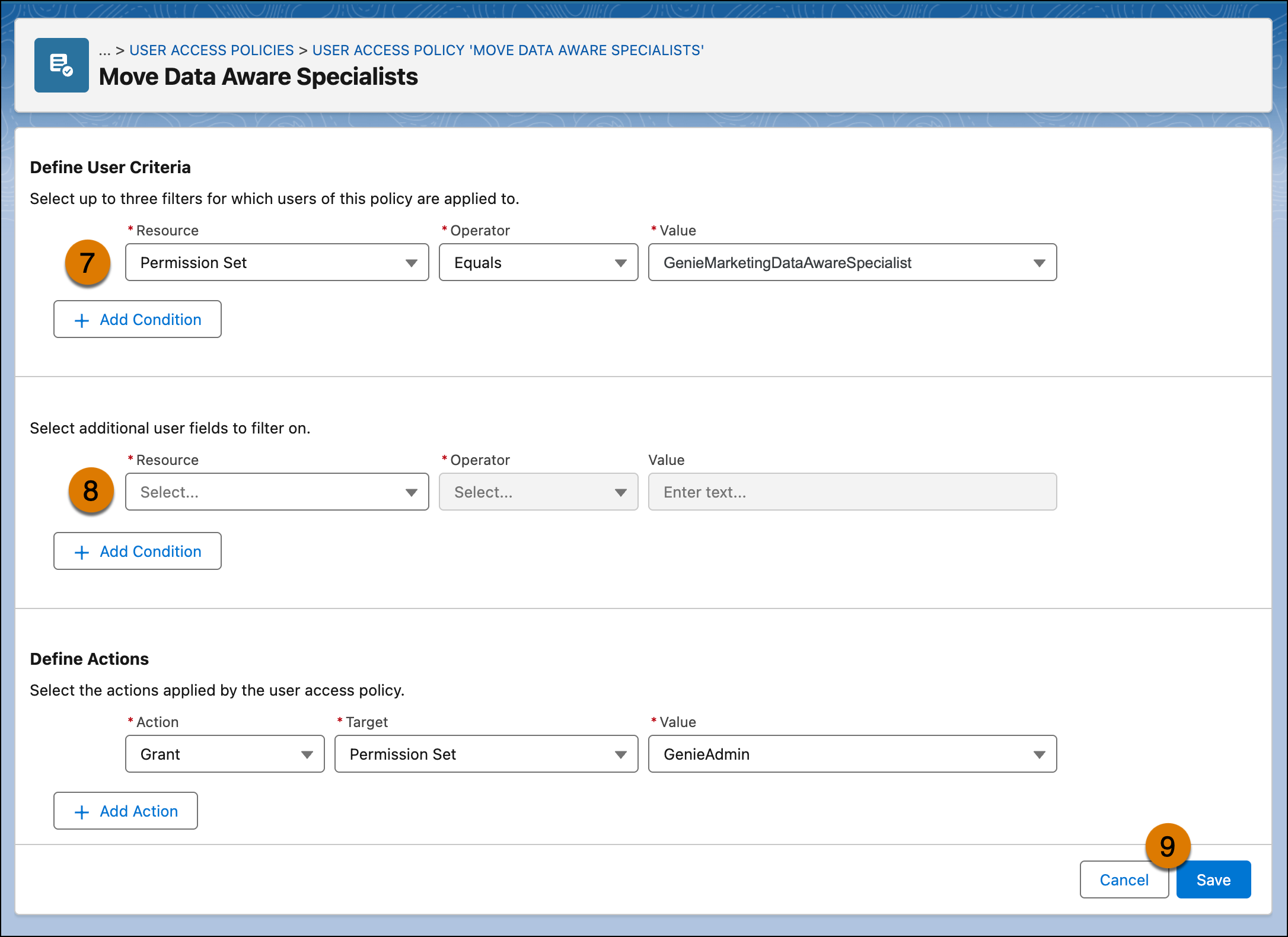
7. For Define User Criteria, select the following.
1. For Resource, select Permission Set
2. For Operator, select Equals
3. For Value, select the API name of the permission set users currently have.
8. For Define Actions, select the following.
1. For Action, select Grant.
2. For Target, select Permission Set.
3. For Value, select the API name of the permission set you want to grant to users. For a list of permission set API names, see the [Data Cloud Permission Set Transition Guide](http://sfdc.co/samergeguide).
9. Click **Save**.
10. Click **Apply Policy**. You can select a subset of users to apply the policy to, or click **Apply to All**.
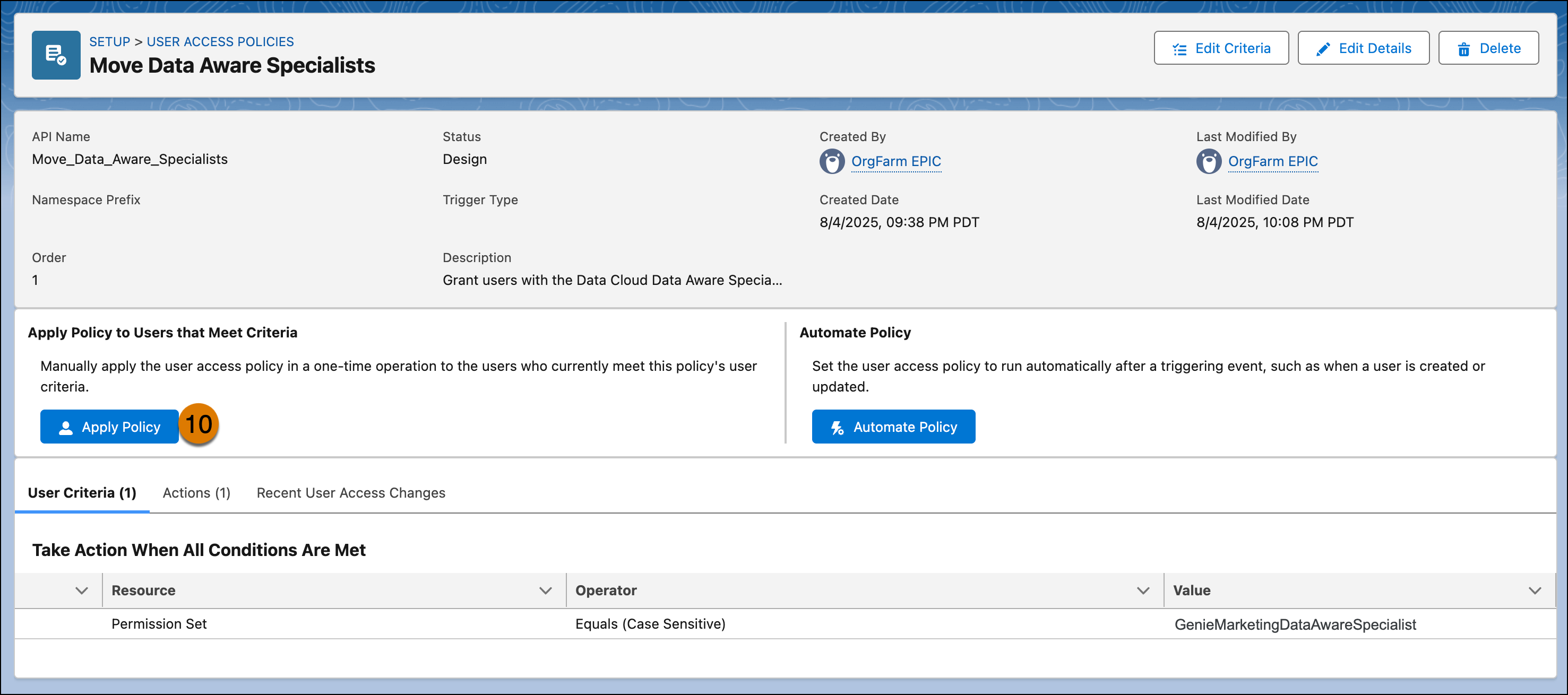
To confirm that the users were granted access correctly, review their individual user records. On the policy’s detail page under Recent User Access Changes, you can see when this policy was applied and the affected users.
After you’ve assigned new permission sets, use user access policies to revoke old perm sets.
#### See Also
- [_Salesforce Help_: Manually Grant or Revoke Access with a User Access Policy (Beta)](https://help.salesforce.com/s/articleView?id=platform.perm_manual_user_access_policies.htm&type=5&language=en_US)