---
schema_version: "1"
id: 4bc346a54aac9aff9b66147faa831efb1bae94d5bd430ed8616ad2fcbaa47295
title: Enable Einstein Segments in Data 360
collection: admin
version: current
locale: en-us
portal_url: https://docs.salesforce.com/admin/current/en-us/data/264-0-0/c360_a_create_segment_einstein_enable.md
canonical_url: https://help.salesforce.com/s/articleView?id=data.c360_a_create_segment_einstein_enable.htm&release=264.0.0&type=5
source_site: help.salesforce.com
content_type: documentation
content_hash: 4422bc2ec3a382b8443dc1731b29464c636c8f4294772e0c9f7c2d30454e25d0
description: Before you can create Einstein segments, enable generative AI and then turn on Einstein segments.
products:
  - Data 360
release: "264"
---
# Enable Einstein Segments in Data 360

Before you can create Einstein segments, enable generative AI and then turn on Einstein segments.

### Required Editions

<table class="slds-table slds-table_bordered slds-max-medium-table_stacked slds-m-bottom_small edition"><colgroup><col></colgroup><tbody><tr class=""><td class="slds-cell-wrap" style="vertical-align:top;">Available in: <strong>All Editions</strong> supported by Data 360. See <a href="https://help.salesforce.com/s/articleView?id=data.c360_a_dc_editions.htm&amp;release=264.0.0&amp;type=5" title="Data 360 is available in several supported Salesforce editions. Some Data 360 features also require additional licenses.">Data 360 edition availability</a>.</td></tr></tbody></table>

<table class="slds-table slds-table_bordered slds-max-medium-table_stacked slds-m-bottom_small permission">
        <colgroup>
          <col style="width:50%">
          <col style="width:50%">
        </colgroup>
        <thead class="slds-text-title_caps ">
          <tr class="">
            <th scope="colgroup" class="slds-cell-wrap" colspan="2" style="text-align:left;vertical-align:top;" id="d171232e63">User Permissions
              Needed</th>
          </tr>
        </thead>
        <tbody>
          <tr class="">
            <td data-label="User Permissions Needed" class="slds-cell-wrap" style="vertical-align:top;" headers="d171232e63 ">To enable Einstein segments:</td>

            <td class="slds-cell-wrap" style="vertical-align:top;" headers="d171232e63 ">
              <p>Permission set: </p>
              <ul>
                <li>Data Cloud Architect</li>

              </ul>
            </td>

          </tr>
        </tbody>
      </table>

For more information about how to enable generative AI, see [Enable Generative AI.](https://help.salesforce.com/s/articleView?id=ai.generative_ai_enable.htm&type=5&language=en_US)

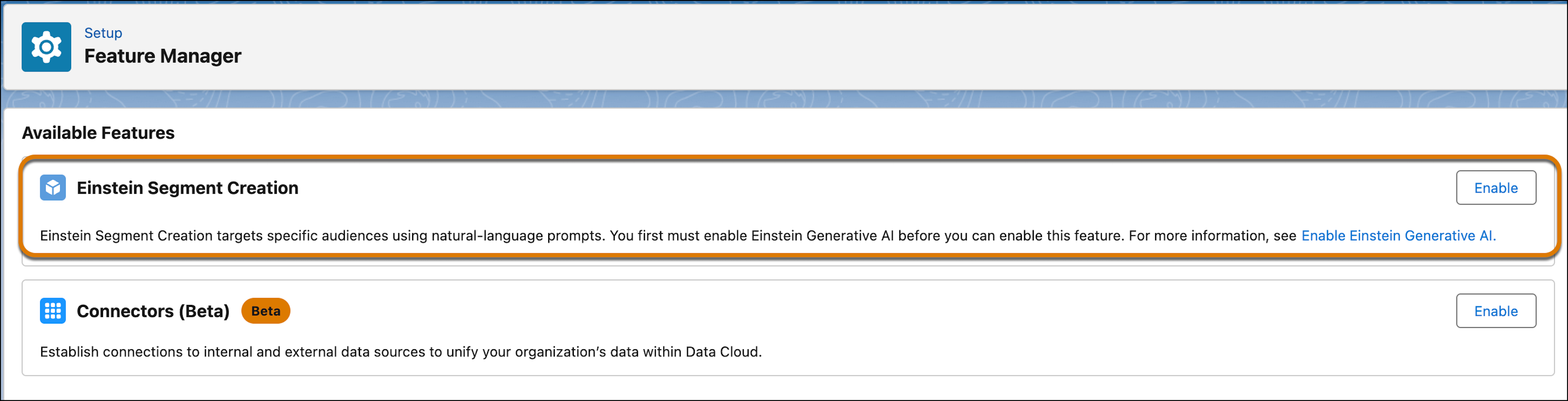
To create Einstein segments, you must enable Einstein Segment Creation in your org. This is done in the Feature Manager.

1. In Data Cloud Setup, select **Feature Manager**.
2. Enable Einstein Segment Creation.
    
    ![Enable](https://sf-zdocs-cdn-prod.zoominsoftware.com/tdta-data-data_cloud-264-0-0-production-enus/f3569962-3c9b-4f83-9d0c-b6a574e785da/data_cloud/images/c360_einstein_seg_enable_1.png)
3. To confirm, click **Enable** again.
    
    You can now start creating Einstein segments.
    
    Einstein Segment Creation results are optimized with Einstein Data Prism. To get the best results with Einstein Data Prism, use Metadata Studio to review the generated descriptions for objects and fields, enter missing information, and remove obsolete objects from the data source. See [Metadata Studio](https://help.salesforce.com/s/articleView?id=ai.generative_ai_prism_metadata_studio.htm&type=5&language=en_US).