---
schema_version: "1"
id: 8ed3d2ffa391518eec78ff25a98bafd0a7dcfe3aac4b8fc029fd2ddf5e3794af
title: Create a Data Graph
collection: admin
version: current
locale: en-us
portal_url: https://docs.salesforce.com/admin/current/en-us/data/264-0-0/c360_a_create_a_data_graph.md
canonical_url: https://help.salesforce.com/s/articleView?id=data.c360_a_create_a_data_graph.htm&release=264.0.0&type=5
source_site: help.salesforce.com
content_type: documentation
content_hash: 971f663156291944ba85ad4d4af72fbf6a5d881d9e9b315eb07bf06e2a529728
description: Before creating a data graph in Data 360, decide which existing data model object (DMO) to use as the primary DMO. The primary DMO determines which related objects you can include in the data graph.
products:
- Data 360
release: "264"
---
# Create a Data Graph
Before creating a data graph in Data 360, decide which existing data model object (DMO) to use as the primary DMO. The primary DMO determines which related objects you can include in the data graph.
### Required Editions
Data graphs created from scratch use the API name that you specify. Data space-aware API naming for data graphs deployed through data kits doesn't apply to data graphs created from scratch.

Note Data graphs created from scratch retain the API name that you specify. Data graphs created through DataKit deployment can have automatically generated API names based on the target dataspace, depending on your organization's configuration.

Note To create a data graph from a data kit, see [Create a Data Graph from a Data Kit](https://help.salesforce.com/s/articleView?id=data.c360_a_create_a_data_graph_data_kit.htm&release=264.0.0&type=5 "Avoid the time involved in creating a data graph manually by using a data graph from a published data kit. You can deploy a data kit containing data graphs using both managed and unmanaged packages. Changes that you make to the original data graph don’t affect the data graph in the data kit.").
1. From the App Launcher, search for and select **Data Graphs**.
2. Click **New**, and click **Start from Scratch**.
1. Choose a near real-time data graph or a real-time data graph.
2. Select or enter a value for each property field.
3. Click **Next**.
3. If you're creating a real-time data graph, set the consumption limits, and click **Next**.
Consumption limits can impact cost and performance. See [Record Caching and User Session Length in Real-Time Data Graphs](https://help.salesforce.com/s/articleView?id=data.c360_a_record_caching_in_rt_data_graphs.htm&release=264.0.0&type=5 "Configure your real-time data graph to manage the number of records held in the cache and user session length.").
4. Select fields from the primary DMO to include in the data graph.
The primary key field, related key qualifier field, and applicable foreign key fields are selected by default and added to the data graph for the primary DMO and its related objects.
5. To add related objects, click **+** or search for a DMO, and select fields for each related object.
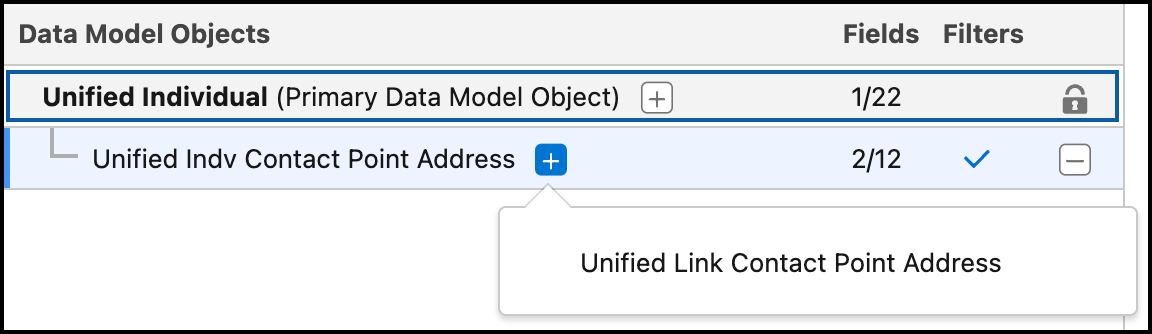
If a DMO has more than one path, choose a path from the list of results. Longer paths add more levels to your data graph.
To apply filter settings, go to the Filters tab. The available filter settings depend on the DMO category.
In real-time data graphs, the relationship join must use the primary key of the parent data model object (DMO). If a relationship requires a non–primary key field from the parent DMO, it isn’t supported for real-time data graph.
When you create a real-time data graph, you can’t add DMOs that create an N:1 relationship. If you select a DMO that results in an N:1 relationship, the system blocks the selection and displays an error message. Real-time data graphs support only 1:1 and 1:N relationships. This restriction applies to newly created real-time data graphs.
6. To view the structure of the JSON blob, click **Preview**.
7. Save your work.
- To save the data graph without making it active, click **Save Draft**. The data graph is saved in draft status.
- To create the data graph, click **Save and Build**.
8. Select a refresh interval for the data graph.
- Every 30 Minutes
- Every 1 Hour
- Every 4 Hours
- Daily
- Weekly
- Monthly
- Streaming
Real-time data graphs update continuously and reflect the most current changes in DMOs for all real-time events. Whereas, standard data graphs adhere to a scheduled refresh.
The default refresh interval is daily. Selecting a shorter refresh interval can raise costs. You can't select a refresh interval for draft data graphs.
Streaming is validated at the Save and Build step. If unsupported features are present, you can’t proceed. Remove incompatible elements and try again. N:1 relation between DMOs and ad hoc filters are not supported with streaming data graphs.
The processing time to create an active data graph depends on the size of the primary DMO and related objects, anywhere between 15 minutes and several hours. You can check the processing status on the Data Graphs tab. If the status is Error, the data graph couldn’t be created. Contact your Salesforce account executive for help with resolving the error.
After the data graph is created, you can view, edit, clone, refresh, and delete it. You can also query the metadata and the JSON blob data using Data 360 Metadata API and Query API. Draft data graphs can't be cloned or refreshed.


Tip To see details about a DMO while creating a data graph, select the DMO in the data graph tree editor. To jump to the DMO record, click **View in Data Model**.