---
schema_version: "1"
id: 3fd8d5366887a3d641e4271ba8b87b353098ac4a1322cb1c86f93a601eee7df0
title: Clone a Data Graph
collection: admin
version: current
locale: en-us
portal_url: https://docs.salesforce.com/admin/current/en-us/data/264-0-0/c360_a_clone_a_data_graph.md
canonical_url: https://help.salesforce.com/s/articleView?id=data.c360_a_clone_a_data_graph.htm&release=264.0.0&type=5
source_site: help.salesforce.com
content_type: documentation
content_hash: 2b5158746e0cb5aa92c9107b7ea3aecc265b4b78fb23613c3d26cc35f2504dfc
description: When you clone a data graph, the clone inherits the data space and primary data model object (DMO) from the original data graph. You can’t change the data space or primary DMO, but you can select different related objects and fields. You can also change the cloned data graph’s name, API name, filter settings, and description.
products:
  - Data 360
release: "264"
---
# Clone a Data Graph

When you clone a data graph, the clone inherits the data space and primary data model object (DMO) from the original data graph. You can’t change the data space or primary DMO, but you can select different related objects and fields. You can also change the cloned data graph’s name, API name, filter settings, and description.

### Required Editions

<table class="slds-table slds-table_bordered slds-max-medium-table_stacked slds-m-bottom_small edition"><colgroup><col></colgroup><tbody><tr class=""><td class="slds-cell-wrap" style="vertical-align:top;">Available in: <strong>All Editions</strong> supported by Data 360. See <a href="https://help.salesforce.com/s/articleView?id=data.c360_a_dc_editions.htm&amp;release=264.0.0&amp;type=5" title="Data 360 is available in several supported Salesforce editions. Some Data 360 features also require additional licenses.">Data 360 edition availability</a>.</td></tr></tbody></table>

<table class="slds-table slds-table_bordered slds-max-medium-table_stacked slds-m-bottom_small ">
        <colgroup>
          <col style="width:50%">
          <col style="width:50%">
        </colgroup>
        <thead class="slds-text-title_caps ">
          <tr class="">
            <th scope="colgroup" class="slds-cell-wrap" colspan="2" style="text-align:left;vertical-align:top;" id="d243899e64">User Permission
              Set Needed</th>
          </tr>
        </thead>
        <tbody>
          <tr class="">
            <td data-label="User Permission Set Needed" class="slds-cell-wrap" style="vertical-align:top;" headers="d243899e64 ">To clone a data graph:</td>

            <td class="slds-cell-wrap" style="vertical-align:top;" headers="d243899e64 ">
              <p>Permission set: </p>
              <ul>
                <li>Data Cloud Architect</li>

              </ul>
            </td>

          </tr>
        </tbody>
      </table>

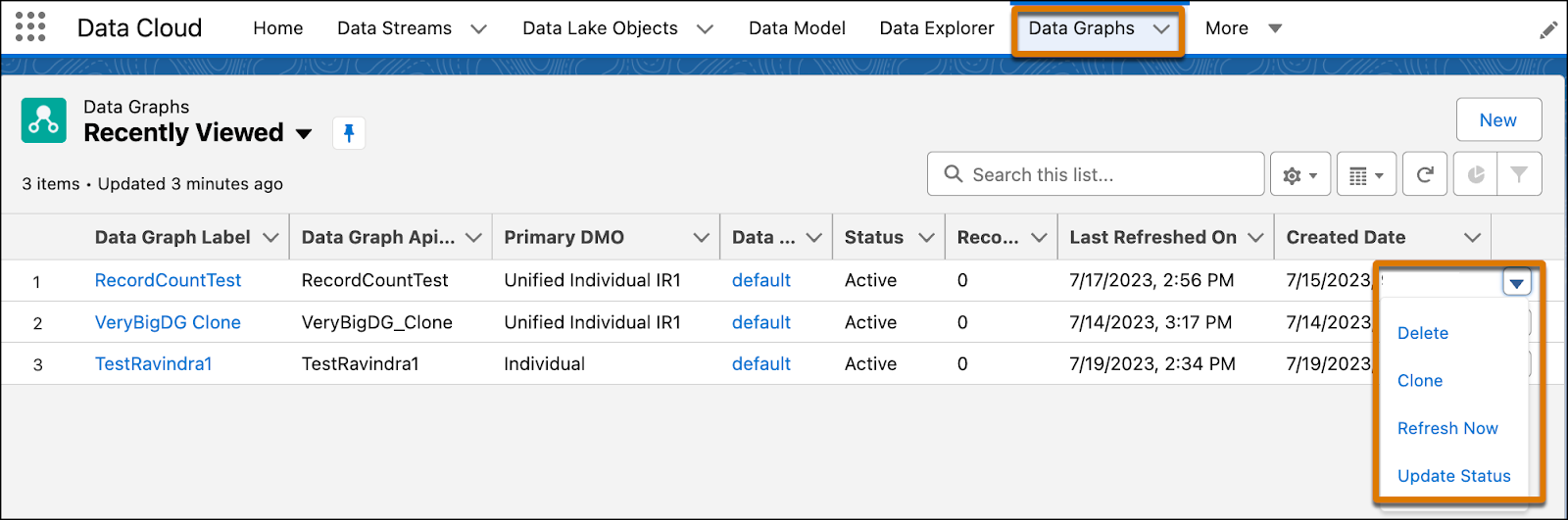
1. Go to the **Data Graphs** tab.
2. From a data graph list view, click the dropdown menu next to the data graph label, and select **Clone**.
    
    ![Clone data graph](https://sf-zdocs-cdn-prod.zoominsoftware.com/tdta-data-data_cloud-264-0-0-production-enus/f3569962-3c9b-4f83-9d0c-b6a574e785da/data_cloud/images/c360_a_clone_data_graph.png)