---
schema_version: "1"
id: 52f0fff1a4dd4a97780f0c70fc503e6144e80db4bb29391f66b4e36bbede5b4a
title: Create a Batch Data Transform
collection: admin
version: current
locale: en-us
portal_url: https://docs.salesforce.com/admin/current/en-us/data/264-0-0/c360_a_batch_transform_create.md
canonical_url: https://help.salesforce.com/s/articleView?id=data.c360_a_batch_transform_create.htm&release=264.0.0&type=5
source_site: help.salesforce.com
content_type: documentation
content_hash: 684ab4326e6e8189dbe4b6e90954b714e3a978f0c6b79855c62928970795f921
description: Create a batch data transform with data lake objects or data model objects by using the in-app builder.
products:
- Data 360
release: "264"
---
# Create a Batch Data Transform
Create a batch data transform with data lake objects or data model objects by using the in-app builder.
### Required Editions
1. In Data Cloud, on the Data Transforms tab, click **New**.
If the Data Transforms tab isn’t visible, click **More** and select **Data Transforms**.
2. Select **Batch Data Transform**, and then click **Next**.
3. Select the data source.
If you selected data model objects as the source, select a data space from the dropdown menu. The data transform output applies only to the specified data space.

Note A data transform that runs on data model objects is restricted to a data space. You can't associate a data transform that runs on data lake objects with a data space.
4. Select the initial input data for the batch data transform.
1. Click **Add Input Data**, and select the objects that you want to add.
2. Under Selected Columns, choose which of the object’s columns to include in your input data, or select **Name** to select all columns.
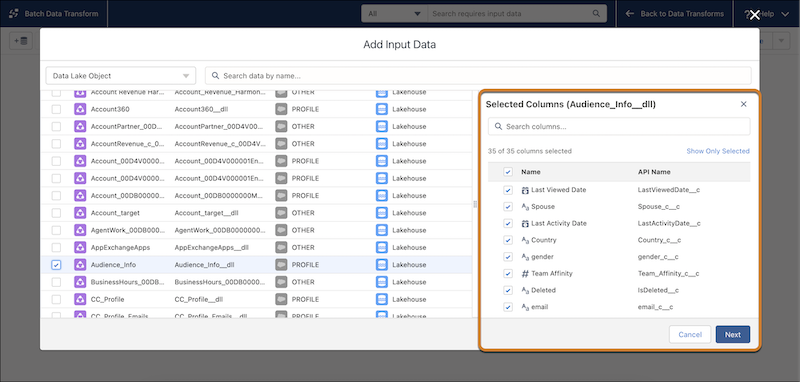
If you added multiple source objects, select each object one at a time and then choose its columns. Selected Columns shows only the columns for the selected object.
3. Click **Next**.
An input node for each input data selection is added to the canvas.
1. To set a currency for the transform, click settings and select **Set Currency**.
5. Add a node to the batch data transform by clicking the Add Node button () between two nodes or at the end of the batch data transform. Then, select the node type.
To show the Add Node button between two nodes, hover the cursor on the connecting line.
6. Preview the results of each node and transformation that you added by selecting the node or transformation in the canvas.
To edit or delete a node, select the node, click , and then select the appropriate action. To edit or delete a transformation in a Transform node, select the Transform node, select the transformation step, and then click  or .
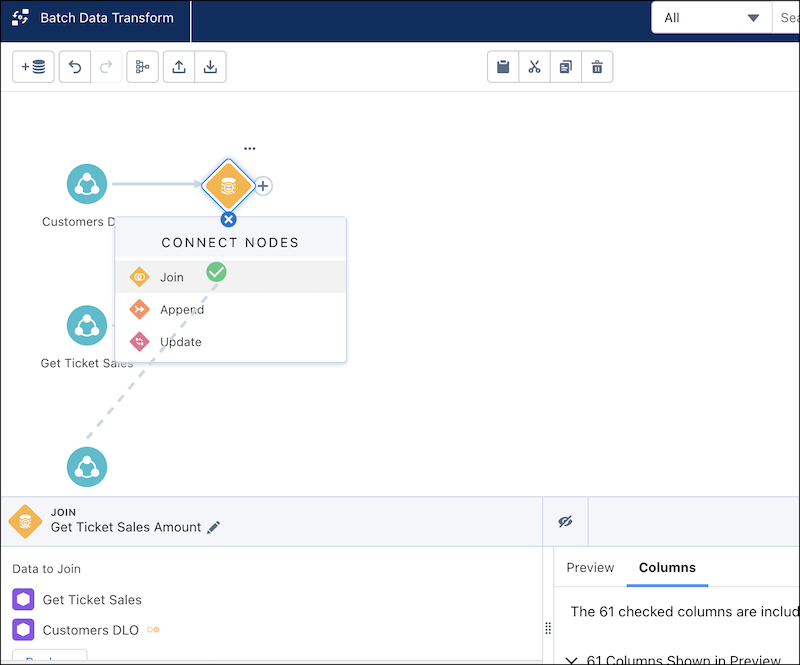
7. To connect, join, or append nodes in the canvas, drag the Add Node button () next to a node or Branch button () on top of another node in the canvas. Select one of the Connect Nodes options.
8. End the data transform with one or more output nodes.
9. Select either **Replace** or **Upsert** for the output Write Mode.
Upsert loads all input data in every run, merging it into the output. Replace attempts incremental transforms, loading only changes from previous runs into the output. For more information, see [Write the Batch Data Transform Results to a Data Lake Object Output Node](https://help.salesforce.com/s/articleView?id=data.c360_a_batch_transform_output_node_dlo.htm&release=264.0.0&type=5 "To use your batch data transform as input to identity resolution, calculated insights, or segmentation, you write the results to a new or existing data lake object (DLO) in an output node. The object that holds the output is called a target data lake object. You can’t save a batch data transform without an output node.").
10. Select the object to write the results to.
- If your data source is a data lake object, select the object to write the results to, and then click **Apply**.
- If your data source is a data model object, select the object to write the results to or create a new object.
11. From the Batch Transform canvas, click **Save**.
12. Enter a descriptive name that indicates the specific manipulation or operation being performed on the data. A definition name is auto-populated in the Definition Name field. One transform can be associated with up to five transform definitions and are combined into a single composite transform. Each definition distinguishes the particular manipulation that definition applies to the transform.
13. Click **Save.**
#### See Also
- [_Salesforce Help_: Data Spaces](https://help.salesforce.com/s/articleView?id=data.c360_a_data_spaces.htm&release=264.0.0&type=5 "A data space is a logical partition to organize your data for profile unification, insights, and marketing in Data 360. You can segregate your data, metadata, and processes into categories, such as brand, region, or department, and then enable users to see and work on data only in the context of their category. You can also merge and analyze data in data spaces.")