---
schema_version: "1"
id: 65e613c14aa436d28a8a5c11406893d308d45eb6b1b8e00b166b7e7f23b0ed74
title: Copy and Paste a Batch Data Transform
collection: admin
version: current
locale: en-us
portal_url: https://docs.salesforce.com/admin/current/en-us/data/264-0-0/c360_a_batch_transform_copy_paste.md
canonical_url: https://help.salesforce.com/s/articleView?id=data.c360_a_batch_transform_copy_paste.htm&release=264.0.0&type=5
source_site: help.salesforce.com
content_type: documentation
content_hash: 3c80ae23a1dc082e17660c43a389f3ad5a69b11d4d921e845245141831c0e9e2
description: Use the toolbar or keyboard shortcuts to copy and paste nodes within a single batch data transform or across multiple ones. To use this feature, enable clipboard access permissions in your browser.
products:
  - Data 360
release: "264"
---
# Copy and Paste a Batch Data Transform

Use the toolbar or keyboard shortcuts to copy and paste nodes within a single batch data transform or across multiple ones. To use this feature, enable clipboard access permissions in your browser.

### Required Editions

<table class="slds-table slds-table_bordered slds-max-medium-table_stacked slds-m-bottom_small edition"><colgroup><col></colgroup><tbody><tr class=""><td class="slds-cell-wrap" style="vertical-align:top;">Available in: <strong>All Editions</strong> supported by Data 360. See <a href="https://help.salesforce.com/s/articleView?id=data.c360_a_dc_editions.htm&amp;release=264.0.0&amp;type=5" title="Data 360 is available in several supported Salesforce editions. Some Data 360 features also require additional licenses.">Data 360 edition availability</a>.</td></tr></tbody></table>

<table class="slds-table slds-table_bordered slds-max-medium-table_stacked slds-m-bottom_small permission">
        <colgroup>
          <col style="width:50%">
          <col style="width:50%">
        </colgroup>
        <thead class="slds-text-title_caps ">
          <tr class="">
            <th scope="colgroup" class="slds-cell-wrap" colspan="2" style="text-align:left;vertical-align:top;" id="d241827e66">User Permissions Needed</th>
          </tr>
        </thead>
        <tbody>
          <tr class="">
            <td data-label="User Permissions Needed" class="slds-cell-wrap" style="vertical-align:top;" headers="d241827e66 ">To copy a batch data transform</td>

            <td class="slds-cell-wrap" style="vertical-align:top;" headers="d241827e66 ">
              <p>Permission set: </p>
              <ul>
                <li>Data Cloud Architect</li>

              </ul>
            </td>

          </tr>
        </tbody>
      </table>

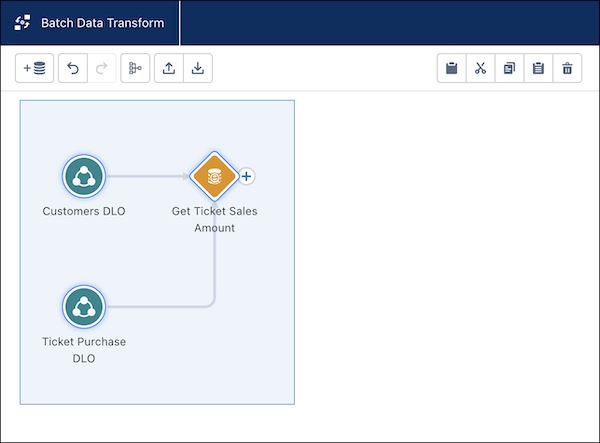
1. In a batch data transform, select one or more nodes to copy or cut.
    
    ![Three nodes are selected in the canvas with the toolbar of cut and paste options visible.](https://sf-zdocs-cdn-prod.zoominsoftware.com/tdta-data-data_cloud-264-0-0-production-enus/f3569962-3c9b-4f83-9d0c-b6a574e785da/data_cloud/images/c360_a_batch_transform_copy_and_paste.png)
2. From the toolbar, click the copy icon or press Ctrl+c to copy. To cut, click the cut icon or press Ctrl+x. To duplicate, which copies and pastes in one step, click the duplicate icon. To delete a node, click the trashcan icon or press Ctrl+d.
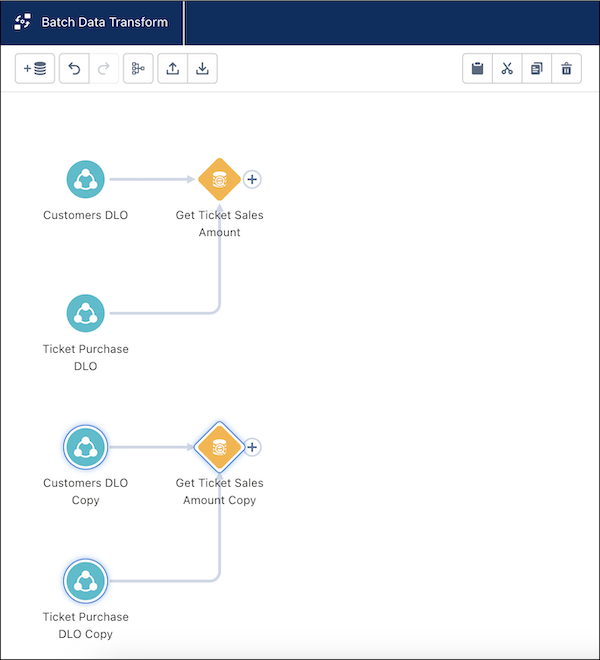
3. Click the paste icon or press Ctrl+v to paste.
    
    The copied image displays below the original.
    
    ![The copied nodes display under the original ones.](https://sf-zdocs-cdn-prod.zoominsoftware.com/tdta-data-data_cloud-264-0-0-production-enus/f3569962-3c9b-4f83-9d0c-b6a574e785da/data_cloud/images/c360_a_batch_transform_copied_nodes.png)