---
schema_version: "1"
id: 545f2d1f37bdb5cfce19e589ecf1a45672aa652024da44d05e953f8c8afceb6d
title: Refine Segments with Grouping, Ranking, and Limiting
collection: admin
version: current
locale: en-us
portal_url: https://docs.salesforce.com/admin/current/en-us/data/264-0-0/c360_a_apply_grl_rules_segment.md
canonical_url: https://help.salesforce.com/s/articleView?id=data.c360_a_apply_grl_rules_segment.htm&release=264.0.0&type=5
source_site: help.salesforce.com
content_type: documentation
content_hash: ad8eb836fcf974193385f76ccfe99d9277681a3301b0dfaa5d1d1c85215e7974
description: In Data 360 Segmentation, after setting your initial criteria in the Include and Exclude tabs, go to the Rank and Limit tab to further refine your segment. The first container is automatically created and locked to your segment's primary entity. This container defines your innermost filtering rule.
products:
- Data 360
release: "264"
---
# Refine Segments with Grouping, Ranking, and Limiting
In Data 360 Segmentation, after setting your initial criteria in the Include and Exclude tabs, go to the Rank and Limit tab to further refine your segment. The first container is automatically created and locked to your segment's primary entity. This container defines your innermost filtering rule.
### Required Editions
1. Drag an attribute into the container to define your grouping criteria and set the rule type to **Group By**.
2. Drag a second attribute into the container to define your ranking criteria. Set the rule type to **Sort By** and select a sort order.
3. Enter a number in the **Maximum Records** field to limit the records selected from each group.
The maximum number of records allowed is 2 billion.
4. Click **Add Ruleset** to create a second, outer container that defines the next layer of filtering.
5. In the new container, click the **Object** dropdown. The objects available are determined by the Group By attribute used in the previous step. Select the appropriate object for this rule.
6. Repeat the process of adding Group By and Sort By attributes and setting a maximum number to limit the records for this new group.
7. Continue adding rule sets as needed for each layer of filtering.
8. Click **Done**.

Example
First, let's create a segment that selects only the top two contacts from each account based on their authority level. This is useful for targeting key decision-makers.
In your first container:
1. Set the **Maximum number of Account Contacts** to 2.
2. For the **Group By** rule, use the **Account ID** attribute. This groups all contacts by the account they belong to.
3. For the **Sort By** rule, use the **Authority Level** attribute and set the order to Descending. This ranks the contacts within each account.
This single rule set limits the segment to only the two highest-ranked contacts from every account that meets your Include criteria.
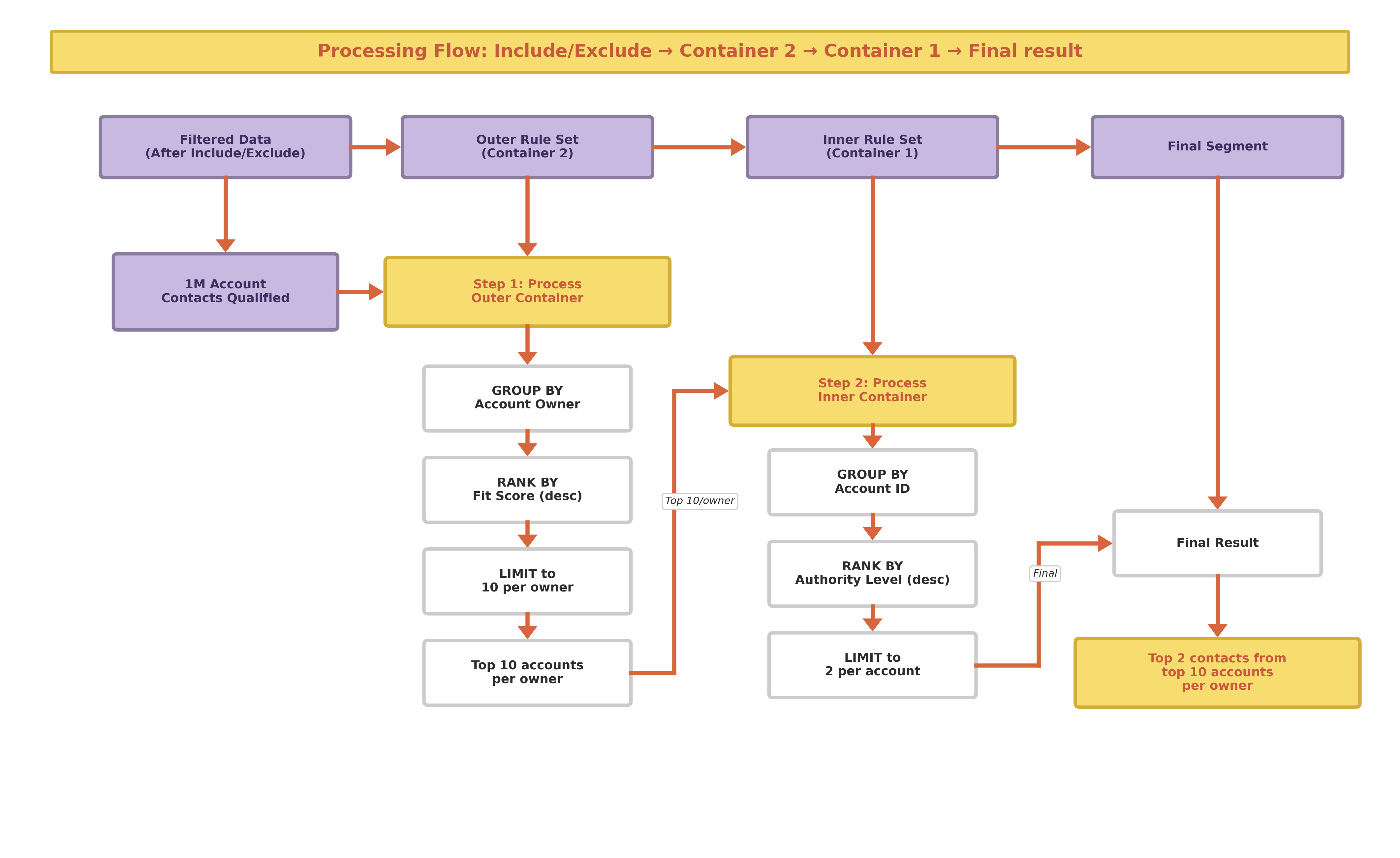
Now, let's extend the example. Before finding the top contacts, find the top 10 accounts for each account owner, based on a Fit Score. This creates a targeted list of the most important contacts from the most promising accounts.
Add a second container (the outer rule):
1. Select the **Account** object from the dropdown.
2. Set the **Maximum number of Accounts** to 10.
3. For the **Group By** rule, use the **Account Owner** attribute.
4. For the **Sort By** rule, use the **Fit Score** attribute and set the order to **Descending**.
5. Click **Save**.
When you save, as illustrated, Data 360 finds the top 10 accounts for each owner, and then selects the top 2 contacts from each of those accounts.