
Build summary for Modern POS version 9.1.3, including what new features and changes it contains.
Overview of All Features
| Theme | Feature |
|---|---|
| Core Platform | New Reports in App: Hourly Net Sales and Total Sales, Associate Login, Reconciliation Report |
| Core Platform | Extended Variant Functions on PDP |
| Cart/Checkout | Guest Suspended Cart identification |
| Gift Card | GC Cash Out Rules |
| Inventory Management | Adjustment Batch Reporting |
| Promotion | Outlet Store Channel Support |
| Various Feature Enhancements | Additional feature enhancements to existing features |
Core POS
New In-App Reports
New deep links permit merchants to access these reports: Total Sales, Hourly Net Sales, Associate Log Ins, and Reconciliation Report
Configure Access From Hamburger Menu
Add deep link to Hamburger Menu: https://labs.predictspring.com/cms/layout-settings-list/MENU
- Step 1: Add a deep link to a Hamburger Menu

- Step 2: Search for deep link, set, and confirm
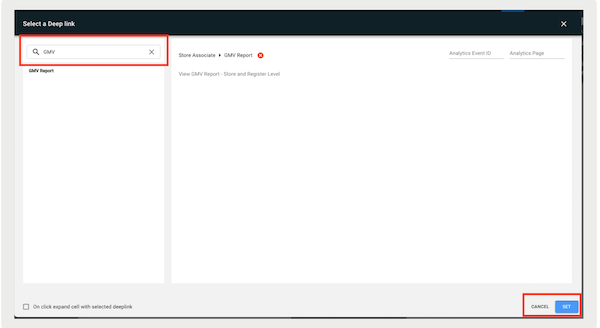

Configure Access From Layout
Add a deep link to Layout: https://labs.predictspring.com/cms/layout/edit
- Step 1: Add or create a layout
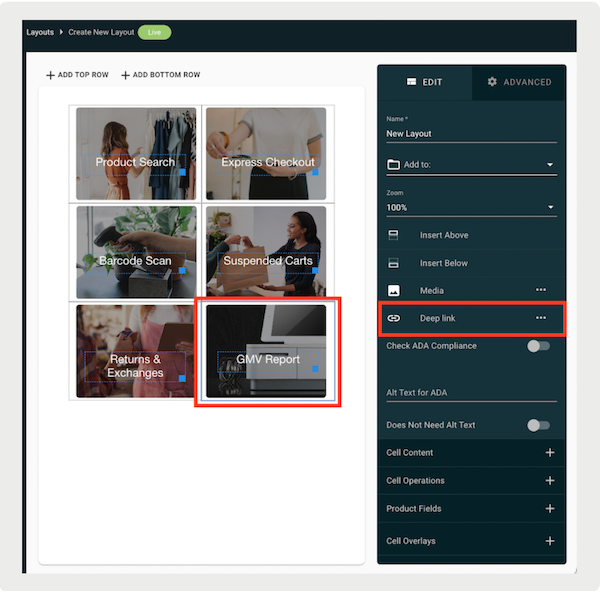
- Step 2: Search for the deep link and set it

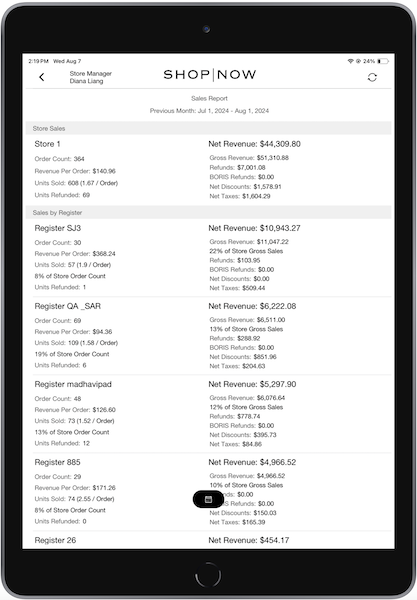
Total Sales Report
What it does: Provides a snapshot of sales metrics for the store and each register. Report accessed in POS show full store-level details as well as each register data only for that store. Learn more
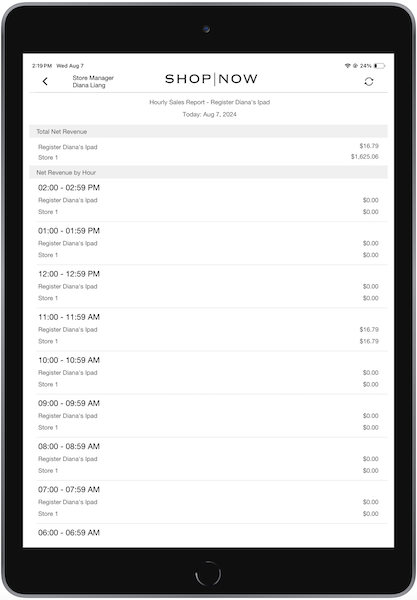
Hourly Sales
What it does: Provides a snapshot of Net Sales for stores and registers for the current day. Learn more
Reconciliation Report
What it does: Provides an option to view key fields from the reconciliation report and
print it on a receipt printer. App users can view single-day data from any of the past seven
days.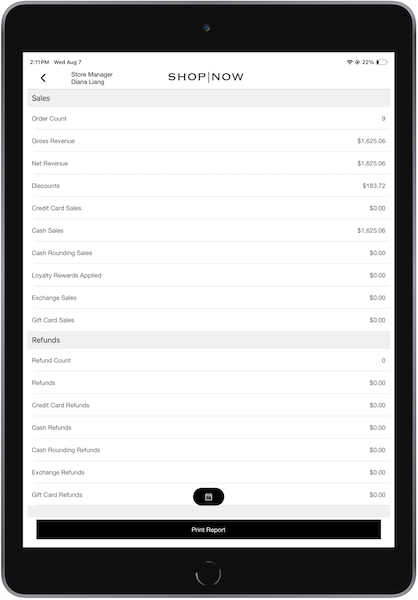
Extended Variant Functions on PDP
What it does: We love this new feature and think you will too. You can now make different versions of your Product Display Page (PDP) based on any product attribute. You can rank them in a certain order of appearance on the PDP by uploading a file or directly in the CMS.
How to configure: https://labs.predictspring.com/cms/product-variant-config
- Step 1: Configure and change the display priority of the product attributes manually or
via a feed
- Edit or add a new product attribute by clicking in the upper right. The product attributes show alphabetically in the
POS app regardless of their hierarchy in the CMS configuration.
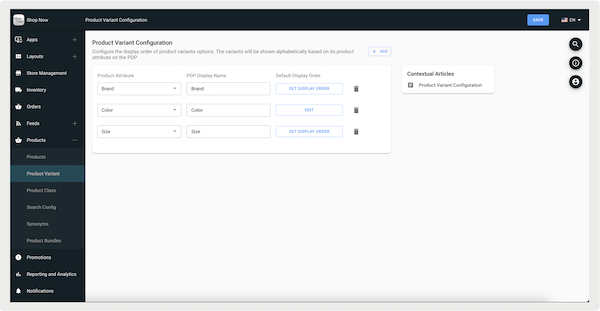
- Under , select an attribute (Currently, the only product fields or attributes that can be set as variants are: , , )
- Under , enter the name to be displayed in the POS app.
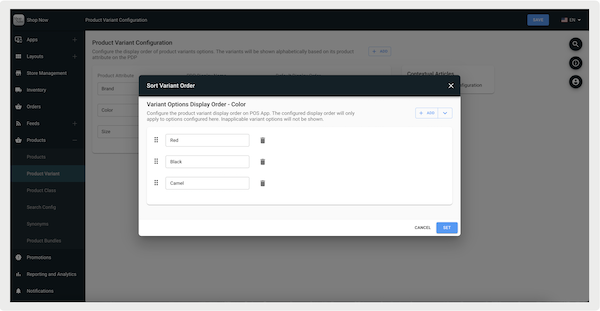
- Under , select , which open a popup allowing you to configure the variant
options.
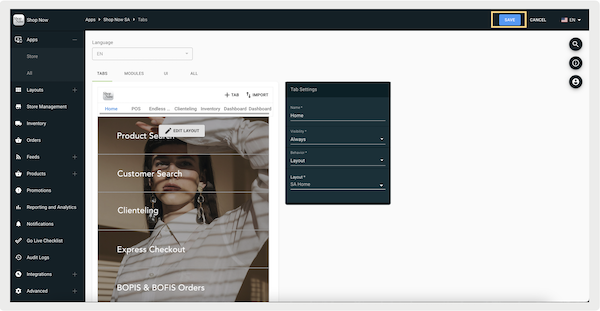
- Edit your selected app configuration and select in the upper right. Repeat this step for all app configurations you
want to have the product variants for and whenever you make a change in the
configuration. This allows the latest variants to be injected into the app
configuration.
- Edit or add a new product attribute by clicking in the upper right. The product attributes show alphabetically in the
POS app regardless of their hierarchy in the CMS configuration.
- Step 2: Customize the display of the PDP
- Create a PDP layout or edit an existing one. For more detailed instructions, refer
to this article. Your previously configured variants are visible
in the layout.
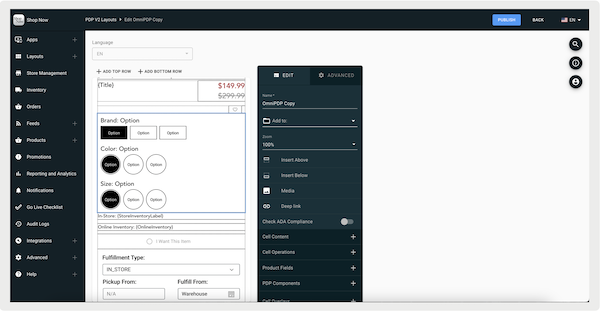
- To make further customizations, double-click on the variant section to open a
window. Here, you can change the display style (for example swatch), swatch type (for
example, circle, rectangle).
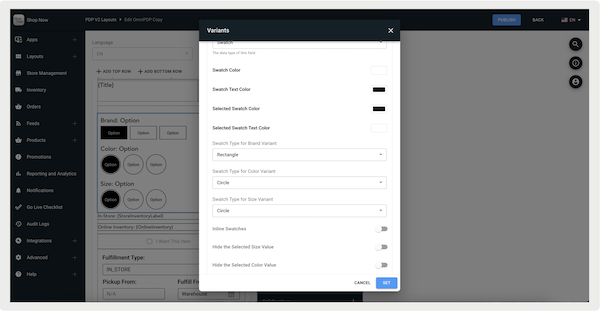 .
. - After you finish customizing, set and publish your changes.
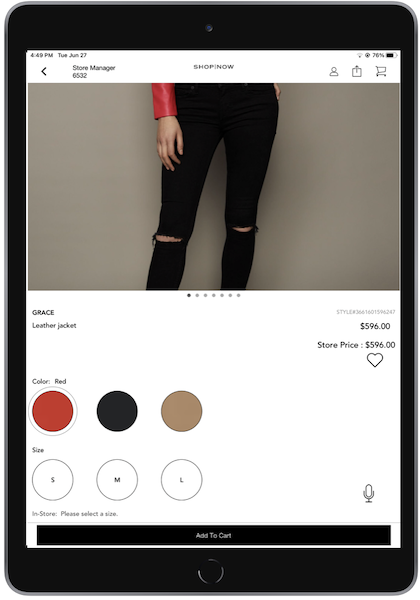
- Relaunch your POS app and go to the PDP of any product. The variants that you've
configured along with their display order appear.
- To make a product with only one version easier to see, turn on in . Turning on this flag automatically displays the single variant on the Product Detail Page (PDP) and hides any nonapplicable variants.
- Create a PDP layout or edit an existing one. For more detailed instructions, refer
to this article. Your previously configured variants are visible
in the layout.
Cart/Checkout
Guest Suspended Cart Identification
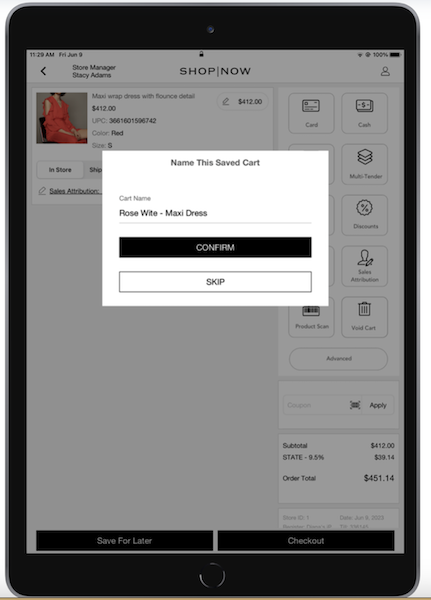
What it does: Store associates can assign a name to a suspended cart exclusively for guests. However, if a customer is signed in, the cart will be identified using their full name.
How to configure: Follow the steps in the App Saved Cart Flow
Learn more: Suspend & Resume Carts
Gift Cards
Gift Card Cash-Out Threshold
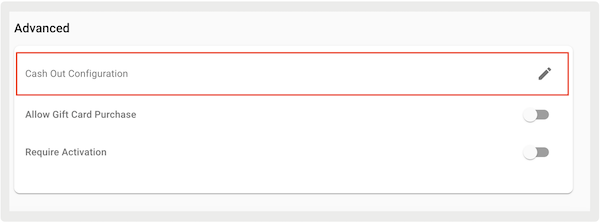
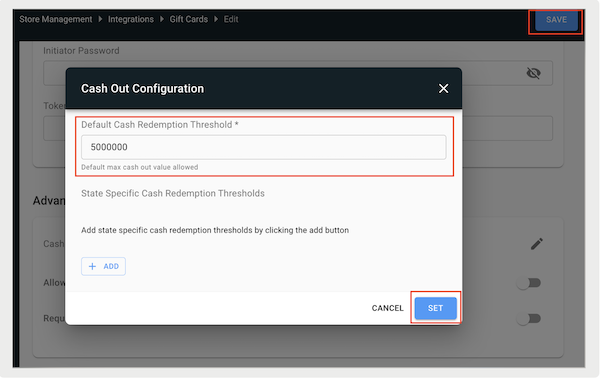
What it does: Define a cash redemption threshold for gift cards for example if your state has rules and regulations.
How to configure: https://labs.predictspring.com/cms/gift-card/edit/
- Step 1: Go to in
- Step 2: Enter threshold amount, set, and save
Inventory Management
Adjustment Batch Reporting
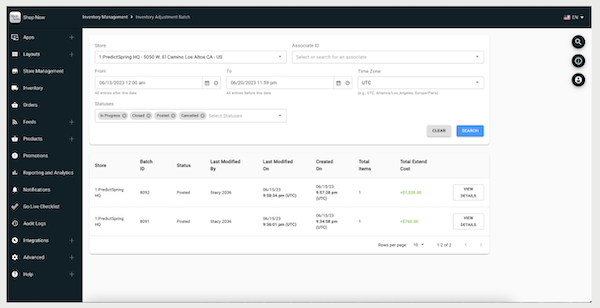
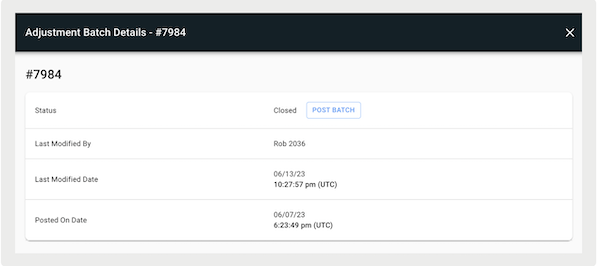
What it does: Summarizes changes made to inventory numbers in specific batches. This helps merchants track and reconcile inventory changes more easily. Additional details (for example product information, reason code, and so on) of a specific batch can be viewed as well.
How to access: https://labs.predictspring.com/cms/inventory-batches
For batches with a status of Closed, merchants have the option to manually post it in CMS and this updates all data from the batch accordingly.Posting a batch isn't revocable.
Promotions
Outlet Store Channel Support
What it does: It now helps you create and manage outlet stores, and select promotions, return policies, and transfers between stores. Refer to our Outlet Store Support for all the details.
Other Feature Enhancements
| Title | Description | Help Center Link |
|---|---|---|
| Show Remaining Tender Balance in Multi-Tender Flow | Optimized UI to show the remaining balance of an order in the payment method capture interstitial | Configure Multiple Tenders for Point of Sale |
| Adyen Validation for URL Base | Added validation for Adyen credentials to verify a successful connection. | Adyen Payment Gateway Integration |
| Fiscalization: Order number for non-receipted returns | Ability to capture the original sale number and process a return for any orders that aren't found in the system. | Returns & Exchanges in Point of Sale |
| Fulfillment restriction check at tender rather than add item | Previously, fulfillment combination rules were governed if adding items to the cart. To provide more capability for cart creation, the rule is executed at the payment step. | Fulfillment Type Combination Rules |