
Build summary for Modern POS version 8.10.1, including what new features and changes it contains.
Overview of all Features
| Theme | Feature |
|---|---|
| Core Platform | Default Fulfillment Option Configuration |
| Core Platform | Set 'Order Search Layout' as the default order search layout and add it as a CMS layout template |
| Promotions | Enhanced Rules for Active and Inactive Promotions |
| Promotions | Single Use Coupon Code Upload |
| Payments | Expired Remote Pay By Link Inventory Handling |
| POS - Sale / Checkout | [Omni v2] Pick Up Info Configuration via Layout |
| Monitoring and Alerting | Enhanced Monitoring and Alerting for Feeds |
| Monitoring and Alerting | Failed Order Alerts |
| SPI | Live Inventory SPI |
| SalesForce ( SFCC, SFSC, SF OM) | SFOMS Connector Enhancements: PaymentGatewayID, CardPaymentMethod |
CORE POS
Default Fulfillment Option Configuration
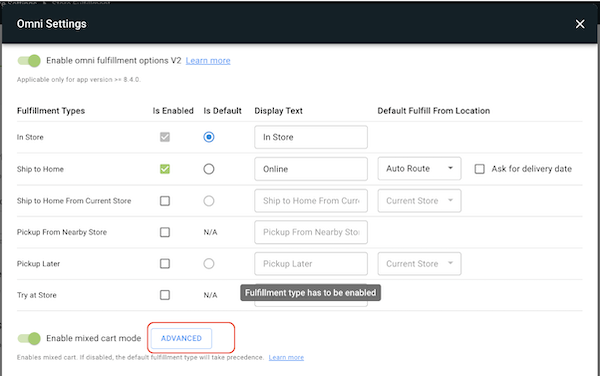
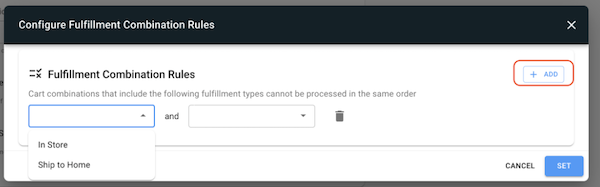
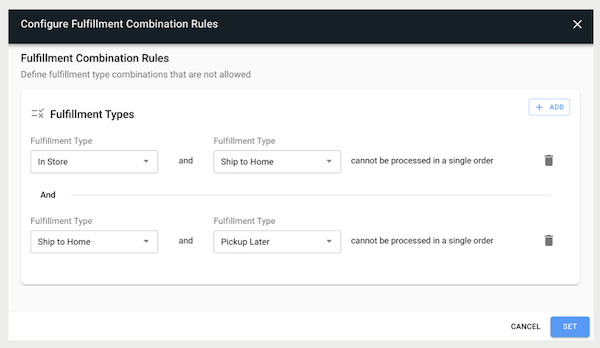
What it does - This configuration blocks different fulfillment types for different line items from being added to the same order.
How to Configure - https://labs.predictspring.com/cms/server-settings-v2/pos/store-fulfillment
1. Ensure you have mixed cart enabled and go to Advanced in CMS
2. ADD the rules you would like and select the combination fulfillment types that are not allowed with each other in the cart for each rule. Hit SET to save.
3. Multiple rules may be set up
 rt_releases_bfs_order_search_template
Learn More: Filfillment Type Combination Rules
New 'Order Search Layout'
What it does - Enhanced functionality and ease for Order Search flows in app with a default template in CMS
How to Configure - https://labs.predictspring.com/cms/layouts + in store config
1. Add the template, configure any additional customizations you like and PUBLISH
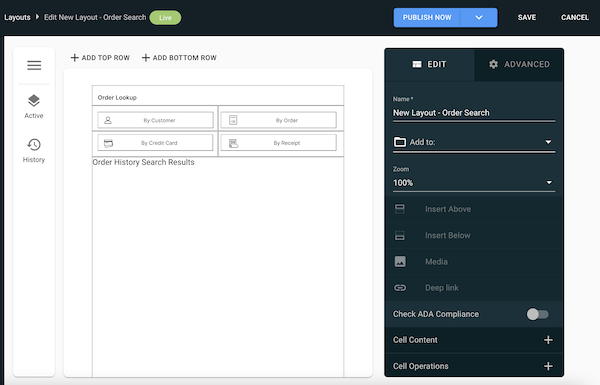
2. Map your new layout to the Order Search Layout in the store config
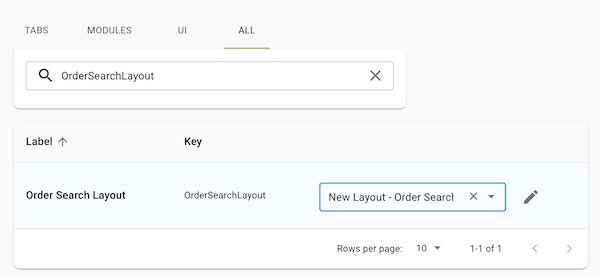
3. See template automatically trigger for order search in app
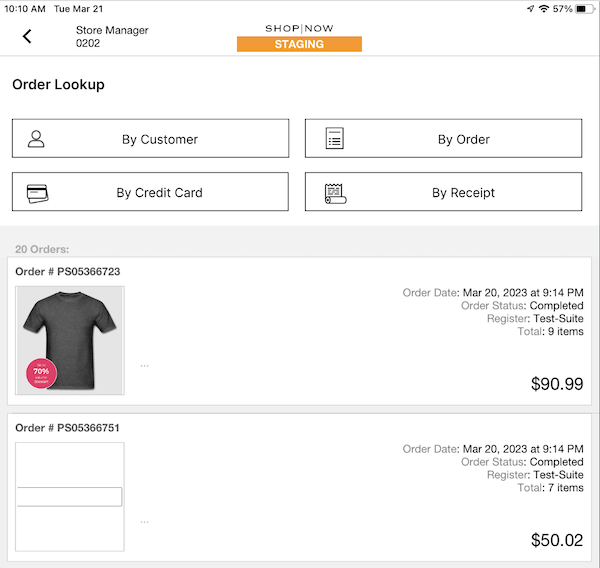
Learn More: App Config Segmentation Overview
Promotions
Enhanced Rules for Active and Inactive Promotions
What it does -There are updated rules for the status of promotions and how they are categorized in CMS
- Live:A promotion will be listed under this tab if the Active flag is toggled on and the current date falls in between the start and end dates for the promotion.
- Upcoming: A promotion will be listed under this tab if the Active flag is toggled on and the start date of the promotion is in the future.
- Inactive: A promotion will be listed under this tab if the Active flag is toggled off regardless if it's applicable.
- Expired: A promotion will be listed under this tab if the current date is past the end date of the promotions regardless if the Active flag is toggled on or off.
Learn More: Promotions
Single Use Coupon Code Upload
What it does - Allows you to create single-use promo codes via feed file. You may upload the file manually or schedule an upload.
How to Configure -
Create any promotion in CMS and select Single Use
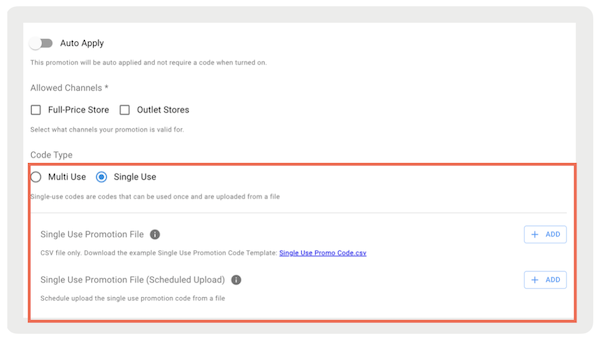
Tips - If you are updating an existing promotion that is using single use codes the filed is not required and the original file that was uploaded at creation time will still be used.
The file should be used to replenish codes, meaning if promotion code A is used but promotion code B hasn't been used, uploading a file with codes A and B will replenish code A, code B is not affected as it's still not used.
The Single Use promotion file format should consist of one column, refer to the bottom of this article for an example file.
Learn More - Promotions
Payments
Expired Remote Pay By Link Inventory Handling
What it does - When a payment link expires, the quantity of the product will revert to its original quantity
Learn More - Pay by Link (PBL) Overview
POS Sale/Checkout
[Omni v2] Pick up Information via Layout
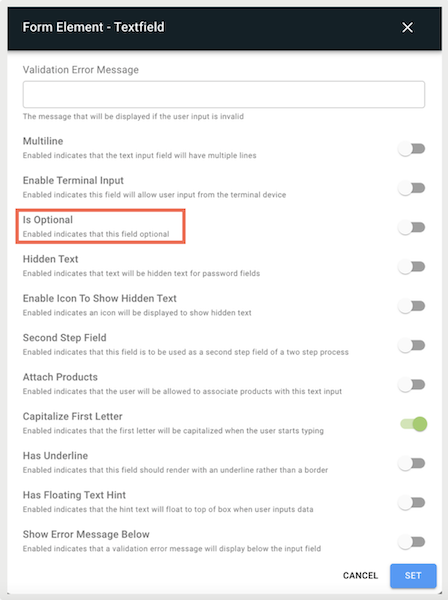
What it does - You may require additional information for Pickup Later, Pickup from Nearby Store, and Try at Store omni v2 fulfillment types. Customer information is collected by a layout that captures First Name, Last Name, Phone Number and Email. You may now customize this information and make fields optional.
How to Configure -
1. Create your Layout in CMS
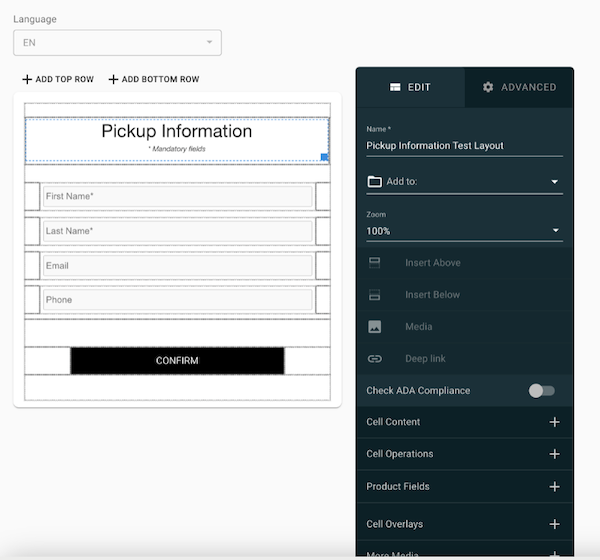
2. Within the cell content in the right toolbar menu you may select which fields are optional. Any fields not configured will be mandatory.
3. Ensure your Layout is active and assigned to your store config
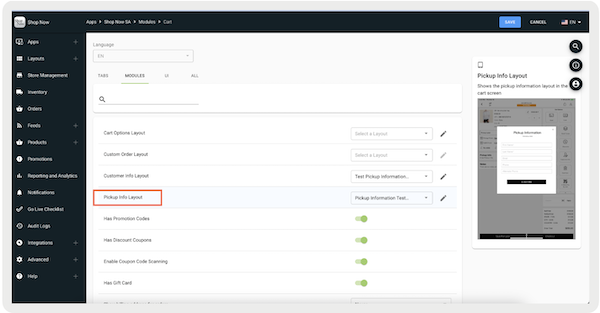
Learn More: Pickup Information Layout
Monitoring and Alerting
Enhanced Monitoring and Alerting for Feeds
What it does - Added monitoring and alerting for the following feed types
- Promotion
- Product Delta
- Product Pricing
- Product Sizing
- Product Inventory
- Product Pricing Delta
- Product Sizing Delta
- Product Inventory Delta
- Store Device
Learn More - Monitoring Policies - Policy Management & User Subscription Setting
Failed Order Alerts for Failed Orders Only
What it does - Previous state of the failed order report would send even when there are no failed orders. New state will only send notifications when there is a failed order.
How to Configure - (CMS-Orders-Failed Orders Report) https://labs.predictspring.com/cms/failed-orders-v4
Learn More - Failed Orders Report
SPI
Live Inventory
What it does - New SPI for live inventory checks. When editing the cart in the POS app (e.g., adding items, deleting items, changing quantity, etc.) Point of Sale will send the cart contents out via the SPI and it will check the external system for the availability of the specified products by checking their inventory count. If the product is not available, then an error is shown and the item isn't added to the cart.
How to Configure - SPI Live Inventory Check
Salesforce OMS
SFOMS Connector Enhancements: PaymentGatewayID, CardPaymentMethod
What it does - Point of Sale has a native connector to Salesforce OMS. It has been enhanced to include the PaymentGatewayID in the CardPaymentMethod object.
Create:
| HTTP Method | POST |
|---|---|
| URL | /services/data/v49.0/sobjects/CardPaymentMethod |
| Request |
{"PaymentGatewayId":"0b0050000004C9IAAU", "PaymentGroupId":"9zx050000004PCeAAM","PaymentMethodId":"03O050000- 0005CbEAI", "ProcessingMode":"External","Status":"Processed","Amount":6.10,"AccountId":"00-105000005tmJFAAY","Type":"Sale"} |
| Response | {"id":"03O0500000005CbEAI","success":true,"errors":[]} |
Learn More about the SFOM Connector - Salesforce (SF) Order Management System (OMS) Integration Guide
| Title | Description | Helpcenter link if applicable |
|---|---|---|
| “Showroom” as Clearance Item Source | Ability to add "Showroom" as a location type to your ERP | Store Creation |
| Quiz Export Data: Order ID | Exporting quiz data was enhanced to include the CartID instead of the OrderID. | Export Quiz Data |
| Reward Code in Customer 360 | Discount code tied to a customer reward can now be seen in the Customer 360 profile along with its expiration date |