
Build summary for Modern POS version 11.0.1, including what new features and changes it contains.
| Feature | Benefit |
|---|---|
| API / SPI | |
| Capture POS App Crashes Using a Webhook | Send real-time crash reports from the POS app to your monitoring systems using a webhook integration. |
| Track POS App Vitals Using a Webhook | Monitor key app health metrics—like connectivity and device status—through a vitals webhook. |
| Apply Loyalty Rewards as a Tender | Permit customers to use loyalty rewards to pay for purchases directly at checkout. |
| Cart | |
| Support Serialized Products in Punchout Webviews | Add support for serialized product identifiers like EPC or serial numbers in punchout flows. |
| Core Platform | |
| Control Product Window Visibility Using Product Attributes | Configure whether the product window appears after scanning, based on product-specific attributes. |
| Maintain Synchrony PCI Compliance with Custom Finance Layouts | Use customizable POS forms to securely collect customer details for Synchrony financing. |
| Payments | |
| Enhanced UI/UX for Card Payment and Failure Windows | Improve the customer experience with updated modals for card entry and payment errors. |
API / SPI
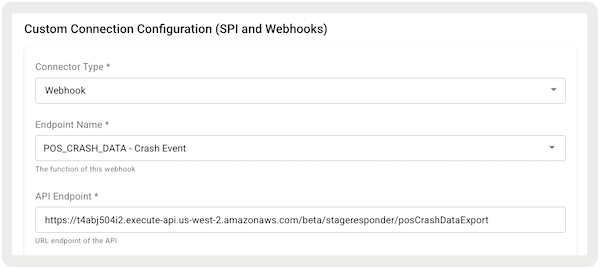
Capture POS App Crashes Using a Webhook
What it does: Automatically log crash events to your monitoring tools. You can detect and resolve issues faster, reduce downtime, and improve system reliability. This establishes a smoother in-store experience for associates and customers.
How to configure in CMS:
- In CMS, go to .
- Select .
- For , select "".
- For , select "".
- For , provide an external endpoint for the webhook.
- For , select or enter the type of integration (for example "").
- Under , provide a header for the API.
Learn more: Point of Sale API, SPI, and Webhook Specs
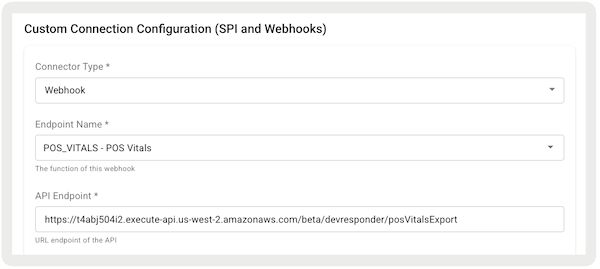
Track POS App Vitals Using a Webhook
What it does: Establish consistent POS performance across all stores with real-time visibility into key health metrics. Proactive monitoring of issues like connectivity problems and device failures empowers IT and support teams to address disruptions before they impact customers. Use the vitals webhook to track critical app health data, including connectivity and device status.
How to configure in CMS:
- In CMS, go to .
- Select .
- For , select "".
- For , select "".
- For , provide an external endpoint for the webhook.
- For , select or enter the type of integration (for example "").
- Under , provide a header for the API.
Learn more: Point of Sale API, SPI, and Webhook Specs
Apply Loyalty Rewards as a Tender
What it does: Provide a way to redeem earned rewards. This drives repeat purchases and increases customer engagement. Additionally, it simplifies the checkout process and enhances the value of your loyalty program.
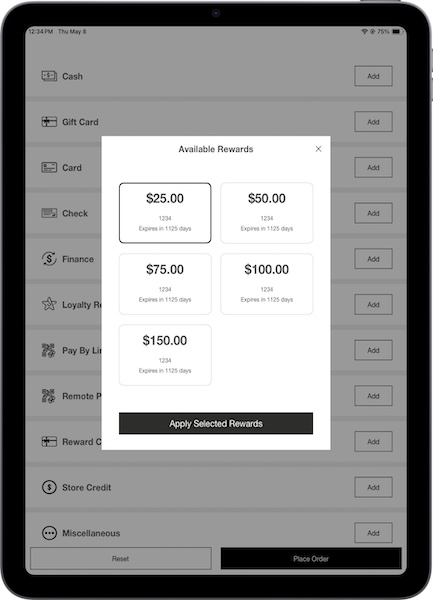
How to configure in CMS: No configuration needed as this is the default behavior.
Learn more: Point of Sale Loyalty Overview
Cart
Support Serialized Products in Punchout Webviews
What it does: Improve tracking and validation of individual product units, especially for high-value or compliance-sensitive items. Verify accuracy in fulfillment and returns, while helping maintain inventory integrity and preventing fraud.
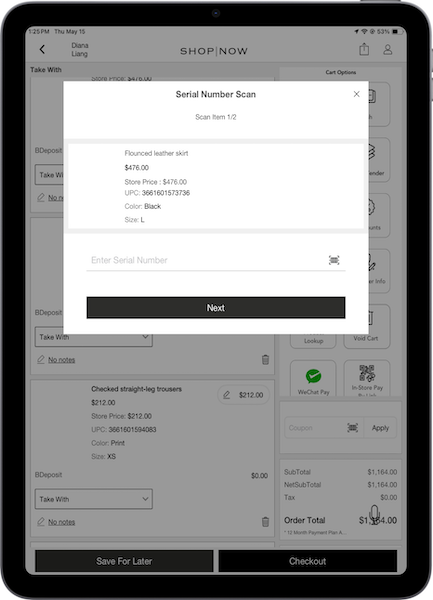
How to configure in CMS: No configuration needed as this is the default behavior.
Learn more: Supporting PunchOut Webpages on POS App
Core Platform
Control Product Window Visibility Using Product Attributes
What it does: Offer flexible financing options while maintaining PCI compliance using customizable POS forms for secure data collection. These forms permit you to gather the necessary customer information for credit authorization without storing sensitive data directly. This feature enhances the customer experience by streamlining the application process and establishing a simple transaction.
How to configure in CMS:
- In CMS, go to .
- Select the app configuration for which you want to customize the product window.
- Select .
- Go to .
- Edit the setting.
- Select a product attribute, such as .
- Select an operator, such as .
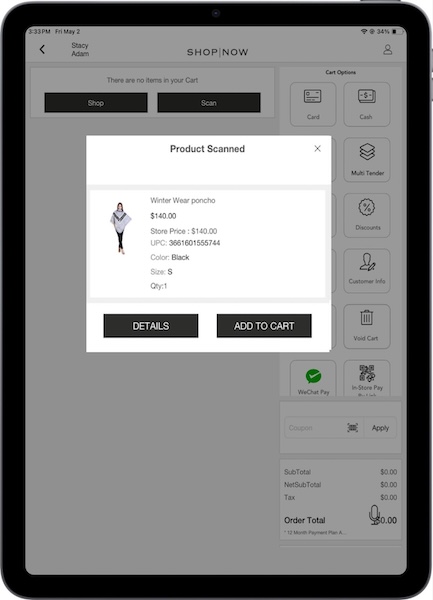
- Enter a value, such as . If the product attribute is set to , with the operator being and a value of , the product window is displayed if the scanned product’s list price equals or exceeds .
- Select and save your changes.
- Open the POS app and scan a product. If the product’s attributes match the condition, the product window appears, with options to add the product to the cart or view details. If you select , you're directed to the product's PDP. If the product’s attributes don't match the configuration, you don’t see the product window at all and are directed to the product’s PDP.
Learn more: Control Product Window Visibility Based on Product Attributes
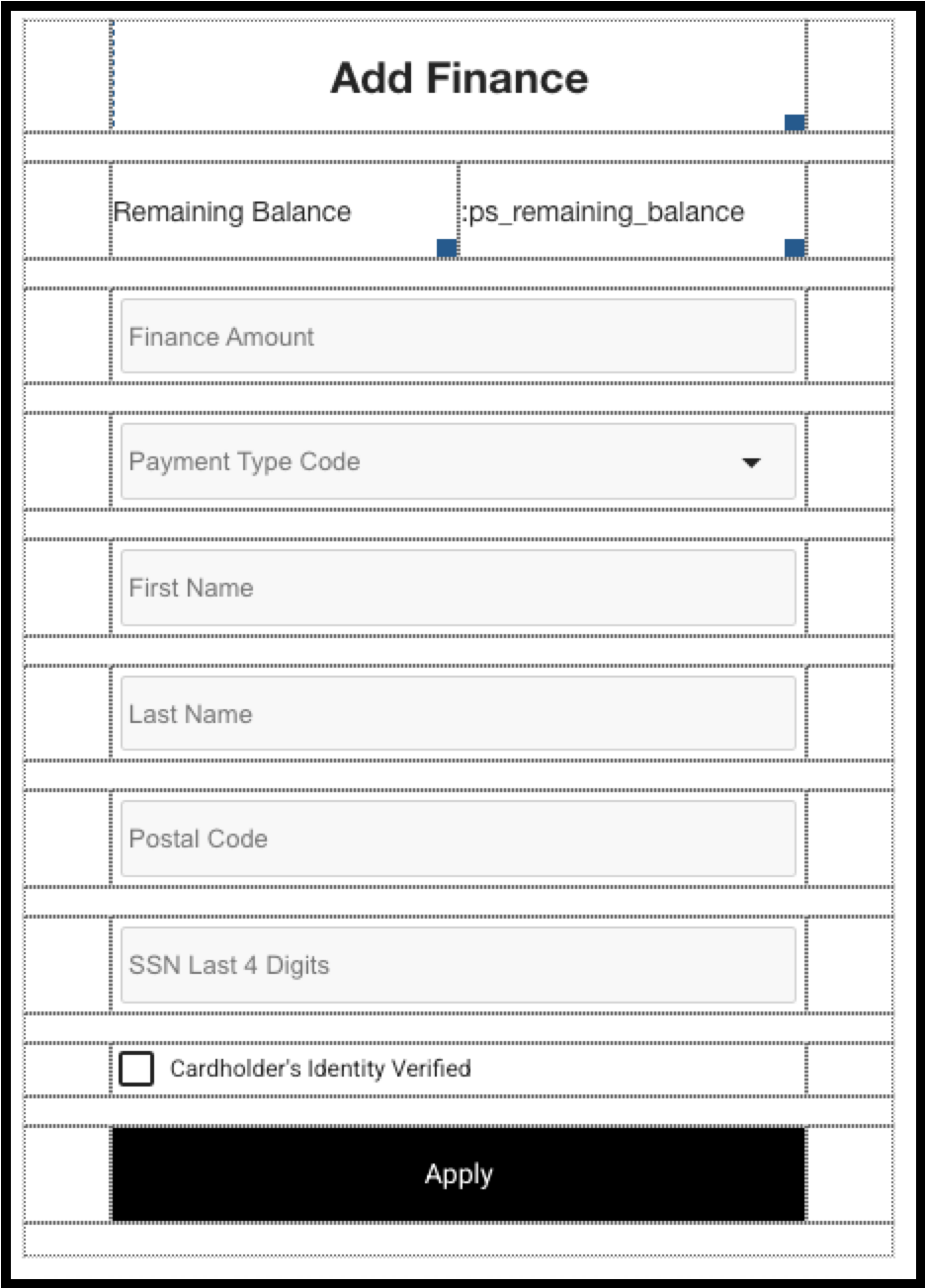
Maintain Synchrony PCI Compliance with Custom Finance Layouts
What it does: Streamline the checkout process by configuring the product window to appear only if needed. Based on product-specific attributes, the product window only displays if product details or actions are required. This reduces friction and accelerates transactions, enhancing the customer experience.
How to configure in CMS:
- Create and configure a finance tender layout in CMS.
- Assign a finance tender layout to an app configuration:
- In CMS, go to .
- Select the active app configuration used in stores that support financing.
- Select .
- Go to .
- Edit and select a layout.
- Save your changes.
Learn more: Create a Finance Form Layout for Synchrony
Payments
Enhanced UI/UX for Card Payment and Failure Windows
What it does: The redesigned payment flow offers a more intuitive and visually clear experience for both associates and shoppers. Clearer messaging and an improved layout reduce confusion during card entry and help resolve payment errors faster. This leads to a more efficient payment process, ultimately decreasing abandoned transactions and improving customer satisfaction.
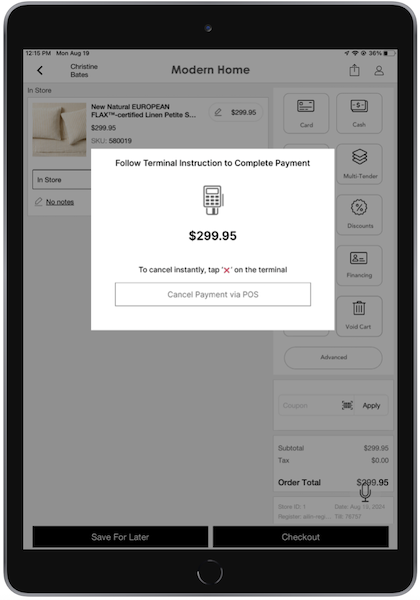
How to configure in CMS: No configuration needed as this is the default behavior.