
Build summary for Modern POS version 10.6.1, including what new features and changes it contains. Version 10.5.1 was an internal-only release for work done during code freeze, intentionally skipped number for public release 10.6.1. Access all new features and enhancements in 10.6.1.
| Feature | Benefit |
|---|---|
| Analytics/Reporting | |
| POS Sales Reports: Filter by Order Type | Enables filtering by order channel (in-store, endless aisle, mixed cart, and BORIS) in POS sales reports |
| Log Manager Override IDs in Electronic Journal (EJ) | Captures manager overrides in the EJ for reporting |
| Core Platform | |
| Audit Log Improvements | Enhanced audit logs now support scheduled exports, additional filters, and more detailed event logging, including login/logout events |
| Configuration Flag for Blocking Returns | New flag allows merchants to control whether returns are permitted in the POS app |
| Replace Back Button with "X" for Webviews | Webview navigation improved by replacing the back button with an 'X' |
| No Receipt Returns (NRR) Search Layout | Merchants can create and customize NRR Search layouts |
| New Transaction Types for EJ | Introducing two new transaction types in the EJ for transaction discounts and if a till from the previous day is used |
| EJ/TLog/JSON Export | |
| Support EJ Exports on Hourly Schedule | Merchants can now schedule EJ exports on an hourly basis |
| Integrations | |
| Phase 1 Synchrony: Card Present with Finance Tender | Supports Synchrony cards for financing transactions in a card-present scenario |
| Payments | |
| Permit Clutch Gift Cards to Be Processed Without a PIN | New setting allows merchants to specify whether PINs are required, optional, or not needed for Clutch gift card transactions |
| Ability to Support Remote Pay by Link in Deposit Scenarios | Pay by Link is now supported for remote deposits via the multitender screen |
| Returns/Refunds/Exchanges | |
| Start Return from Order History | Enhanced support for returns directly from Order History |
| Other | |
| Various |
Analytics/Reporting
POS Sales Reports: Filter by Order Type
What it does: Permits filtering by order channel (in-store, endless aisle, mixed cart, and BORIS) in POS sales reports. This helps store teams look at sales and returns by channel. This gives them better information about how customers act, how they store their items, and how well they run their businesses.
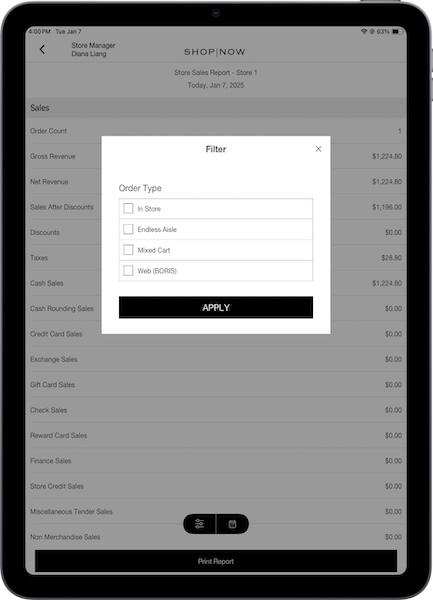
How to configure in CMS:
- In CMS, edit a layout or hamburger menu.
- Using the deep link picker, search and add these links:
- Set and save your changes.
Learn more: View Payment Reconciliation Report , Detailed Sales Report
Log Manager Override IDs in Electronic Journal (EJ)
What it does: Takes IDs of managers who override in the EJ for reporting. This helps prevent losses for returns, discounts, and other approval processes.
How to configure in CMS: No configuration is needed
Learn more: View and Edit Electronic Journal Reports
Core Platform
Audit Log Improvements
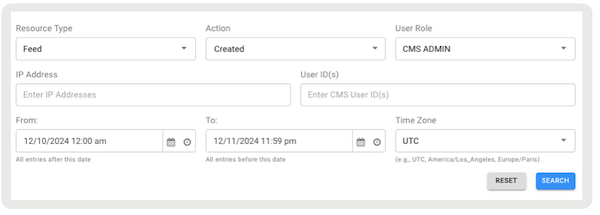
What it does: We've enhanced Audit Logs in CMS with scheduled exports, additional filters, and more detailed event logging, including login and logout activities. These improvements permit merchants to see and control more of the system. This makes it easier to track user actions, make sure they follow the rules, and fix problems faster. Scheduled exports can also simplify reporting, while additional filters help pinpoint specific events for improved security and operational oversight.
How to access and filter Audit Logs in CMS:
- In CMS, go to in the left-hand menu.
- Under , select the type of resource (for example feed). For a complete list and detailed descriptions of all resource types, refer to Resource Type.
- Under , select the action performed on the resource (for example created).
- Under , select the CMS role (for example CMS Admin) assigned to the user who performed the action for the specified record in the audit log.
- Under , enter the IP address of the user who performed the action.
- Under , enter CMS user IDs associated with the actions you want to review. You can input multiple user IDs to filter records for specific individuals or teams.
- Configure the and time zone to narrow down the results to a specific time.
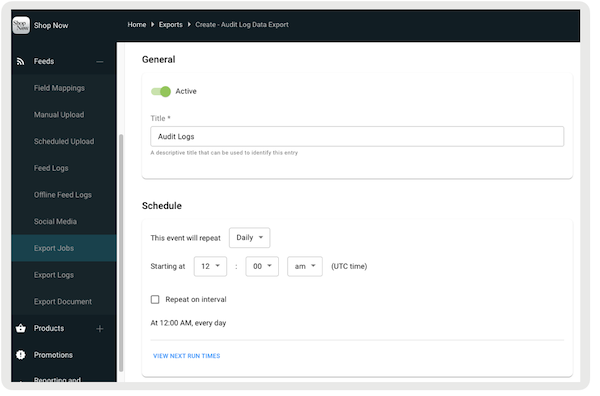
How to export Audit Logs in CMS:
- In CMS, go to .
- Select .
- Select .
- Configure the fields by referring to this article.
Learn more: Track Changes in Point of Sale CMS with Audit Logs
Configuration Flag For Block Returns
What it does: A new flag permits merchants to decide if returns are allowed in the POS app. This permits them to enforce store-specific return policies, reduce fraud risk, and improve operational control. Merchants can restrict returns during certain periods or promotional events, improving policy control and reducing unauthorized returns.
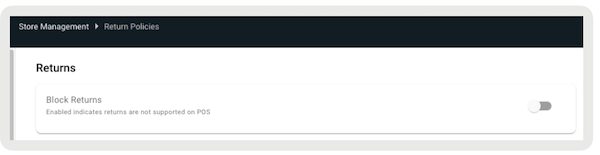
How to configure in CMS: Returns can be turned on in two locations within CMS: the Returns Policies configuration and store settings. These settings are linked, so turning one on automatically turns on the other.
- Returns Policy
- In CMS, go to .
- Verify is turned off. If turned on, returns can't be initiated on the POS app,
resulting in the error: "
Returns are not supported per store policy. Reach out to
        your system admin if needed
."
- Store Setting
- In CMS, go to .
- Expand .
- Verify is turned off. If turned on, returns can't be initiated on the POS app,
resulting in the same error: "
Returns are not supported per store policy. Reach out
        to your system admin if needed.
"

Learn more: Returns & Exchanges in Point of Sale
Replace Back Button with 'X' for Webviews
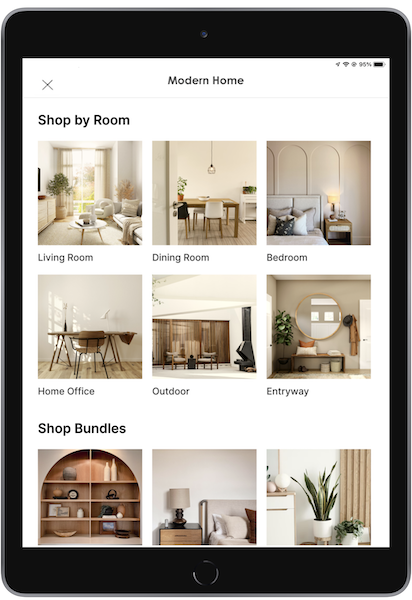
What it does: We've updated the UI of webviews by replacing the back button with an 'X.' Previously, selecting the back button caused any work done in the webview to be lost. This update establishes a smoother transition between the webview and native POS app, preserving data and enhancing the user experience.
How to configure in CMS: No configuration is needed
Learn more: Supporting PunchOut Webpages on POS App
No Receipt Return (NRR) Search Layout
What it does: Provides flexibility in configuring the UI, allowing merchants to customize their NRR experience
How to configure in CMS: Create a layout and assign it to an app configuration.
- Create Custom NRR Layout
- In CMS, go to .
- Select .
- Select .
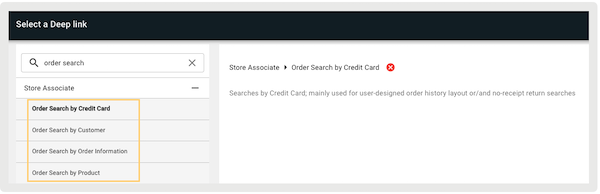
- By default, the NRR layout template includes the deep links for order filtering:
- *
- * If the Order Search by Product deep link is configured on the custom layout, No Receipt Returns — Turn on to process returns.
- Assign Custom NRR Layout
- In CMS, go to .
- Edit the app configuration that supports NRR.
- Go to .
- Under , select the layout you've created.
- Save your changes.
Learn more: No Profile, No Card, No Receipt Returns (NRR) in POS
New Transaction Types for EJ
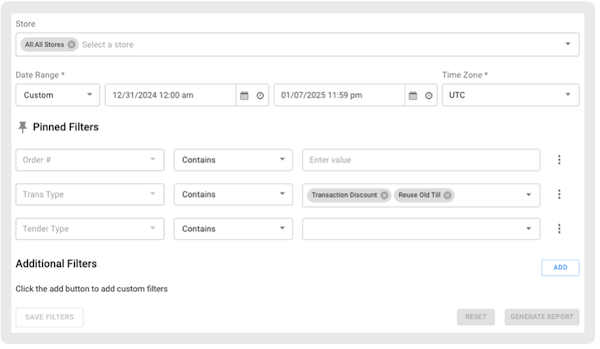
What it does: Introducing two new transaction types in the EJ for transaction discounts and if a till from the previous day is used
How to configure in CMS: No configuration is needed
Learn more: View and Edit Electronic Journal Reports
EJ/TLog/JSON Export
Support EJ Exports on Hourly Schedule
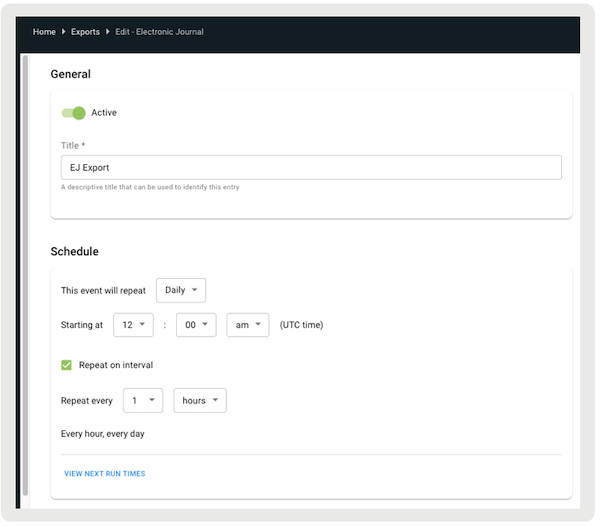
What it does: Merchants can now schedule EJ exports on an hourly basis, reducing file size and improving efficiency via SFTP. This can help mitigate issues related to connection timeouts, network disruptions, and bandwidth limitations if transferring large EJ files.
How to configure in CMS:
- In CMS, go to .
- Select and select .
- Under , check on internal.
- Select the hourly cadence.
Learn more: Configure and Manage Export Jobs
Integrations
Phase 1 Synchrony: Card Present with Finance Tender
What it does: Point of Sale's POS app, in combination with the Adyen terminal, supports the recognition of Synchrony cards and enables financing transactions. During checkout, if a customer chooses to pay with their Synchrony PLCC and the card is present, the store associate can process the payment. If the order total is more than a certain amount, the store associate can offer financing. The customer signs an electronic disclosure and financing contract.
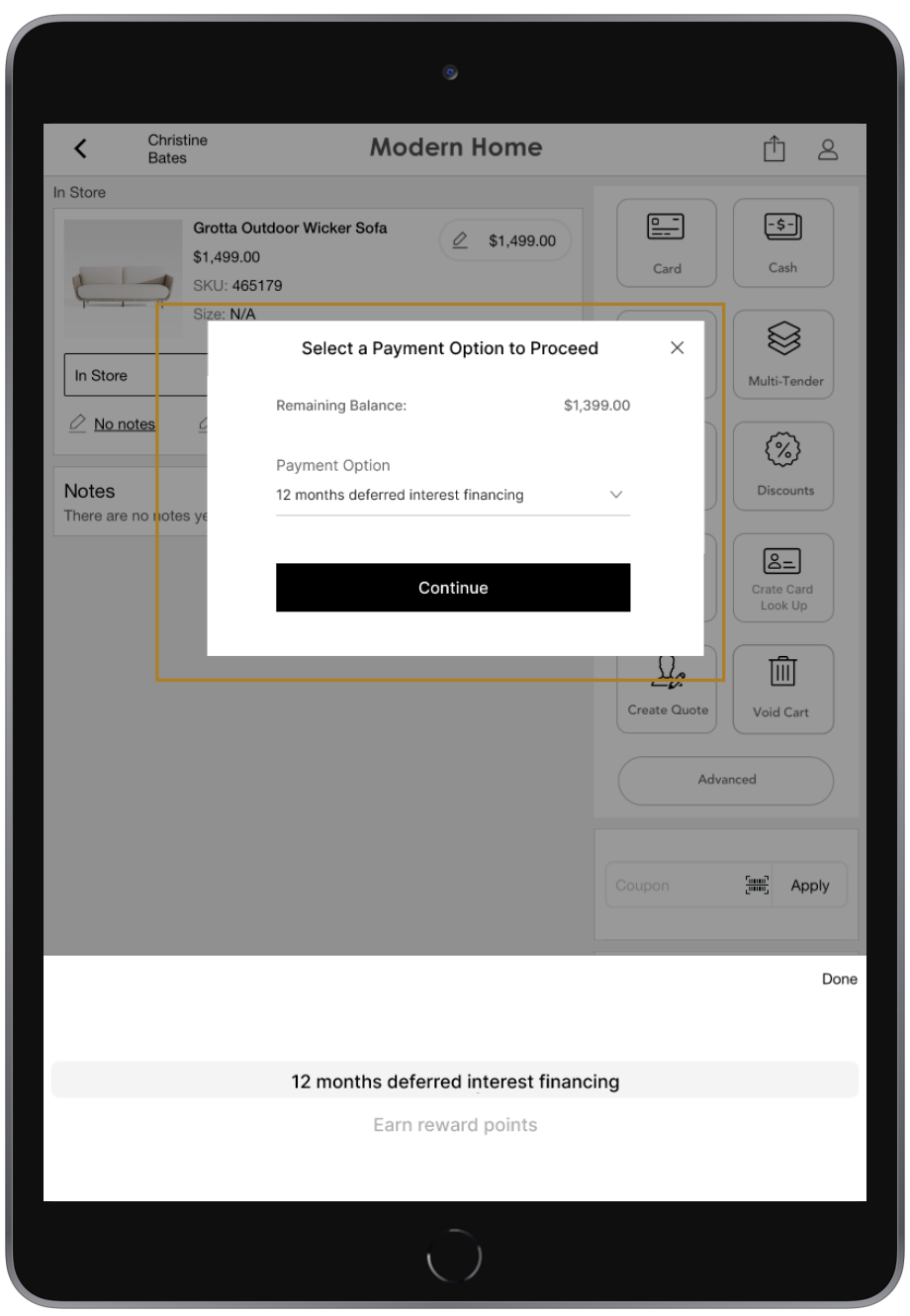
How to configure in CMS:
- In CMS, go to .
- Expand .
- Select the pencil icon next to . A window opens, allowing you to define the rules for promotional financing options based on the card acquisition response.
- Turn on "" to activate the card acquisition for each card swipe or insertion before payment.
- Under , specify whether to use "" for cards with a PAN matching a specified BIN range (for example, the issuing bank's range for Synchrony cards). If no BIN range is specified, the POS app accepts all types of Synchrony cards.
- Under for Applicable Finance Code, specify the finance code to use for each order
total range. This code is passed to the terminal for preauthorization of Synchrony financing
and determines the APR for the applicable finance option.
 Important Set at least one order total rule. Without it, the POS app won't present a financing option, as the finance code is required based on the order total.
 - Under , enter the terms and conditions that the customer sees during the card acquisition process.
Learn more: Set Up Processing of Synchrony Credit Card Purchases using Adyen
Payments
Permit Clutch Gift Cards to Be Processed Without a PIN
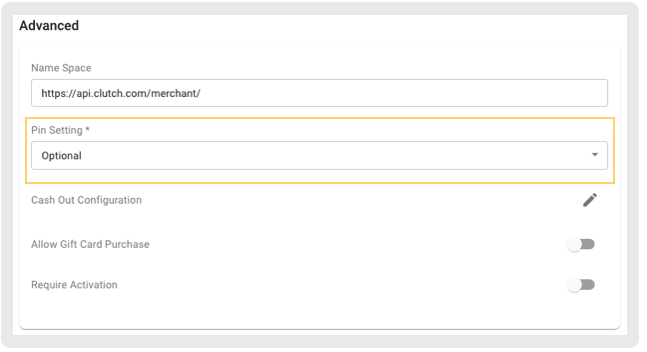
What it does: Configure whether a PIN is required for checking a Clutch gift card balance or redeeming it. Point of Sale offers three options: Optional, Required, or None.
How to configure in CMS:
- In CMS, go to .
- Edit an existing Clutch integration. If no integration exists, refer to this article to create one.
- Under , select one of these options:
- : PIN isn't mandatory but can be used if available
- : Enter PIN to check the balance or redeem the gift card
- : A PIN is required, and the system processes gift cards without PIN validation
- Save your changes.
Learn more: Integrate Clutch Gift Cards
Ability to Support Remote Pay by Link (PBL) in Deposit Scenarios
What it does: Deposits made with PBL (both in-store and remote) can be done via the multitender screen. PBL can only be applied to the full deposit amount. If an order has been paid for and is marked as completed, PBL can't be used. If the order status is changed to partial or any other status other than completed after the deposit is made, PBL can't be used.
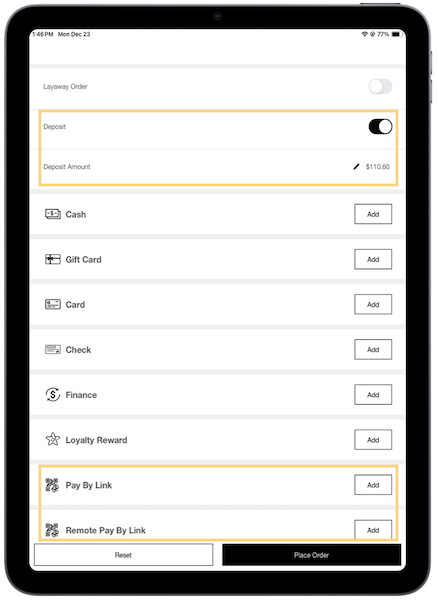
How to configure in CMS:
- Enable and configure deposits.
- Enable and configure multi-tender.
- Enable and configure PBL.
Learn more: Point of Sale Pay by Link (PBL) Overview
Returns/Refunds/Exchanges
Start Returns from Order History
What it does: Enhanced to permit returns to be processed directly from Order History, giving store associates greater flexibility and streamlining the return process
How to configure in CMS: This isn't a configurable feature as it's an enhancement of the Order History process
Learn more: Returns & Exchanges in Point of Sale
Other Feature Enhancements
| Title | Description | Help Center Link |
|---|---|---|
| Block Returns of Unshipped Send Sale Orders | Prevents associates from returning unshipped items, establishing inventory accuracy, and eliminating the need for reconciliation | Manage Buy Online, Fulfill In Store (BOFIS) Orders in Point of Sale |
| NetSuite OAuth Enablement | NetSuite’s OAuth authentication is now supported, establishing secure access and synchronization of customer data while minimizing authentication errors | N/A |
| Service Level in Delivery Group SPI | SPI updated to include service levels (for example, 3-5 days), enhancing delivery flexibility and clarity | https://help.salesforce.com/s/articleView?id=commerce.rt_cms_modules_omnichannel_delivery_groups.htm&language=en_US |
| CMS Register Reconciliation | Enhanced CMS till reconciliation by displaying till details, prompting users to count and enter amounts, and selecting reason codes for discrepancies to help prevent fraud | Reconcile Open Tills in Point of Sale CMS |
| Migrate Terminal Management API Calls to Management API Calls | In preparation for Adyen's deprecation of the POS Terminal Management API on April 1, 2025, Point of Sale introduces the "Adyen Merchant Management URL Prefix" setting to replace the "Adyen Terminal Management URL Prefix." | Adyen Payment Gateway Information |
| Permit Zero Quantity to Be Part of Full Cycle Count | Items with zero quantity can now be added to the cycle count, even if not originally part of it, if the cycle count type is set to Full. | Perform Cycle Count as an Associate |
| Verifone M450 Payment Terminal | New certification | N/A |
| Adyen AMS1 | New certification | N/A |