
Build summary for Modern POS version 10.4.1, including what new features and changes it contains
| Theme | Feature | Benefit |
|---|---|---|
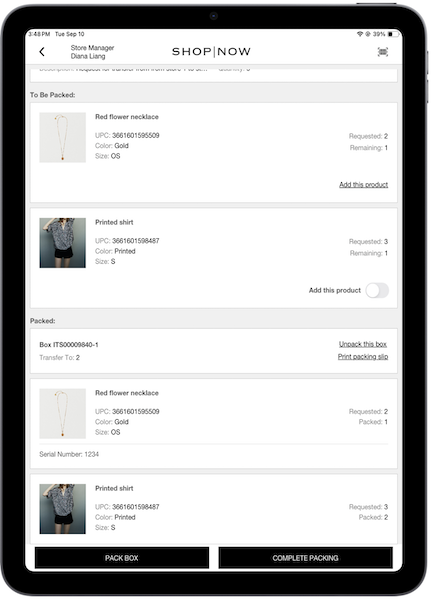
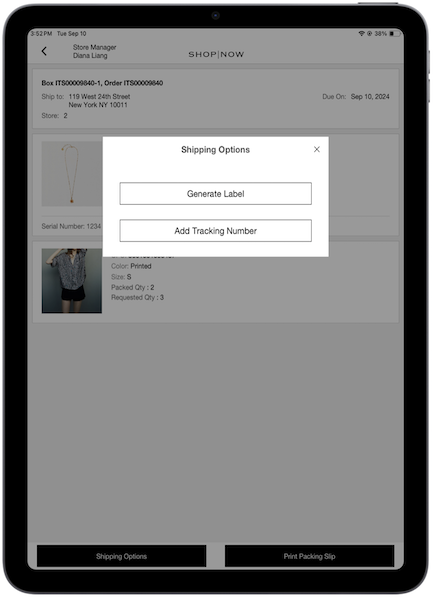
| Inventory Management | Corporate Transfer (CTS) Receiving Enhancements | Pack multiple boxes in a single transfer and effortlessly generate shipping labels using a shipping aggregator. |
| Inventory Management | Upload Multiple Corporate Transfers in One CSV | Bulk upload corporate transfers via file instead of having to do 1:1. |
| Core Platform | Activation Codes for Digital Products | Enables merchants to sell products through digital codes (for example, product downloads) via SPI from the merchant. |
| Adyen | Adyen Card Alias | Link orders to shoppers in downstream systems for loyalty programs and fraud detection with a "card alias", nonPII identifier in the JSON. |
| Adyen | Adyen Webhook for Handling Returns | Validation system implemented to block multiple fraudulent refunds tied to a specific order number. This validation uses Adyen's refund webhooks to confirm the success of refunds. |
| Other | Various |
Inventory Management
Corporate Transfer Receiving Enhancements
What it does: We've enhanced our corporate transfers feature to simplify receiving! Now, store associates can pack multiple boxes in a single transfer and effortlessly generate shipping labels by integrating with Salesforce's SPI.
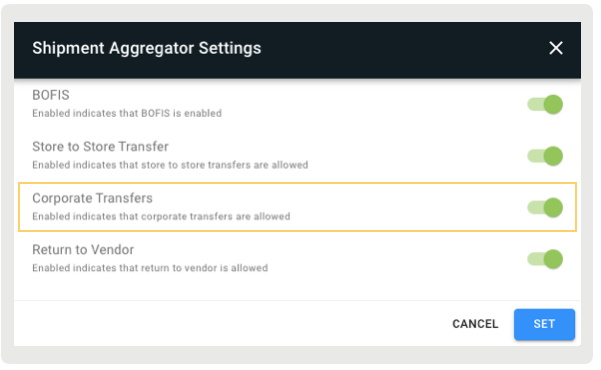
How to configure in CMS:
- In CMS, go to .
- Expand .
- Edit .
- Turn on .
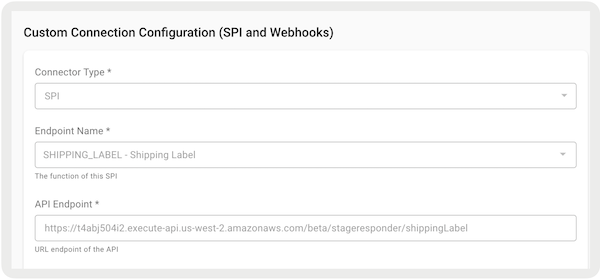
How to configure the SPI:
- Go to .
- Create a connector by selecting in the upper right.
- Under , select "".
- Under , select "".
- Fill in the rest of the fields.
- Save your changes.
Learn more: Managing Corporate Transfers in Point of Sale CMS
Upload Multiple Corporate Transfers in One CSV
What it does: Merchants can create corporate transfers in CMS automatically by uploading a CSV file with inventory transfer information. This action initiates a store-to-store transfer. After the file is uploaded, it’s sent to the store's POS app. Store workers can then start packing the products for the store-to-store transfer.
How to configure in CMS:
- In CMS, go to .
- On the next screen, select to create a transfer.
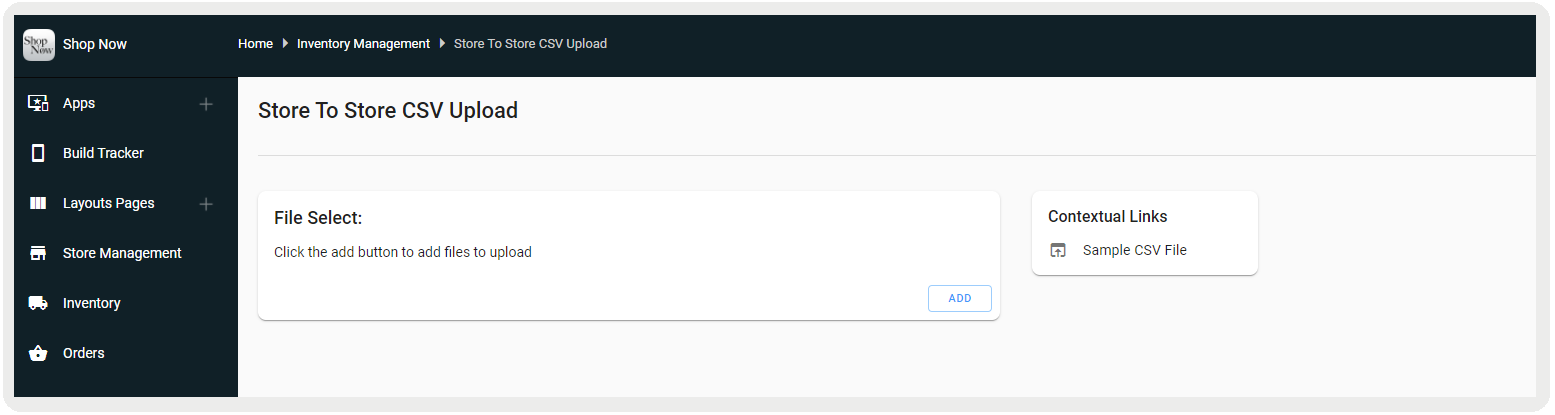
- If prompted to upload a file, make sure that it isn't a duplicate and doesn't have any
missing field data (for example ) or the wrong file format. Failure to do so can result in an error after
uploading (sample files in Point of Sale). The required fields for CTS uploads are , , , , and . All other fields are related to Advanced Shipping Notices (ASNs).
 Note refers to the transfer group.
 - The added file is shown in a list before upload. You can upload multiple files at one time. You can also remove files from the list using the delete icon.
- After an upload completes, a message shows either the upload is successful or failed due to errors.
Learn more: Inventory Management - Store to Store Initiated Transfers
Core Platform
Activation Codes for Digital Products
What it does: Salesforce supports retrieving activation codes via an SPI. For merchants selling products through digital codes (for example for product downloads), this SPI allows the POS to request the code from the merchant's server. The code can then be printed on the customer's receipt. For example, if a shopper needs a digital code to start a digital purchase made in-store, the SPI permits the POS to find the code and print it on the receipt. This gives the customer instant access to their digital product.
How to configure in CMS:
- In CMS, go to .
- Configure a new class for activation codes. Learn More
- Turn on .

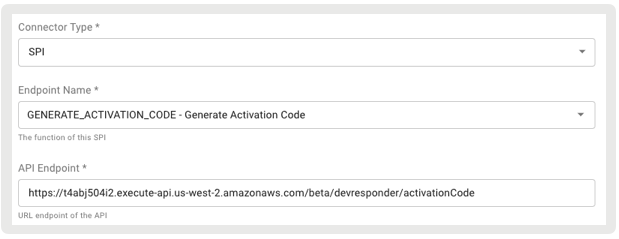
How to configure the SPI:
- In CMS, go to .
- Select in the upper right.
- Under , select "".
- Under , select "."
- Under , provide the external endpoint to get activation codes.
- Under , select "."
- Under , provide headers that to be passed.
- Configure the rest of the fields as needed.
Payments - Adyen
Card Alias
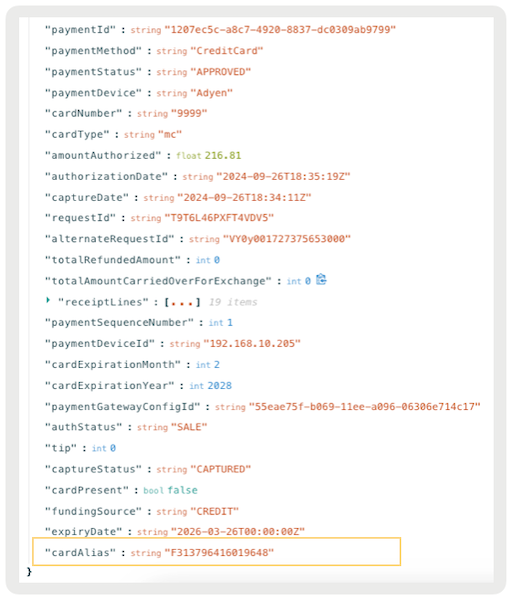
What it does: The '' provided in Adyen's payment response is included in the order JSON payload. This enhancement allows merchants to link orders to shoppers in downstream systems for loyalty programs and fraud detection. For example, merchants can automatically apply loyalty rewards based on past purchases. The '' can also help detect fraudulent activity by identifying suspicious transaction patterns tied to the same card, allowing merchants to flag and prevent further fraudulent actions.
How to configure:
To get the '' from Adyen, configure these settings in your Adyen portal:
For Card Payments:
- Log in to your Adyen Customer Area.
- Go to .
- Turn on .
For Adyen Webhook/Notification Payloads (Pay by Link):
- Log in to your Adyen Customer Area.
- Go to .
- Turn on .
If a payment is made (via card or pay by link), the '' value can be found in the order export JSON, specifically under the tenders attribute. See the example of a card payment order:
Use cases:
' is populated in these scenarios/transaction types:
- Terminal is online for card transactions, and POS is online
- Terminal is online for card transactions, and POS is offline
- In-store Pay by Link
- Remote Pay by Link
- Tap to Pay
- Unreferenced Refund
- Apple Pay via Wallet
'' won't be populated in these scenarios/transaction types:
- Terminal is offline for card transactions, and POS is online
- Terminal is offline for card transactions, and POS is offline
Learn more: Adyen Payment Methods
Webhook Handling for Returns
What it does: A validation system has been implemented to block multiple fraudulent refunds tied to a specific order number. This validation uses Adyen's refund webhooks to confirm the success of refunds, including both referenced and unreferenced ones. If many refunds aren't linked to the order, the system protects merchants by stopping more refunds after the total refunded amount is the same as the original order value. If many refunds aren't linked to the order, the system protects merchants by stopping more refunds after the total refunded amount matches the original order value. This enhancement helps prevent refund fraud, verifying merchants aren't exposed to excessive unreferenced refunds.
How to configure in CMS:
- In CMS, go to .
- Expand .
- Verify is turned on.

Learn more: Validating Refunded Amounts via Adyen Refund Webhooks
Other Feature Enhancements
| Title | Description | Help Center Link |
|---|---|---|
| Personal Checks Without Validation | You can now select not to verify a customer's information if using a personal check as a tender. | Tender Business and Personal Checks in the POS App |
| Vertex Offline file mapping to complete Vertex Connector | Offline functionality for Vertex tax connector | Integrate Vertex |
| Zebra Scanner Reset Barcodes in Device Manager | We recently changed the Zebra scanner reset instructions in Device Manager. Instead, we added a link to a ZD article with the steps for each supported model for merchants using an Epson-connected scanner. | Zebra Scanner Support |