
Build summary for Modern POS version 10.1.1, including what new features and changes it contains
| Theme | Feature | Benefit |
|---|---|---|
| Returns / Refunds / Exchanges | Appeasements | Allows store associates to apply discounts at both item and order levels, facilitating partial refunds for reasons such as delayed deliveries, damaged goods, or other unforeseen issues. |
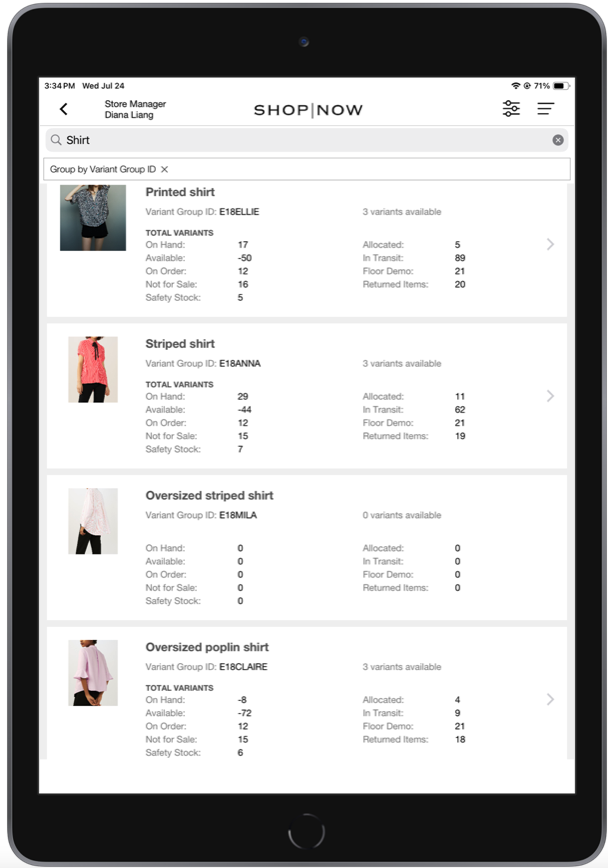
| Inventory Management | Inventory Overview with Filter by Style | Ability to see your store's inventory by style (variant group id). Users can select a product to view detailed information for each variant of the product, including size, color, and variant group ID. |
| Analytics / Reporting | Reporting Top Styles Sold | See your top products sold to help you make selling and restocking decisions. |
| Analytics / Reporting | Customer Signups Report in CMS | New report in CMS that shows you the health of your clienteling and acquisition efforts. This report provides you with the ability to track and measure customer signups, loyalty, and number of guest vs. customer-linked checkouts. |
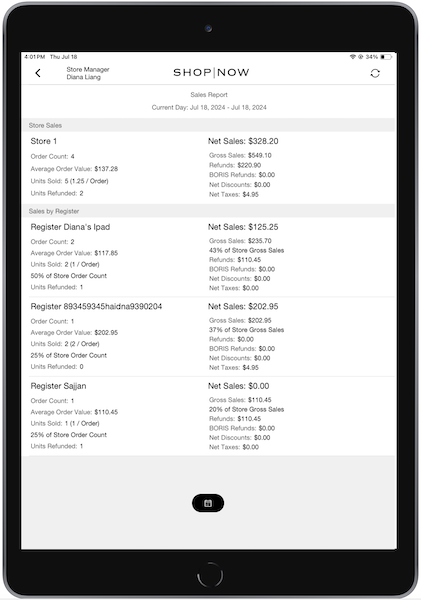
| Analytics / Reporting | BORIS as Value in GMV Report in CMS and App | If you have Buy Online, Return In-Store enabled, you can now see how much was refunded as a line in our GMV report on App and CMS. This is useful in cases where you permit ecommerce returns in-store but measure performance on net sales vs. gross. |
| Analytics / Reporting | Sales Metrics Label Revisions | Updated labels for sales metrics to industry standards. No calculations were changed, only the names/titles. |
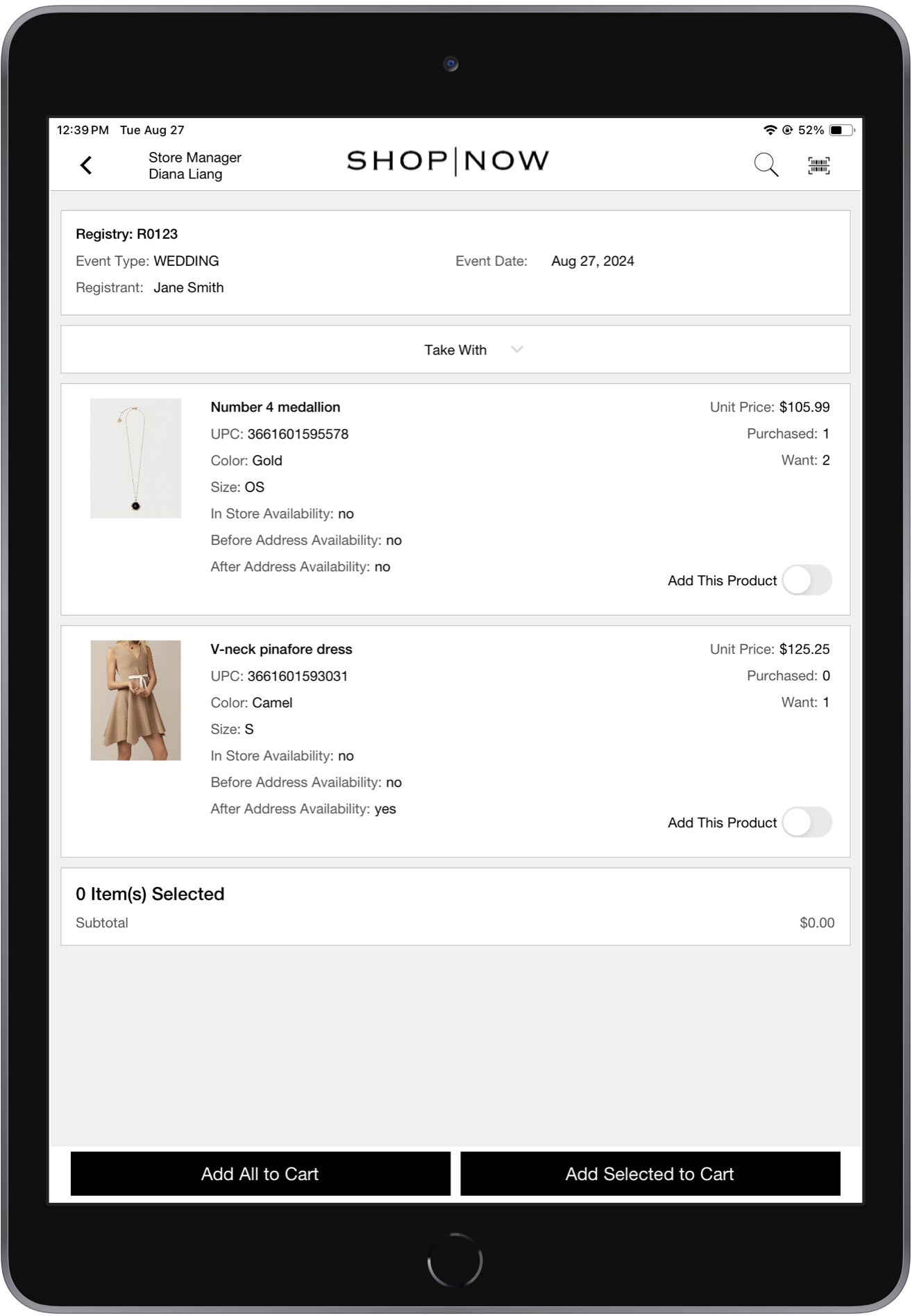
| Core Platform | Gift Registry | Ability to search, sell, and return products from a Gift Registry that is made available through our new SPI. |
| Cash Management | Cash Drawer Open at Start of Create Till | Updated till operations that permit store managers to count the cash before making a till. This is useful if you can’t remove the cash from the registers after closing the store. |
| Other | Various |
Returns/Refunds/Exchanges
Appeasements
What it does: Store associates can edit an order after it's been completed/fulfilled to provide a partial refund to provide appeasement to the customer at the item or order level (for any reason, such as a price match, delayed shipment, damaged item, poor customer experience, or overcharge).
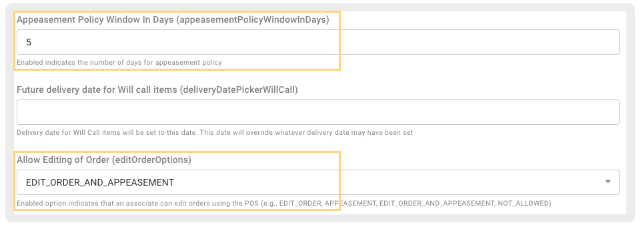
Setting up is a three-step process: Configure the level of edit order you want to permit, set up the discount reason codes for item and order levels, and lastly, verify you have the correct approval policy set up and reason codes to limit edit orders and appeasement to specific roles.
- To turn on edit order (including Appeasements):
- In the CMS, go to .
- Expand .
- Specify the types of edit order flows you want to approve under , select one of these options:
- : Permits online orders to be edited (for example delete products, cancel order). This behaves the same as "*. For more information on edit order functionalities and how they work, refer to this article.
- : Permits price overrides on both in-store and online products.
- : Permits all functionalities supported in both order editing and appeasements
- : Doesn't permit online orders to be edited (for example delete products, cancel order). This behaves the same as if " is turned off.
- , set the number of days allowed for editing an order. For example, if the
window is set to 5 days, line item price overrides and transaction discounts won't be allowed
after five days.
 Note All appeasement-related functionality adheres to the rules of the appeasement window:
- : Appeasement window is irrelevant
- : If window has passed, no discounts can be applied at either the line or order level
- : If window has passed, discounts can only be applied at the order level, not at the item level
- : Not applicable as order editing isn't allowed
- Create reason codes:
- In CMS, go to .
- Create codes for and . For more detailed instructions, refer to this article.
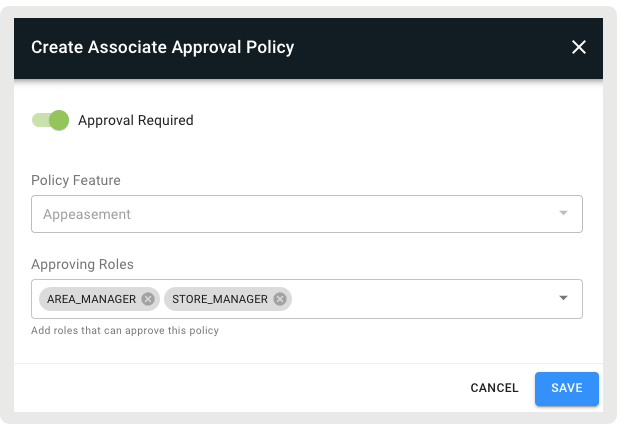
- Create an approval return policy:
- In CMS, go to .
- Select in the upper right.
- Under , select "."
- Under , select the roles allowed to complete appeasements on the POS app.
Learn more: Configuring Appeasements on the POS App
Inventory Management
Inventory Overview with Filter by Style
What it does: See your store's inventory by style (variant group ID). Users can select a product to view detailed information for each variant of the product, including size, color, and variant group ID.
How to access on app: Configure the deep link in the menu where you want to access this report from:
- Edit a layout, hamburger menu, or a tab.
- Using the deep link picker, go to .
- Select "Inventory Overview".
- Save your changes.
Learn more: Inventory Overview in POS App
Analytics/Reporting
Reporting for Top Styles Sold—Available in App and CMS
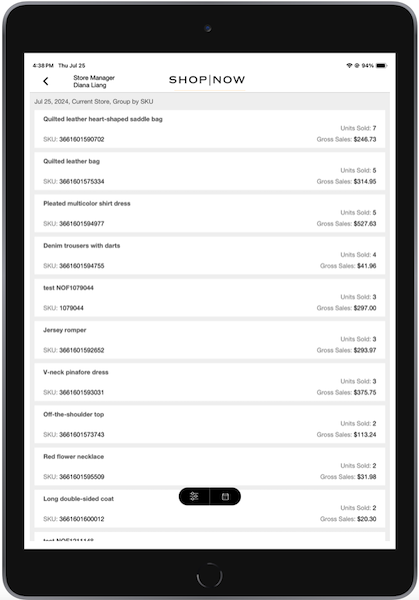
What it does: New report in App and CMS allow you to see your top products sold to help you make selling and restocking decisions.
How to configure on app: Configure the deep link in the menu where you want to access this report from:
- Edit a layout, hamburger menu, or a tab.
- Using the deep link picker, go to .
- Select "".
- Save your changes.
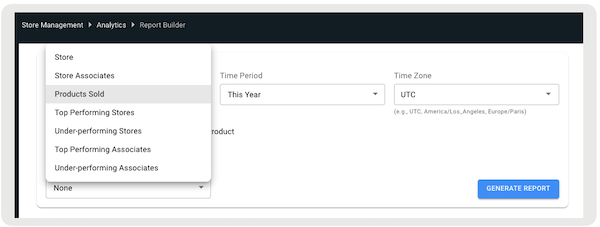
How to access on CMS:
- Go to .
- Under , select "."
- Under , select "."
- Configure the rest of the filters as needed.
The report shows the product title, style (variant group ID), number of units sold, and gross sales (GMV). By default, the report displays results in descending order by units sold. Users have the option to download the report as a CSV file.
Learn more: View Top Styles Sold Report
Customer Signups Report in CMS
What it does: New report in CMS that shows you the health of your clienteling and acquisition efforts. This report provides you with the ability to track and measure customer signups, loyalty, and number of guest vs. customer-linked checkouts. You can group the report by stores if you want to see how your store is doing. You can also group by associates if you want to see how each person is doing.
How to access: The report can be accessed in CMS by going to
| Column | Description |
|---|---|
| Store ID | Unique identifier of store. Note, this is only shown if grouping results by "Store" |
| Customer Profiles Created | Number of customer profiles created for the specified store. Note, this number is the total count of successful calls to the customer creation API for a unique customer ID. |
| Customer Profile Edits | Number of edits made on customer profiles for the specified store |
| Loyalty Sign-ups | Number of loyalty sign-ups created for the specified store |
| Collections Sent | Number of collections created and shared for the specified store |
| Order Count | Number of orders completed for the specified store |
Grouping the report by associate: When the report is grouped by associates, it displays associate-level aggregates of the below metrics:
| Column | Description |
|---|---|
| Associate ID | Unique identifier of store associates. Note, this is only shown if grouping results by "Associate" |
| Customer Profiles Created | Number of customer profiles created for the specified associate. This number is the total count of successful calls to the customer creation API for a unique customer ID. |
| Customer Profile Edits | Number of edits made on customer profiles for the specified associate |
| Loyalty Sign-ups | Number of loyalty sign-ups created for the specified associate |
| Collections Sent | Number of collections created and shared for the specified associate |
| Order Count | Number of orders completed for the specified associate |
Learn more: Customer Signups Report
BORIS as Value in GMV Report in CMS and App
If you have Buy Online, Return In-Store (BORIS) enabled, you can now see how much was refunded in our GMV report on App and CMS. This is useful in cases where you permit ecommerce returns in-store but measure performance on net sales vs. gross.
How to configure: Configure the deep link in the menu where you want to access this report from:
- Edit a layout or hamburger menu.
- Using the deep link picker, go to
- Set the link and save your changes.
Learn more: Sales and Hourly Sales Reports
Sales Metrics Label Revisions
What it does: Updated labels for sales metrics to industry standards. No calculations were changed, only the names/titles.
Learn more: Sales Reporting Glossary of Terms and Definitions
Core Platform
Gift Registry
What it does: Ability to search, sell, and return products from a Gift Registry that is made available through our new SPI.
Learn more: Managing Gift Registries on POS App
Cash Management
Cash Drawer Open at Start of Create Till
What it does: Updated till operations that permit store management to open the drawer before creating a till. This is best used in circumstances where you don’t remove the cash from the registers if closing the store and want to count before creating the till.
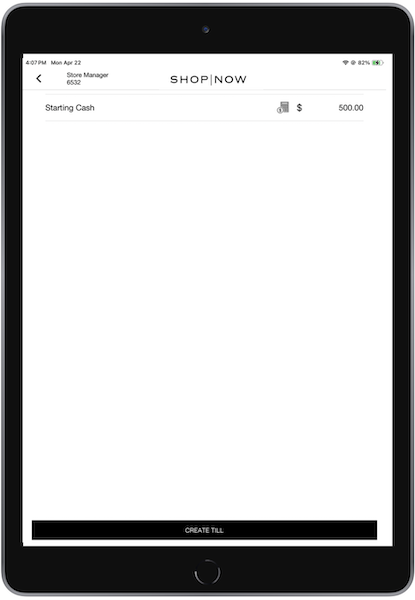
If the drawer is opened, it'll be recorded in the Electronic Journal as "No Sale" with a system-generated reason code of "Till Creation." The store associate can access the cash in the drawer. Note that the till won't be created until the starting amount is entered, and "Create Till" is selected.
Learn more: Till Management
Other Feature Enhancements
| Title | Description | Help Center Link |
|---|---|---|
| Handling refunds for cash when cash isn't configured for a register as a tender type | If cash isn't a configured tender type for a register but is configured at the store level, users attempting to process a refund via cash encounter an error message indicating that cash refunds aren't available. They'll be unable to select cash as a refund method and need to select an alternative refund method. | Returns & Exchanges |
| Capture Customer Details Offline | Enhanced UI on capturing customer info in Offline Mode | Capturing Customer Information for Sales |
| Star MC Print 2 | Certification for Star receipt printer | Supported Hardware |