
Build summary for Modern POS version 10.1.1, including what new features and changes it contains
| Theme | Feature | Benefit |
|---|---|---|
| Core Platform | Associate 360 | New page that shows an associate their key performance metrics for better benchmarking (available in versions 10.0.1 and later) |
| Core Platform | App configuration segmentation | Target each app configuration to specific combinations of devices, roles, and locations. Consider a scenario where a store needs different app functionalities for managers and associates. Managers need a special app setup, like access to performance reports. Associate workers need a less special setup. |
| Core Platform | Retain Quote ID | If Point of Sale is the controller of quotes, merchants can select to keep the same quote ID if editing a quote. |
| Analytics / Reporting | Tender Reconciliation Report | Report connections mismatches between order total and total tendered, giving you greater visibility to payment discrepancies |
| Inventory Management | Inventory Lookup on Product Display Page (PDP) via SPIs | Ability to show inventory by proximity to store location and estimated delivery date |
| Inventory Management | Inventory Overview: Group by Variant | View inventory by variant ID |
| Inventory Management | Serialized Inventory - Cycle count, adjustments | Expanded inventory operations to support Cycle Counts and Adjustments for serialized inventory |
| Payments | Deposits at line level | Ability to take an initial payment on a product that hasn't shipped, been fulfilled, or is being held |
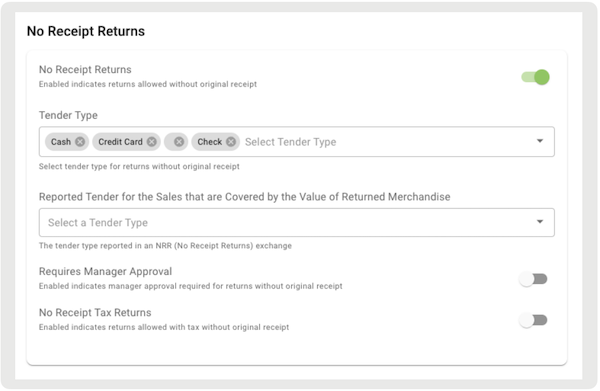
| Payments | Checks as Tender Type for No Receipt Returns | Ability to accept checks as a tender for nonreceipted returns |
| New Receipt Tags | New tags for Pay by Link Templates | Added discount total, shipping total, and order total to Share Payment Link Email and Print Template |
| Other Feature Enhancements | Various | Various |
Core POS
Associate 360
What it does: New page that shows an associate their key performance metrics for better benchmarking. Quotes are optional.
How to configure: Set up the deep link on any layout you like
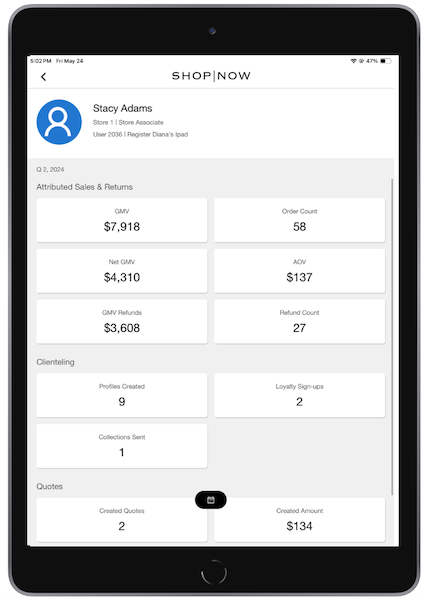
Learn more: Access Associate 360 Report on the POS App
App Configuration Segmentation
What it does: Target each app configuration to specific combinations of devices, roles, and locations. Consider a scenario where a store needs different app functionalities for managers and associates. Managers need a special app setup, like access to performance reports. Associate workers need a less special setup.
How to configure:
- Creating New App Configuration
- In CMS, go to .
- Select the to create an app configuration.
- Select the app configuration type and select in the upper right corner.
- On the screen, set the logo, fonts, and other related settings to customize the app's look and feel.
- iOS supports many fonts natively. You can type in a font name even if it doesn't appear in the dropdown list. These are license-free fonts available for use.
- Select Next. You are directed to the screen.
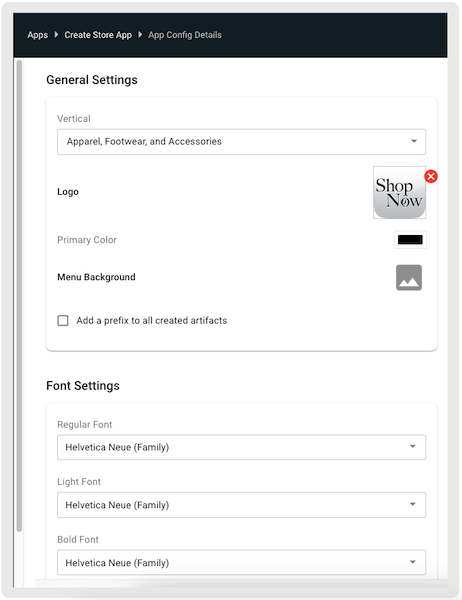
- Setting App Configuration Segment Preferences
- In the screen, set the segmentation preferences. If is selected as the app configuration type, set preferences at both the associate and manager levels.
- Turn on to set this app configuration as the default before associate login. Default
app configs are marked with a blue Default label underneath them.
 Note If this is the first app configuration, the flag is turned on by default and unavailable.
 - Select the device type for (iPhone, iPad, or both).
- For , select the personnel type:
- : Multiselect dropdown to specify applicable roles
- : Multiselect dropdown to specify applicable users
- : This app configuration is available to all personnel
- For , select the location type:
- : Enter the store group ID
- : Select the store ID
- : This app configuration is available to all locations
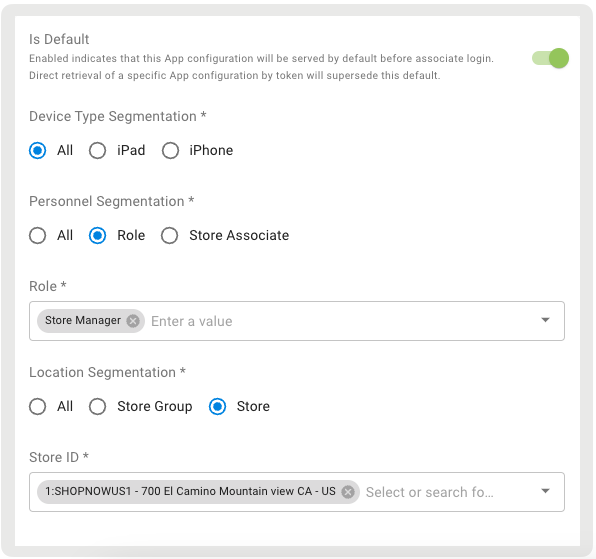
Learn more about editing and rules of precedence: App Configs in Point of Sale CMS
Retain Quote ID
What it does: If Retail Cloud is the controller of quotes, merchants can select to keep the same quote ID if editing a quote. If this option is enabled, resumed quotes use the existing quote ID. If it's turned off, a new quote ID is generated each time a resumed quote is saved again.
How to configure: CMS Link
Turn on .

Learn more about creating and managing quotes: Create and Manage Customer Quotes
Analytics/Reporting
Tender Reconciliation Report
What it does: Use this report to identify mismatches between order total and total tendered, giving you greater visibility to payment discrepancies
How to access: CMS Link
Key things to know:
- You can tailor your search by transaction type (sale/return), store, order ID, and date
range.
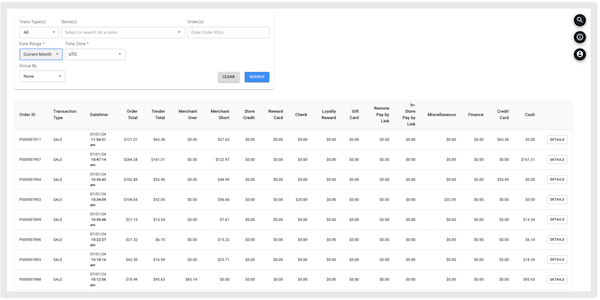
- You can group results by , which returns each order on a separate line. Grouping by date returns the sum
of the results on one line for the selected date range.
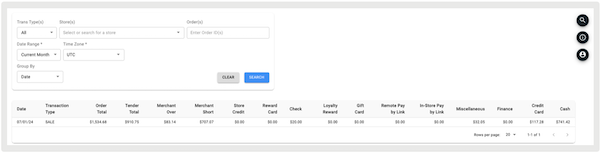
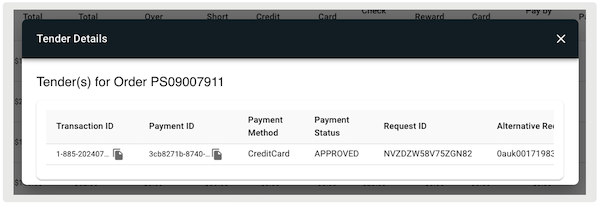
- If you have the report grouped by , you can drill into tender details of an order you want more info on by
selecting on the far right.
Learn more: Tender Reconciliation Report in Point of Sale
Inventory Management
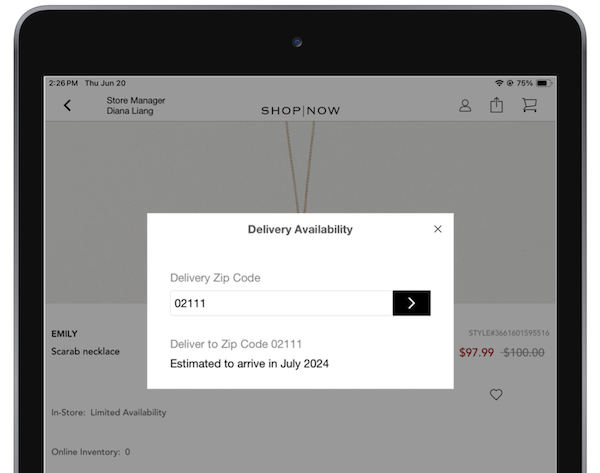
Delivery Estimate by Zip via SPI
What it does: Ability to get a delivery estimate by ZIP code after the SPI and deeplink for window are configured
How to configure SPI:
- In CMS, go to .
- Create an integration by selecting .
- Under , select "".
- Under , select "".
- Under , provide the URL to get a product's inventory, for example
https://sample/external/endpoint/product/zipcode/getAvailabilityInformation. - Under , select "".
- Under , provide headers to be passed.
- Configure the rest of the fields as needed.
- Save your changes.
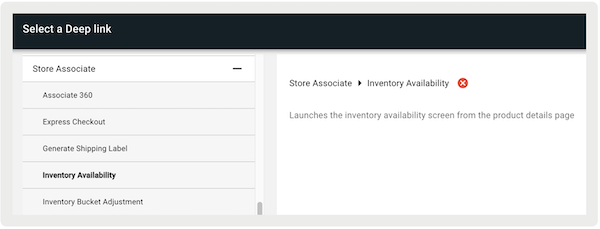
How to configure deep link
- Using the deep link picker, go to .
- Set the deep link in the layout and save your changes.
Inventory Overview via SPI
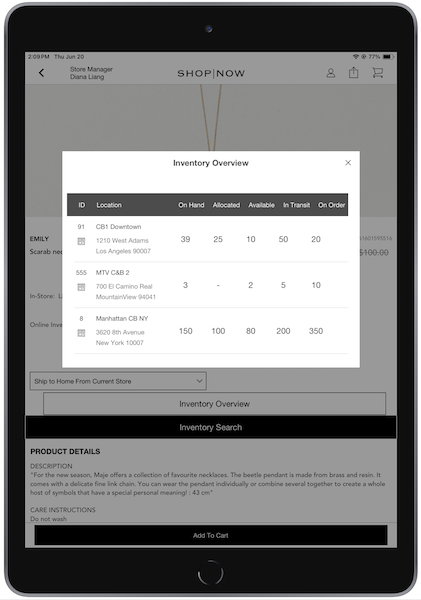
What it does: Inventory Overview window displays nearby store inventory. You see the product's availability counts for On-Hand, Allocated, Available, In Transit, and On Order.
How to configure SPI
- In CMS, go to
- Create an integration by selecting .
- Under , select "".
- Under , select "".
- Under , provide the URL to get a product's inventory, for example
https://sample/external/endpoint/to/get/inventory/from/external/system. - Under , select "".
- Under , provide headers to be passed.
- Configure the rest of the fields as needed.
- Save your changes.
How to configure CTA button to open a window on app:
- Edit PDP layout.
- Edit or create a cell.
- On the right toolbar menu, go to .
- Under, select "".
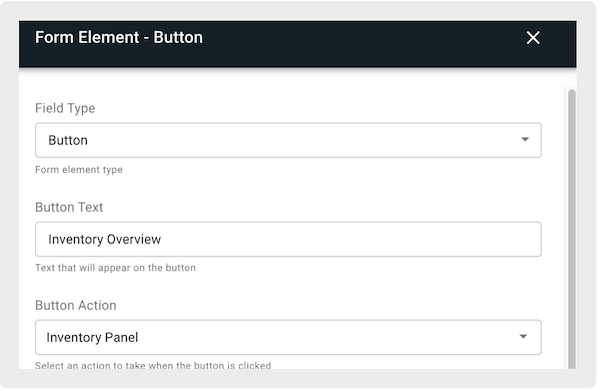
- Under , enter the text you want to show on the PDP button (for example "").
- Under , select "".
- Configure the rest of the fields as needed.
- Set and save your changes.
Group by Variant Report
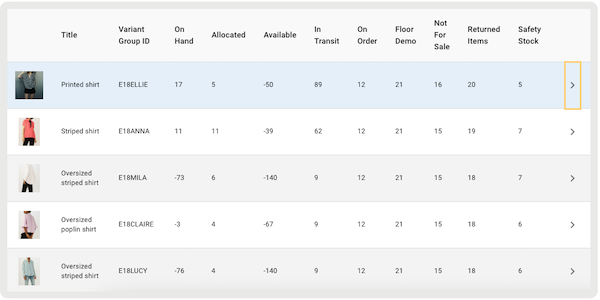
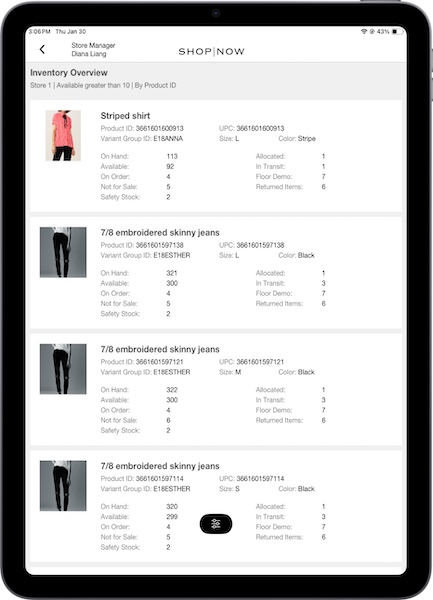
What it does: New filter to both CMS and App Inventory Overview Reports, giving you the ability to filter by variant group ID (style/color).
If the report is grouped by variant ID, it displays the inventory for all items within the same variant group, along with their variant group ID.
CMS: Link
App:
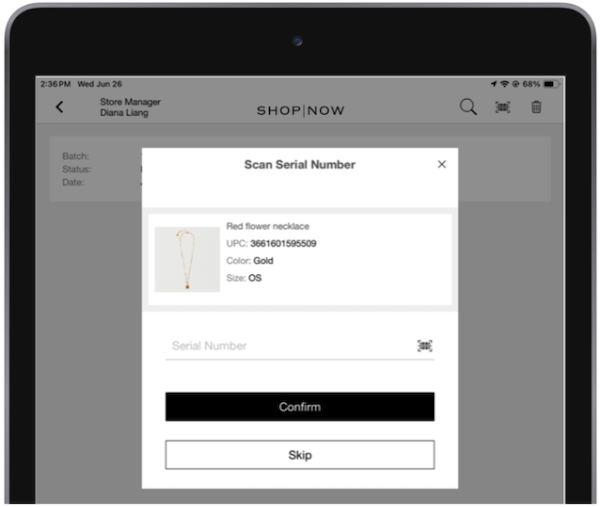
Cycle Count and Adjustments for Serialized Inventory
Point of Sale supports serialized inventory. It has more features to support serialized inventory for cycle counts and adjustments. If serialized inventory is enabled, scanning a serialized number prompts the associate to enter a serial number during a cycle count or inventory adjustment.
Learn more: Inventory Management of Serialized Products
Payments
Deposits at Line Level
What it does: Point of Sale allows merchants to customize the required deposit percentage on the POS app. Through CMS configuration, rules can be set for regular or outlet store types. Merchants can define a default deposit or specify product-specific requirements using attributes and values. Fulfillment and shipping methods can also be configured to require full payment before checkout instead of a deposit.
Deposit details are displayed on the POS app in the cart, during returns, and if editing an order, and can also be found in TLogs. For credit card or Tap to Pay orders, Point of Sale supports tokenization for Adyen terminals, permitting merchants to use tokenized details for further payments.
Flow highlight:
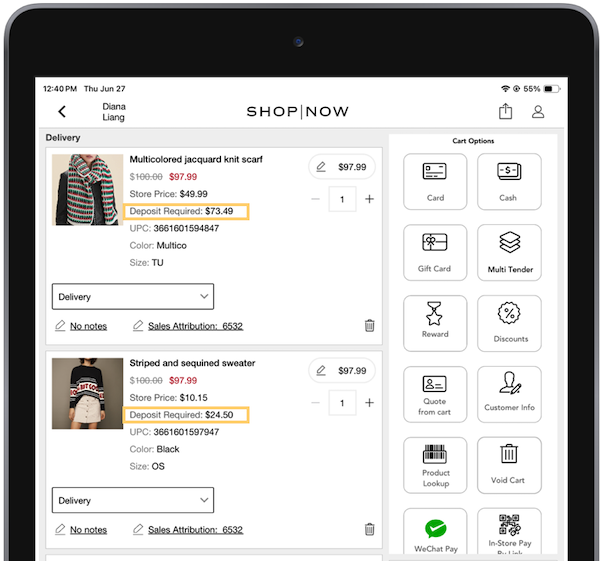
- If a product added to the cart meets the rules set in the deposit configuration settings,
the required deposit is listed under the product details.
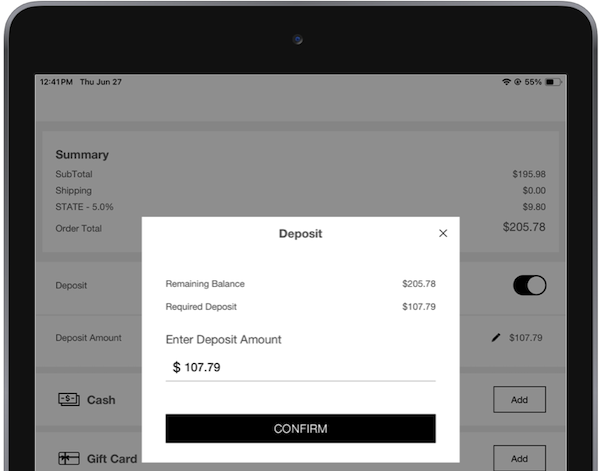
- To make a deposit, initiate the multitender flow. The required deposit is the sum of the
deposits for the products and tax. This deposit value can be edited, but if it's lower than the
required amount, an error appears.
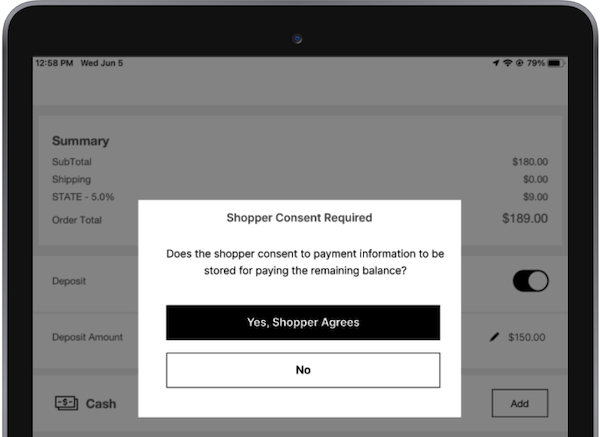
- If using a credit card on an Adyen terminal, a shopper's consent window appears on the app.
This is because the app receives tokenized details from the Adyen terminal, requiring consent.
If consent is given, the credit card can be used to pay the deposit. After the order is placed,
the tokenized details can be found in the TLogs.
Learn how to configure: Configure Deposits at Item Level for POS
Check as Tender Type for Non-Receipted Returns
What it does: Ability to accept checks as a tender for nonreceipted returns
How to configure: CMS Link
Update your return policy to permit for checks as a tender type
New Receipt Tags
Other Feature Enhancements
| Punchout: Custom Products | Expansion of punchout that enables custom products to be passed into POS from a webview | Supporting PunchOut Webpages on POS App |
| Avalara Connector: sending total quantity x price for tax calc | Enhancement to our Avalara connector for more precise penny rounding | N/A |
| Managing and Deleting Export Jobs | Refresher on managing your export jobs. New functionality to delete inactive jobs. | Configure and Manage Export Jobs |
| Void Cart Webhook Reason Codes | New system reason codes for automatically voided carts, giving you more visibility into why a cart was voided | https://help.salesforce.com/s/articleView?id=commerce.rt_pos_orders_process_export_suspend_void_data.htm&language=en_US |
| Custom Product Attributes in Order TLOG | Custom string attributes are now included in the order JSON | https://help.salesforce.com/s/articleView?id=commerce.rt_adv_config_export_tlog.htm&language=en_US |
| Customer Default Address | Ability to set default address for customer in POS and NetSuite | Integrate NetSuite ERP in CMS |