
Integrate web-based workflows, like adding custom products, directly into store transactions using the Point of Sale (POS) app. Launch preconfigured web pages from the POS app to securely pass data and trigger actions via URL parameters. The POS app receives a message upon completion, which streamlines tasks such as customer login and cart navigation, enhancing the in-store shopping experience.
The process works like this:
-
The associate chooses a link in the POS app, and the app opens the page.
-
The app passes any information in the URL that is relevant to the associate.
-
The associate completes the actions in the webview, which then sends an event to the POS app after the actions are completed. Based on the response, the customer or items are added to the cart, and navigation is completed.
Merchants must have preconfigured web pages from which these commands are triggered.
POS App Prerequisites
- Modern POS App Build: 10.0.1 or greater; 10.1.1 or greater for custom products
- Platform Support: iPhone & iPad
- Offline Support: no
Web Pages Prerequisites
After configuring web pages, make sure they meet this criteria:
- Host the page on a secure server compliant with TLS 2 or TLS 3 standards
- Self-signed server certificates aren't allowed
- Web pages can be secured using Microsoft AD tokens or a similar authentication method
- The POS app doesn't support username and password authentication for these web pages
- URL parameters convey the necessary request parameters to the web page to perform the operation
- After an operation is complete, the web page triggers the operation event with the appropriate payload. To learn how to trigger the event from the web page, refer to the note.
Set up Point of Sale CMS for PunchOut Web Pages
In Point of Sale CMS, configure commands and URL links to open web page experiences from the POS app. To configure PunchOut access, set up URL links, web tokens, and custom product configurations in Store Management. Add deep links to access and execute commands in the POS app, and verify custom product attributes show correctly.
Configure PunchOut Access
Configure the commands for opening the web page.
- In CMS, go to .
- Go to .
- Tap the pencil icon to open a window. Set up URL links for web page experiences that you can add as deep links within the POS app.
- Under , optionally add specific authentication details. If you provide these values, the POS app performs the authentication. Otherwise, it opens the web page without authentication.
-
Under , configure this optional setting if you support custom products and want to
link the product details to an order or print custom product attributes on email receipts.
For example, add
choice.description, from the JSON key-value pairs in the product payload, to print the product's description. -
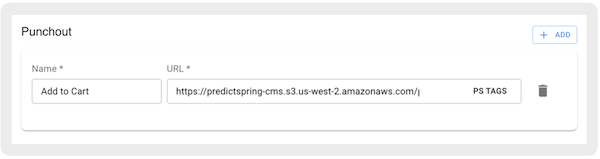
Under , you can add commands. For example, you can add a command called "Add to Cart."
Under URL, you can create shortcuts to open these URLs for the web pages after configuring the
deep links. Optionally, you can also add PS Tags to pass after the URL launches from the POS app. Refer to the
table for details on the available tags.
- Set and save your changes.
The table lists the available tags to include in the PunchOut URL.
| PS Tag | Description |
|---|---|
| :ps_customer_id | Customer account number the app uses to fetch the user profile |
| :ps_alternate_customer_id | Alternate customer ID for more data the Customer Profile API call returns to the POS app |
| :ps_store_id | ID of the store where the register punches out to the web page |
| :ps_p_id | ID of the product if the punchout web page opens from PDP |
| :ps_p_qty | Quantity of the selected product if the punchout web page opens from PDP |
| :ps_p_variant_group_id | Variant group ID of the product if the punchout web page opens from PDP |
| :ps_p_size | Size of the product if the punchout web page opens from PDP |
| :ps_store_register_id | Store register ID if the punchout web page opens from PDP |
| :ps_associate_id | Associate ID if the punchout web page opens from PDP |
Configure Deep Links
Each command set up in Punchout needs a new deep link to access and execute the command in the POS app. For example, if there are three commands set up in Punchout, set up three separate deep links.
- In CMS, edit a layout, hamburger menu, or tab.
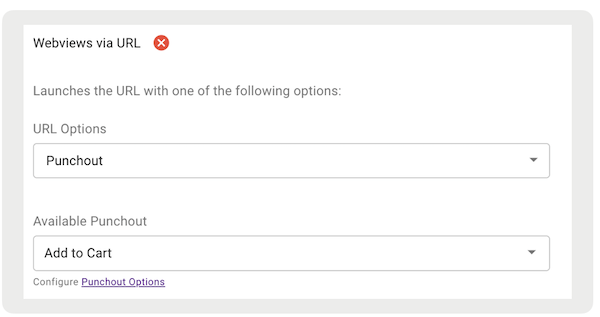
- Using the deep link picker, go to Webviews via URL.
- Under , select ""
-
Under , select the type of command you've set in Store Settings.
- Set and save your changes.
Support Custom Products
The POS app shows the custom product’s price, configuration, and SKU. By default, the product’s SKU shows in a read-only Form window. To retrieve and show more attributes, such as descriptions, enter the corresponding JSON key-value pairs from the payload under Custom Product Configuration. For example, use choice.description.
- Verify you're using version 10.1.1 or higher
- Create a Product Class named "" in the CMS so the POS app shows product attributes in a read-only format.
View PunchOut Web Pages Supported Commands
Point of Sale supports commands via PunchOut to help the POS app set the customer profile, add products to the cart, and navigate users to the cart screen. Seamlessly integrate web page interactions with the Point of Sale (POS) system, verifying a smooth and efficient user experience.
The table outlines the commands that Point of Sale supports via PunchOut.
| Description | Listener Name | Description | Event Message |
|---|---|---|---|
| Customer Selected | CustomerSelected | After the web page is completed, the POS app sets the customer profile to the current cart session. If there's an existing session, then that session is switched to this new user. | window.webkit.messageHandlers.CustomerSelected.postMessage(JSON.stringify(payload)); |
| Add to Cart | AddToCart | Each product selected on the web page is added to the cart | window.webkit.messageHandlers.AddToCart.postMessage(JSON.stringify(payload)); |
| Go to Cart | GoToCart | POS app takes the users to the cart screen | window.webkit.messageHandlers.GoToCart.postMessage(JSON.stringify(payload)); |
| Done | Done | The POS app removes the web page without transitioning to any other page | window.webkit.messageHandlers.Done.postMessage(JSON.stringify(payload)); |

Next are sample payloads and attribute definitions for all supported PunchOut commands
Add Customer
{
  "command": "CustomerSelected",
  "debugMode": 0,
  "customerId": 12456,
  "alternateCustomerId": "JohnChamberJr@crisco.com"
}| Attribute | Description | Mandatory or Optional, Data Type |
|---|---|---|
| command | PunchOut command name. The POS app uses this attribute to identify which command is triggered. | Mandatory, String |
| debugMode | Flag for troubleshooting. The possible values are "0" or "1": 0: The POS app displays the PunchOut payload in a popup for troubleshooting purposes 1: The POS app parses the PunchOut payload and executes the corresponding action | Optional, Integer |
| customerId | Customer ID that needs to be logged in the POS app | Mandatory, Integer |
| alternateCustomerId | Alternate customer ID to be used in the POS app if customerId isn't provided | Optional, String |
Repeat the pattern for other sections like Add Multiple Products At Once, Add Custom Product, etc.
Add Multiple Products At Once
{
  "command": "AddToCart",
  "debugMode": 0,
  "count": 2,
  "products": [
    {
      "quantity": 1,
      "sku": "SomeShirt"
    },
    {
      "quantity": 1,
      "sku": "SomeCouch"
    }
  ]
}| Attribute | Description | Mandatory or Optional, Data Type |
|---|---|---|
| command | PunchOut command name. The POS app uses this attribute to identify which command is triggered. | Mandatory, String |
| debugMode | Flag for troubleshooting. The possible values are "0" or "1": 0: The POS app displays the PunchOut payload in a popup for troubleshooting purposes 1: The POS app parses the PunchOut payload and executes the corresponding action | Optional, Integer |
| count | Total count of products being returned in the payload, including the quantities of individual products | Optional, Integer |
| products | Array of products added to POS app cart | Mandatory, Array |
| products[].quantity | Quantity of a product. If not provided, the POS app assumes quantity as 1. | Optional, Integer |
| products[].sku | ID of a product | Mandatory, String |
Add Custom Product
{
  "command": "AddToCart",
  "count": 1,
  "debugMode": 0,
  "products": [
    {
      "quantity": 1,
      "properties": {
        "1": {
          "description": "Fabric",
          "choice": {
            "code": 2342,
            "retail": 400.00,
            "description": "Black leather"
          }
        },
        "13": {
          "description": "Depth",
          "choice": {
            "code": 283,
            "retail": 145.00,
            "description": "Removable feet"
          }
        }
      },
      "productClass": "CustomProduct",
      "sku": "3661601597473",
      "price": 480,
      "image": "https://us.maje.com/dw/image/v2/AAON_PRD/on/demandware.static/-/Sites-maje-catalog-master-H13/default/dw460e069a/images/h13/Maje_E18NAKI-05_H_1.jpg"
    }
  ]
}| Attribute | Description | Mandatory or Optional, Data Type |
|---|---|---|
| command | PunchOut command name. The POS app uses this attribute to identify which command is triggered. | Mandatory, String |
| debugMode | Flag for troubleshooting. The possible values are "0" or "1": 0: The POS app displays the PunchOut payload in a popup for troubleshooting purposes 1: The POS app parses the PunchOut payload and executes the corresponding action | Optional, Integer |
| count | Total count of products being returned in the payload, including the quantities of individual products | Optional, Integer |
| products | Array of products added to POS app cart | Mandatory, Array |
| products[].quantity | Quantity of a product. If not provided, the POS app assumes the quantity as 1. | Optional, Integer |
| products[].sku | ID of a product | Mandatory, String |
| products[].image | Product image to be displayed on POS app on Cart screen for custom product. | Mandatory, String |
| products[].price | Product price to be used on POS app for cart calculation. | Mandatory, double |
| products[].productClass | Value is "CustomProduct" for custom products. It is used by the POS app to identify a product as a custom product. For normal SKUs, this value isn't needed. | Mandatory, String |
| products[].properties.<codevalue> | Custom property code that is defined by the merchant | Mandatory, String |
| products[].properties<codevalue>.description | Custom property code description that is defined by the merchant | Optional, String |
| products[].properties.<codevalue>.choice.code | Custom property's selected value code that is defined by the merchant | Optional, String |
| products[].properties.<codevalue>.choice.retail | Custom property's selected value price that is defined by the merchant | Optional, String |
| products[].properties.<codevalue>.choice.description | Custom property's selected value description that is defined by the merchant. This value is displayed on the POS app at the product level in the cart. | Mandatory, String |
| products[].properties.customSKU | Unique SKU generated by the merchant for the custom product. This value is displayed on the POS app at the product level in the cart. | Mandatory, String |
Add Products with Add-Ons
Available in app builds 10.7.1 or greater, the POS app supports add-ons in the punchout flow. Point of Sale gets a payload that includes both the main product and any add-on items.
{
  "command": "AddToCart",
  "debugMode": 0,
  "count": 2,
  "products": [
    {
      "quantity": 1,
      "sku": "SomeShirt",
      "subProducts": [
        {
          "price": 272,
          "sku": "3661601592676"
        }
      ]
    }
  ]
}| Attribute | Description | Mandatory or Optional, Data Type |
|---|---|---|
| subProducts | Array of add-on products to be linked to a product or custom product from punchout flow. | Optional, Array |
| subproducts[].sku | ProductId of add-on product | Mandatory, String |
| subproducts[].price | Price of add-on product. If an add-on is linked to a custom product then a customized price can be sent. Otherwise, the product's catalog price (salePrice, if exists or listPrice) value is sent in this attribute. | Mandatory, double |
Add Customer and Multiple Products
{
  "command": "Done",
  "debugMode": 0,
  "actions": [
    {
      "command": "AddToCart",
      "count": 2,
      "products": [
        {
          "quantity": 1,
          "sku": "3661601556517"
        },
        {
          "quantity": 1,
          "sku": "3661601590702"
        }
      ],
      "debugMode": 0
    },
    {
      "command": "CustomerSelected",
      "debugMode": 0,
      "customerId": "2f5fde72-5c0e-4262-9493-a104ec5a2dc9",
      "alternateCustomerId": "JohnChamberJr@crisco.com"
    }
  ]
}
For attribute descriptions and details, refer to the table listed under "Add Custom Product".
Add Products with Fulfillment Types
Previously, all items coming from the punch-out flow were defaulted with the fulfillment type set to "Take With." However, for app builds 10.7.1 or greater, we've introduced additional attributes so merchants can specify the fulfillment type for products added to the cart. This functionality is similar to Omnichannel: Customizing Product Display Page (PDP), where users can select the fulfillment type before adding items to the cart.
If triggering the punch-out flow, merchants pass values for each item, which are used to determine the fulfillment type if adding items to the cart. If no attributes are provided for an item, it will default to the settings configured in the Omni settings (for example "Take With").
{
  "command": "AddToCart",
  "debugMode": 0,
  "count": 1,
  "products": [
    {
      "quantity": 1,
      "sku": "SomeShirt",
      "omniFulfillmentType": "TRY_AT_STORE",
      "pickupLocation": {
        "phone": "1-650-917-9938",
        "postalCode": "94022",
        "isDefaultBilling": false,
        "addressLine1": "5050 W. El Camino",
        "countryCode": "US",
        "preferred": false,
        "name": "PredictSpring QA TEST",
        "isDefaultShipping": false,
        "state": "CA",
        "city": "Los Altos",
        "addressName": "PredictSpring QA TEST",
        "storeId": "5051"
      }
    }
  ]
}| Attribute | Description | Mandatory or Optional, Data Type |
|---|---|---|
| omniFulfillmentType | Possible values: IN_STORE, PICKUP_FROM_STORE, TRY_AT_STORE, SHIP_TO_HOME_CURRENT_STORE, SHIP_TO_HOME, PICKUP_LATER | Optional, String |
| pickupLocation | Pickup location where product are picked | Optional, Store |
| fulfillmentLocation | Fulfillment location from where product is fulfilled | Optional, Store |
Add Products with Serial Numbers
Point of Sale now supports serialized products in Punchout webviews.

{
  "command": "AddToCart",
  "debugMode": 0,
  "count": 2,
  "products": [
    {
      "quantity": 1,
      "referenceSku": "BaseShirt",
      "sku": "SomeShirt",
      "price": 119,
      "currency": "USD",
      "Image": "https://test/16bac5928ad4c29135f5c.png",
      "size": {
        "name": "14S",
        "code": 14
      },
      "color": {
        "name": "Blue",
        "code": "Blue"
      },
      "fabric": {
        "name": "White Pinpoint Oxford Pure Cotton",
        "code": "AHW04044.2005568/1D"
      },
      "serializedPropertyValue": "123",
      "serializedPropertyKey": "epc"
    }
  ]
}| Attribute | Description | Mandatory or Optional, Data Type |
|---|---|---|
| serializedPropertyKey | The value defines the product's unique identifier (ID). It is passed in the punchout payload. | Optional, String (possible values epc or serialNumber) |
| serializedPropertyValue | The actual value of epc or serialNumber. | Optional, String |
Go to Cart Only
{
  "command": "GoToCart",
  "debugMode": 0
}| Attribute | Description | Mandatory or Optional, Data Type |
|---|---|---|
| command | PunchOut command name. The POS app uses this attribute to identify which command is triggered. | Mandatory, String |
| debugMode | Flag for troubleshooting. The possible values are "0" or "1": 0: The POS app displays the PunchOut payload in a popup for troubleshooting purposes 1: The POS app parses the PunchOut payload and executes the corresponding action | Optional, Integer |
Add Customer, Multiple Products, and Go to Cart
{
  "command": "Done",
  "debugMode": 0,
  "actions": [
    {
      "command": "AddToCart",
      "count": 2,
      "products": [
        {
          "quantity": 1,
          "sku": "3661601556517"
        },
        {
          "quantity": 1,
          "sku": "3661601590702"
        }
      ],
      "debugMode": 0
    },
    {
      "command": "CustomerSelected",
      "debugMode": 0,
      "customerId": "2f5fde72-5c0e-4262-9493-a104ec5a2dc9",
      "alternateCustomerId": "JohnChamberJr@crisco.com"
    },
    {
      "command": "GoToCart",
      "debugMode": 0
    }
  ]
}
For attribute descriptions and details, refer to the table listed under "Add Custom Product".
View PunchOut Web Pages on the Point of Sale App
Open a PunchOut web page from the POS app to let customers browse. The POS app updates automatically to match what the customer does there. Selecting a customer, adding products or custom products to the cart, scanning serialized products, and going directly to the cart each trigger a specific result. The Done command executes all queued actions at once, logging in the customer, adding products, and going to the cart for efficient checkout.
Opening Web Page
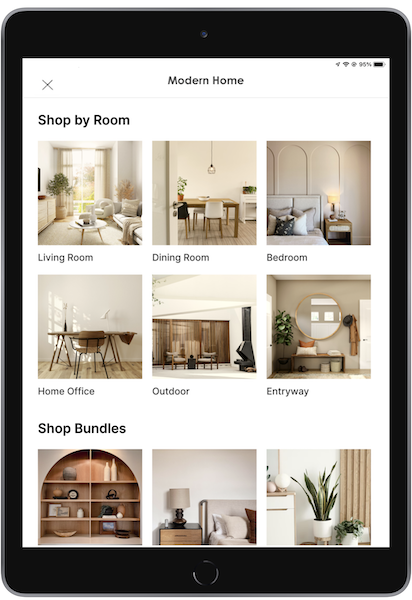
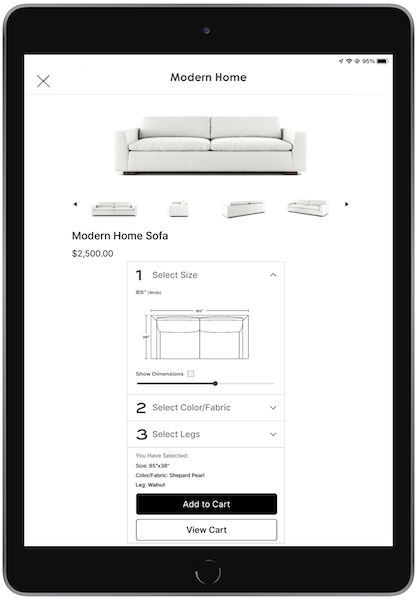
Tap on the Webviews via URL deep link to open the web page. The example screenshot next is a mocked web page.
Selecting Customer
Selecting a customer on the web page triggers the Customer Selected command.
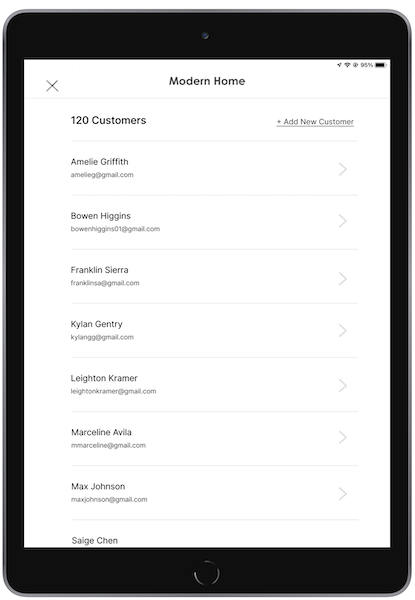
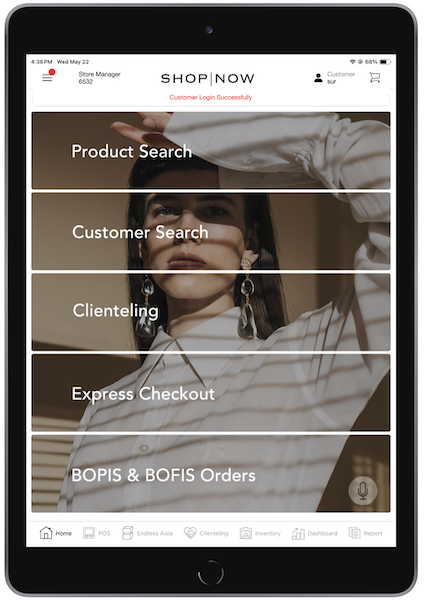
Go back to the POS app. The POS app logs in the selected customer automatically and shows a success message at the top.
Adding Products to Cart
Adding a product to the cart on the web page triggers the Add to Cart command.
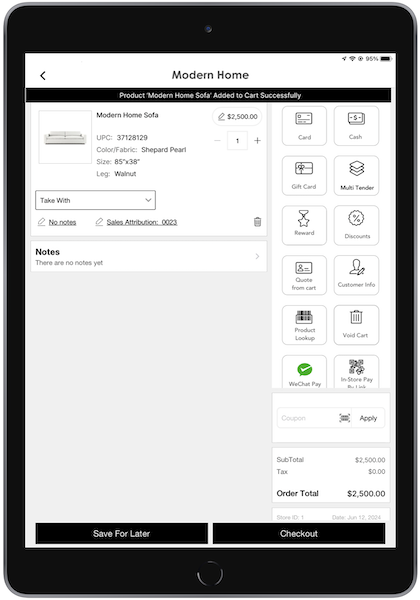
The POS app adds the product to the cart and shows a success message at the top.
Adding Custom Products to Cart
Adding a custom product triggers the Custom Add to Cart command. The POS app adds the product to the cart and shows a success message at the top.
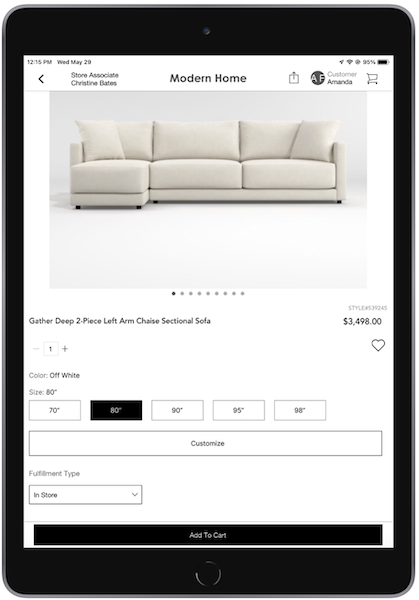
Tap Form beneath the product details to open a window. This read-only window lists the SKU and other custom product attributes that you set as JSON key-value pairs in Custom Product Configuration.
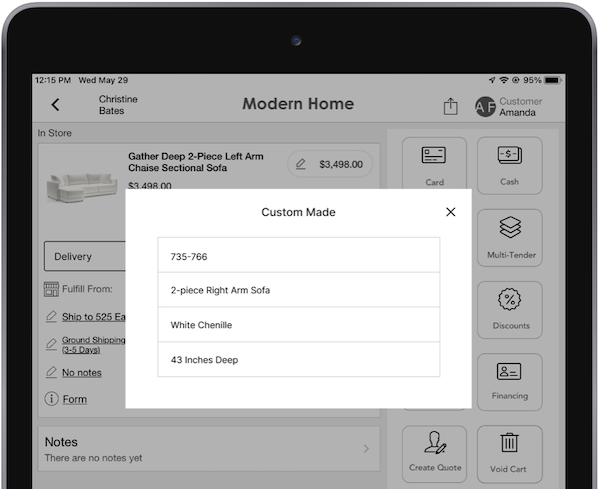
Use these tags to print the custom product's SKU and additional attributes on receipts:
:ps_p_punchout_custom_sku— prints the custom product's SKU, for print receipts:ps_p_punchout_custom_properties— prints the custom product's additional attributes shown on the read-only window, for print receipts{ProductFormAttributes}— prints the custom product's additional attributes shown on the read-only window for email receipts. Configure Custom Product Property Field Name in Punchout Configurations to set which attribute label appears, such as description or color.
Adding Serial Products to Cart
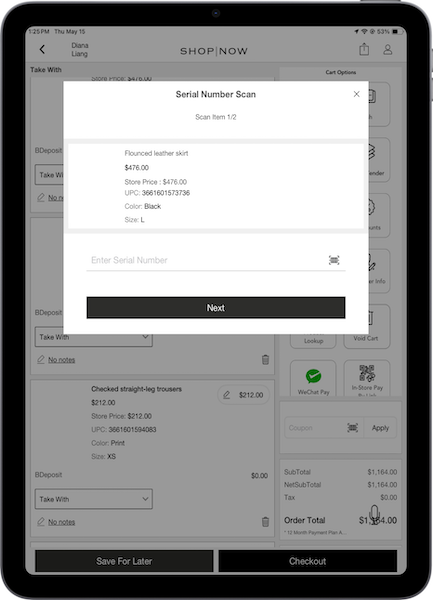
If you add serialized products to the cart without a provided value, enter or scan their serial numbers before checkout. A prompt asks you to enter a serial number or EPC scan for all products that require one.
Navigating Directly to Cart
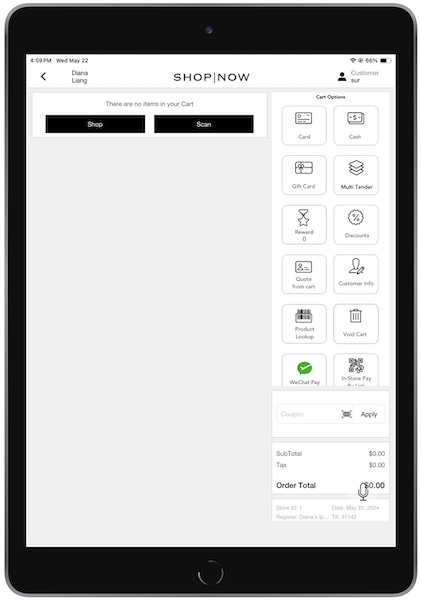
After you trigger the Go to Cart command, the POS app directs you to the cart page.
Completing Multiple Commands
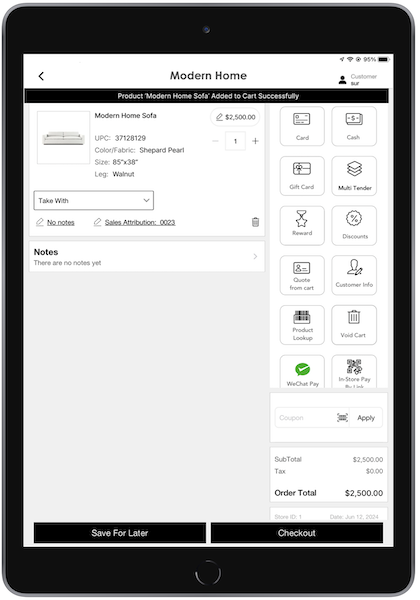
When you trigger the Done command, the POS app performs all queued actions: it logs in the customer, adds products to the cart, and takes you to the cart.
View Debugging and Troubleshooting Information
Get answers to frequently-asked questions about debugging, punchout commands, custom product processing, cart URL paths, and web token configuration. Debug mode helps verify POS app information during development, while punchout commands mirror POS app cart error handling. Web token configuration enhances web page security by using token-based authentication. Merchants can process multiple custom products by including them in the addToCart command payload.
Debugging Commands
To verify whether the POS app is receiving all the information correctly during development or testing, include the "debugMode" attribute with a value of "1" in the payload of each command. See the example payloads for reference in Supported Commands. This prompts the POS app to show a popup that includes the command type and the payload response. For live responses, set debug mode to 0 to turn off debugging functionality.
PunchOut Commands
How's error handling done on PunchOut commands?
PunchOut commands have the same error handling as if these actions were performed on the POS app cart. For example, the POS app shows error message if an invalid customer ID is being sent in Set Customer Payload. This is the same as logging in as invalid customer on our POS app.
Is there a sample web page to look at which has examples of all punch-out commands?
Yes, you can refer to the PS Punchout 1.0 web page.
How do you trigger a punch-out event from the web page?
Here's an example:
     document.getElementById('addToCart').addEventListener('click', function () {
     // button click action
     const payload = { ...addToCartPayload, "debugMode": debugMode };


     if (debugMode) { console.log('AddToCart > payload', payload);
     }


     if (window.webkit && window.webkit.messageHandlers) {
     window.webkit.messageHandlers.AddToCart.postMessage(JSON.stringify(payload));
     // this is how the event will be triggered with payload.
     }
     });


     const addToCartPayload = {
     "command": "AddToCart",
     "count": 2,
     "products": [
     {
     "quantity": 1,
     "sku": "3661601556517"
     },
     {
     "quantity": 1,
     "sku": "3661601590702"
     }
     ],
     "debugMode": 0
     }
Custom Product Processing
How do you process multiple custom products or one custom and one existing SKU?
The addToCart command payload includes a "products" attribute, which is an array of products. Merchants can include as many products as they need in this array. Each product specified in the array can be an existing SKU or a custom SKU.
Additionally, each product can have a specified quantity, provided in the "quantity" attribute. You can refer to the "Add Multiple Products at Once" section in the Supported Commands for an example payload with two products included in the addToCart payload.
How are custom product properties and custom SKU values mapped in the order?
After an order is placed with custom Products, the order response > productList[].formAttributes[] can be used to retrieve the properties of the custom product.
     "formAttributes": [
     {
     "key": "1",
     "value": "{ "choice" : { "retail" : 400, "description" : "Blackleather", "code" : 2342 }, "description" : "Fabric"}"
     },
     {
     "key": "13",
     "value": "{ "choice" : { "retail" : 145, "description" : "Removablefeet", "code" : 283 }, "description" : "Depth"}"
     },
     {
     "key": "customSKU",
     "value": "781-765"
     }
     ]
Cart URL Path
Can URL paths be passed from the cart? For example, can a user send items in the cart to the web view via the path?
No. The app only launches the punchout web page using the configured URL. It doesn't take any JSON payload, which can be passed along as the web page is being launched.
Web Token Configuration and Handling
What's the purpose of web token configuration on CMS?
The web token configuration section enhances the security of web pages if launched on our POS app. It's an optional step. If merchants prefer token-based authentication (for example Microsoft AD tokens) for web pages, configure this section in Point of Sale CMS. The app uses this configuration to generate a token and sends it as an HTTP header while loading the web page. The header value is:
Authorization: Bearer <token>
What's the response of the web token API?
The response contains a property with an access_token attribute that holds
the token value.
Does each app request a new token after the current one expires?
The app requests a new token for each web punch-out session.
Does the app handle expired tokens?
The app doesn't use refresh tokens. If a token expires while an associate is accessing the web page, the app generates a new token whenever a new web page session starts.
How does the app send the web token if starting a web page session?
The app sends the token in the header of the web page request. Here's an example of the header:
{ "Authorization": "Bearer <access_token>" }