
Select which product identifiers can be shown throughout the Point of Sale (POS) app to help confirm the items in an order for a faster and more efficient checkout process.
Product identifiers on the app (for example UPC, Color, Size) can help confirm the items in an order for a faster and more efficient checkout process. However, these product identifiers can be unique to each merchant based on importance or preference.
With Point of Sale's Product Cell Attributes feature, merchants can select which product identifiers can be shown throughout the app, such as cart, order history, returns, corporate transfers, purchase orders, clienteling, and wishlist screens.

Prerequisites
-
Modern POS App Build: 8.8.1 and later
-
Platform Support: iPad and iPhone
-
Offline Support: Yes
Omnichannel needs to be enabled to show the product cell-configured UI on the cart screen. For more information, refer to this article.
Set Up Point of Sale CMS for Product Display Labels
Manage cell attributes for product identifiers in Point of Sale CMS.
Configuring Product Cell Attributes
- In CMS, go to .
- Select the pencil icon to the right to configure the product cell configuration.
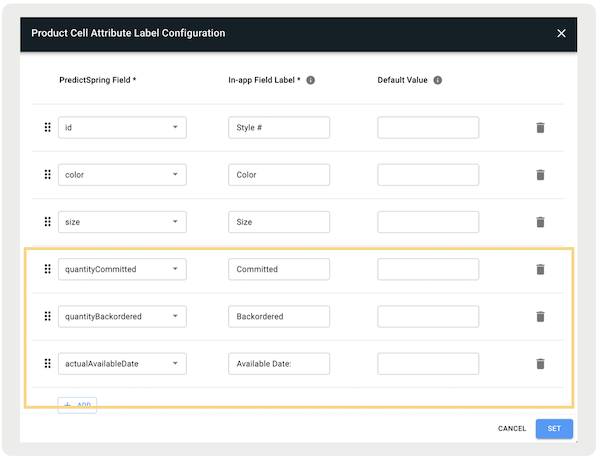
- By default, the Point of Sale fields GTIN, color, and size properties are configured. To learn more about the available fields, see Understanding Point of Sale fields.
- You can configure more fields by clicking .
- Each property can have a customized In-app Field Label. Here, you can control what is to be shown on the app for the specific property.
- The property can also have a default under Default Value. For example, if a color doesn't exist for a product it shows the default value (for example "") in the app.
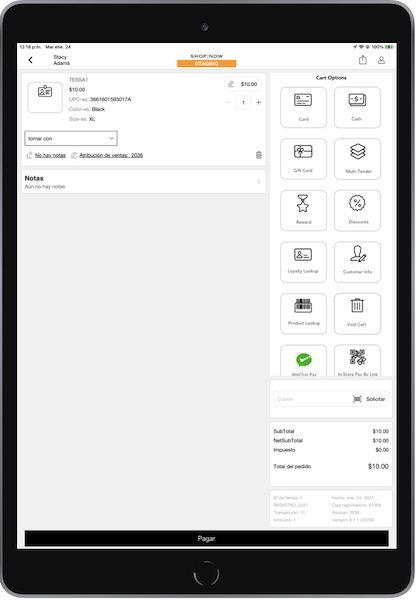
- This setting can also be configured for different languages if a merchant supports multilanguage settings. To change the language, select the language dropdown on the top left.
- Select and to save the configuration.
Understanding Point of Sale fields
Point of Sale fields are dynamically populated based on the mappings defined in your Product Field Mappings "Target Field". For app builds 9.9.1 or greater, Point of Sale introduced three additional, optional fields that show on the Order History screen and if modifying an order in the POS app.
- : This field displays the date of a product’s availability. This data is retrieved from NetSuite Connector's attributes during the order editing process. It doesn’t appear in the product cell if there's no available date.
- : This field displays the number of units that are backordered for this product. "Backordered" refers to orders that have been accepted and processed, but can't be immediately fulfilled because the items are out of stock. The value of this field is retrieved from the NetSuite Connector during order editing. If not available, it doesn’t show.
- : This field displays the number of units that are committed for this
product. The value is retrieved from the NetSuite Connector during order editing. If a
product is "committed," it means that it's been allocated to fulfill specific orders but
hasn't yet been shipped out to the customer. The commitment of a product reduces the
available stock for sale because those items are now reserved for pending orders. If not
available, it doesn’t show.
View Product Display labels in the POS App
Access and configure product display labels in the Point of Sale (POS) app.
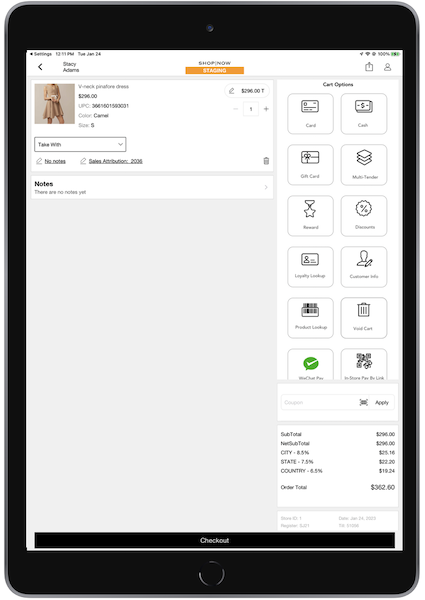
The POS app shows the product cell UI with the configured fields on the cart screens. For app builds 8.8.1, this feature shows on the , , , , and screens. For app builds 9.0.1 and greater, it also shows on the Inventory and BOPIS and BOFIS screens.
Product Cell with GTIN, Color, and Size Fields
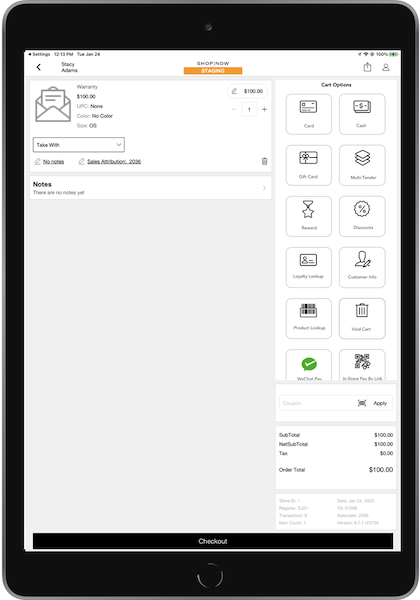
Product Cell with No UPC, Color, or Size Value
The app shows the default values configured for each field.
Product Cell with Multilanguage Labels
View Deprecated Settings and Troubleshooting Steps
See how to solve common product display label issues in Point of Sale and get a list of deprecated settings, deep links, and known issues.
Troubleshooting
8.8.1 and later builds aren't showing the UPC, Color, and size values of product cell UI on any screen.
- In CMS, go to .
- Select the pencil icon to the right to configure the product cell configuration.
- Select and select on the top right.
- Close and reopen the app.