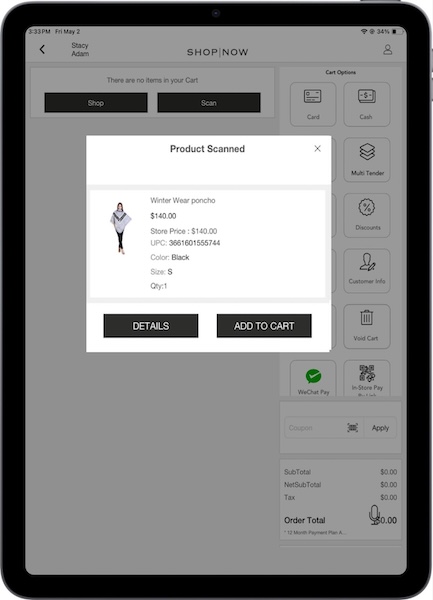
In the POS app, the product window offers two options, adding the product to the cart and viewing the Product Display Page (PDP). Using the CMS, you can configure whether or not the product window appears when you scan a product. This is based on conditions you set by using the product’s attributes.
To use this feature, your device must meet these requirements.
- Modern POS App Build: 10.10.1 or later
- Platform Support: iPhone and iPad
- Offline Support: Not available
- In CMS, go to .
-
Select the app configuration for which you want to customize the product window.
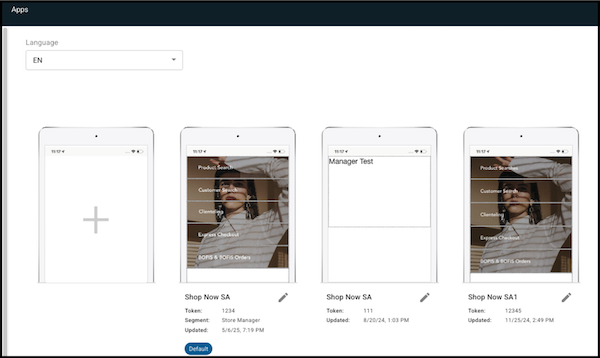
- Select .
- Go to .
- Edit the setting.
- Select a , such as .
- Select an , such as .
-
Enter a value, such as 100. If the product attribute is set to ListPrice, with operator
being >= and a value of 100, the product window is displayed if the scanned product’s list
price equals or exceeds 100.
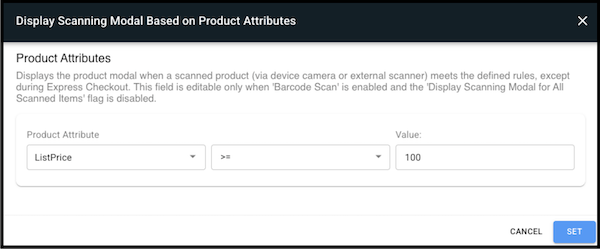
- Select and then your changes.
-
Open the POS app and scan a product. If the product’s attributes match the condition, the
product window appears, with options to add the product to the cart or view details. If you
select , you're directed to the product's PDP. If the product’s attributes don't match
the configuration, you don’t see the product window at all and are directed to the product’s
PDP.