
Integrate your Point of Sale (POS) app with OneLogin to validate store associate credentials. Verify secure communication with Salsesforce and streamline user management using your existing identity and access management tools. Configure your OneLogin portal and CMS settings to enable seamless authentication for both online and offline access.

Prerequisites:
- Modern POS App Build: 7.11.5 or greater
- Files: Store Associate Feed containing store associate IDs, names, store IDs, and roles. This will be necessary to provide the mapping between the 3rd party providers and Point of Sale's backend subsystems.
OneLogin is used to validate the credentials of a store associate. After the login information is validated, communication with Point of Sale cloud is established. For information about integrating OneLogin for CMS, see Enabling OneLogin with CMS.
OneLogin Portal Configuration
Create a OneLogin application.
- Go to your OneLogin's portal account.
- Go to .
- Under , set the redirect URL (for example com.yourcompany.pos.oidc://callback).
- Under , set to "Native" and Authentication Method to "".
Configure Point of Sale CMS and OneLogin Integration
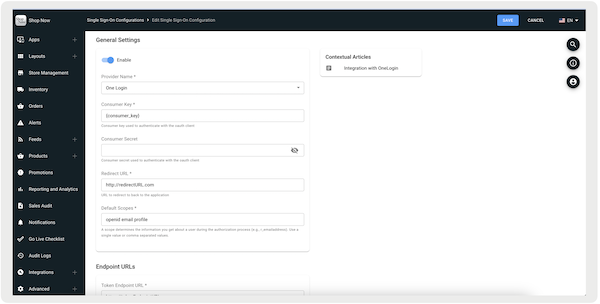
Configure Point of Sale CMS to integrate with your OneLogin account.
- Go to .
- Select on the top right of the screen or select an existing configuration.
- Turn on . To disable integration with OneLogin, turn it off. This advises the app to treat it as inactive.
-
Fill out the required areas by referring to the following:
- : Select "".
- : Enter the consumer key of your OneLogin account, which can be found by going to .
- : Enter the URL in your OneLogin account, which can be found by going to .
- : Provide a scope that will determine the information you recieve about a user during the authorization process. For example, "".
- : Enter the token issuer URL. For example, "https://tokenEndpointURL.com".
-
Save your changes.
Authentication
Whether logging into POS in online or offline mode, each user has a single store associate ID. Store associate details can be found in the CMS by going to
Depending on which mode the user is in determines the password the user provides to authenticate into the Modern POS.
| Modern POS Online/Offline State | Authentication |
|---|---|
| User is "online" | OneLogin |
| User is "offline" | Password stored in CMS |
| User is transitioning from "offline" to "online" | OneLogin |
Sesion Timeout
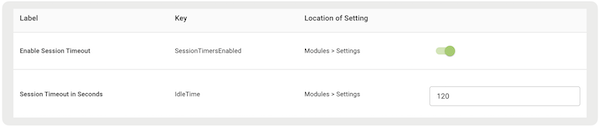
Idle session timeout can be enabled in which the user will be required to log in after a period of inactivity. This can be configured in Point of Sale CMS:
- Go to.
- Edit an app config.
- Go to .
- Turn on .
- Under , specify how long the app can be idle before the user reenters their credentials.
-
Save your changes.
As the session is approaching expiration, the user is prompted with the following message
notifying them their session is about to expire.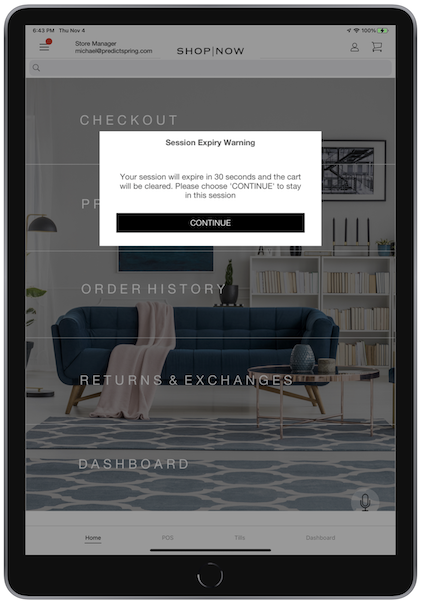
After the session expires, the user sees this screenshot. If they cannot provide valid
credentials, they are logged out and shown the login screen.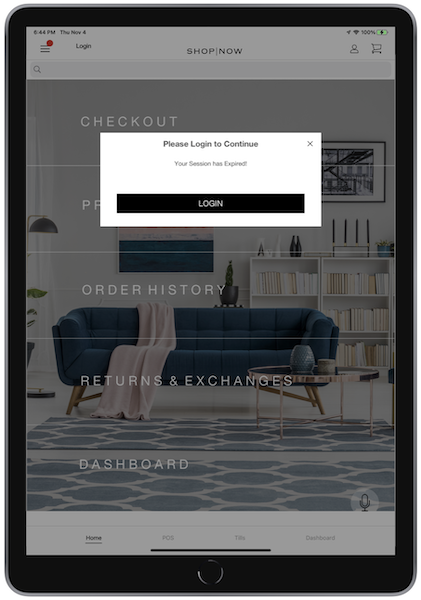
Manager Approval
When a sales associate logs into POS, specific features require manager approval. Such features include:
When a sales associate attempts to perform one of these actions they are prompted for manager approval.
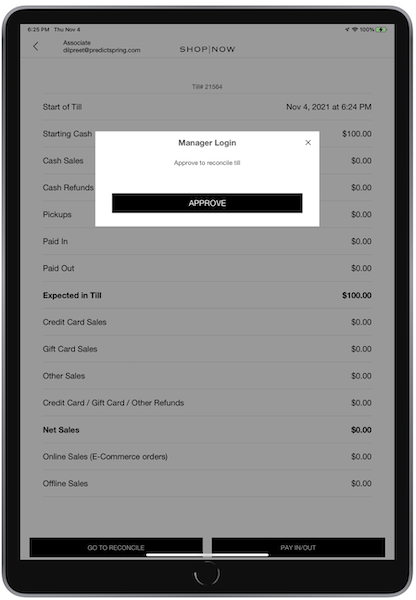
Upon tapping "", a manager is prompted to enter their credentials.
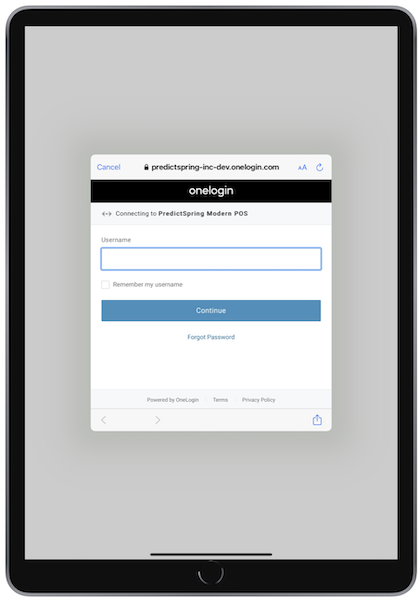
The manager enters their username and password. After the manager approves the action, the associate can continue.