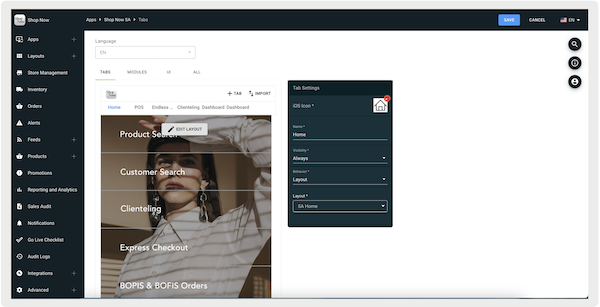
Set up the navigation bar, hamburger menu, and tabs within the Point of Sale Point of Sale (POS) app. Control the tab display by selecting visibility options, such as always visible or visible to signed-in users only. Configure app settings like tab color, text color, and icon visibility to create a streamlined user experience.
- Customize Navigation Bars in the POS App
Use the Point of Sale (POS) app to customize the navigation bar’s display settings, tabs, and hamburger menu.
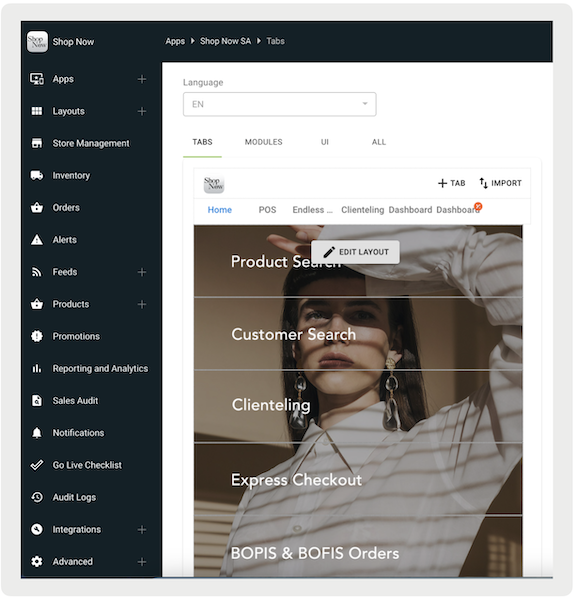
Accessing & Editing Tabs
- In CMS, go to .
- Edit a selected app configuration.
- To add a new tab, select .
- To delete a tab, select the red .
- To change the order of tabs, drag a tab.
-
Save your changes.
Configure Tab Display Settings
Configure the display of the tab.
- Select a tab to open its toolbar on the right side of the screen.
- Under iOS Icon, upload an image to show as the tab's icon. Images are 65px by 65px.
- Under , enter the tab's display name for the POS app.
-
Under , select one of these options:
- : The tab is always visible.
- '': Only signed-in users can see this tab.
- '': Only signed-out users can see this tab.
-
Under , set the tab's behavior by selecting one of the options:
- : displays a selected layout.
- '': displays a selected personalized layout. Learn More
-
'': displays a selected deep link. However, if the deep link fails, a fallback
layout is displayed.