
Configure a layout to show customer information such as name, email address, address, and other details to show associates in the Point of Sale (POS) app during a sale.
For details on capturing customer information for returns, refer to this article.
Prerequisites
- Modern POS App Build: 7.14.5 or greater; 10.2.1 or greater for offline support
- Platform Support: iPad, iPhone
- Offline Support: yes
Configure Point of Sale CMS for Customer Information Layouts for Sales
Set up Point of Sale CMS to manage customer information layouts and view customer information for sales in the Point of Sale (POS) app.
Creating Customer Information Layout
Create a layout for capturing customer information in the CMS. For more information, seelayouts.
- In the CMS, go to .
- Add fields for customer information capture. For a list of common fields and their recommended values under , refer to this section.
- Add a CTA button with a Button Action of "" to save the customer information to the cart.
- (Optional) For any Form Element that you don't want users to edit after it is entered and saved for a transaction, turn on “."
-
(Optional) For fields like lottery code, where the input is typically through an external
scanner, turn on '.'
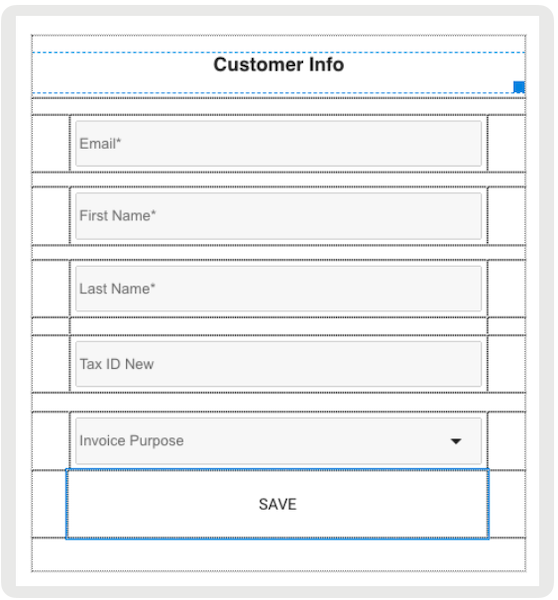
Common Customer Information Fields
| Customer Information | Form Element - Field |
|---|---|
| Salutation | salutation |
| Suffix | suffix |
| First name | firstName |
| Last name | lastName |
| Second name | secondName |
| Customer ID | customerId |
| Alternate customer ID | alternateCustomerId |
| Loyalty ID | loyaltyId |
| Email address | |
| Phone number (business) | phoneBusiness |
| Phone number (home) | phoneHome |
| Phone number (mobile) | phoneMobile |
| Fax number | fax |
| Tax ID | taxInfo.taxId |
| Address Line 1 | address.addressLine1 |
| Address Line 2 | address.addressLine2 |
| City | address.city |
| State | address.state |
| Postal Code | address.postalCode |
| Country | address.country |
Capturing customer information online can be done through a deep link. For offline capture, both the deep link and clienteling icon can be used.
Customize Customer Information Layout Mappings
- In CMS, go to .
- Edit.
- Select a layout for the . This store setting functions similarly to the app configuration setting "Customer Info Layout (CustomerInfoLayoutID)." From app builds 10.3.1 onwards, instead.
-
Optionally, turn on to permit editing of customer information after an order is placed.
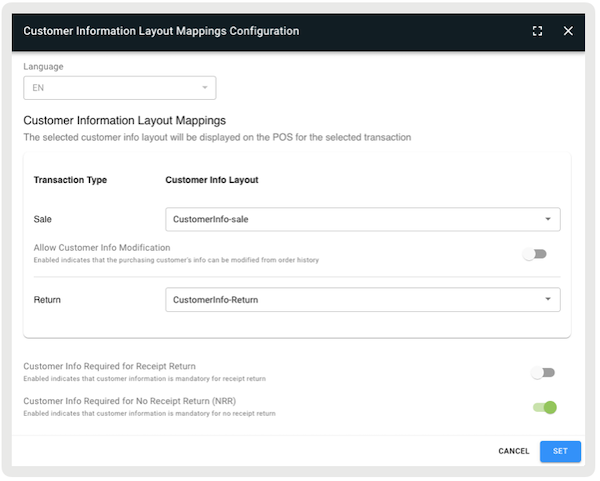
Configuring Layout Accessibility
Capturing customer information online can be done through a deep link. For offline capture, both the deep link and clienteling icon can be used.
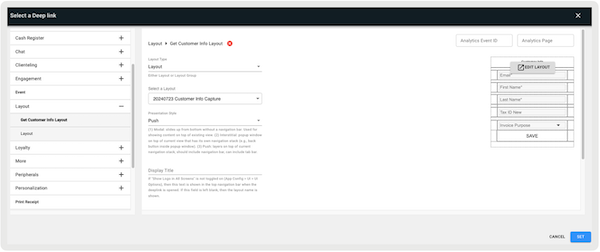
Configuring Receipts
Customer information can be printed on both print and email receipts.
Configure Print Receipts
- In CMS, go to .
- Edit app configuration.
- Go to .
- Edit .
- Configure print tags for printing customer information by referring to this article.
Configure Email Receipts
- In CMS, go to .
- Select .
- Configure email tags for printing customer information by referring to this article.
View Customer Information Layouts and Reports for Sales in the POS app
Access and configure customer information layouts for sales in the Point of Sale (POS) app.
Capture Customer Information Online
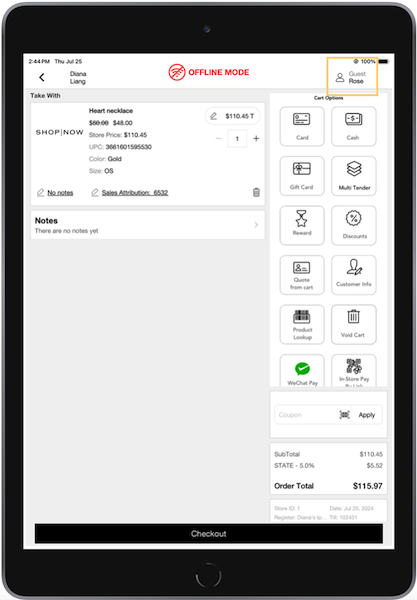
Add products to the cart and tap the deep link. Add the customer's information and save it. If is turned off, the Clienteling icon updates to show the customer's first name and indicate that this is a guest order.
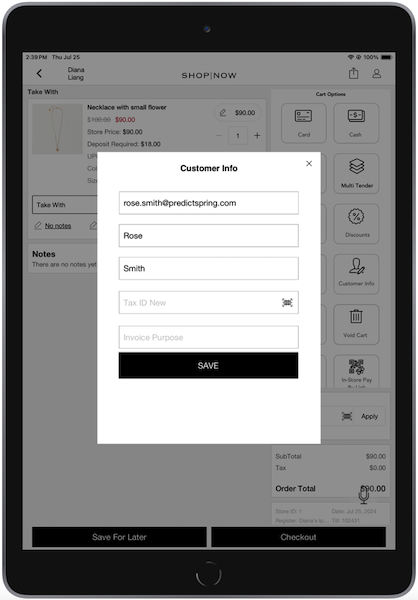
Capture Customer Information Offline
Add products to the cart and tap either the Clienteling icon or the deep link. Add the customer's information and save it. If "" is turned off, the Clienteling icon updates to show the customer's first name and indicate that this is a guest order.

Edit Customer Information
If is turned on, the customer's information can be edited in the cart and on the order details screen. To do this, tap the deep link and search for an order. Then, tap the customer's name to show the window, allowing you to edit the customer's information.
Reporting
Customer information is logged in the TLogs at the transaction level. Note that the format differs between XML and JSON.
In XML, the first and last names are merged into a single field,
"OfficialName".
<person>
     <OfficialName>John Doe</OfficialName>
     </person>
In JSON, they are stored as separate fields: "firstName" and
"lastName".
{
     "person": {
     "firstName": "John",
     "lastName": "Doe" }
     }
Known Issues and Restrictions
- Without a cart created, the POS app won't permit you to enter customer information using this feature.
- If customer information is added to a cart as a guest and then an existing or new customer is chosen to link to the cart, the previously captured information is erased.
- If customer information is added to a cart as a guest and then a suspended cart with another customer is linked, the previously captured information is erased and replaced by the customer from the suspended cart.
- If customer information is captured in online mode and the same cart is used in offline mode, the app won't port the customer information as customer login is not supported in offline mode. The user has to add the information again before submitting the order.
- If customer information is captured in offline mode and the same cart is used in online mode, the app ports the customer information as customer login is supported in online mode.
- Federal ID collection as part of checkout is still not part of customer properties and can't be moved to the customer info layout.
- If Save Address to User's Profile () is set to "," then the customer's profile address is linked to the shipping address in the cart. Every time a shipping address is added to the cart, it also updates the customer's profile address.