
Customize messages that appear on different screens based on different events.
Set up Customizing Messages in CMS
By default, the user can see default messages from different groups. The user can then customize those messages using the CMS.
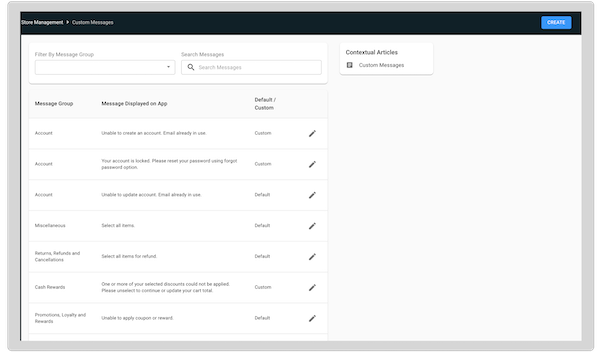
Field Mapping Message Key Field Transformation | Custom Messages
Field mappings in CMS include field transformations. For example, using the field transformation "transform" the lower case colors to capitalized colors. For example "blue" transform to "BLUE", "red" transform to "RED", and so on.
There are many types of field transformations, one of which includes . With this method, rather than manually entering a custom message, the message instead shows automatically using key-value pairs.
To use the Message Key field transformation:
- In CMS, go to .
- Select the area you'd like to add a custom message.
- Select the green line associated with a Source Field.
- Select under .
- Fill in the fields and select .
-
Select in the top right of the screen.
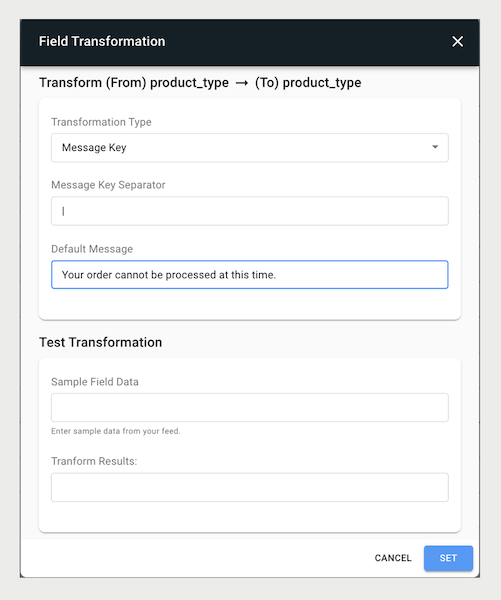
The field transformer has two optional transform parameters: and .
Let's say you have a string of message keys,
"order.failure|promocode.redeem.failure". Notice that a pipe (|) separates
the message keys. This is the because it's separating the many keys in a string. If the message keys are split
for each message key, Salesforce looks up an entry (value) for it in the brand's custom
messages. If no custom message is found, the message key itself is used as the message.
Additionally, if the message key is blank, then the message to be displayed is whatever you
entered in the field.
After all messages are retrieved for the given keys, the messages are recombined into a single string with the separating them. This string is what is stored in the target field.
| Key | Is it in the system? | Value |
|---|---|---|
| order.failure | Yes | Your order has failed! |
| promocode.redeem.failure | Yes | Your promotion code is invalid! |
| order.partial | No | Order.partial |
| Blank | Not applicable because there's no key | Default message |
A string of message keys:
"order.failure|promocode.redeem.failure|order.partial| "
Final result:
"Your order has failed!|Your promotion code is invalid!|Order.partial| Your order
      cannot be processed at this time."