
View key fields from from any of the past seven days in the reconciliation report and print it on a receipt printer.
Prerequisites:
- Modern POS App Build: 8.7.1 or above
- Platform Support: iPhone & iPad
- Offline Support: No
Not all fields are present in this report and full reconciliation can be done within Retail Cloud CMS. Additionally, allow up to 15 minutes for recent sales to be accurately reflected in the report.
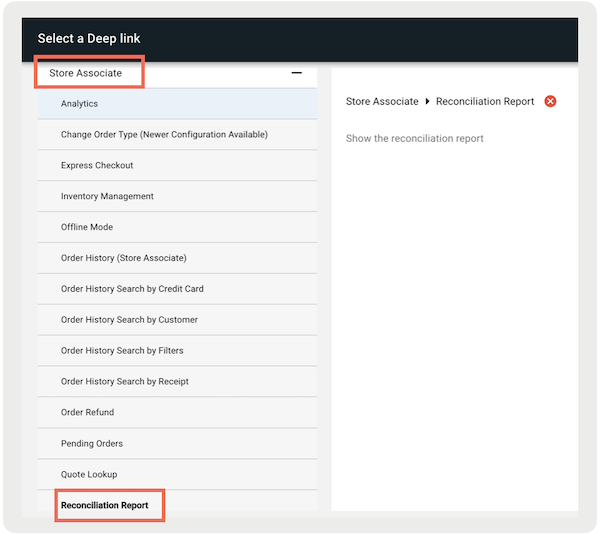
To configure a deep link to access the report on the POS app.
- In CMS, edit a layout or hamburger menu.
- Using the deep link picker, go to .
-
Set and save your changes.
Manage the Reconciliation Report in Point of Sale
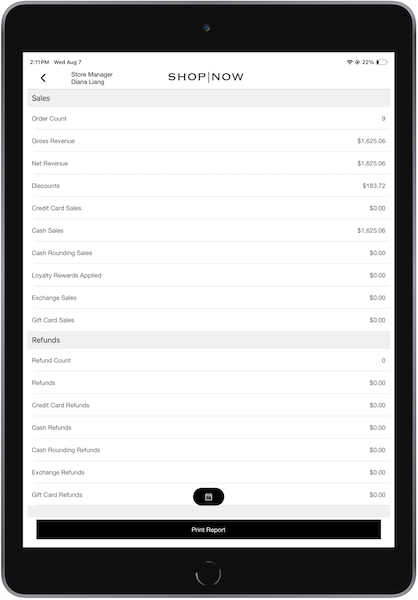
View the report data by selecting the deep link configured in CMS.
When the deep link is tapped within the POS app, the associate sees a screen like the one below.

Filtering Report
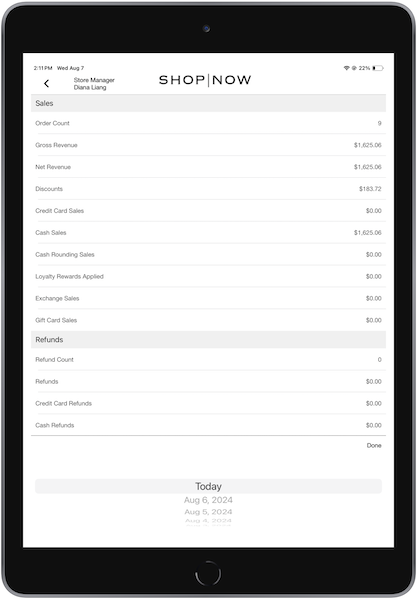
The user may also select any date from the most recent trailing seven days by tapping the calendar at the bottom of the screen, as shown below.
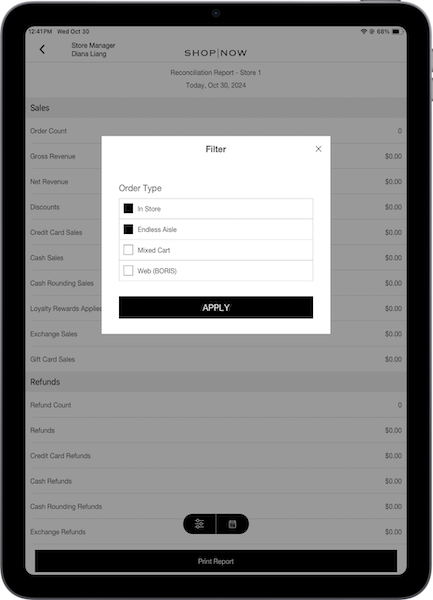
For app builds 10.5.1 and later, the report can be filtered by order type:
- : Filters sales metrics for in-store purchases and refunds for in-store returns.
- : Filters sales metrics for endless aisle purchases and refunds for returns from endless aisle orders.
- : Filters sales metrics for mixed cart purchases and refunds for mixed cart returns.
- : Filters refunds for items returned in-store that were originally purchased online
Printing Report
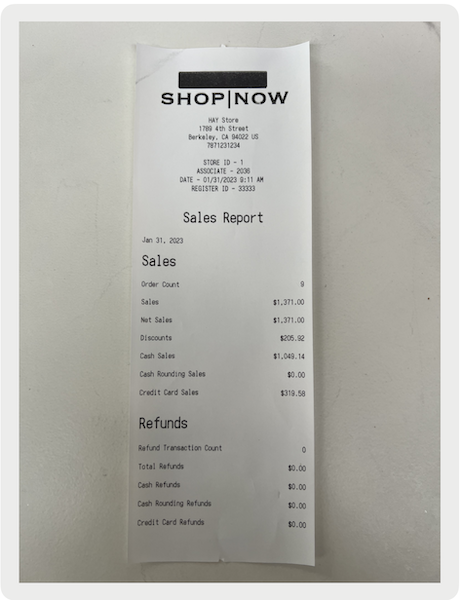
The same data presented on the screen can be printed on the receipt using . The app prints a receipt like the one shown below on the printer connected to the POS app.
Known Report Issues and Restrictions
- A4 printing of the sales report is not supported on the POS app.
- The receipt is not supported for Fiscal printers.
- It can take few seconds to show the updated details on the report screen when after any transaction is done.
- and receipts cannot be configured via layouts. Receipt customization can be done in the receipt settings of the selected app config by going to .
- BORIS return transactions are tracked in the and reports. However, they are not part of the Reconciliation report.