
Give store associates credit for assisting customers with their purchases. By default, products added to the cart are attributed to the logged-in store associate, but you can change the default attribution to a different associate. You can also attribute individual products to specific store associates. This ensures accurate sales tracking and performance measurement.
- This feature does not require a 3rd party integration.
- This feature does require a new build
- This feature does require a change in the CMS
- This feature does require a change in Point of Sale backend
One or more store associates can help a customer add items to the cart to complete an order. There are two kinds of attributions:
- Default Attribution: Any product added to the cart will be attributed to the logged-in store associate by default. You can change the default attribution to a different associate and all the products added to the cart after this will be attributed to the new store associate.
- Product Level Attribution: Any individual product in the cart can be attributed to one particular store associate. Other products added will continue to be attributed to the default store associate already set.
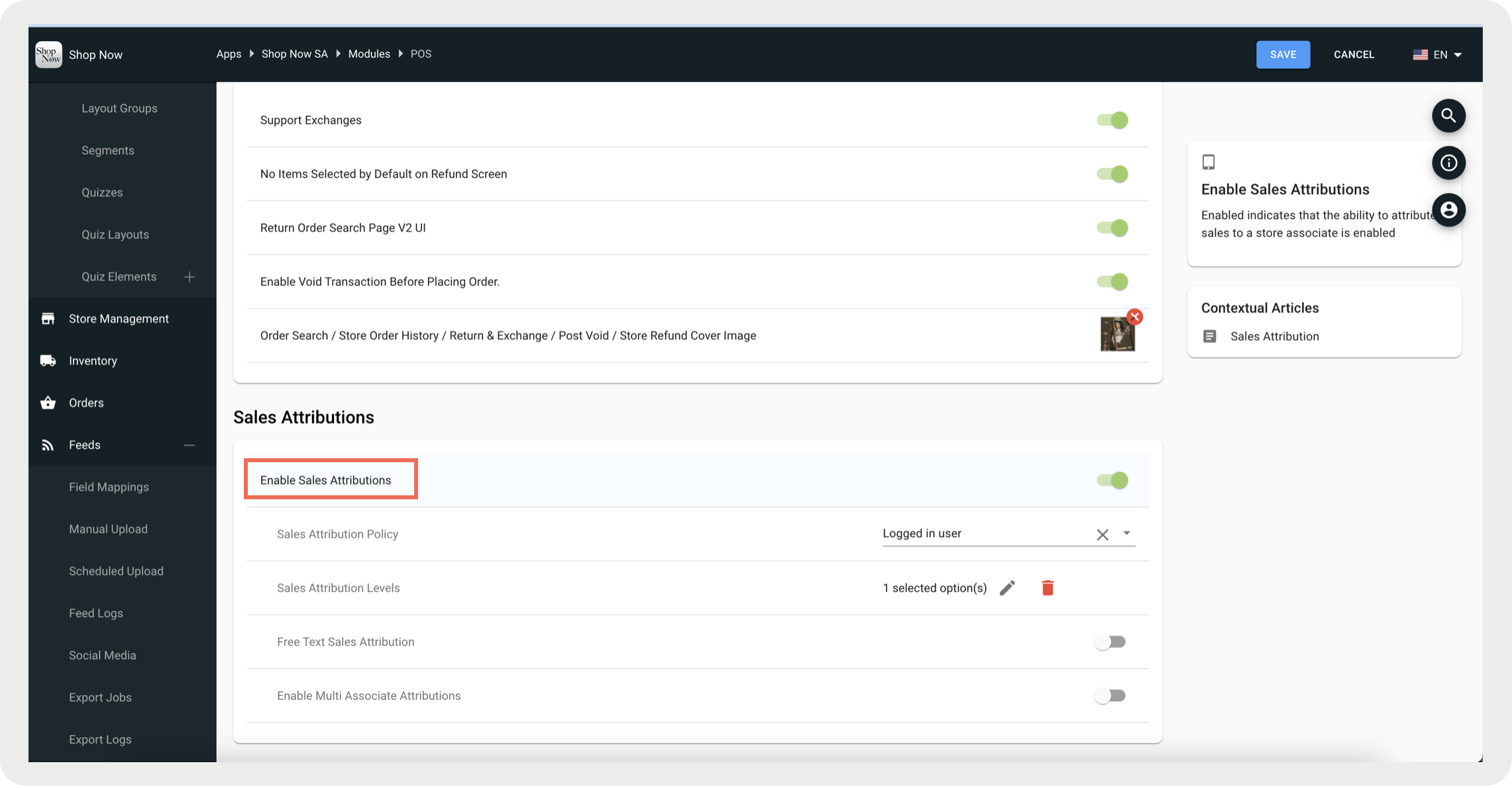
- In your app config, go to .
-
Toggle the flag on, Enable Sales Attributions.
POS Behavior
The app will show “Credit 2036”.

2036 is the store associate chosen for default attribution) on the top left corner where we used to see “Logged In 2036” earlier.
2036 is the store associate currently logged in.
The “Logged in 2036” message will continue to be shown on all the other screens.
Each product in the cart screen will show the store associate attributed with that product. This will be the default attributed store associate, but can be individually changed to a different associate if required.
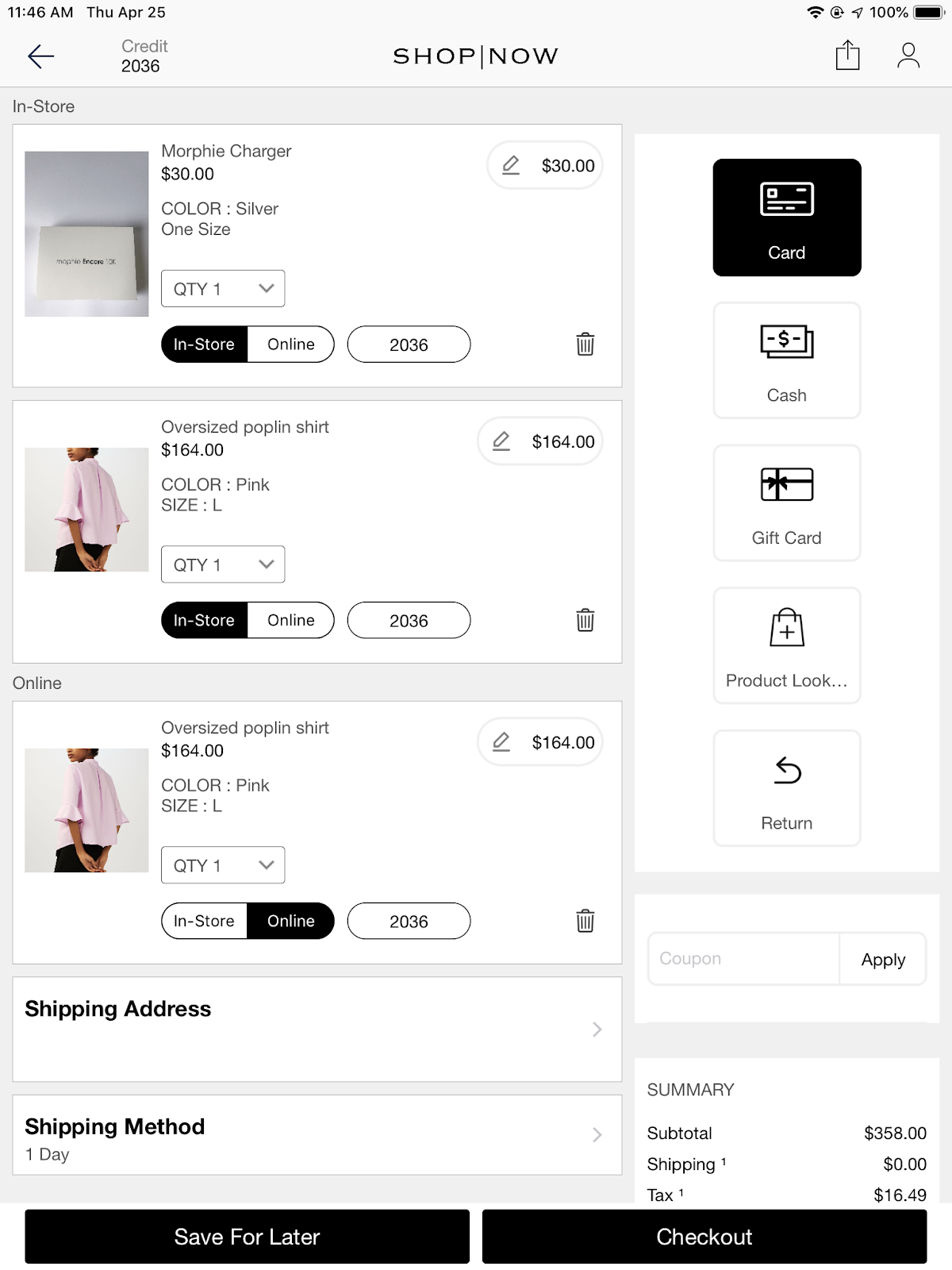
Clicking on the top left default attribution or the product level attribution will bring up an interstitial showing the current associate attributed and a list of other store associates that you wish to change the attribution to.
The interstitial also shows a toggle that decides if you want the attributions to be turned on at all.
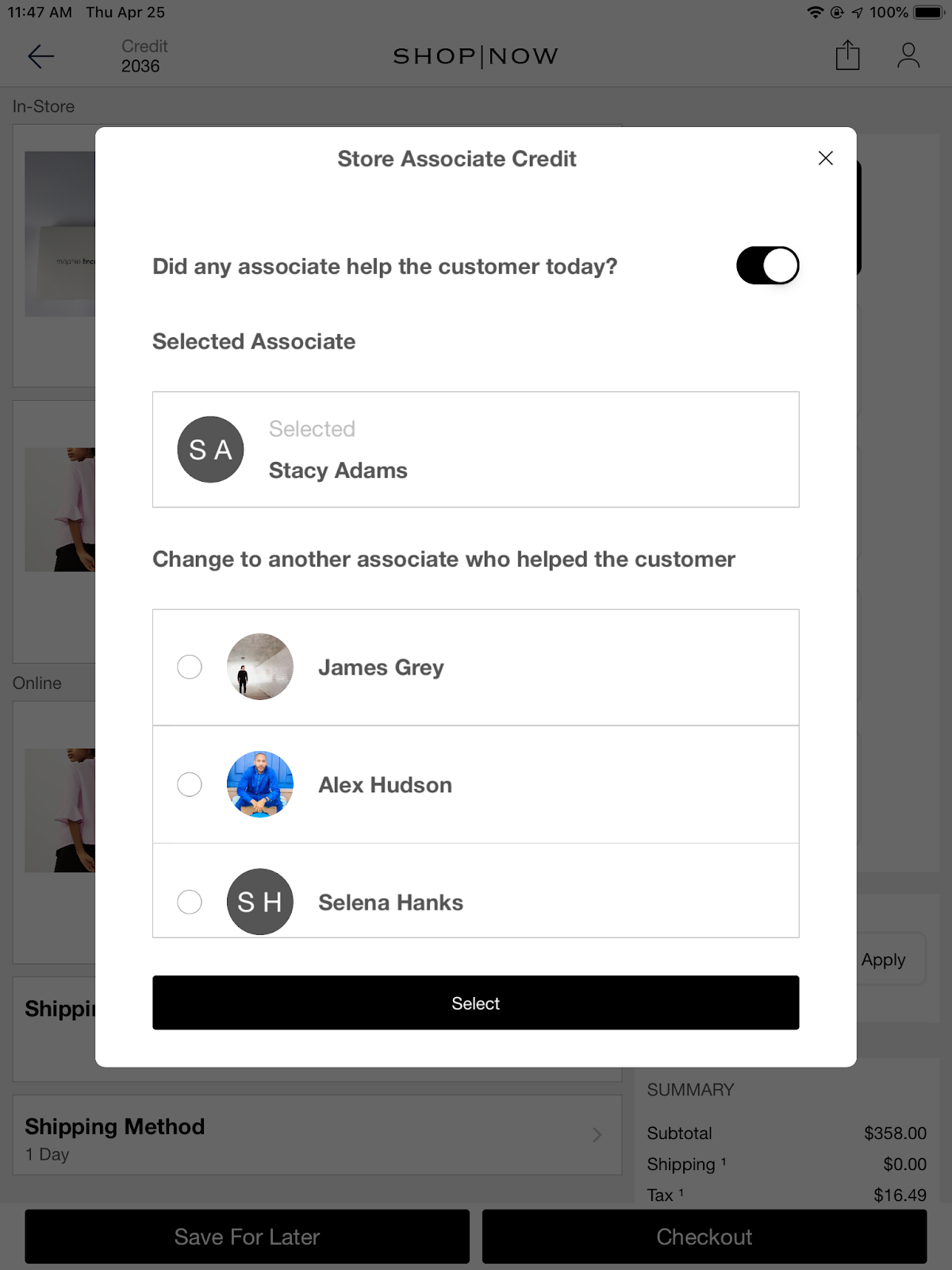
To change the associate, click on the associate you wish and hit the select button.
- If the interstitial was opened by clicking on the default attribution on the top left, this will change the associate for default attribution of the products added after this action.
- If the interstitial was opened by clicking on an individual product’s attribution, just the store associate attributed for that product will change.
You can turn off attribution entirely by toggling off the switch you see beside, “Did any associate help the customer today”.
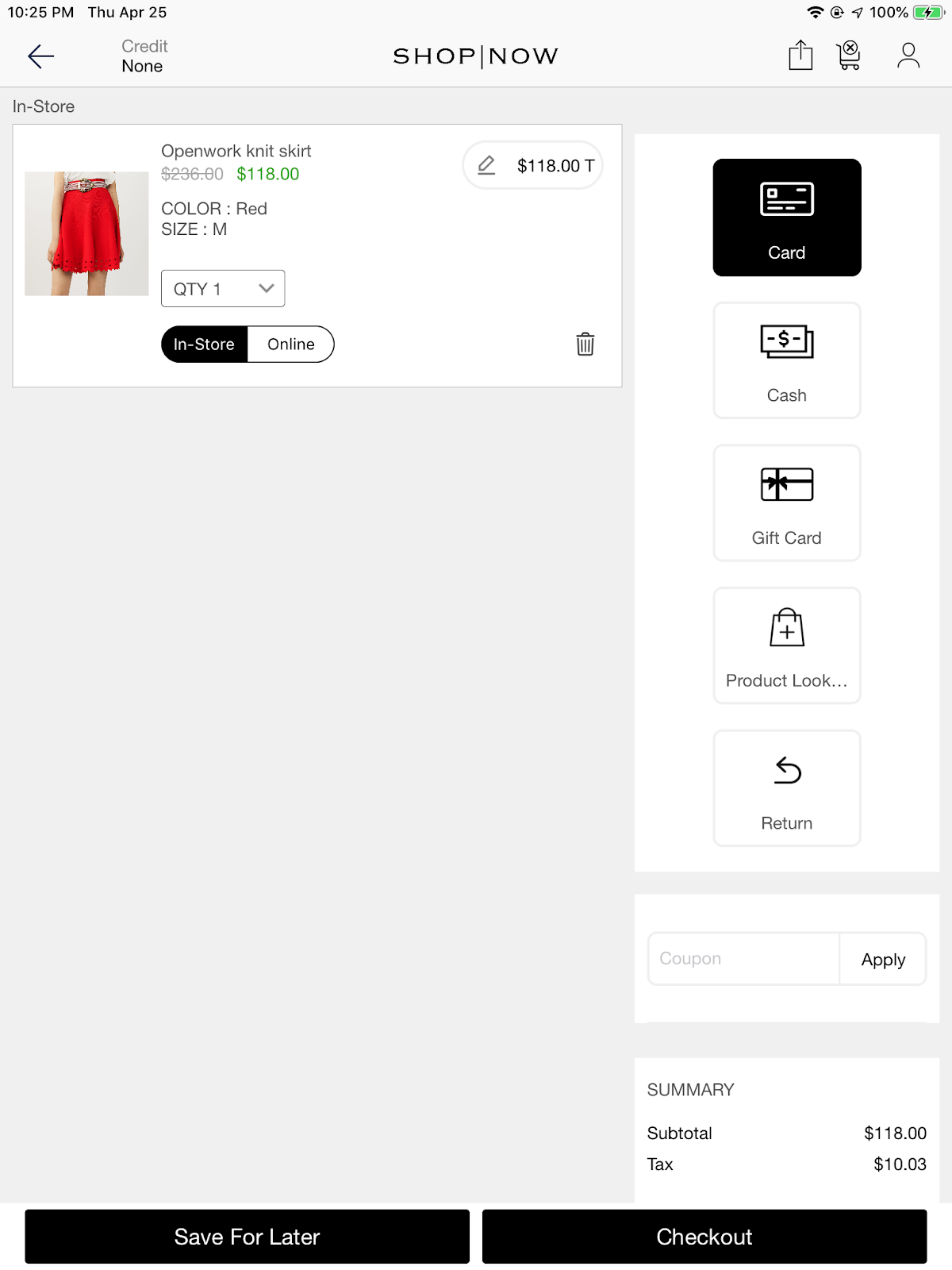
The top left Credit Section will now show “Credit None” indicating that there are no attributions for this sale. Attributions on each product cell in the cart will be removed.
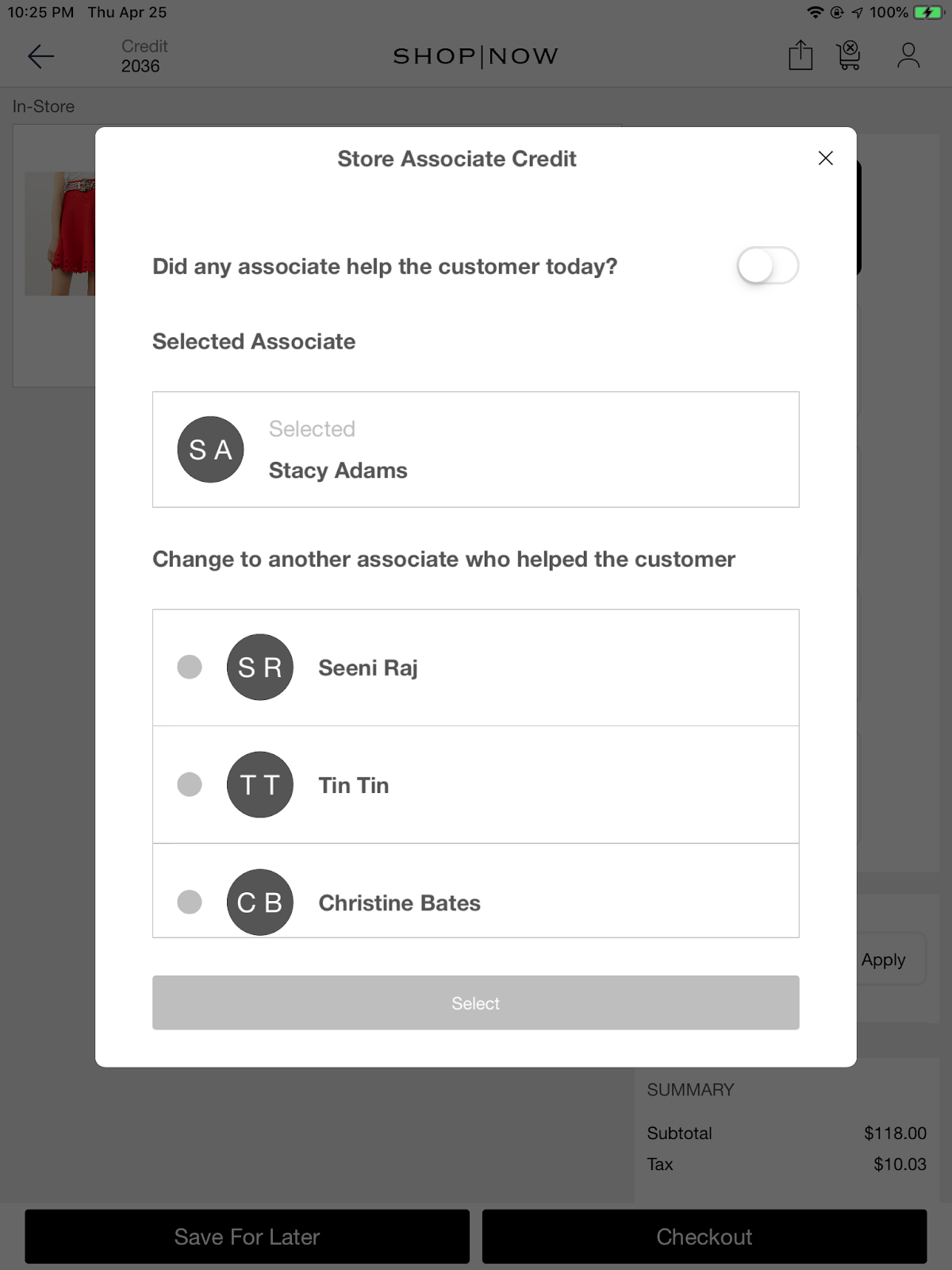
You can turn the attributions on again by clicking on “Credit None” and turning on the switch in the interstitial. The previous attributions will be restored.