
The Point of Sale platform supports a feature that allows store associates to save a cart and resume and complete it later. By saving a cart, the totals, discounts, customer information (including shipping/billing addresses), and shipping methods will be put on pause until the associate chooses to resume it.
- Modern POS App build: 5.2.0 or above
- Platform Support: iPhone & iPad
- Offline Support: No

These are the cart properties that are supported in the suspend and resume process:
- Cart Products
- Cart Product Fulfillment types
- Delivery Dates (item level and order level)
- Pickup Dates (item level and order level)
- Order Notes (item level and order level)
- Sales attributions (item level and order level)
- Customer profile
- Billing Address
- Shipping Address
- Tax Exemption
- Item Level Discounts
- Transactions Discounts
- VAT
- Taxes
- Subtotal
- Total
To enable Suspend/Resume cart, turn on the app config flag in CMS for the particular app config:
- Go to in the App Config settings.
- Find the setting SuspendCart.
- Toggle on SuspendCart.
- Configure the Saved Cart History deep link within CMS layouts that will take you to the suspend carts page. This can be done through the hamburger menu. For more information, refer to Set Up a Hamburger Menu. Alternatively, you can add the deep link in a page layout.
-
Under Default Customer, you can set the type of customer in the deep link
configuration.
- Select Current Customer to only display saved carts for the customer that is logged into the app.
-
Select All Customers to search for saved carts for any customer.
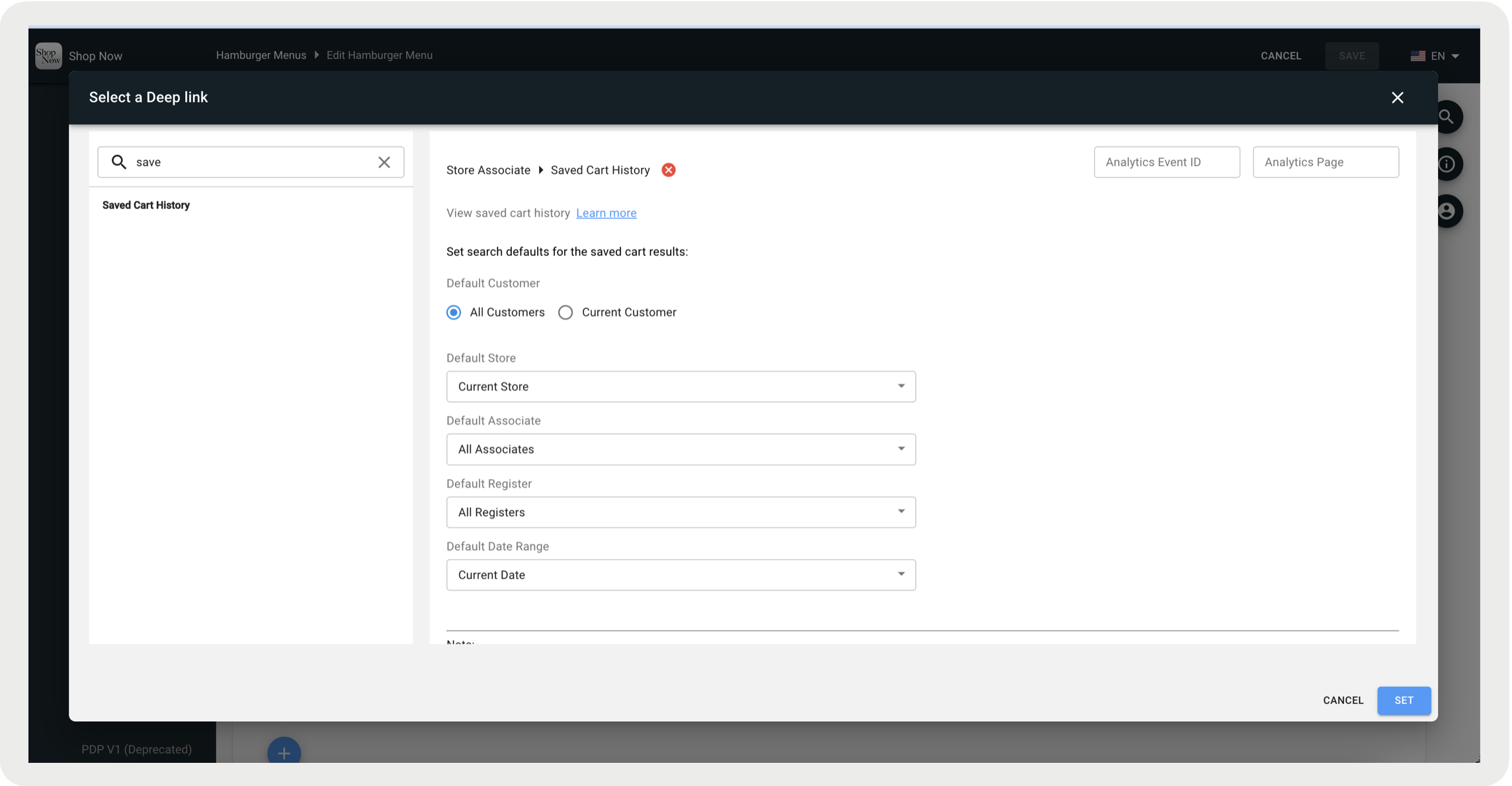
- If All Customers is selected, you can further configure the default search queries for store, associate, register, and date range.

Suspend (Manual & Auto)
At any point in the checkout process, prior to payment, a store associate can choose to suspend the cart that is currently active by tapping the Save for Later button at the bottom of the screen. For app builds 9.2.1 and above, the cart will automatically suspend when the store associate logs out of the app and it will record in the electronic journal as "SUSPEND SALE". Please note that auto-suspend is not supported while in offline mode.
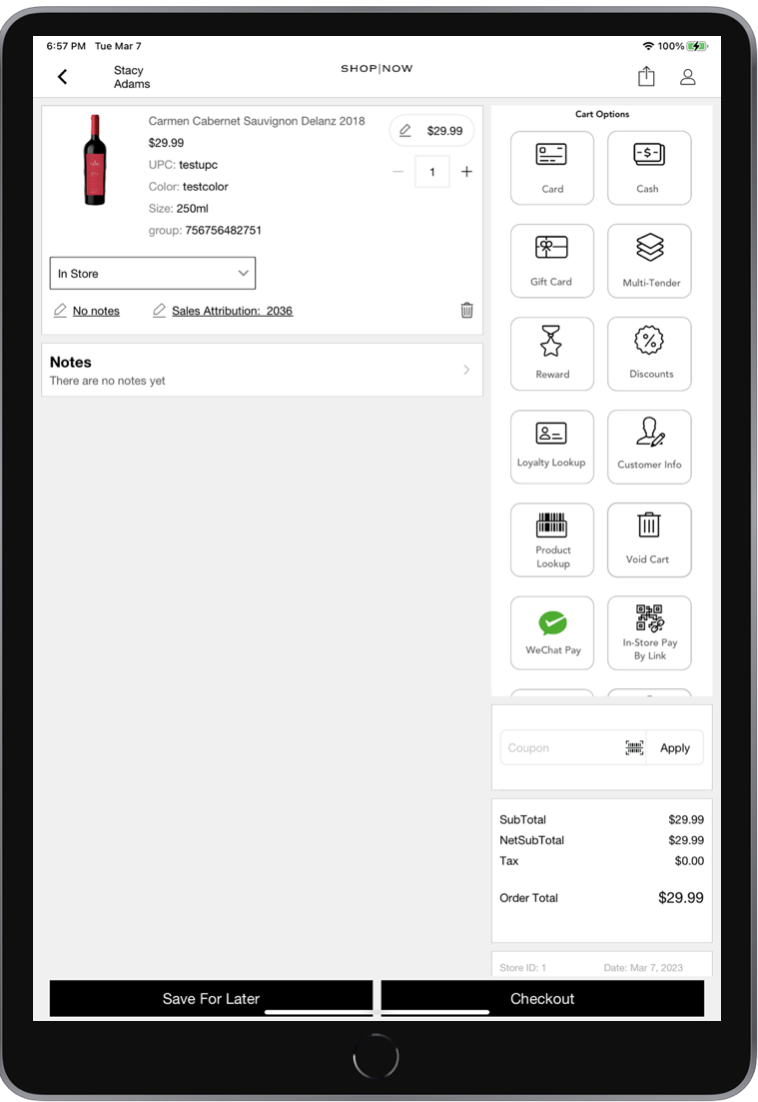
After tapping Save For Later, the application will send a request to the Point of Sale Backend to store the cart.
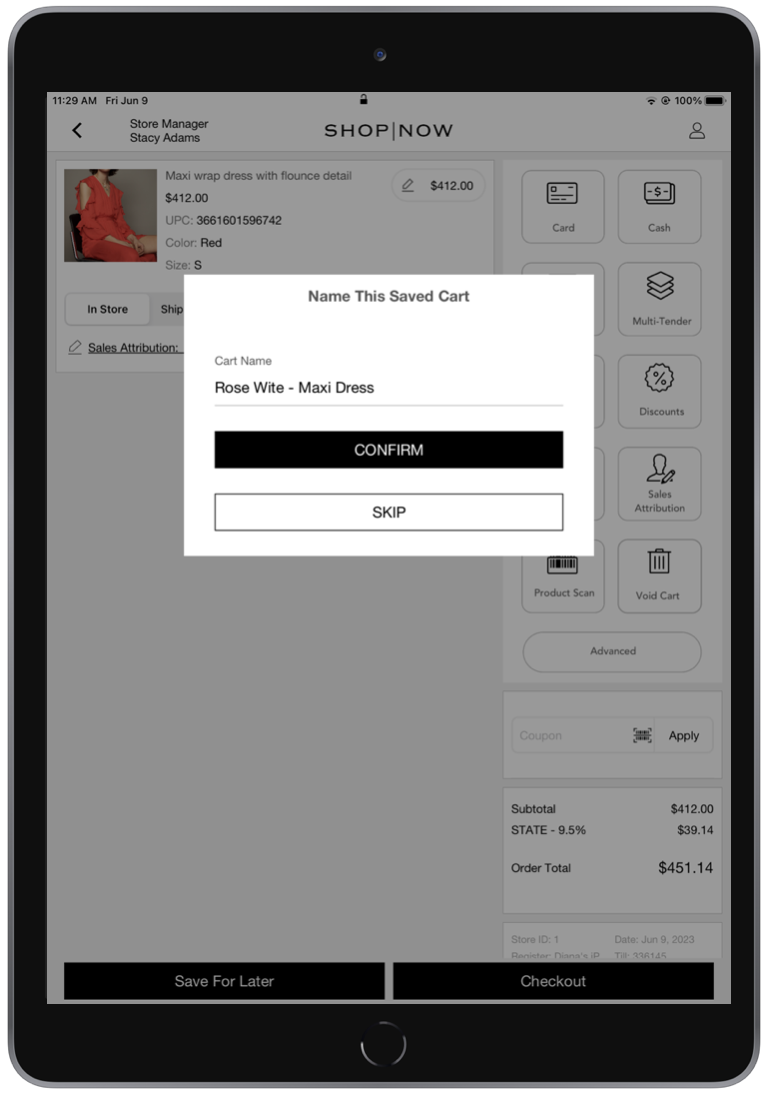
Note: For app builds 9.1.2 and above, store associates will have the option to assign a name to the cart exclusively for guests. However, if a customer is signed in, the cart will be identified using their full name.
Saved Carts Screen
In the app, the "Suspended Carts" screen maintains a list of the carts that store associates suspend. These are stored in the Point of Sale and can have a preset time limit after which they will expire and no longer be available.
- From where you decided to put your suspended cart deep link, select that in order to go to the suspended cart screen.
- This will display all of the suspended carts with items and totals.
- If a profile was selected prior, the name of the customer will be listed in the top left.
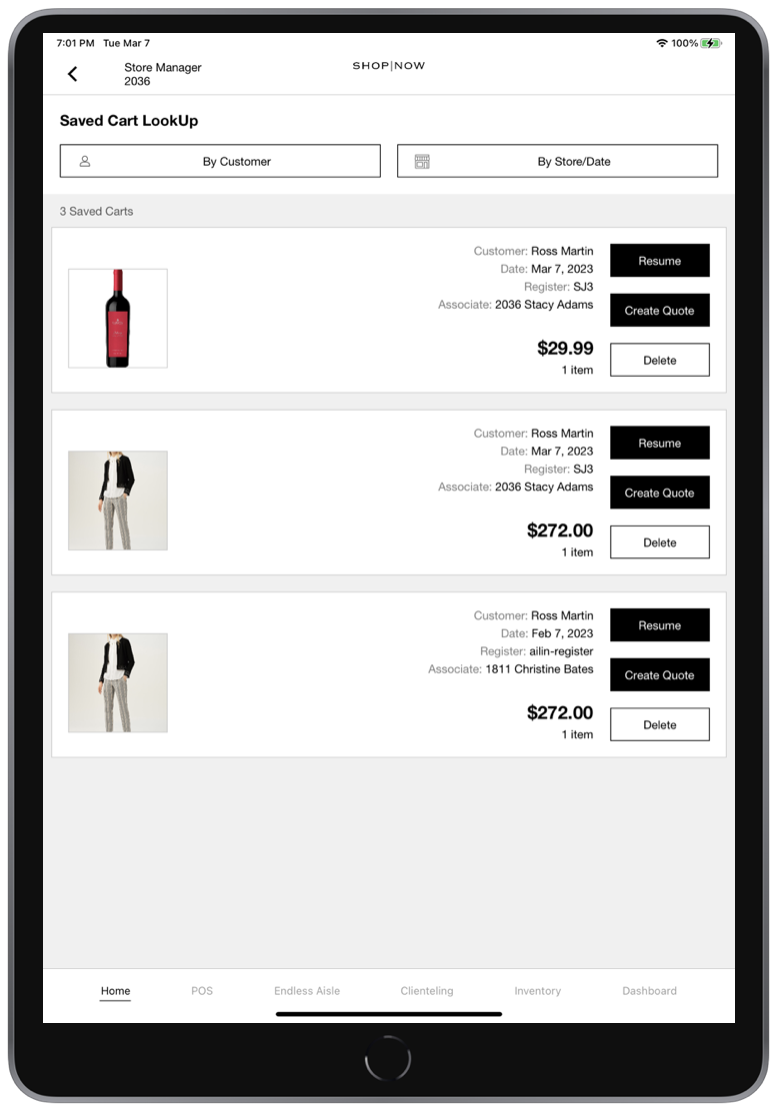
In the saved carts listing, there are different actions available to perform on the carts:
Resuming Carts
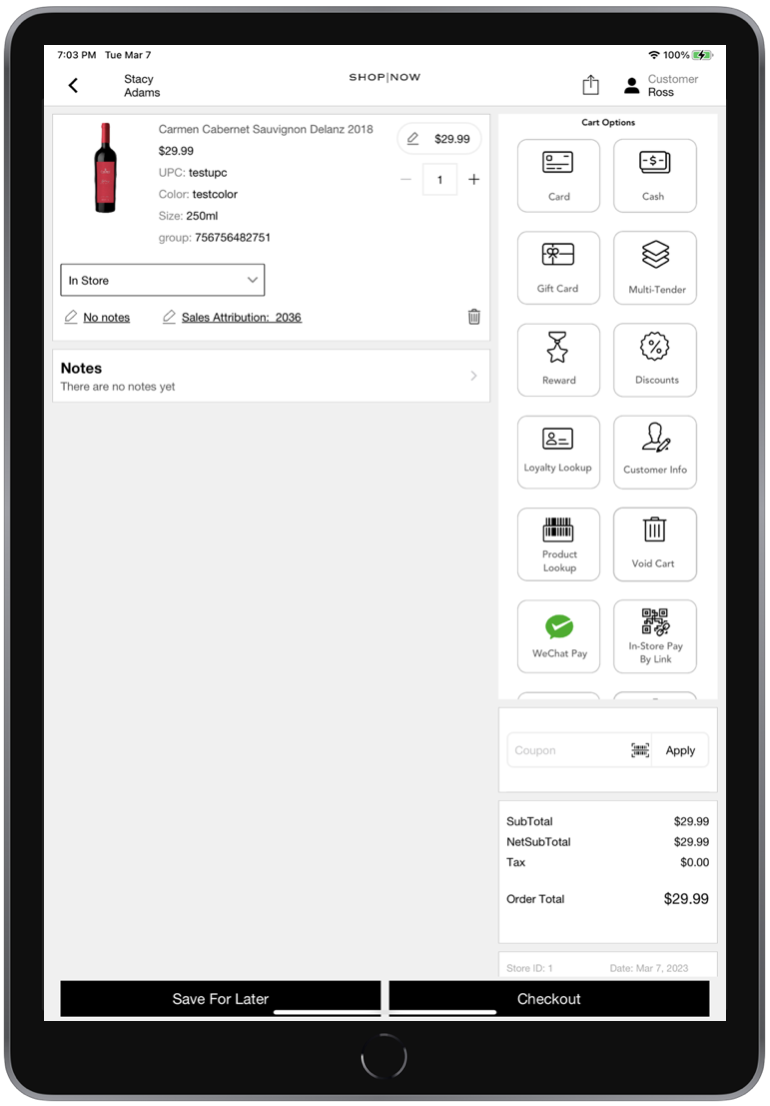
When resuming, the stored cart information is used to create a new cart, which can be used to place an order.
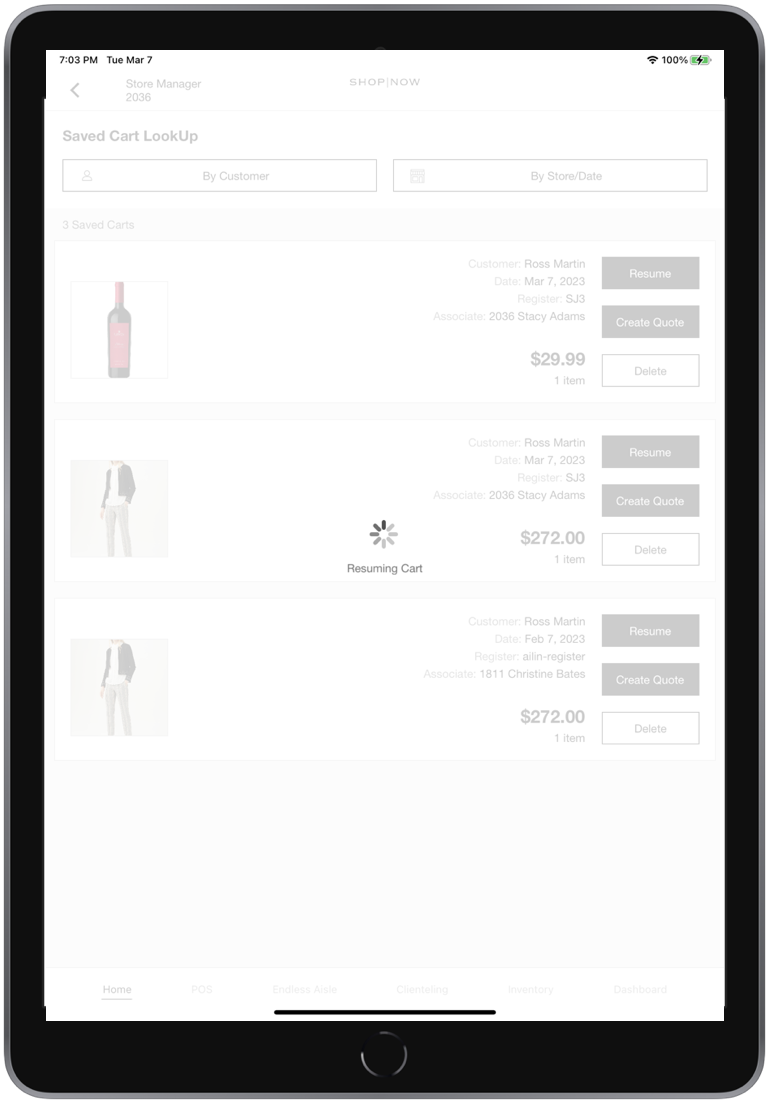
The transaction can now be finished.
Creating Quotes
Creating a quote is based on the cart information (for more information on how quotes work, refer to Create and Manage Customer Quotes). When tapping on Create Quote option, the app will prompt with a screen to enter the customer details for the quote.
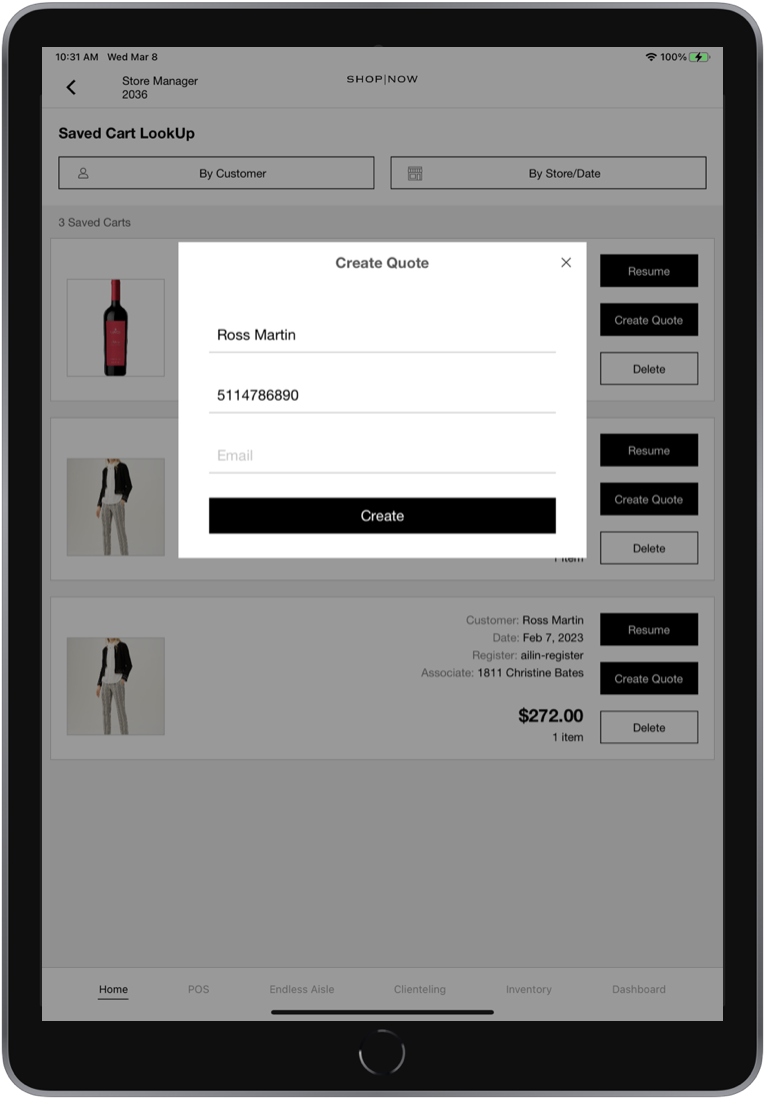
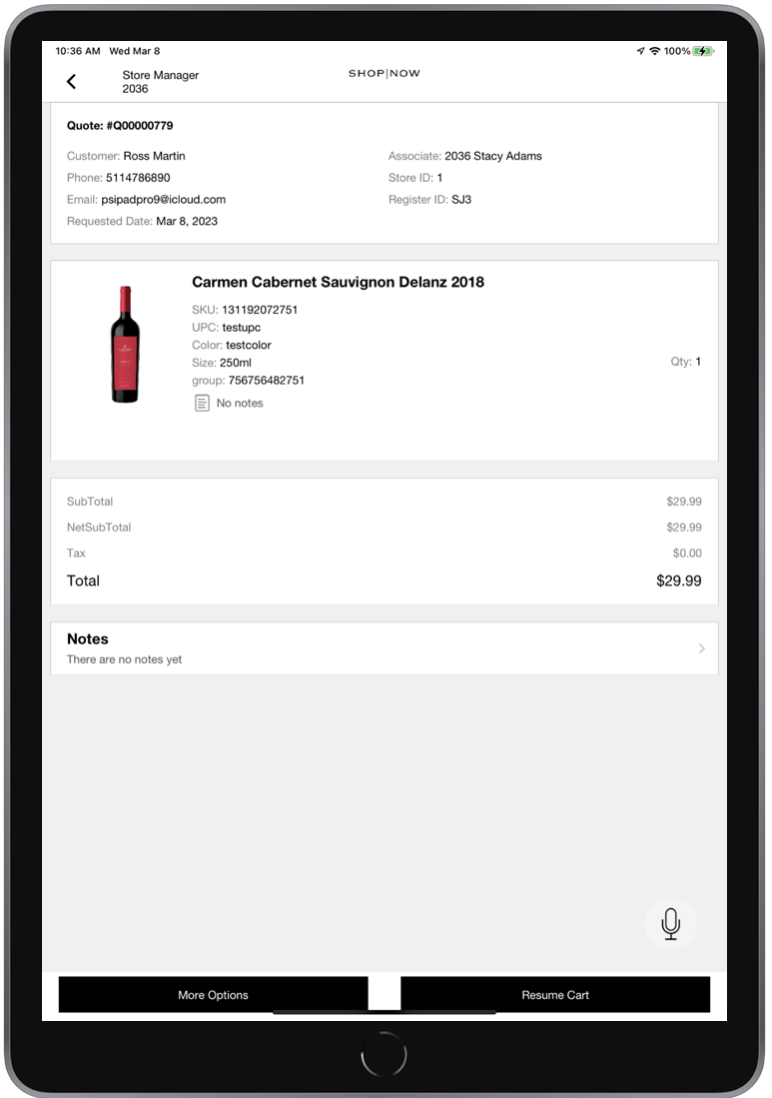
Once all the details are entered, tap Create. The app will make a server request to create the quote in the Point of Sale. Once the quote is created, the app will show the quote details and the saved cart will no longer be accessible from the saved carts screen.
Deleting Carts
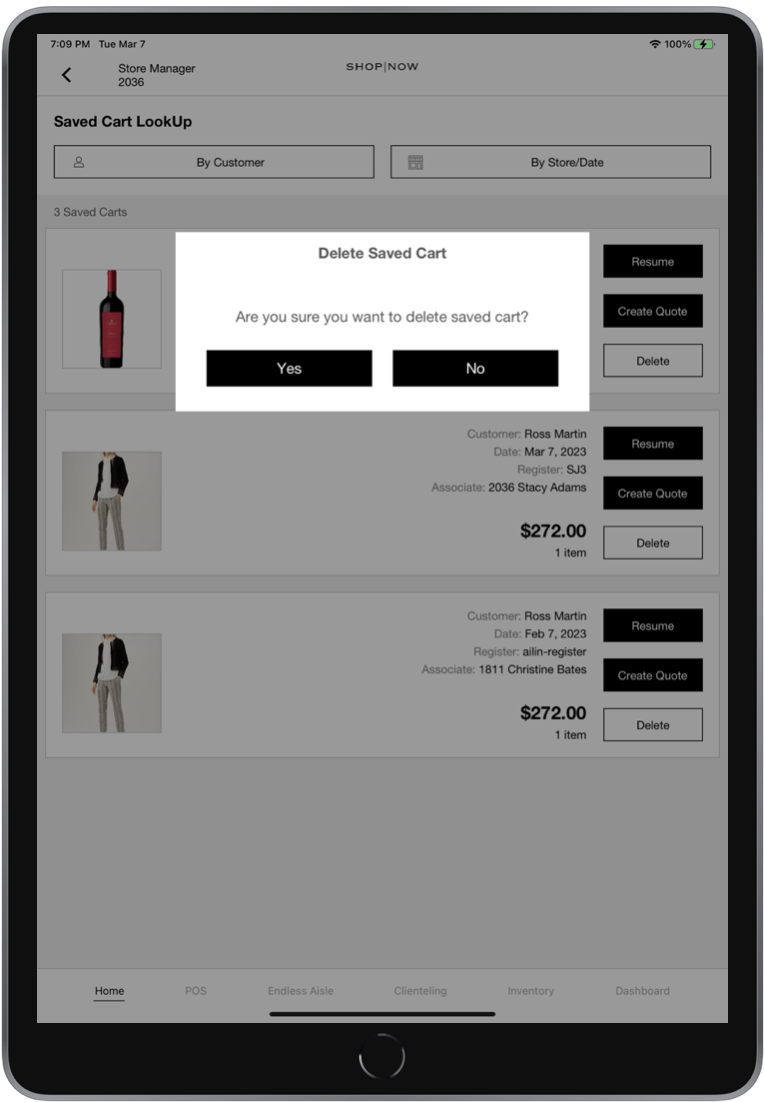
Delete a cart will delete the cart for the Point of Sale, making it no longer accessible to the user. When selecting the Delete option, a confirmation will be presented. After confirming, the cart will be deleted and will no longer be accessible.
Filtering Carts
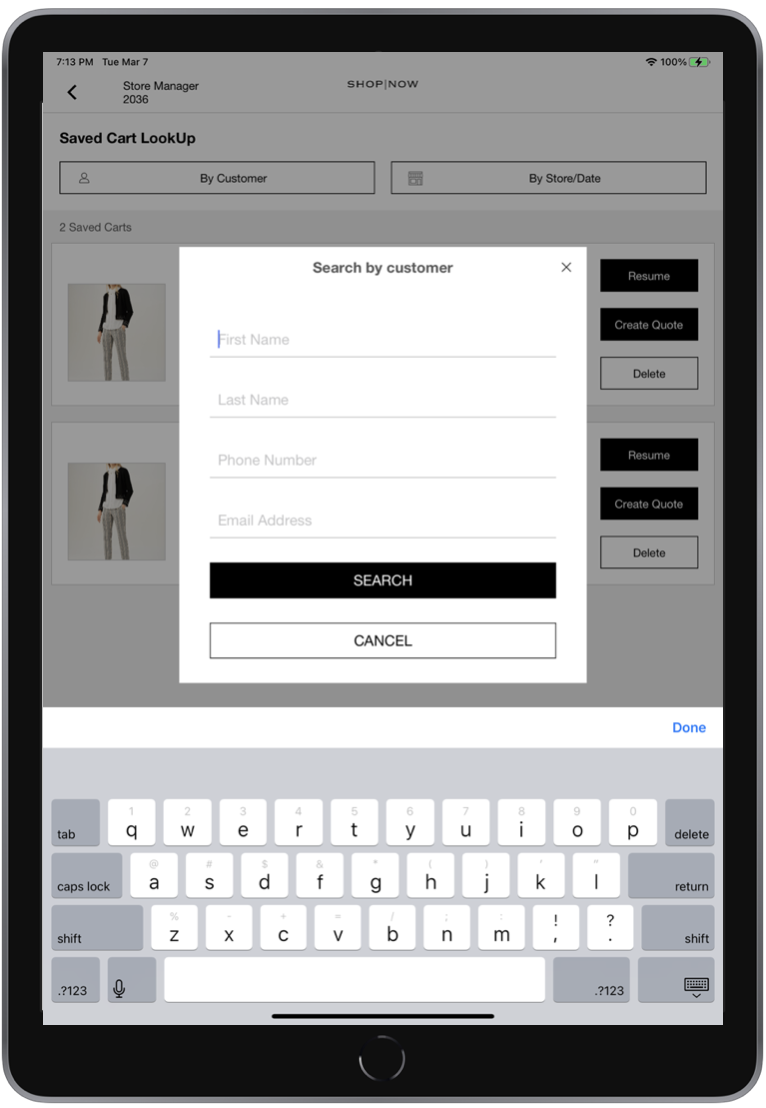
The cart listing provides filtering functionality based on different criteria. To filter the carts based on a particular customer, tap By Customer. This option will prompt a screen to enter the customer details for the filtering.
It is recommended to configure a search for one field with little ambiguity to yield the best and broadest results (i.e., last name, phone number, or email). If searching with multiple fields, it could yield a more accurate result however, the limited search could also render no results.
To filter based on more advanced criteria, tap By Store/Date, the options available are the following:
- Associate Identifier (defaults to current associate)
- Store Identifier (defaults to current store)
- Register ID (based on the selected store)
- Date Range (Today, Yesterday, past 3 days and past 7 days are available)
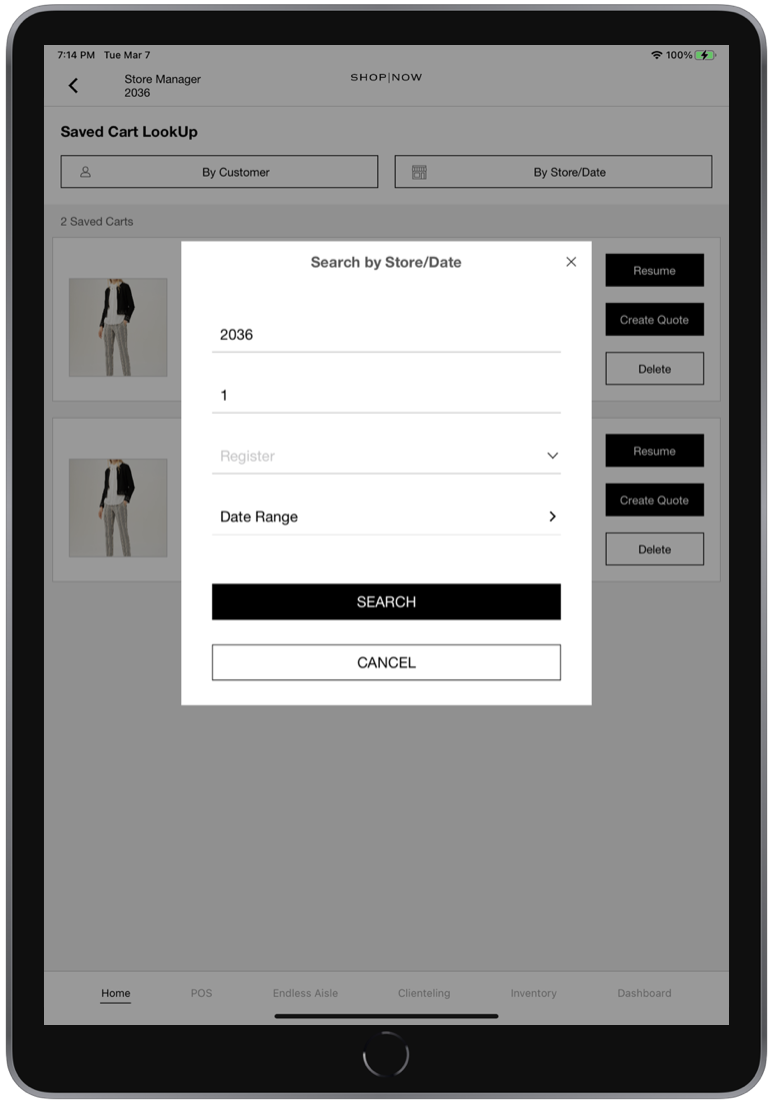
When entering the store ID, the app will attempt to fetch the registers associated with that store. For this functionality to work correctly, tap the Done button on the iPad keyboard, doing so will start the register fetching allowing the field to be populated properly. Once the fetch is completed, you can select a particular register from the store.
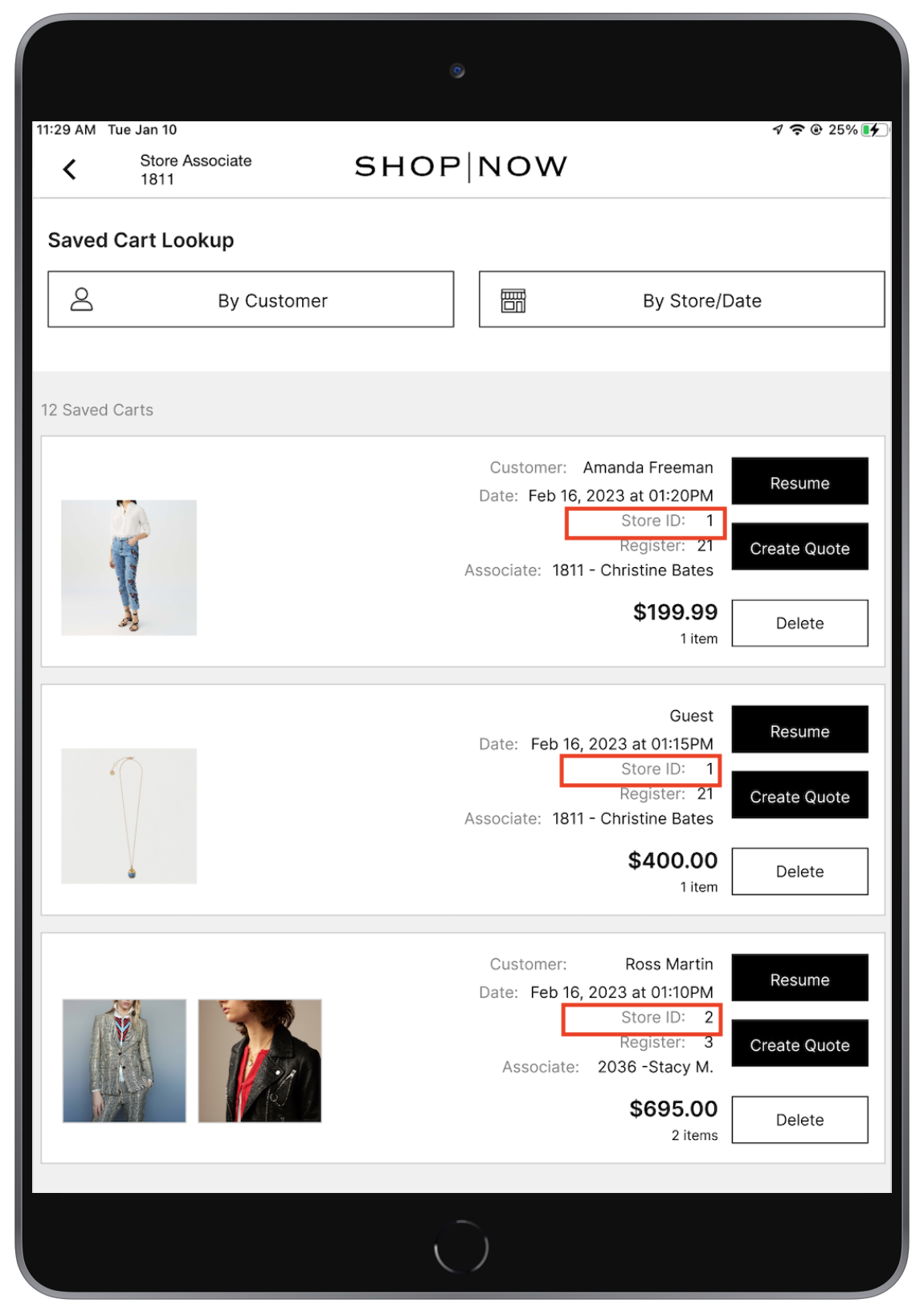
Known Issues & Restrictions
Once Payment Process Begins
The suspend cart functionality is available up until the associate begins the tendering process. Once the payment process has begun you cannot suspend a cart.
Double Resumes
Carts that have already been resumed cannot be resumed again. A message will display, "Cart is already Resumed".
Uniquely Identifiable Items (Serial Numbers or EPC Codes)
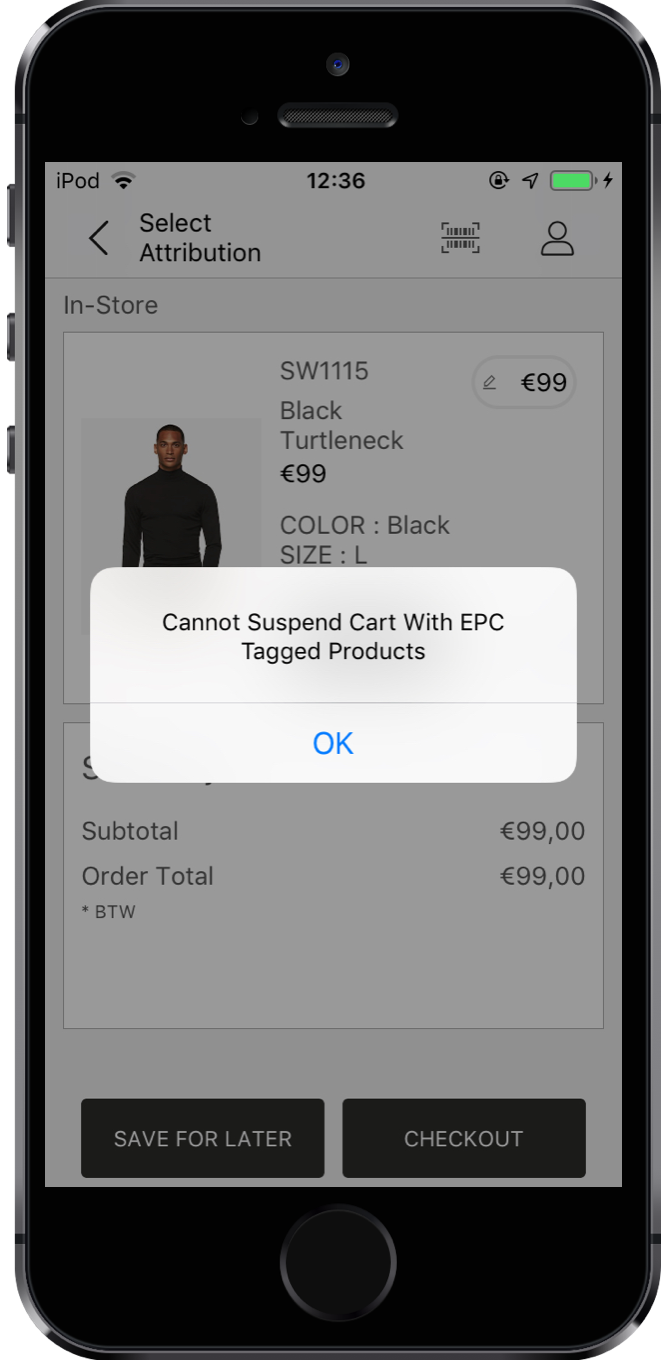
Carts containing items that are uniquely identified either with an EPC code or a serial number cannot be suspended with those items. Because these codes are references to real-world objects, they must be scanned whenever they are added add to the cart. Therefore, it is not practical to save them in a suspended state.
Phone Number Formatting Guidelines for Saved Cart Searches
When searching for saved carts by the customer, please enter the phone number without any special characters (i.e., 7814127899). Entering a number with formatting like parentheses or hyphens (e.g., (781) 412-7899) may yield inaccurate results.
Optimal Performance and Order Size Limitation
The POS is tested and optimized for 100 lines in a single order (can be >100 items if quantity picker is used). Much larger orders may impact POS performance.
Billing Address Defaults to Shipping Address When You Resume a Cart
When you resume a cart that doesn’t have a billing address, the POS automatically uses the shipping address as the billing address.