
Point of Sale's Purchase Order (PO) features enable merchants to manage inventory, track purchases, and arrange timely delivery of goods. They provide a record of transactions and help streamline the procurement process by outlining the terms and conditions of the purchase. Merchants may use POs to communicate their specific requirements to suppliers, including product details, delivery dates, and pricing agreements.
- Modern POS App Build: 7.15.5 or above
- Platform Support: iPad, iPhone
- Offline Support: None
Set Up
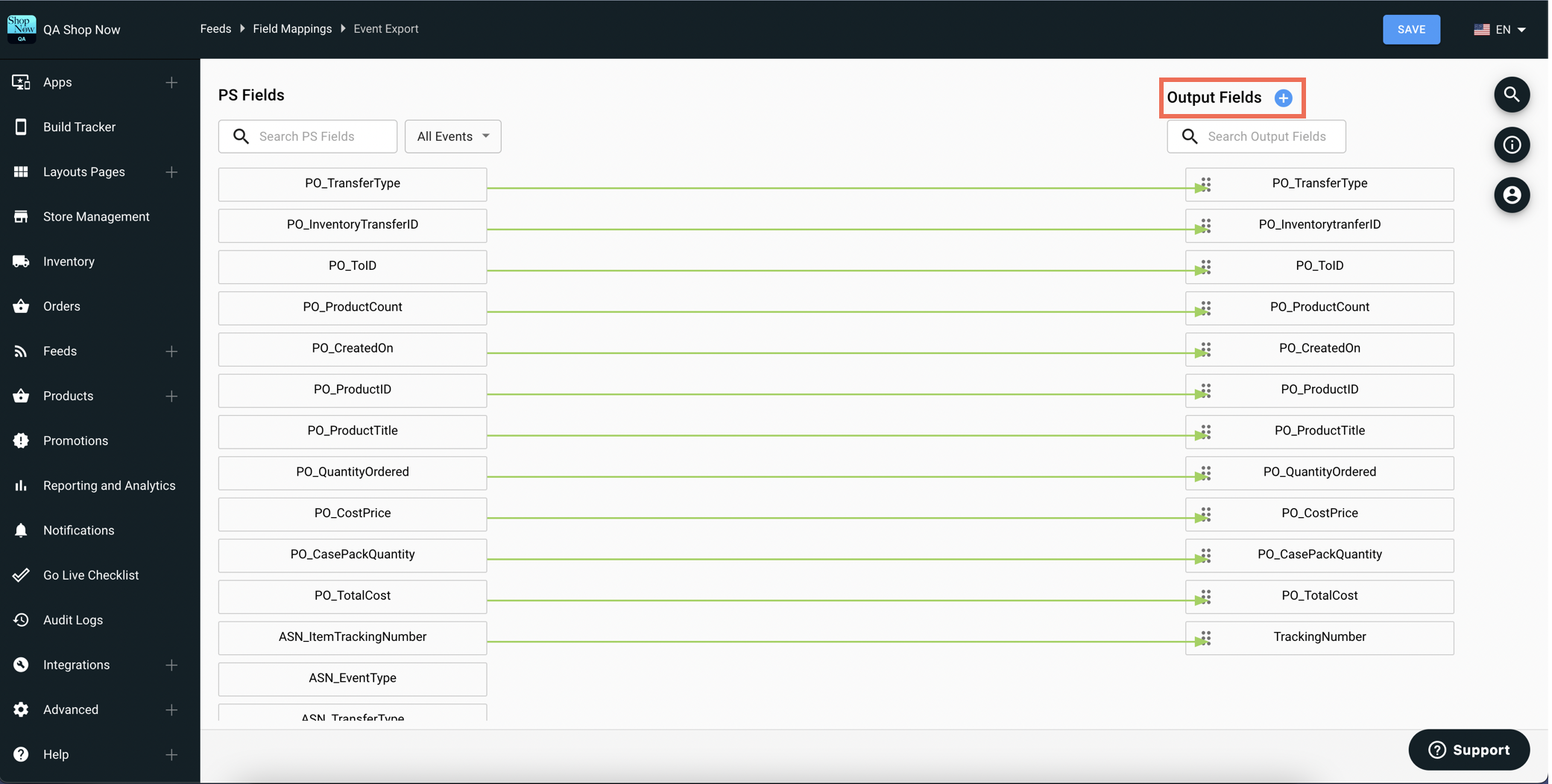
For POs, CMS controls the field mapping for product uploading, PO recommendations, and export jobs.
Enable Purchase Order
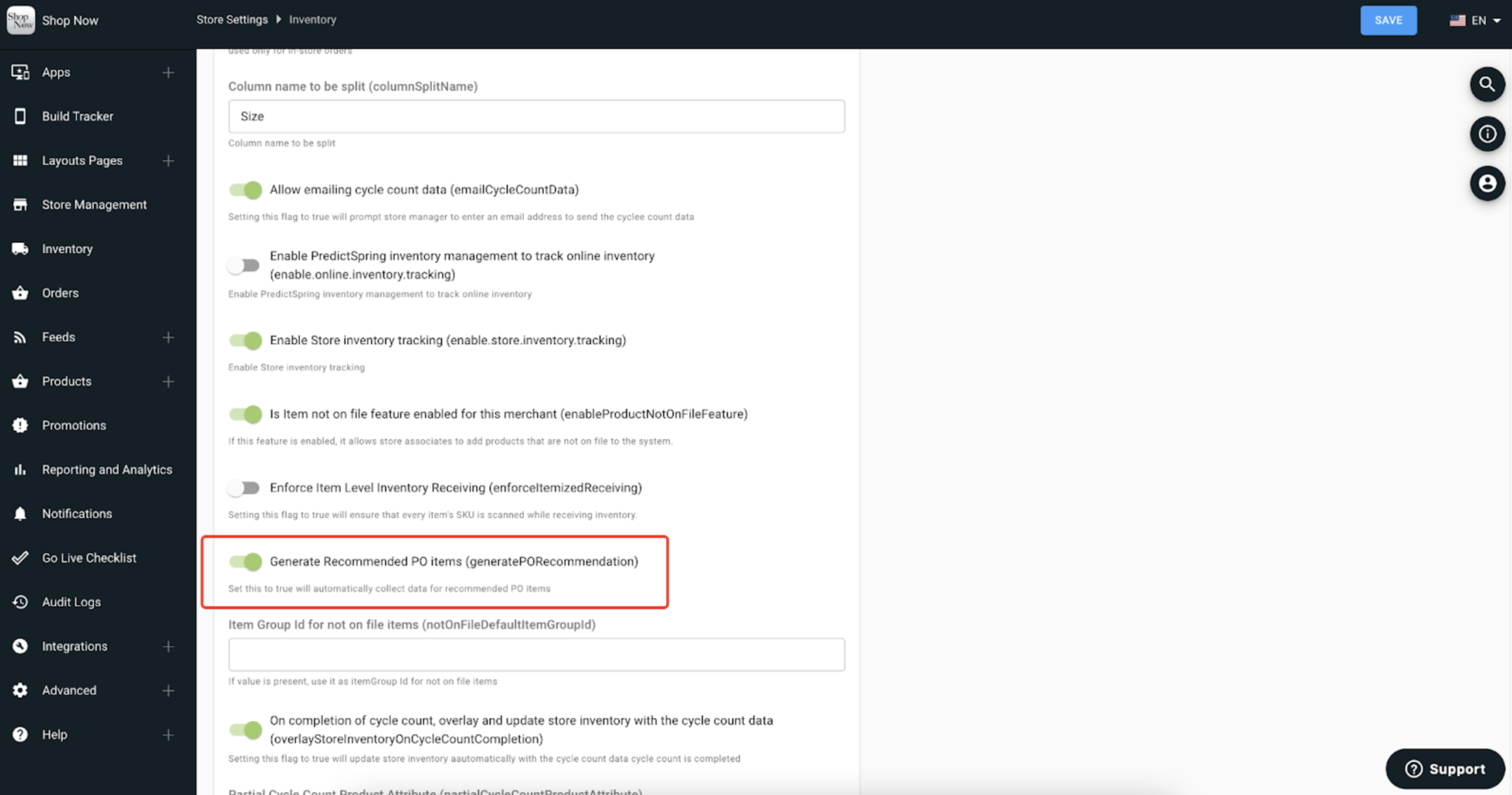
To enable PO, ensure that the Generate Recommended PO items toggle is enabled.
- Go to .
- Click Store Settings.
- Click Inventory.
-
Make sure Generate Recommended PO items (generatePORecommendation) is toggled ON.
Upload Product Files with CostPrice and CasePackQuantity and Update Field Mappings
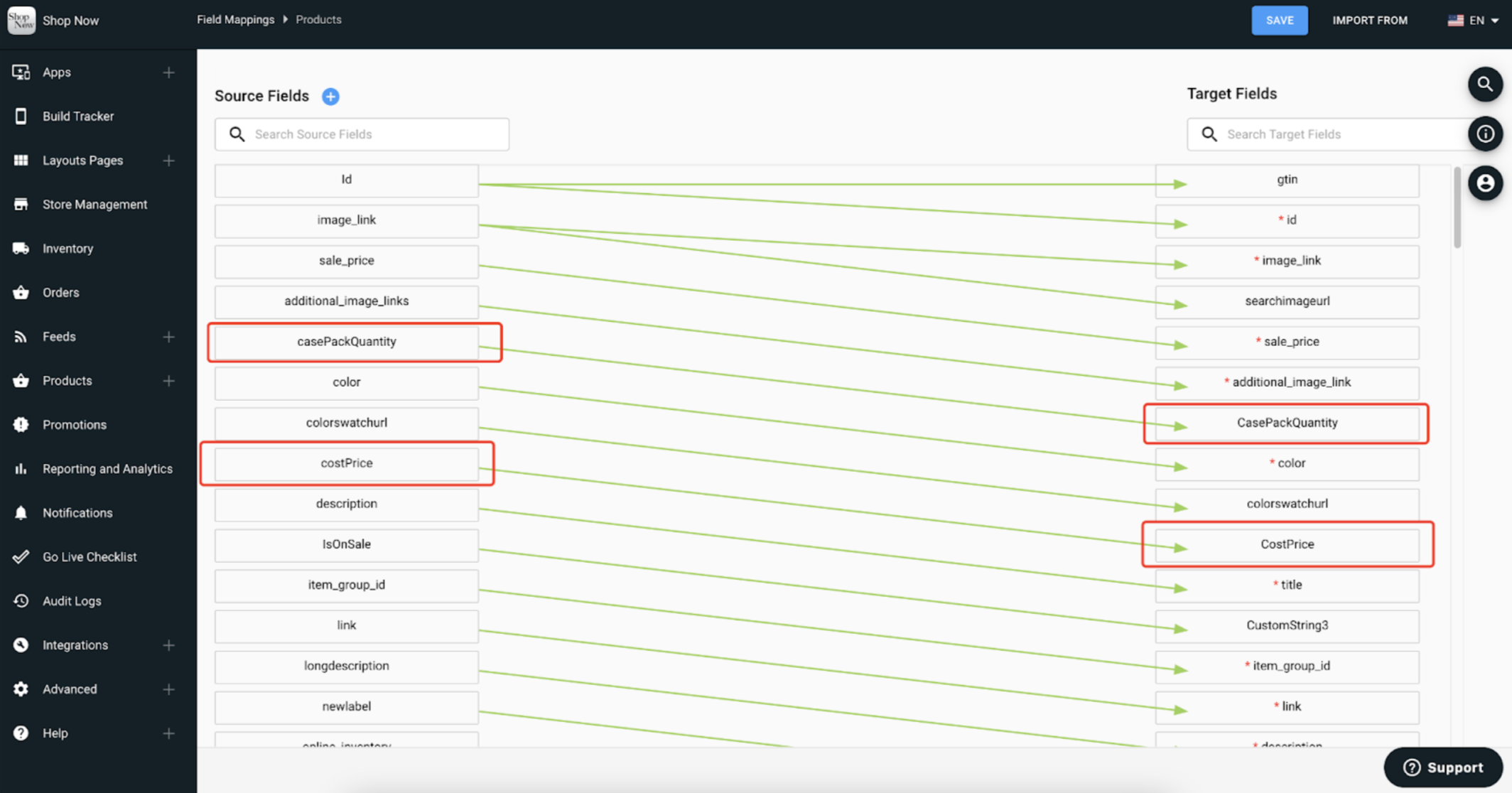
Ensure you have the correct product files that contain two purchase order-related fields (CostPrice and CasePackQuantity). Then, update the field mappings by following the below steps:
- Go to .
- Select Field Mappings.
- Click Products.
- Click Source Fields +.
-
Select Add Field Manually, mapping new fields to CostPrice and
CasePackQuantity.
- Click SAVE.

Set Purchase Order Export Rule
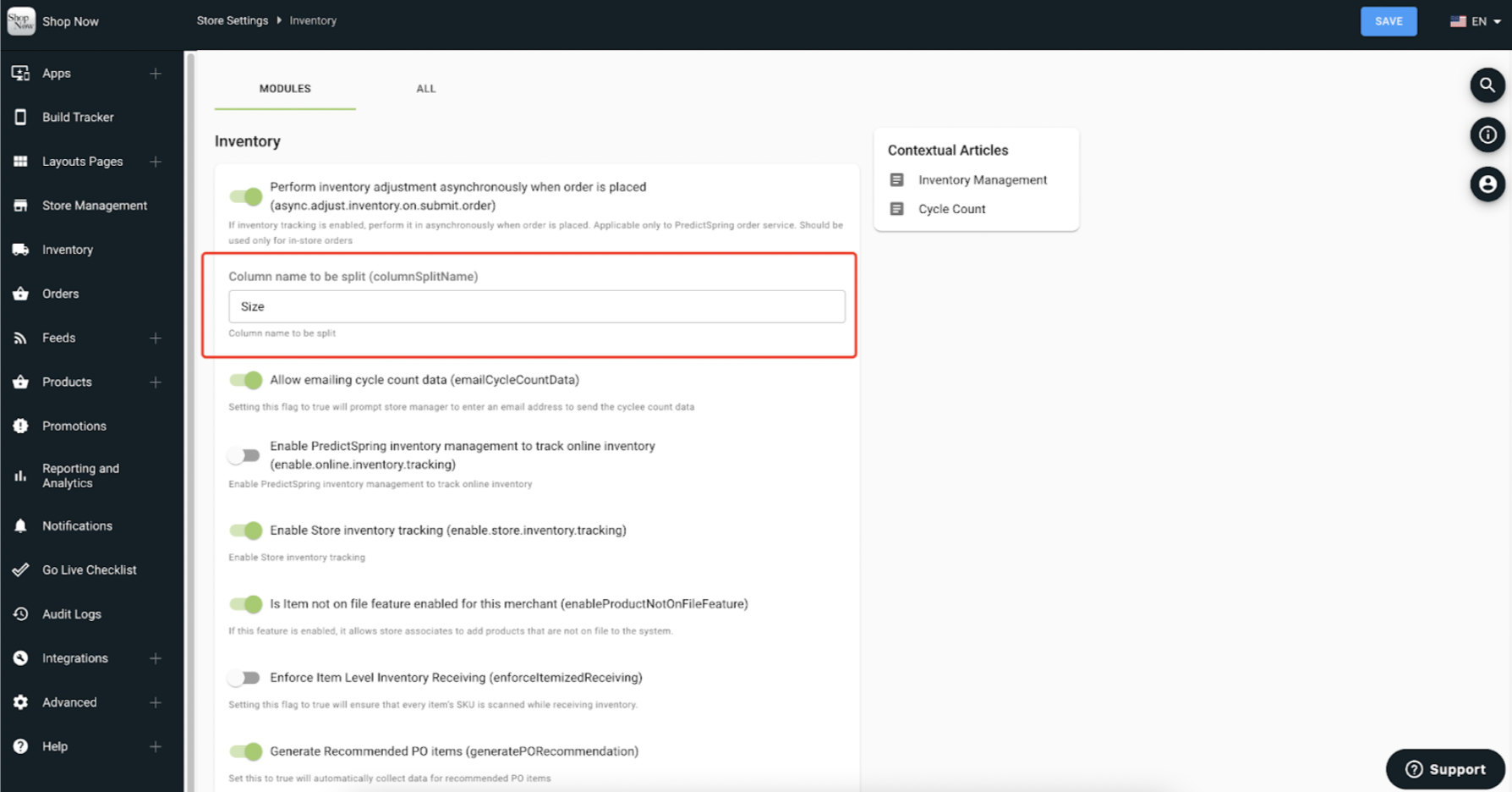
Setting the export rule on CMS will help you get well-grouped export files based on the rule you set. The rule could be anything from the Target Field, such as Size, Brand, Color, etc. For example, if you set the export rule to Size, the exported purchase order files will be grouped by size specific.
- In the CMS, go to Store Management.
- Click Store Settings.
- Click Inventory.
-
Enter the field name (your rule) in Column name to be split
(columnSplitName).
- Click Save.
Set Purchase Order Export Job
After configuring the export rule (columnSplitName), you will need to create a new export job to export the purchase order into files. Please use File Transport Protocol (FTP) / Secure File Transfer Protocol (SFTP) to get the exported files.
- In the CMS, go to Feeds.
- Select Export Jobs.
- Click + to create an export job.
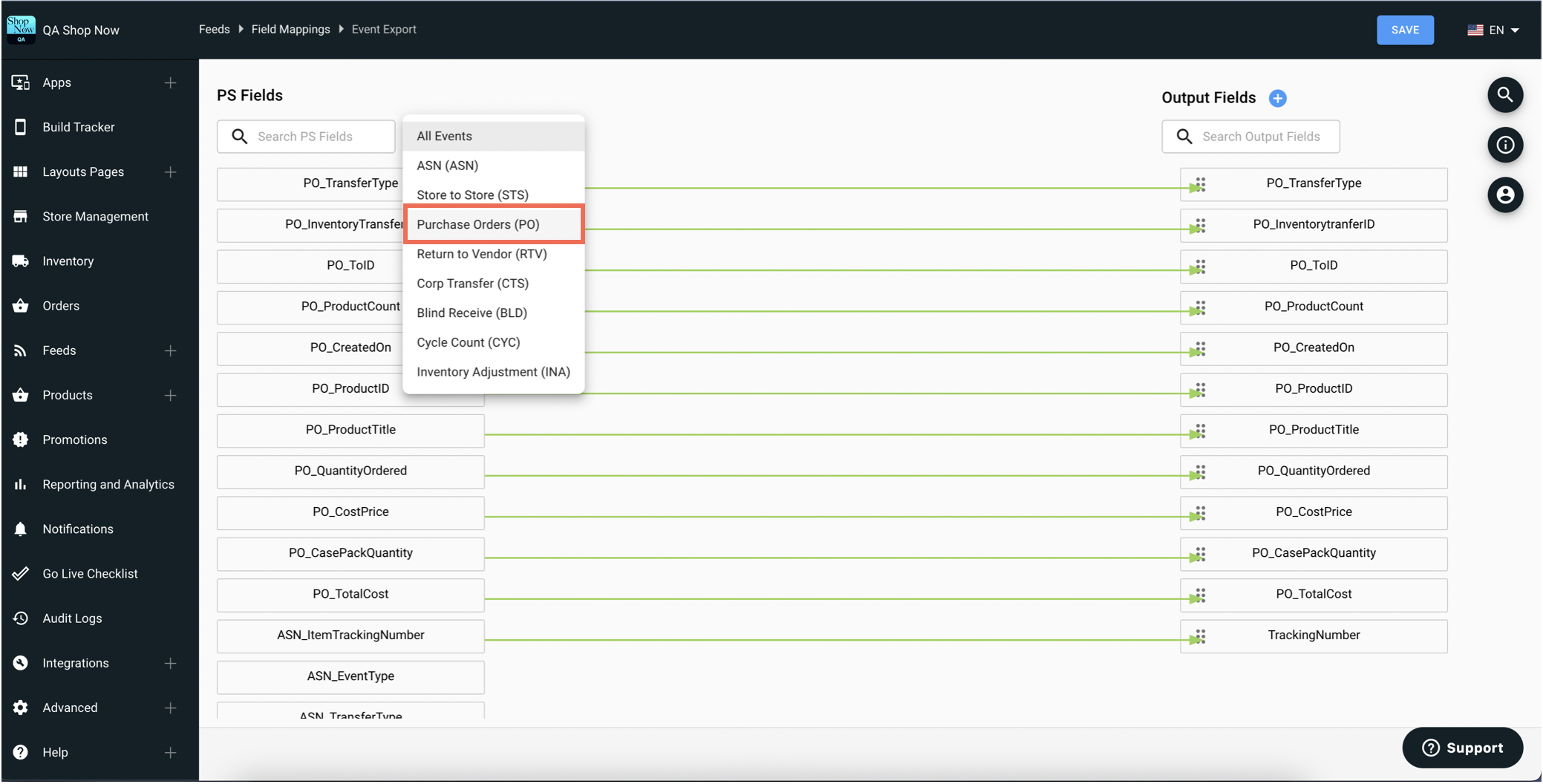
- Select Inventory Event Export.
- Fill in the Title.
- In the Events dropdown list, select PO_TRANSFER_COMPLETED_EVENT.
- Select FTP in Protocol.
- Fill Export Destination URL with ftp://predictspring.exavault.com.
- Fill Username and Password.
- Fill Folder, Export File Type, Filename, and File Name Suffix.
- Set Max Tries as 5.
- Click Save.
Use these settings as an example.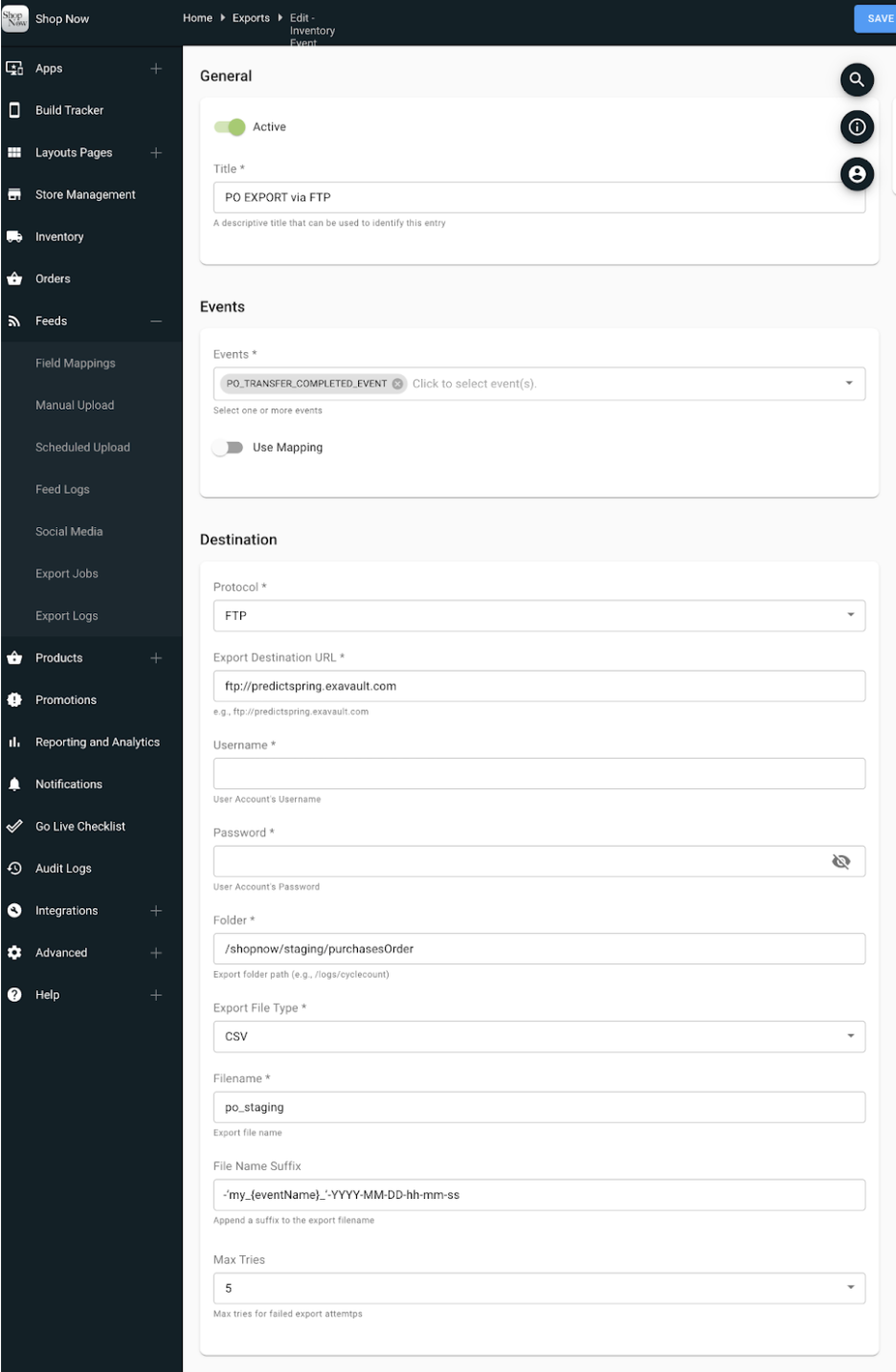
POS Behavior
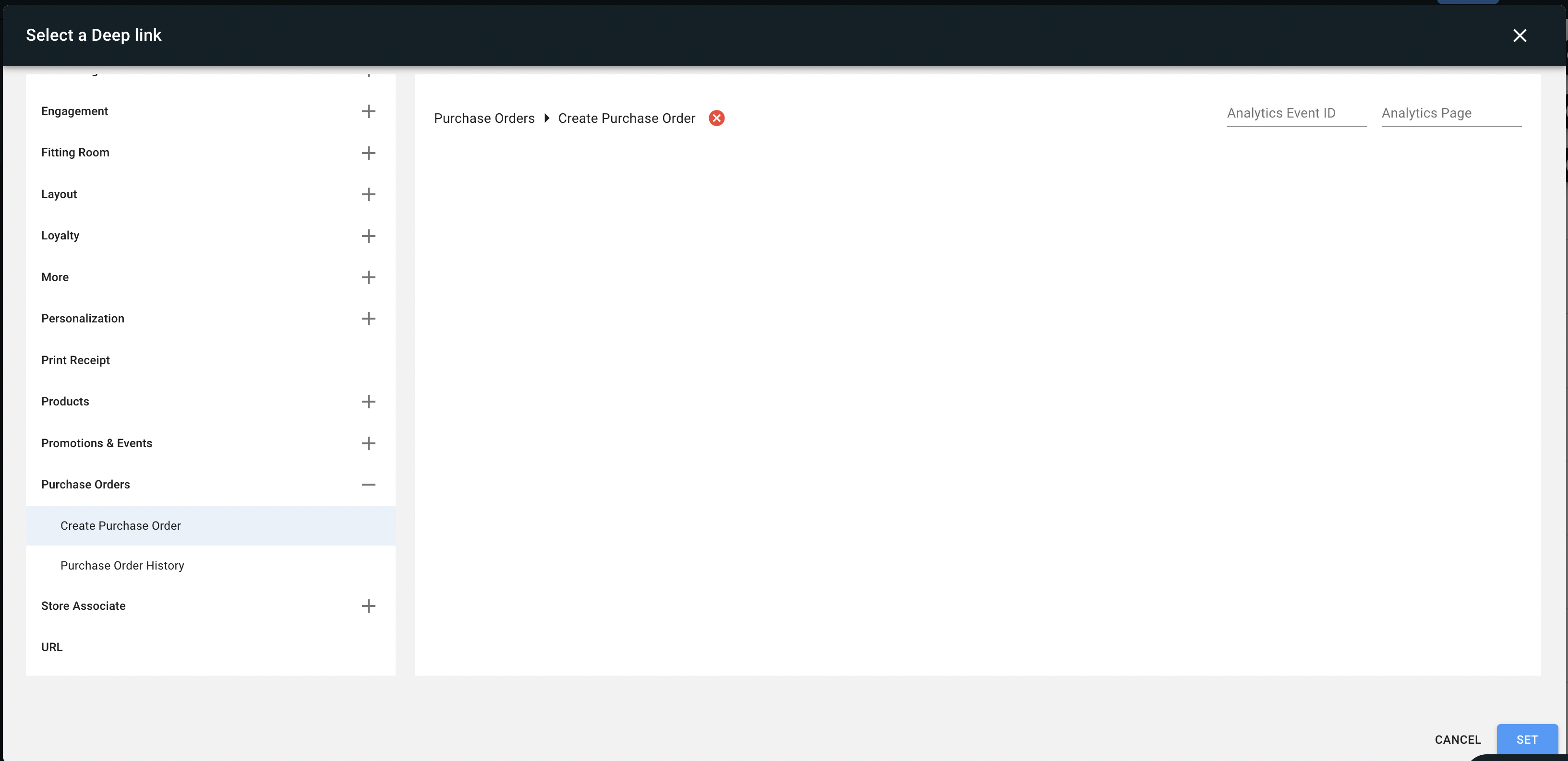
Click the Create Purchase Order deep link. We should see this screen with the Recommended Products radio button selected by default and there should be an option of changing the radio button to Manual.
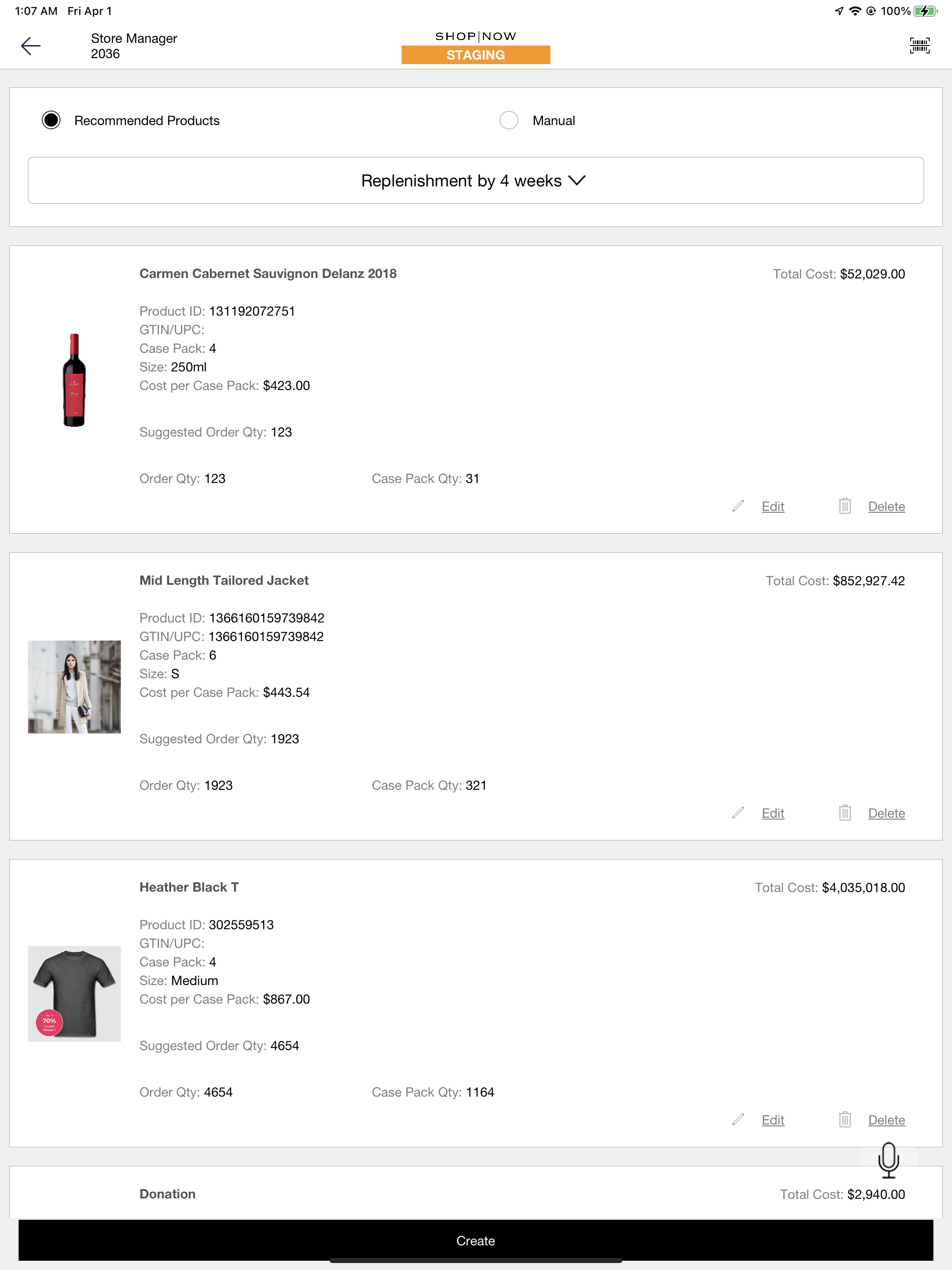
Select the Recommended section and by default, the first dropdown value will be selected e.g. 1 week. Currently, the dropdown has preselected values i.e., 1, 2, 3, and 4 week(s).
Depending on the week selected from the dropdown, we will get the recommended products to select for creating a purchase order as seen in the above screenshot.
Click the first-time Manual radio button. It will be an empty product list as seen in the below screenshot.
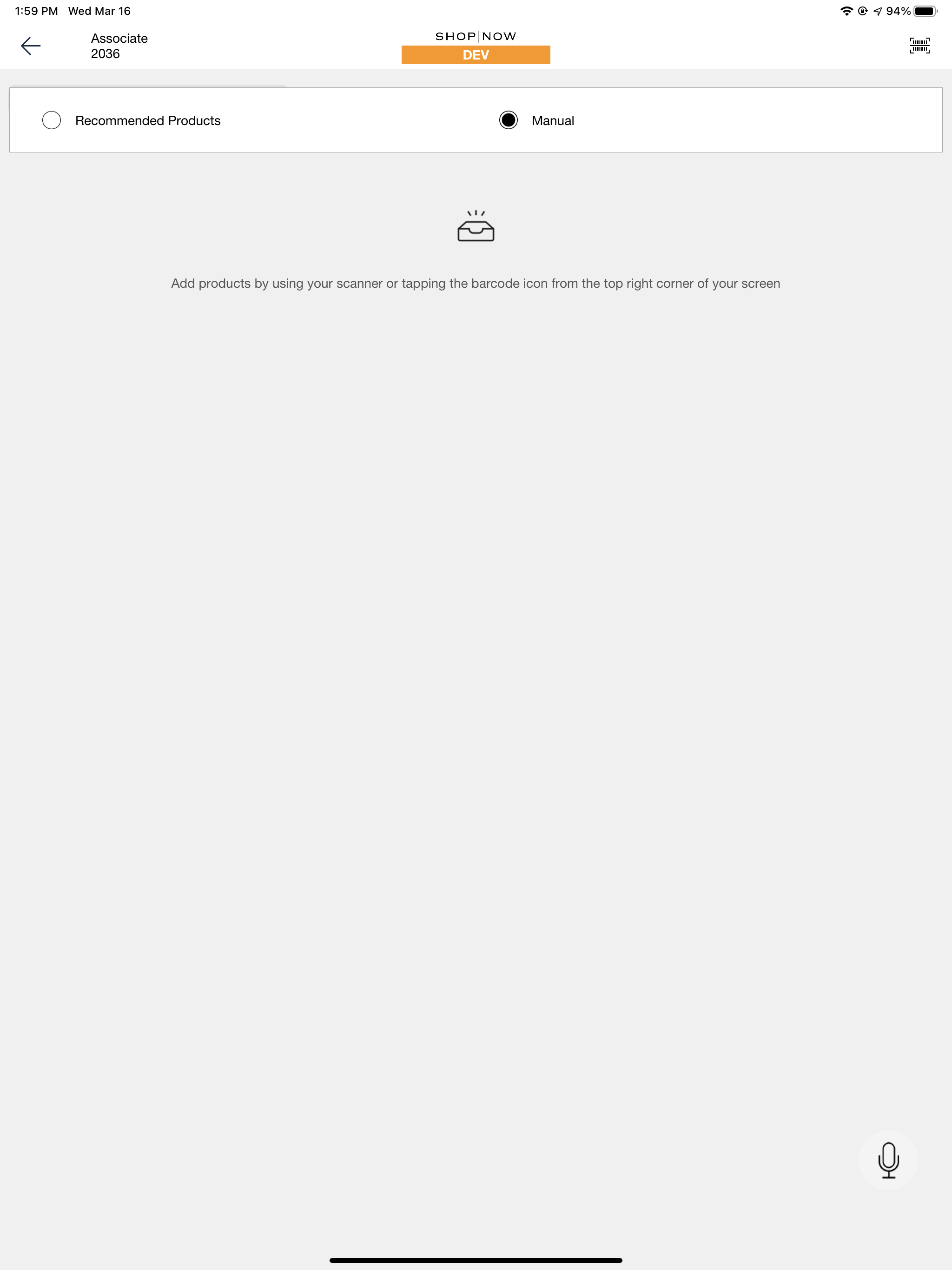
There is a scan button on the top right of the screen where the user can either add a product to the Recommended or Manual section either by scanning or searching for a product from the product list. If manually searching, the product catalog will display, allowing users to search for items by entering text. Alternatively, using an external scanner will populate the search field with the product's barcode value.
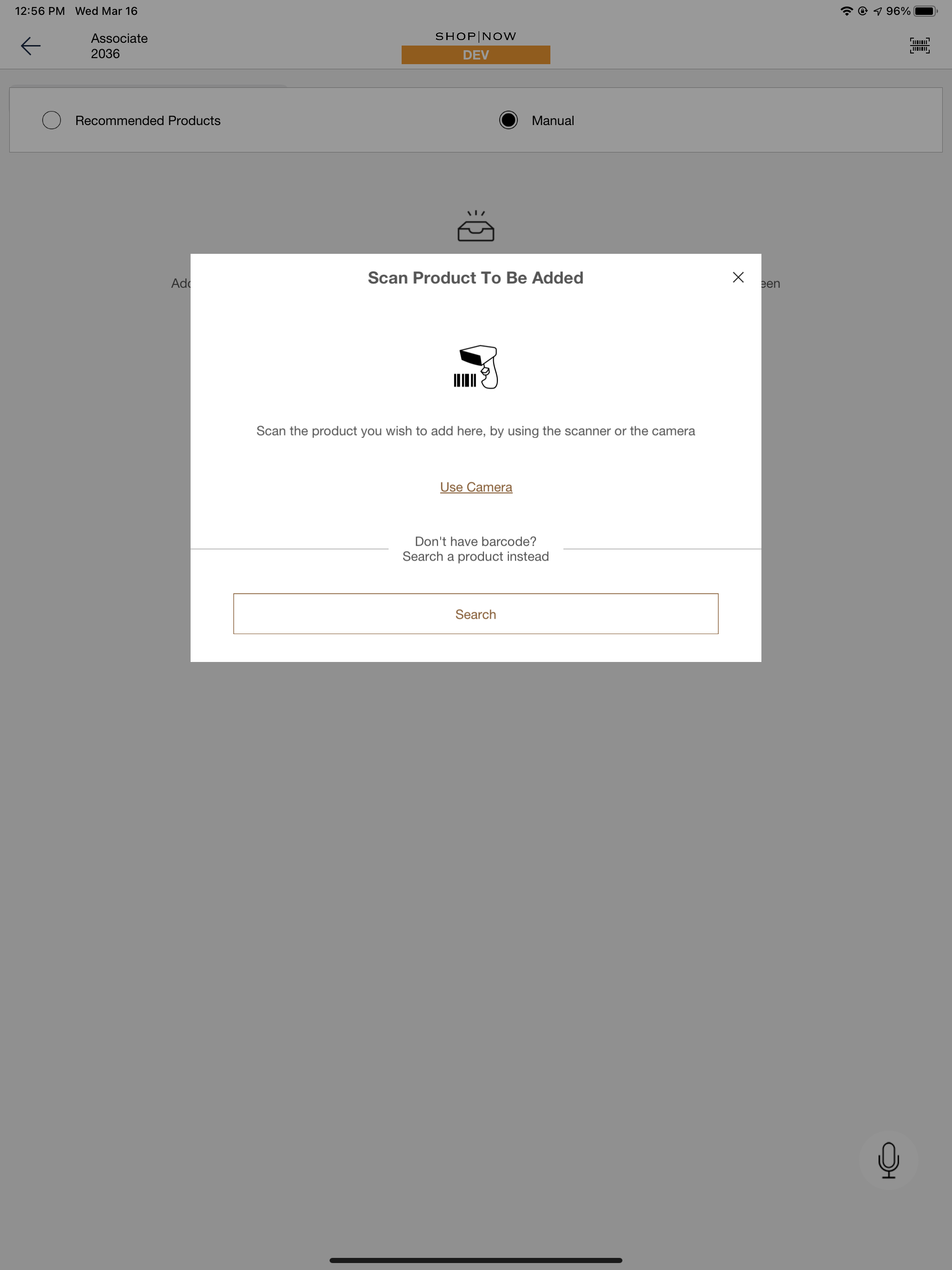
When you click on a product from the product list, a new screen will prompt you to enter the quantity you want to add to the product.
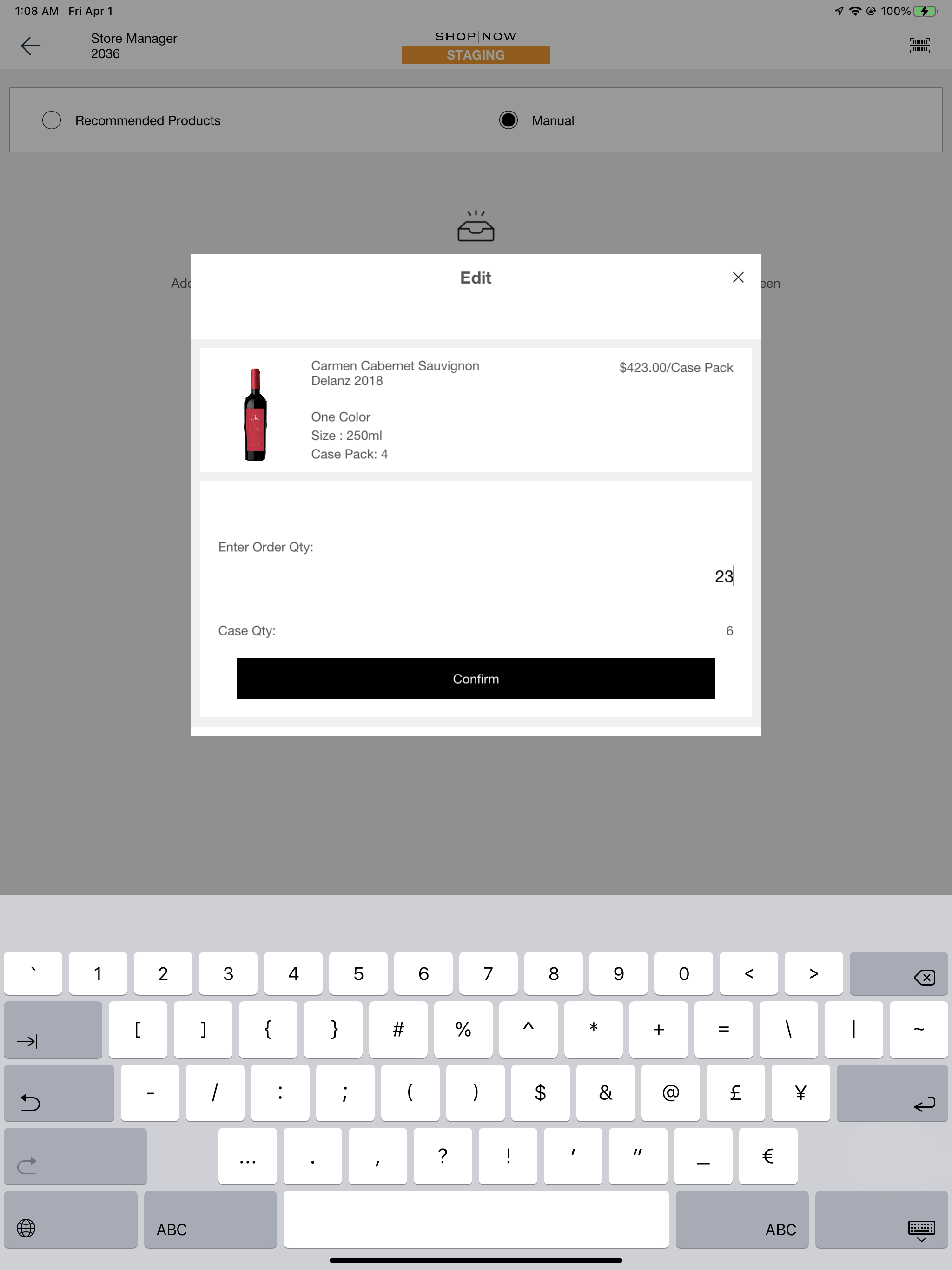
We show extra details i.e., Volume (weekly), Available, On Order, Suggested Order Quantity, etc. (if available) in the pop-up shown in the above screenshot.
After clicking on the confirm button, the product should be shown in the respective section. Please refer to the below screenshot as an example.
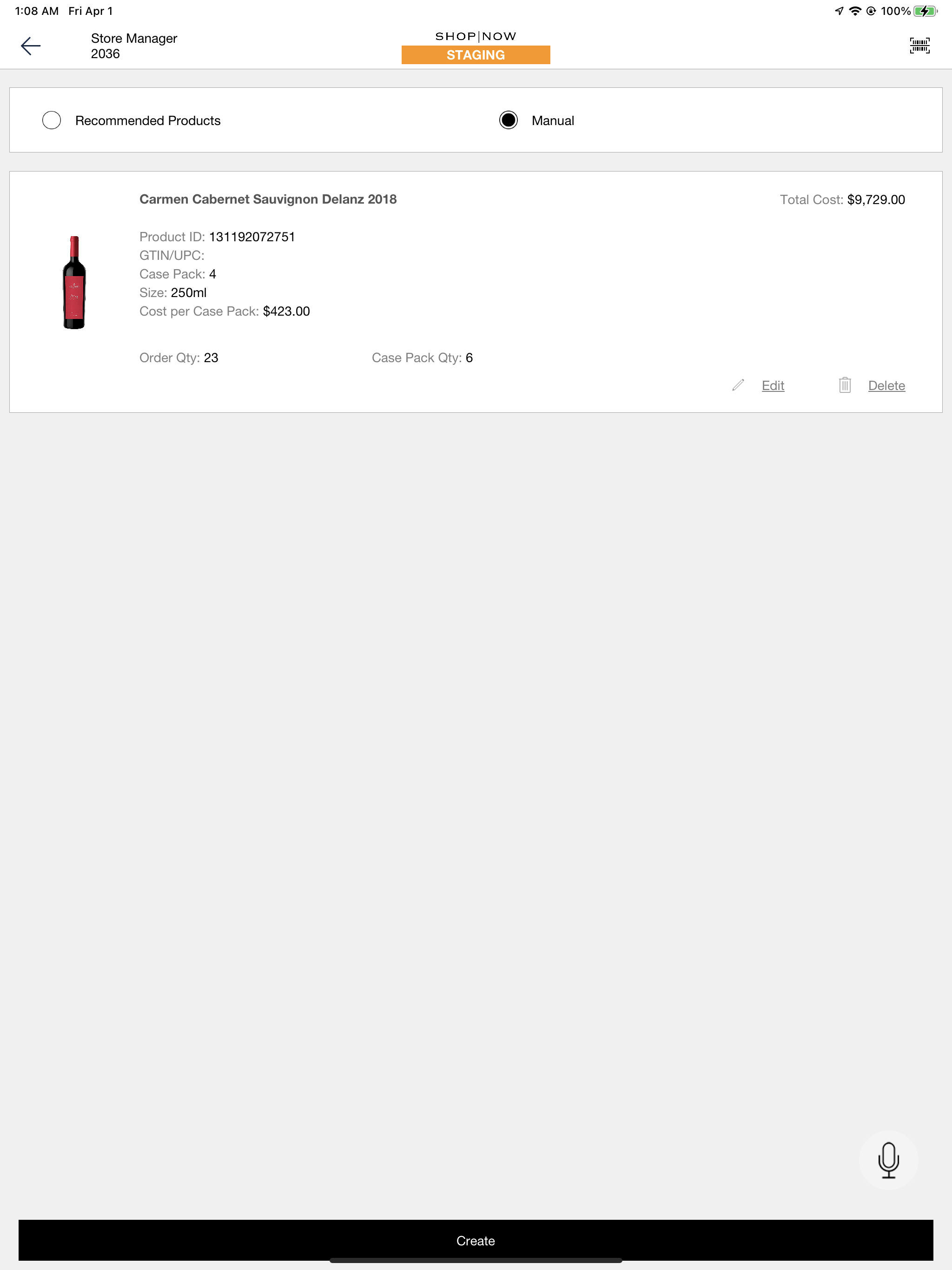
There are two options available for each product on the list:
- Edit gives an ability to edit order quantity for the selected product.
- Delete gives an ability to delete the product from the list.
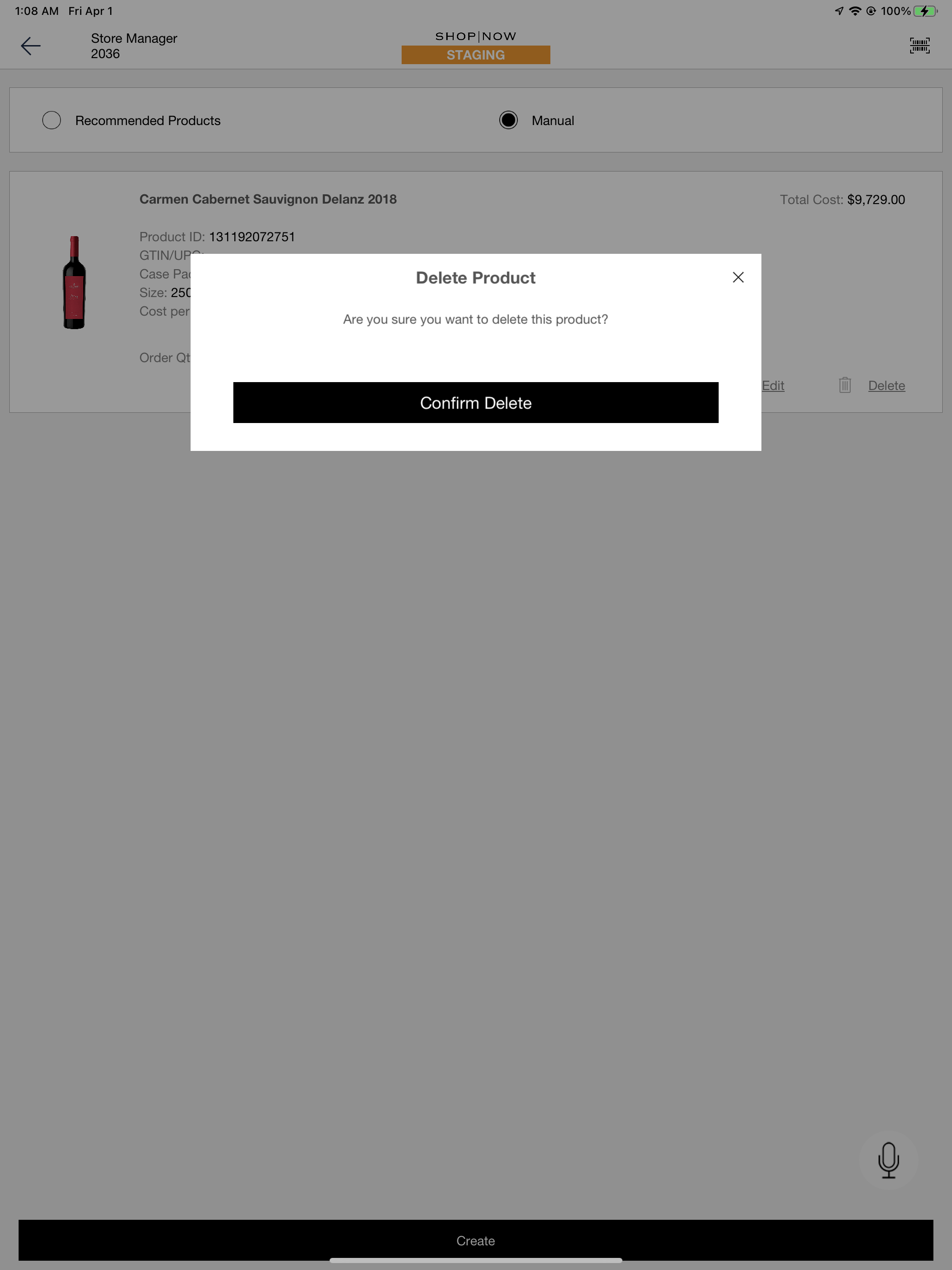
Important: Switching between sections will lose all the changes made to the respective section product list.
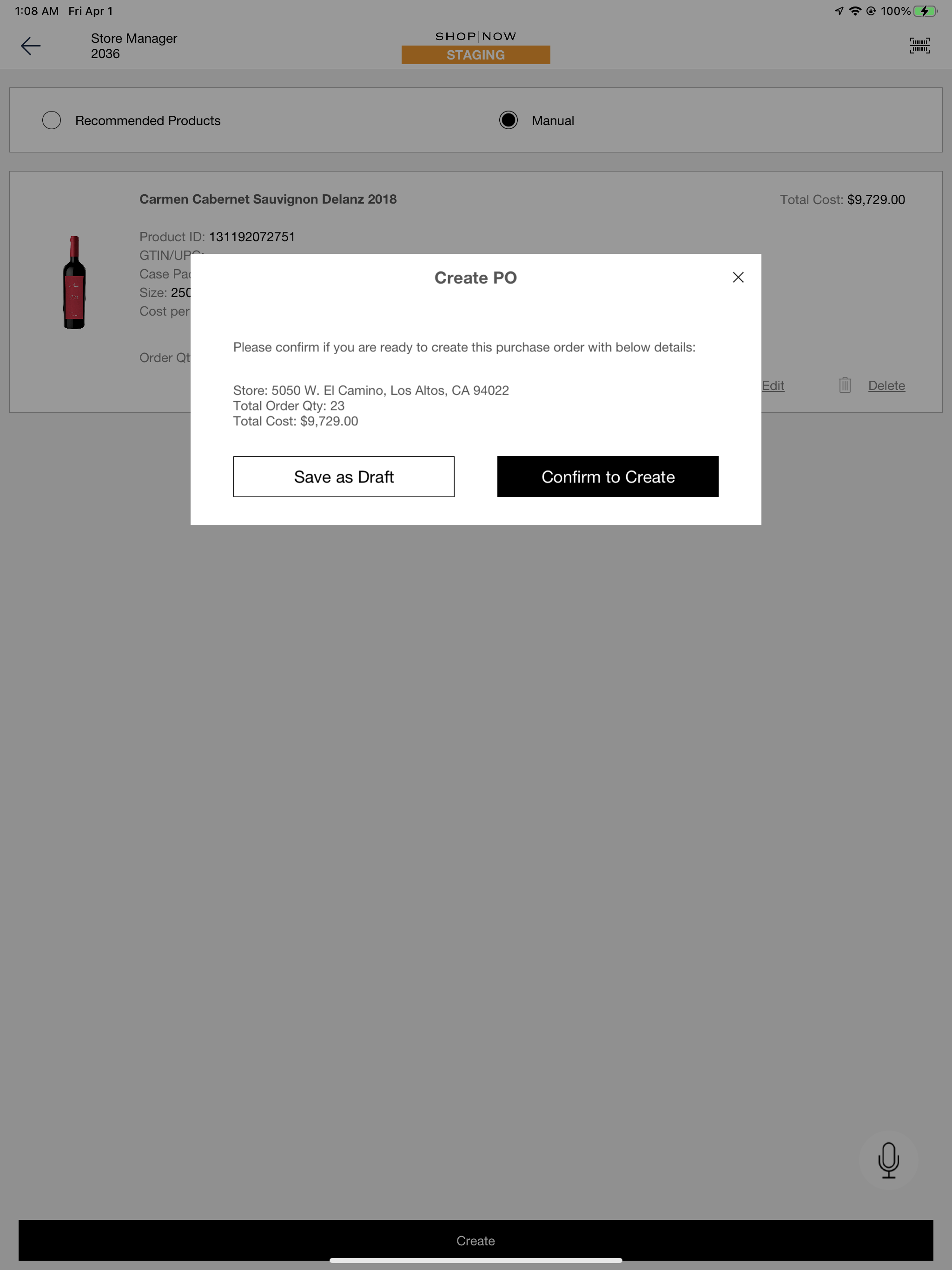
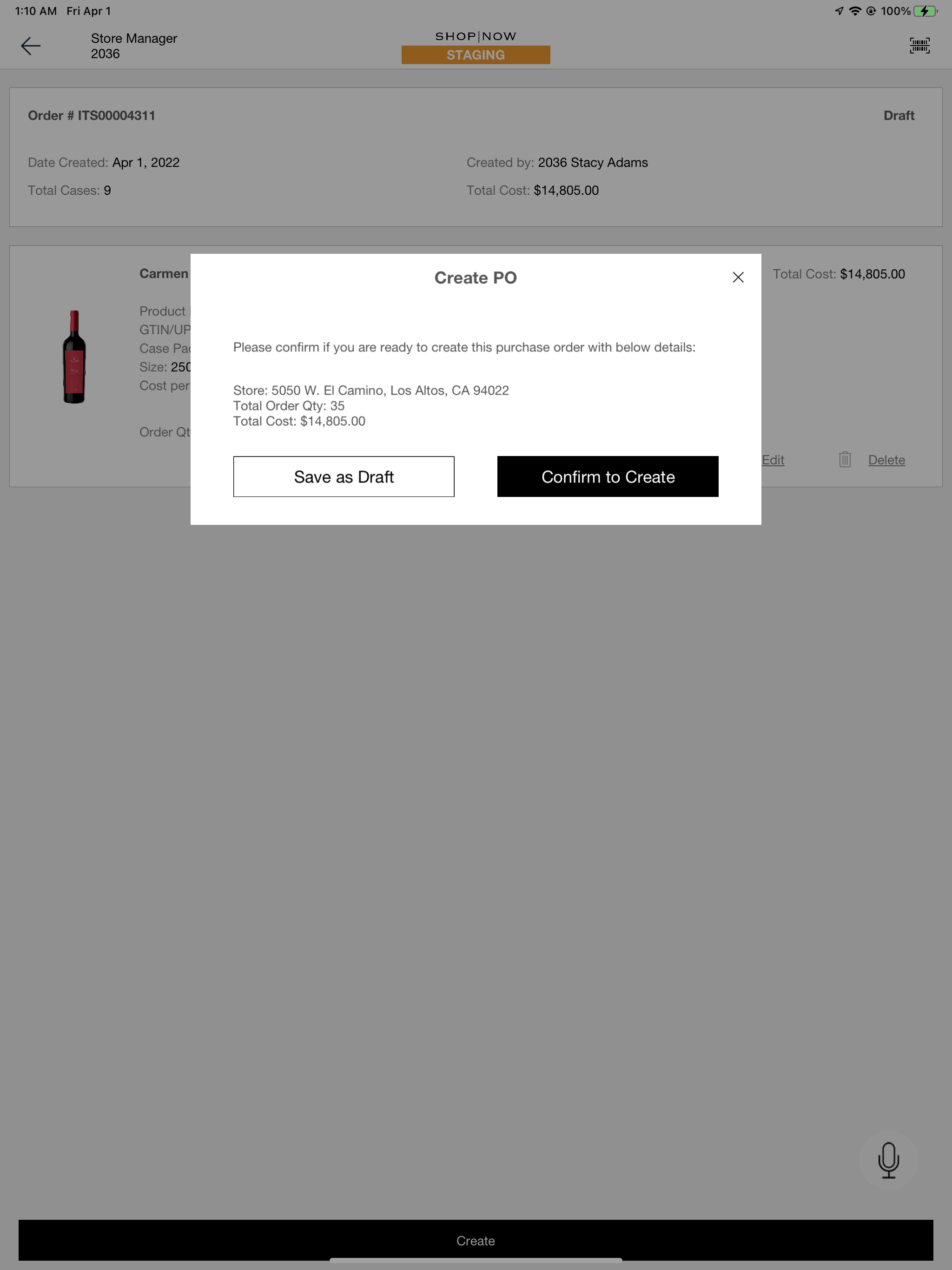
On clicking the Create button, there are two options available:
- Save as Draft - You can save the changes as a Draft from either section and they can check this order in history if they still want to create a purchase order.
- Confirm to Create - You can create a purchase order from either section.
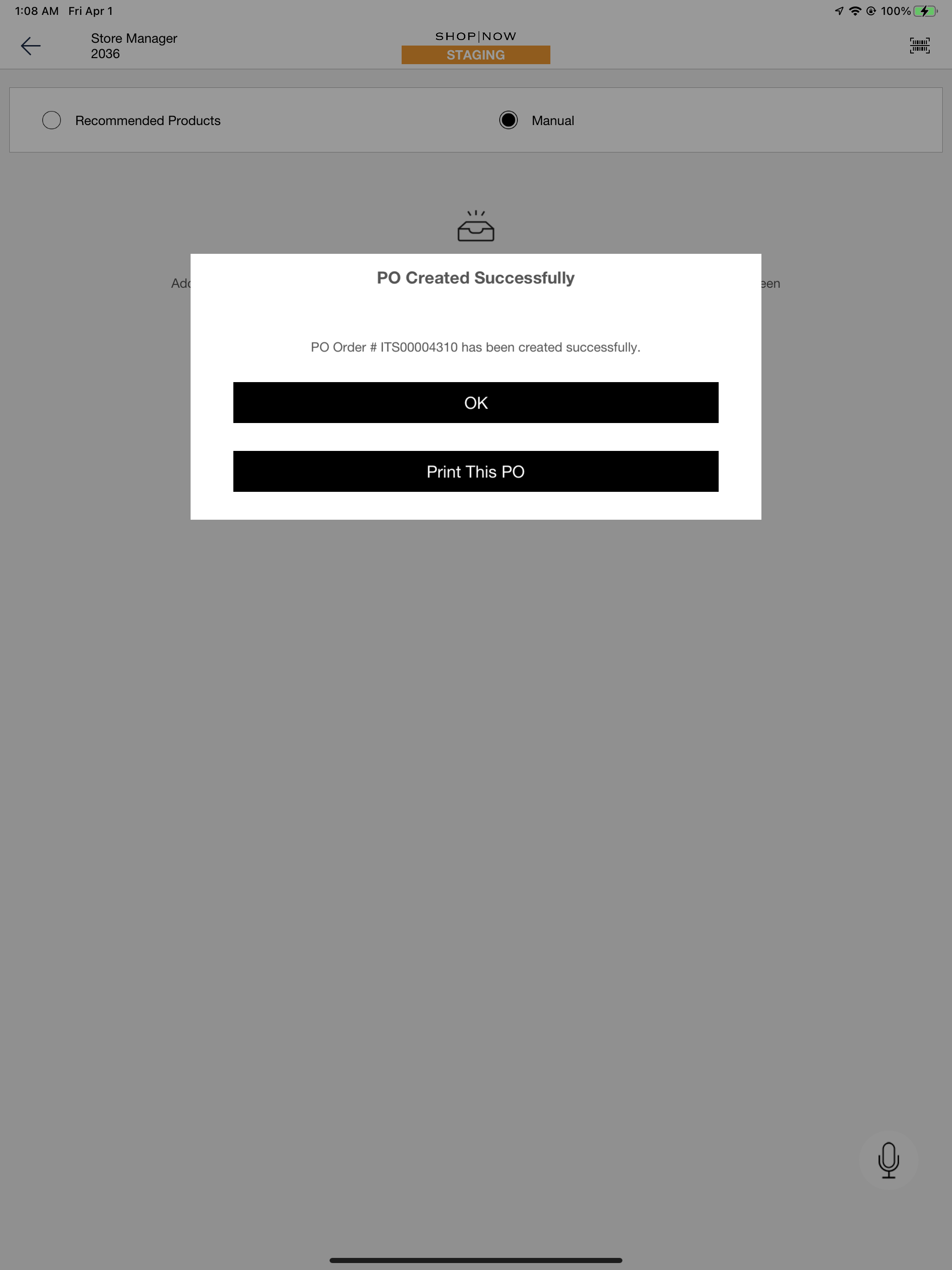
You can check all the purchase orders from the Purchase Order History screen with Draft and Created status.
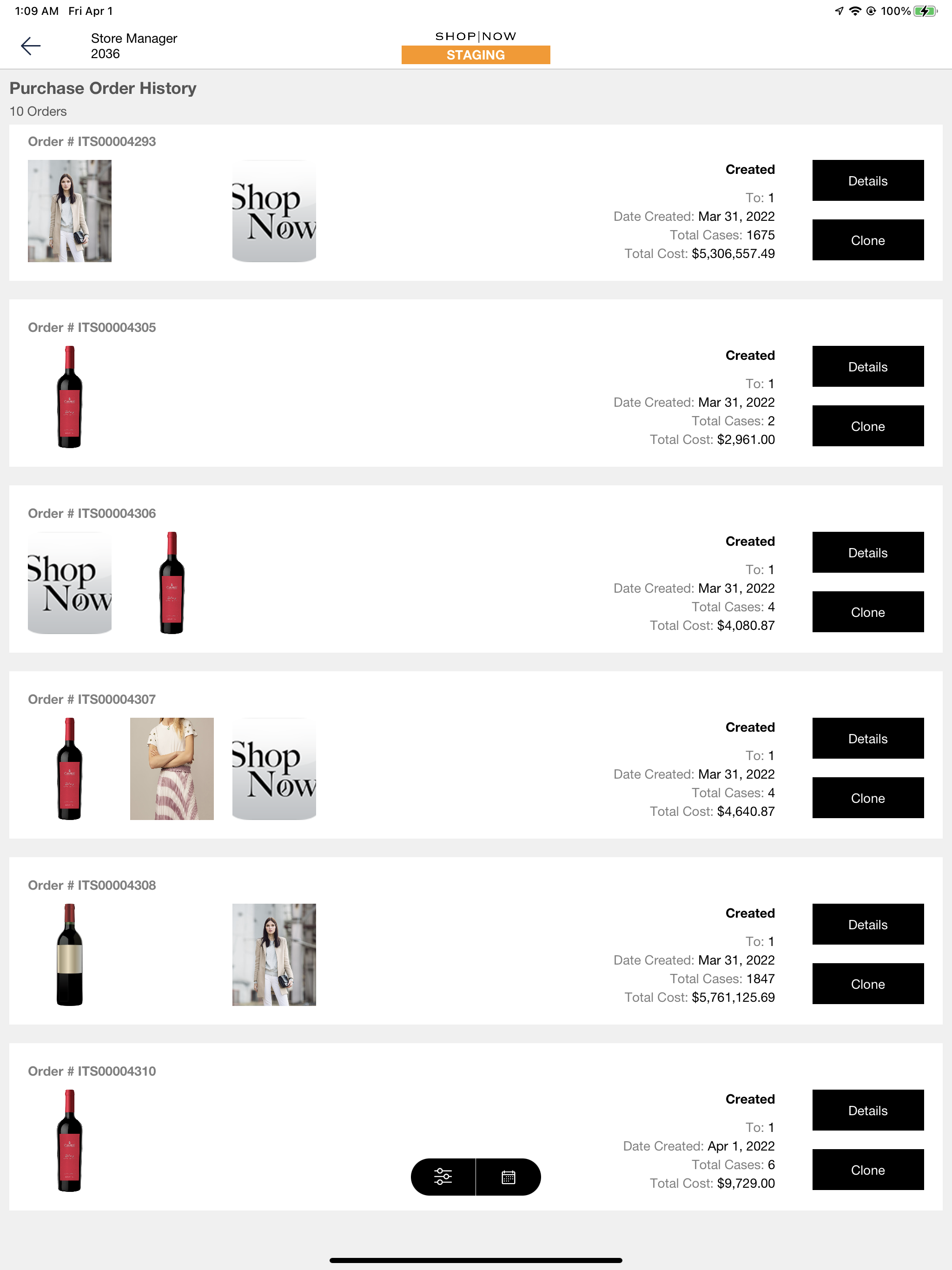
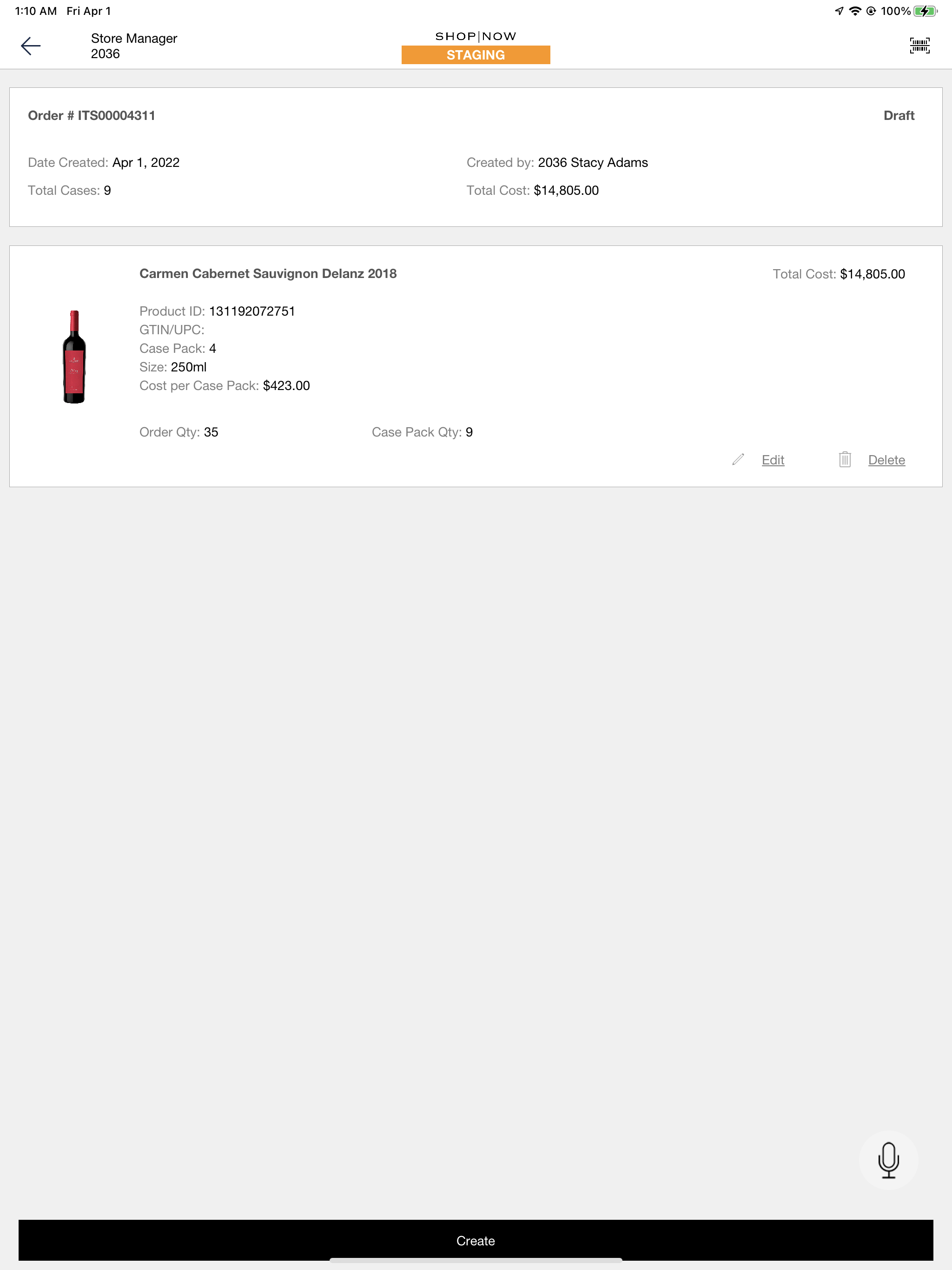
An order with the Draft status has a Details button where the purchase order details screen is displayed. Here, you can still generate a purchase order or update the product list.
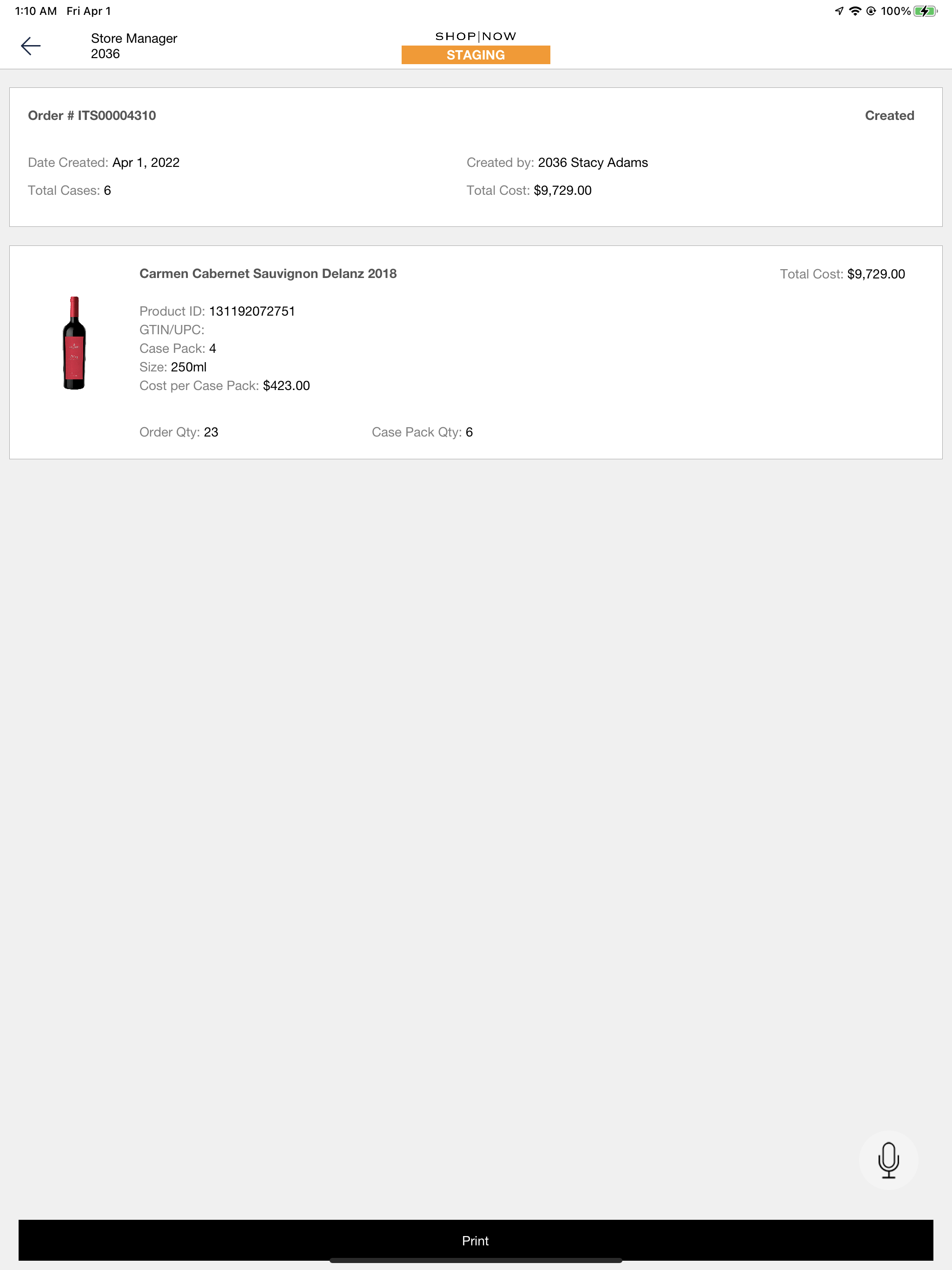
An order with Created status has the Details button and clone button. Here, the purchase order details screen is displayed where you can view the product list and still have an option to print.
On clicking the Clone button in the history screen, you will be navigated to Create Purchase Order screen in the Manual section with the same order details as the product list. Here, you can still create a purchase order.